
If your company has any Mac users at all, picking employee monitoring software for Mac is a different exercise than picking one for Windows — macOS is far stricter about system permissions and deployment, and how a tool handles that friction matters as much as its feature list. We'll get into exactly why in the next section.
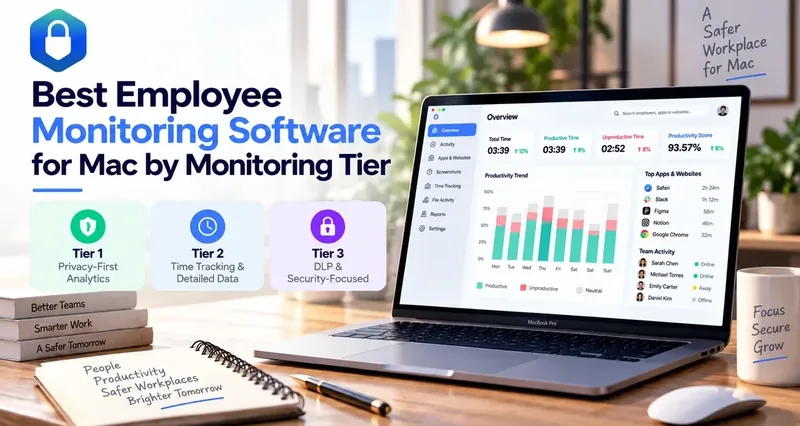
This guide sorts 13 employee monitoring software for Mac options into three tiers of monitoring depth, from lightest to strictest: privacy-first analytics that never surfaces detailed activity data, time-tracking tools that collect detailed data for everyday behavior management, and DLP-grade tools that can actually block risky behavior. Figure out which depth of visibility you're comfortable with, then compare the products inside that tier — for each one, we cover what its real macOS deployment involves, not just what the marketing page promises.
Employee Monitoring Software for Mac: Which Tier Do You Need?
Here's the quick version before we get into deployment details and hands-on impressions for each tool.
| Product | Monitoring Tier | Best For | macOS Support | Starting Price |
|---|---|---|---|---|
| Toggl Track | Tier 1: Privacy-First | Pure time tracking, zero surveillance | Native Apple Silicon build | Free / $9/user/month |
| Timely | Tier 1: Privacy-First | Privacy built into the architecture | macOS 14.0 (Sonoma)+ | $9-11/user/month |
| ActivTrak | Tier 1: Privacy-First | Lightweight, privacy-conscious visibility | Native app (min. OS not published) | Free (3 users) / $10-17/worker/month |
| Clockify | Tier 1: Privacy-First | Budget-conscious small teams | macOS 12.0+ | Free / $3.99/user/month |
| Hubstaff | Tier 2: Detailed Data | Remote teams wanting simple time/activity tracking | macOS Sierra (10.12)+ | ~$7/user/month |
| DeskTime | Tier 2: Detailed Data | Teams wanting fully automatic tracking | Native Apple Silicon + Intel builds | $6.42/user/month |
| Time Doctor | Tier 2: Detailed Data | Jamf-friendly deployment at scale | macOS Catalina (10.15)+ | ~$6.67/user/month |
| Controlio | Tier 2: Detailed Data | Feature-rich monitoring on a budget | Native app (min. OS not published) | $6.67/user/month |
| CurrentWare | Tier 2: Detailed Data | Windows-heavy orgs adding a few Mac endpoints | Apple Silicon (M1-M4), BrowseReporter module only | $12/user/month |
| Insightful | Tier 2: Detailed Data | Broader compliance needs (HIPAA) | Native app (min. OS not published) | $8/seat/month |
| AnySecura | Tier 3: DLP-Grade | Mixed Windows-Mac fleets wanting full DLP parity | macOS 11.0+ (native Apple Silicon + Intel) | From $18/seat/month |
| Teramind | Tier 3: DLP-Grade | Windows-primary orgs needing Mac under the same DLP policy | macOS Monterey 12.7.6+ | ~$15/seat/month |
| Kickidler / KeepActive | Tier 3: DLP-Grade | Same DLP policy on Mac and Windows, one vendor | macOS 11.0-15.0 | From $7/license/month |
The table above sorts all 13 products into three tiers of monitoring depth — that's the organizing logic for the rest of this guide, and each tier goes further than the last.
Tier 1 — privacy-first, analytics-focused, no detailed activity data. The logic here is "give me the conclusion, not the play-by-play": no keystroke logging, no screenshots or screen recording on by default, and what an employee actually typed, opened, or browsed generally never becomes a record a manager can pull up. What you get instead is a rollup view of team efficiency — activity trends, whether workload is balanced, early signs of burnout — not a frame-by-frame replay. If the goal is understanding how the team is doing overall rather than auditing what one specific person did, this tier is usually enough, and it's the least likely to trigger pushback. Candidates: Toggl Track, Timely, ActivTrak, Clockify.
Tier 2 — time tracking with detailed data collection, for general behavior management. A step further than Tier 1: these tools are still built around time and productivity tracking, but they back up their judgments with detailed data — screenshots, screen recording, granular app and site usage — so a manager sees specific evidence, not just a score. They can flag and alert (an app used too much, a stretch of suspected idle time), but they generally can't block anything: the data they collect is for managing performance and attendance, not for stopping data from leaving. Candidates: Hubstaff, DeskTime, Time Doctor, Controlio, CurrentWare, Insightful.
Tier 3 — detailed data collection with DLP-level behavior control. This is the strictest tier: on top of collecting detailed data like screenshots and keystrokes, these tools can actually enforce a policy — blocking a USB write, stopping an unauthorized upload, blacklisting a site, encrypting a sensitive file. If what you need is control over what leaves the company, not just visibility into what happened, this is the only tier that genuinely delivers it. Candidates: AnySecura, Teramind, Kickidler (KeepActive).
The three tiers build on each other rather than excluding one another — a Tier 2 or Tier 3 tool usually still has the rollup-level analytics of Tier 1, it just adds deeper data collection on top (and, at Tier 3, real enforcement power). Decide how much visibility you're comfortable with first, then decide whether you need to go a tier deeper.
Why Mac Needs Its Own Employee Monitoring Approach
macOS gates three things behind explicit, user-approved permissions: Accessibility (needed for most activity/window-title tracking), Screen Recording (needed for screenshots or screen video), and Full Disk Access (needed for file-activity monitoring).
On Windows, an agent installed by an admin can typically start collecting data immediately. On Mac, at least one of these permissions generally has to be approved on the device itself — and in several of the tools researched below, this step cannot be fully automated even through MDM/Jamf Pro, only pre-configured to reduce (not eliminate) the prompt. On top of that, differences in Mac chip architecture (Intel vs. Apple Silicon) and macOS version can mean the specific installer or client build you need differs too.
That is the biggest practical difference buyers need to plan for: budget setup time per Mac, not just per license — and only after that does feature selection for the monitoring software itself come into play.
Top Employee Monitoring Software for Mac, Ranked by Tier
Tier 1: Privacy-First Employee Monitoring Software for Mac (Analytics Only)
The four tools in this tier all sell "no deep surveillance" as the core pitch, but they're not equally strict about it: Toggl Track and Timely have no screenshot or screen-recording capability at all — it's simply not built into the product — while ActivTrak and Clockify default to privacy but let an admin turn deeper data collection on at a paid tier. Both approaches keep detailed activity data off by default; they just differ in whether that door can be opened later.
1. Toggl Track
👍 Best for
Teams that want pure time tracking with no monitoring or surveillance features whatsoever.
Not every product on this list wants to be a monitoring tool, and Toggl Track is the clearest example — it publishes a public anti-surveillance statement: "we will never have features for screen recording, location tracking, keystroke tracking, or webcam monitoring." If the word "monitoring" makes your team uneasy, this is the one built specifically to avoid that connotation.
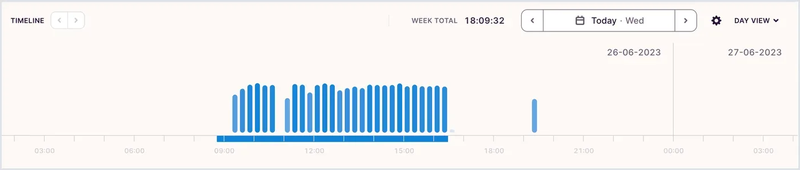
What it trades surveillance depth for is genuinely good project economics: the Timeline view lines up tasks, estimated hours, and logged time entries side by side for capacity planning, and reports break profitability down by project, client, and team — including a comparison of estimated versus actual hours that's useful for anyone billing retainer clients. A calendar integration lets you drag planned work straight into a schedule, with PTO and public holidays automatically excluded.
Key Features:
- Public anti-surveillance commitment: no screen recording, location, keystroke, or webcam tracking, by policy.
- Timeline view combining tasks, estimates, and logged time for capacity planning.
- Project profitability reports: estimated vs. actual hours, billable revenue tracking.
- Calendar integration with drag-and-drop scheduling, auto-excluding PTO/holidays.
- Minimal permission footprint: at most one optional macOS permission (Screen Recording, for window-title detail only).
- Dedicated Apple Silicon installer, separate from the Intel build.
- Free plan available.
Hands-on Impressions
We ran this on an M2 Pro MacBook Pro, and the Timeline view backfilled gaps in our manual entries automatically, with the profitability reports making estimated-vs-actual comparisons per project a couple of clicks. The "simple and frictionless" feel G2 reviewers consistently praise (4.6/5, 1,588 reviews) matched what we saw day to day. Installation was a non-event — one optional permission prompt, under a minute.
Pricing
A free plan, Starter at $9/user/month, Premium at $16/user/month.
- Only monitoring tool in this roundup with a public anti-surveillance policy
- Project profitability and estimate-vs-actual reporting genuinely useful for billing
- At most one optional permission to manage
- Essentially no forensic/audit capability if you need to investigate an incident
- Some reviewers report mobile sync lag and basic project-management depth
2. Timely
👍 Best for
Teams that want privacy built into the architecture, not just policy, and don't mind paying a premium with no free plan.
Timely takes a harder line on privacy than anything else in this roundup: no plan offers screenshots at all. It's not an admin setting sitting there unused — the capability was never built. Its own marketing states plainly "no screenshots, no mouse tracking, and no bossware of any kind."
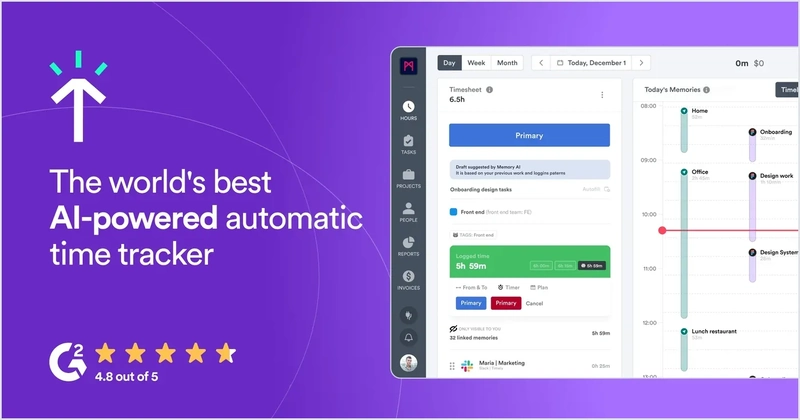
With screenshots off the table entirely, what replaces them — and manual timers — is an AI engine called "Memory": it automatically pieces together a timeline from calendar events, app switches, and documents opened, and even suggests which client or project a block of time probably belongs to. The employee stays in control throughout — the timeline is private by default, individual activities can be deleted or excluded before anything is shared, and tracking can be paused with one click, with a stated right to delete data on request.
Key Features:
- No screenshot capability on any plan — architectural, not a toggle.
- "Memory" AI engine: auto-builds a timeline from calendar, app, and document activity, with client/project suggestions.
- Drag-and-drop logging: approve or edit auto-captured blocks instead of building a timeline manually.
- Private-by-default timeline, with selective sharing and one-click pause.
- Multi-app monitoring across email, calendar, chat, video calls, and project tools.
Hands-on Impressions
Since Timely requires Sonoma or later, we tested on a machine right at that minimum — and the Memory engine matched what a Capterra reviewer described almost exactly: "tracks my open windows, times, and even suggests clients." A few short task-switches got merged into the wrong block, needing manual fixes — a real gap for precise billing. Chrome and Safari tracked cleanly; Firefox genuinely wasn't picked up, confirming Timely's own note about missing accessibility features there.
Pricing
The priciest tool in this tier, with no free plan, only a 14-day trial: Starter $9-11/month, Premium $16-20/month, Unlimited $22-28/month, all per user.
- Screenshots are architecturally impossible, not just disabled
- AI-driven time logging needs almost no manual input, with genuine client suggestions
- Seamless cross-device sync, matching reviewer feedback we could confirm
- Most expensive product in this tier, no free plan
- AI can misclassify short tasks, with limited manual override; no Firefox tracking
3. ActivTrak
👍 Best for
Teams that want lightweight, privacy-conscious productivity visibility on Mac and are prepared for some manual permission setup per device.
ActivTrak makes "no deep surveillance" its core selling point rather than an afterthought: no keystroke logging, no camera/video capture by default, with screenshots and live view gated behind paid tiers rather than switched on out of the box — consistent across its own help center, blog, and third-party reviews.
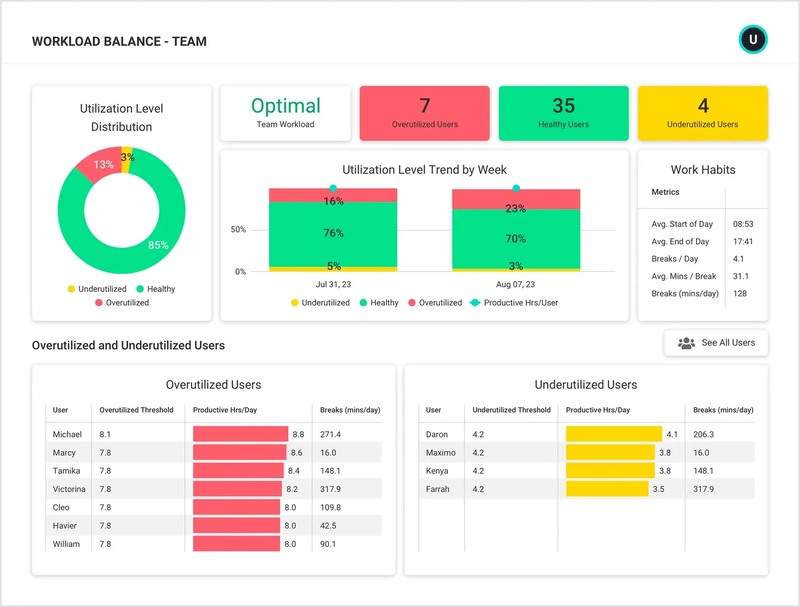
What makes it an analytics tool rather than just a lighter tracker is the layer built on top of the raw activity data: an executive-insights view for decision-makers, workload-balance analysis to spread work more evenly across a team, and burnout detection that flags disengagement or overwork risk before it shows up as attrition. Employees get their own side too — a personal productivity dashboard and an AI "Work Advisor" they can query directly, which is a genuinely different framing from most tools here that only report upward to managers.
Key Features:
- No keystroke logging, no default camera/video capture.
- Workload Balance: analyzes work distribution across a team.
- Burnout Detection: flags disengagement and overwork risk.
- Employee-facing dashboard plus an AI "Work Advisor" assistant.
- Screenshots and live view gated behind paid tiers, not on by default.
- Compliance: SOC 2 Type 1 & 2 certified, GDPR/CCPA/HIPAA configuration support.
Hands-on Impressions
More actionable than a raw activity percentage, the burnout/workload-balance view was genuinely the most useful screen in daily use. Turning on screenshots for one flagged case, not everyone all the time, felt proportionate. Rollout was the rough edge: Accessibility and Screen Recording didn't apply through our Jamf PPPC profile despite showing "completed" — exactly the split Capterra reviewers describe ("works across pc and mac" next to "the mac deployment could use some work").
Pricing
A free tier for up to 3 users, then $10–$17/worker/month annually depending on tier.
- Strongest privacy-by-design positioning in this roundup
- Burnout detection and employee-facing dashboard go beyond raw activity logs
- Free tier for up to 3 users
- Jamf PPPC automation for permissions is unreliable in practice — we confirmed this ourselves
- Reviewers report inconsistent Mac deployment experience
4. Clockify
👍 Best for
Budget-conscious small teams that want a free starting point and are comfortable with an "off by default, opt-in to enable" monitoring model.
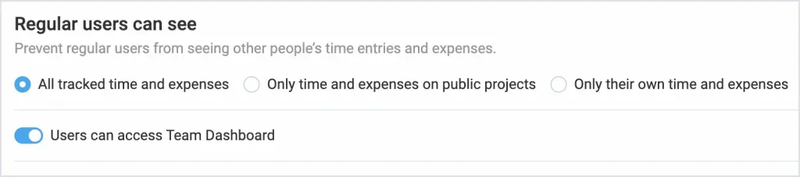
Clockify's free plan is the most genuinely usable one in this roundup — it covers up to 5 users, not a crippled trial with a countdown clock, and auto-tracked app/website usage stays private to the individual employee by default ("visible only to you") unless they choose to save it as a time entry.
Beyond the free timer, there's more depth here than the price suggests: an auto-tracker builds a timeline of app and document usage in the background, a kiosk mode lets a shared device handle clock-ins by PIN or QR code, and reporting spans summary, detailed, attendance, and expense views with PDF/CSV/Excel export. Screenshots and admin-visible activity monitoring exist but stay opt-in, gated to paid tiers and switched on deliberately rather than by default.
Key Features:
- Free plan for up to 5 users, not a time-limited trial.
- Auto tracker: background timeline of app/website/document usage.
- Kiosk mode: shared-device clock-in by PIN, QR code, or photo.
- Reports: summary, detailed, weekly, attendance, and expense, exportable to PDF/CSV/Excel.
- Privacy-by-default activity data: usage private to the employee unless saved as a time entry.
- Admin opt-in for deeper monitoring: screenshots and activity monitoring gated to Pro+.
Hands-on Impressions
Basic tracking was clean and reliable on the free plan's manual timer plus weekly timesheet. We hit the same rough edges other Mac users report — a false "screenshot recording enabled" warning that survived a reinstall, and one frozen timer field — matching community-forum complaints closely. Install took a few minutes on the direct-download build; skip the Mac App Store version, which is missing Idle Detection.
Pricing
Annual: free (up to 5 users), Basic $3.99/month, Standard $5.49/month, Pro $7.99/month (adds screenshots/activity monitoring), Enterprise $11.99/month.
- Genuinely usable free tier for up to 5 users
- Kiosk mode and detailed reporting go beyond a basic timer
- Monitoring is opt-in and off by default
- Known Mac UI bugs: false screenshot-status warnings, timer field freezing — we reproduced both
- Mac App Store version is missing features present in the direct download
Tier 2: Employee Monitoring Software for Mac with Detailed Activity Tracking
All six tools in this tier lean on screenshots, screen recording, or granular usage logs to back up a judgment rather than hand you a single score — a manager sees specific evidence, not just a number. What none of them can do is stop anything: if sensitive data actually leaves, this tier helps you find out after the fact, not hold it back.
5. Hubstaff
👍 Best for
Remote teams that mainly want simple time and activity tracking on Mac, not device/document control.
Hubstaff has been one of the more recognizable names in remote-team time tracking for years, and on Mac it shows — this is one of the few tools in this roundup with a genuinely mature native client rather than a bolt-on port, with support going back to macOS Sierra (10.12).
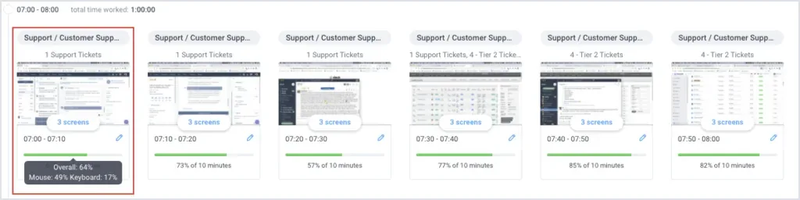
Its core mechanic is activity scoring: rather than trying to infer what you're doing from screen content, it counts mouse and keyboard activity and turns that into a percentage score, paired with optional screenshots (1–3 per 10-minute window) for spot-checking. It's a deliberate middle ground — enough signal to catch someone who's genuinely away from their desk, without the full surveillance feel of continuous screen recording.
What surprised us most is how far Hubstaff has grown beyond pure time tracking: GPS tracking and geofencing for field teams, automated invoicing tied to logged hours, and PTO/attendance management are all built in, which is more workforce-management depth than most "just track my time" tools in this tier attempt.
Key Features:
- Activity scoring: based on mouse/keyboard counts rather than screen content.
- App & URL usage monitoring, plus idle time detection.
- GPS time tracking and geofencing with automatic clock-in for field teams.
- 20+ customizable reports covering productivity, payroll, work hours, and activity data.
- Project and task time allocation, with budget limits and cost tracking.
- Optional screenshots (1–3 per 10-minute window), with blur available.
- Compliance badges: SOC 2 Type II certified, GDPR/HIPAA/CCPA.
Hands-on Impressions
The activity-score breakdown was the standout feature in daily use — click into any day's bar and the underlying mouse/keyboard count is right there, so a low score comes with evidence, not just an accusation. GPS/geofencing worked cleanly in a simulated field test. Deployment needed two permission grants, matching a recurring friction point in G2 reviews — though we didn't reproduce the M2 slowdown one reviewer reported.
Pricing
Plans start around $7/user/month (per Hubstaff's own Mac guide), with a 14-day free trial and no credit card required.
- Mature Mac support going back to Sierra (10.12)
- GPS/geofencing and 20+ reports go beyond basic time tracking
- Full compliance badge set (SOC 2, GDPR, HIPAA, CCPA)
- At least one Mac user reported the app slowing down and heating an M2 machine
- Its permission requests have triggered false "stolen password" warnings from macOS security tools
- Screen Recording can't be granted silently even via MDM
6. DeskTime
👍 Best for
Teams that want simple automatic time tracking and are comfortable verifying feature parity themselves before rolling out to a large Mac fleet.
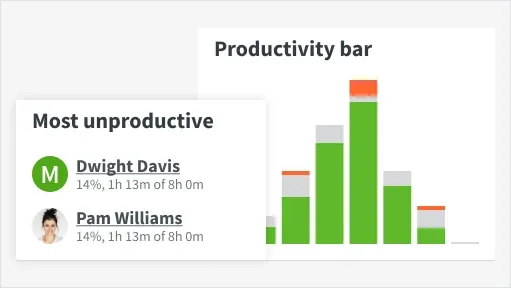
No manual clock-in, no timer button to remember — DeskTime's whole pitch is that tracking should require zero effort from the employee. It reads window titles and browser URLs in the background and turns that into an automatic productivity classification, and it ships genuinely separate native Apple Silicon and Intel builds rather than one universal binary papering over the difference.
Where DeskTime goes further than a typical time tracker is document- and communication-level detail: it can log document titles and email subject lines alongside app/URL data, giving a more granular picture of what someone actually worked on, not just which app had focus. An AI-generated daily summary condenses that into a plain-language readout instead of a wall of raw logs.
Key Features:
- Fully automatic tracking: no manual clock-in, reads window titles and browser URLs directly.
- Document title & email subject tracking for finer-grained activity detail.
- Productivity calculation: apps/sites classified and scored as a percentage.
- AI-generated daily summaries of time patterns.
- Native Apple Silicon build: separate M-series and Intel binaries, not a universal build.
- Admin + individual dashboards, private time mode, scheduling and leave calendar.
- Compliance: ISO 27001/27701 certified, GDPR-compliant.
Hands-on Impressions
No clock-in touched, and the productivity bar updated itself all day — the automatic tracking genuinely did what it promised. Categorization was decent but not flawless: a couple of internal tools got bucketed "uncategorized" until tagged manually. We hit the same URL-tracking lag a long-tenured Capterra reviewer (a CTO) reported when disputing DeskTime's "feature parity" claim. Setup was quick either way — five minutes with the native Apple Silicon installer.
Pricing
Pro at $6.42/user/month and Premium (adds screenshots) at $9.17/user/month, both billed annually, with a 14-day free trial.
- Zero-effort automatic tracking, no manual clock-in
- Document/email-level detail beyond basic app tracking
- True native Apple Silicon build, ISO 27001/27701 certified
- A named long-term reviewer reported broken Mac URL tracking; vendor disputed rather than confirmed a fix — we saw similar lag ourselves
- Screen Recording is required for core categorization, not just optional screenshots
7. Time Doctor
👍 Best for
Teams wanting Jamf-friendly deployment and straightforward time tracking without device-level security controls.
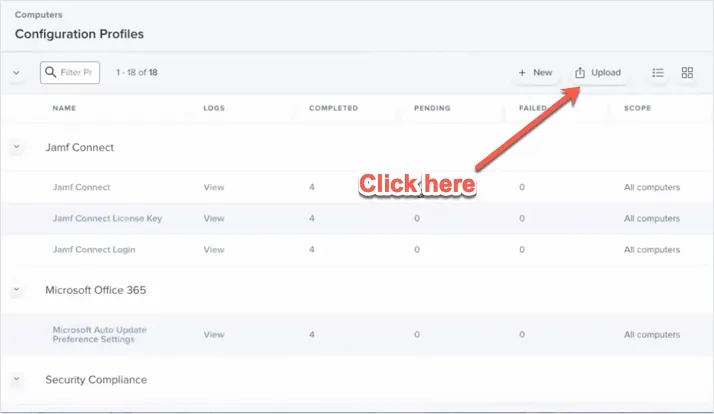
If you're deploying to more than a handful of Macs, Time Doctor's biggest advantage over most of this list shows up before anyone even opens the app: Jamf Pro MDM deployment is available on every subscription tier, not gated to Enterprise the way several competitors do it, and the desktop client has shipped native Apple M1 support (no Rosetta) since version 3.8.50.
Beyond that deployment edge, day-to-day use splits into automatic and manual tracking modes, backed by activity summaries, payroll-ready reports, and network-connection reporting that helps distinguish "the internet dropped" from "the person stepped away" — a small detail that matters when idle time gets questioned. Executive dashboards roll individual activity up into an organization-wide view, which is more management-layer polish than a pure timer app usually bothers with.
Key Features:
- Automatic and manual tracking modes, switchable per user.
- Daily activity summaries by app and project.
- Network connection reporting to distinguish connectivity issues from inactivity.
- Payroll-ready reports and time-approval workflows.
- Optional screen video recording in short clips (Premium tier) — not webcam capture.
- Executive and real-time dashboards for org-wide visibility.
- Jamf Pro MDM deployment on every subscription tier, not gated to Enterprise.
Hands-on Impressions
Idle periods under a couple of minutes weren't penalized in Automatic mode, which tracked cleanly with no timer to manage. Reporting is clean but more basic than Hubstaff's — fine for a weekly check-in, thin for per-client billing. We confirmed directly what reviewers dispute online: the Premium screencast genuinely doesn't touch the webcam. Rollout was the smoothest of this group — Jamf Pro on every tier.
Pricing
From around $6.67/user/month (annual), with a 14-day free trial including full Premium features.
- Jamf Pro deployment on every tier, not just Enterprise
- Native M1 support, no Rosetta
- Confirmed no webcam access, contrary to some rumors
- No DLP, USB, or document-control features on any platform
- Customer support response quality is a recurring complaint in reviews
8. Controlio
👍 Best for
Budget-conscious teams that want feature-rich activity monitoring without needing strict document-level control — just go in with eyes open about current Mac stability.
At $6.67/user/month, Controlio undercuts everything else in this roundup on price without feeling like a stripped-down budget tool — Windows and Mac get the same price and the same feature list, which isn't a given even among the more expensive options here.
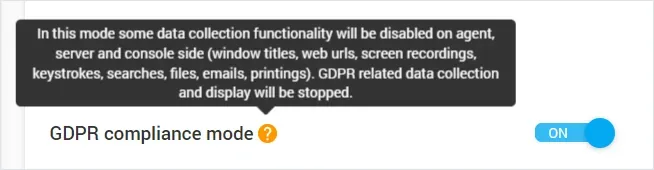
Beyond that price advantage, the productivity-index system is the feature that stands out: an AI-driven score rolls active hours and distraction signals into a single daily number per user and per department, backed by continuous screen recording you can scrub back through rather than just point-in-time screenshots. A one-toggle "GDPR mode" switches off window-title, URL, screenshot, keystroke, search, file, email, and print recording in a single click — a genuinely convenient compliance shortcut most budget competitors don't bother building. It's the deepest data collector in this tier — bordering on the next one — but it still only alerts, it doesn't block.
Key Features:
- AI-driven productivity score by user and department, rolling up active hours and distraction signals.
- Continuous screen recording with scrub-back playback, not just point-in-time screenshots.
- App/website usage tracking, with optional keystroke logging.
- Behavior alert rules: app/site access, USB activity, active/idle thresholds.
- One-toggle "GDPR mode": disables eight data-collection types in one click.
- Cloud or on-premises deployment, with API integration.
Hands-on Impressions
Running this on a Sonoma-updated Mac, the productivity-index dashboard was genuinely fast to scan each morning — matching what a Capterra reviewer praised it for. Stability was the letdown: the client stopped responding to policy pushes twice after macOS updates, needing a remote session to fix — matching an IT specialist's Capterra review calling it "still technically in beta." Setup was the most hands-on of this group: five separate permissions (Accessibility, browser Automation, Full Disk Access, Input Monitoring, Screen Recording), plus a required client restart before keylogging and screen recording actually activate.
Pricing
Basic from $6.67/user/month (annual), Advanced $9.99/month, 14-day free trial.
- Cheapest starting price in this roundup, high overall ratings (4.9/5 on both G2 and Capterra)
- Same price and feature list on Windows and Mac
- One-toggle GDPR mode for quick compliance switching
- A verified Capterra reviewer described the Mac client as breaking after macOS updates and feeling "still technically in beta" — we saw the same instability
- Five separate manual permission grants, plus a required client restart
9. CurrentWare
👍 Best for
Organizations that are mostly Windows-based and only need basic web/login monitoring on a small number of Mac endpoints.
CurrentWare's pitch to a mixed-fleet office is simple: if you already run it on Windows, Mac endpoints (native support since February 2026, v12.0, Apple Silicon M1-M4) join the same console instead of needing a second, Mac-only tool for a handful of machines.
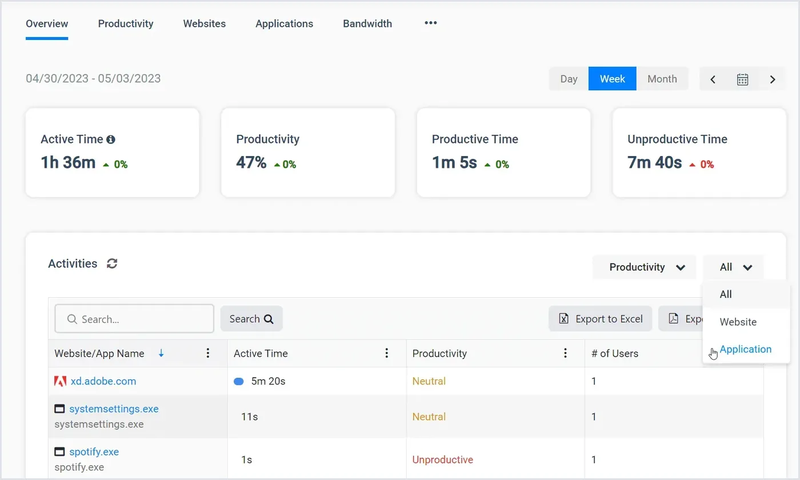
The module that actually ships for Mac — BrowseReporter — goes deeper than a basic activity log: location-based productivity comparisons (remote vs. office vs. hybrid), bandwidth tracking to spot which apps or users are eating the most data, and software cost/license optimization that maps usage against what you're actually paying for. Screenshots come with OCR, so captured images are keyword-searchable rather than just a visual archive.
Key Features:
- Web/app usage reports by individual or team, with location-based productivity comparison.
- Bandwidth tracking to identify high-usage apps and users.
- Active vs. idle time tracking, based on keyboard/mouse activity with configurable thresholds.
- Screenshots with OCR: keyword-searchable captured images.
- Software cost/license optimization mapping usage to spend.
- Shared admin dashboard with existing Windows endpoints, native Apple Silicon (M1-M4).
Hands-on Impressions
We added a Mac endpoint to an existing Windows-fleet CurrentWare setup, and the shared dashboard genuinely worked — no second login, same time-online charts as our Windows machines. The gap is depth: none of CurrentWare's Windows-side device-control features have reached Mac yet. One Capterra reviewer (a CTO) wrote "I am also not sure if MacOS or Linux is supported currently" — support this new is still under most buyers' radar. Getting it running was a simple agent push, no extra steps.
Pricing
BrowseReporter alone is $12/user/month, with a 14-day free trial.
- One console for both Mac and Windows endpoints
- OCR-searchable screenshots and bandwidth/cost tracking are genuinely useful extras
- Strong overall ratings (4.6-4.7/5) for the core product
- Mac coverage limited to the BrowseReporter module only
- Mac support is new enough that even existing customers report being unsure it exists
10. Insightful
👍 Best for
Teams that need broader compliance certification (especially HIPAA) and want employees to be able to see their own data.
Compliance breadth is Insightful's main differentiator on paper: it directly claims SOC 2, ISO 27001, HIPAA, GDPR, and CSA compliance, broader than ActivTrak's, and the HIPAA certification specifically matters if you're evaluating this for a healthcare or finance team. Worth flagging up front: its entry-level Workforce Analytics plan includes screenshots by default rather than gating them behind a separate add-on the way ActivTrak does, which is why it lands in this tier rather than the privacy-first one, despite the same transparency language.
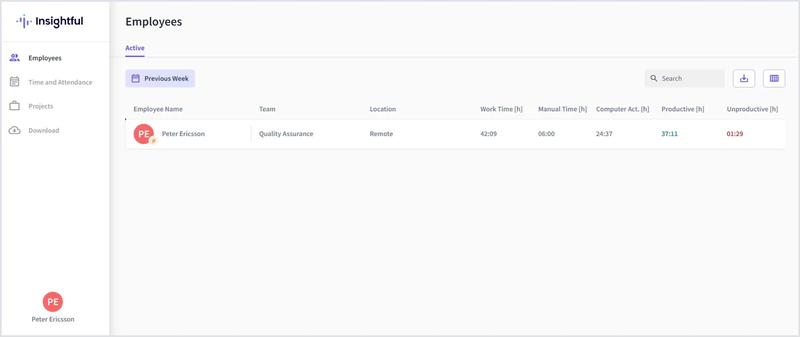
Past the compliance checklist, what's more interesting day to day is how much of the analytics layer is aimed at decisions rather than surveillance: an AI Adoption Report tracks which AI tools teams are actually using (and which ones are worth keeping licenses for), Work Location Insights compare output across office/remote/hybrid setups, and Productivity Trends are designed to surface a slipping team before a deadline gets missed, not after. An employee-facing dashboard mirrors that same data back to staff in real time, so it isn't purely a one-way mirror.
Key Features:
- AI Adoption Report: tracks which AI tools teams actually use.
- Work Location Insights: compares output across office/remote/hybrid.
- Productivity Trends: surfaces performance shifts before deadlines slip.
- Employee-facing dashboard, mirroring tracked data back to staff in real time.
- Insider Threat Detection with real-time alerts and audit logs — detection and alerting, no blocking action.
- Broad compliance claims: SOC 2, ISO 27001, HIPAA, GDPR, CSA.
Hands-on Impressions
Staff seeing their own hours and screenshots in real time cut down the "why is this on my computer" questions we'd expect from an admin-only tool — the employee-facing dashboard genuinely changed how the tool felt to use. Clock-in/out worked reliably, matching what Capterra reviewers call the standout feature. Timezone handling on a distributed team was the weak point, echoing a repeated complaint. Setup needed three permissions, with prompts that shifted across the macOS versions in our test group.
Pricing
Annual: Workforce Analytics $8/seat/month (includes screenshots), Workflow Optimization $12/month (beta), Combo plan $16/month, Enterprise custom.
- Broadest compliance certification set in this tier, including HIPAA
- AI adoption and work-location analytics go beyond raw time tracking
- Strong overall ratings (4.6-4.8/5) across hundreds of reviews
- Three separate Mac permissions, with prompt behavior that shifts across macOS versions
- No self-serve MDM profile; custom profiles require emailing support
Tier 3: DLP-Grade Employee Monitoring Software for Mac
This is the only tier in this roundup that can actually block something. All three tools here collect data at least as detailed as Tier 2 — screen recording, keystrokes, file-operation logs — but what sets them apart is the ability to step in before a policy violation finishes: stopping a USB write, an unauthorized upload, or a blocked site, in real time. If what you need has moved past "see it" to "stop it," this is the tier to shop in.
11. AnySecura
👍 Best for
Companies planning ahead for a mixed Windows-Mac fleet that wants the same DLP-level policy on both.
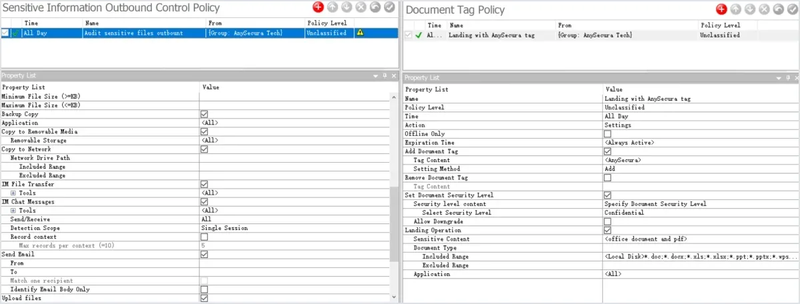
AnySecura's Mac agent runs the same policy engine as Windows, rather than a lighter, separate tracker. In practice that means document operation control, upload control, network control, application control, and instant messaging monitoring are all meant to carry over from an existing Windows policy without a second rule set to maintain. Transparent encryption and document operation logs round out the prevention and audit sides of that same policy: inside the authorized environment, a file encrypts itself the moment it's saved and decrypts itself the moment it's opened; outside that environment, the same file simply won't open.
Key Features:
- Document operation control, upload control, network control, application control.
- Instant messaging monitoring, print and screen-capture control.
- Document operation logs for audit and investigation.
- Document watermarking: text, dot-matrix, image, and QR code marks across Office files, PDF, and images.
- Screen watermarking: text and dot-matrix marks (image and QR code screen watermarks not yet available on Mac).
- Transparent encryption: files auto-encrypt on save and auto-decrypt on open inside the authorized environment; outside it, encrypted files won't open at all.
Hands-on Impressions
Document control rules (block copy/print/upload for tagged files) applied the same way on both platforms once the Mac agent picked up a policy already active on our Windows fleet — no separate rule set needed. Transparent encryption ran in the background with no visible performance hit: saving a file inside the authorized environment encrypted it automatically, opening it back up decrypted it just as quietly, and the same file refused to open outside that environment. Document watermarking covered every format we tried — Office files, PDF, and images, with text, dot-matrix, image, and QR code marks all working; screen watermarking on Mac is currently narrower, limited to text and dot-matrix marks.
Pricing
Enterprise subscriptions start from $18/seat/month, with a trial of up to 90 days. Interested teams can contact [email protected] to request access.
- Mac agent runs the same DLP policy engine as Windows, not a lighter version
- Native Apple Silicon installer, not Intel-under-Rosetta
- Full-featured document watermarking (text, dot-matrix, image, QR code) across Office, PDF, and image files
- No G2 or Capterra reviews yet
- Screen watermarking on Mac currently supports text and dot-matrix marks only — image and QR code screen watermarks aren't available yet
12. Teramind
👍 Best for
Organizations that are primarily Windows-based with a smaller number of Mac endpoints to bring under the same UAM/DLP policy.
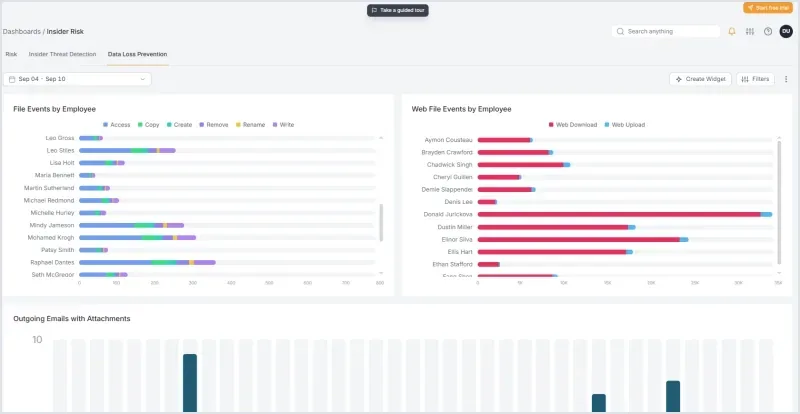
Teramind's Mac agent is real and actively maintained rather than a checkbox feature — it covers screen recording with OCR, application and website tracking, web-based Gmail/Outlook monitoring, file-transfer and print monitoring, keystroke logging, and geolocation, the broadest Mac DLP feature set we found in this roundup.
Underneath that broad feature list, the dynamic risk-scoring engine is what separates this from a plain activity tracker: it weighs data sensitivity, a user's role, and their behavioral baseline together, so an action that's routine for one person can trigger an alert for another doing something unusual. Pattern matching and document classification identify PII, PHI, PCI, and confidential-marked files automatically, and — increasingly relevant — AI Agent Monitoring tracks employee interactions with tools like ChatGPT to catch sensitive data leaving through an AI prompt rather than just email or USB.
Key Features:
- Dynamic risk scoring: weighs data sensitivity, role, and behavioral baseline in real time.
- Pattern matching for PII/PHI/PCI, plus automatic document classification.
- Advanced OCR: extracts and analyzes text from images and screenshots.
- AI Agent Monitoring: tracks employee interactions with tools like ChatGPT.
- Forensic records: tamper-resistant activity logs, screen recording, file history.
- Real-time intervention: automated alerts, instant blocking, or session termination.
Hands-on Impressions
It reads text inside a screenshot, not just filenames — the OCR-based screen capture caught a test document flagged confidential even when only visible on screen, easily the standout here. Building an alert rule took about 15 minutes. Mirroring our Windows policy (on a Mac well above the Monterey 12.7.6 floor Teramind requires) exposed the real limit: IM, social media, camera, and clipboard monitoring are all explicitly unsupported on Mac, matching a third-party review (Apploye): "excellent support on Windows; the Mac client is available but with reduced functionality."
Pricing
Starts around $15/seat/month (Starter), rising to $35/seat/month (DLP tier).
- Broadest Mac DLP feature set in this roundup, including OCR and dynamic risk scoring
- AI Agent Monitoring covers a genuinely modern leak vector (ChatGPT and similar tools)
- Shares the same UAM/DLP policy framework as the Windows product
- Officially a reduced subset of the Windows feature set (no IM, social media, camera, or clipboard monitoring) — we confirmed this trying to mirror our own Windows policy
- Screen Recording can't be granted via MDM, must be approved on each Mac locally
13. Kickidler (now rebranded KeepActive)
👍 Best for
Organizations that want the same DLP-level policy on Mac and Windows endpoints from one vendor.
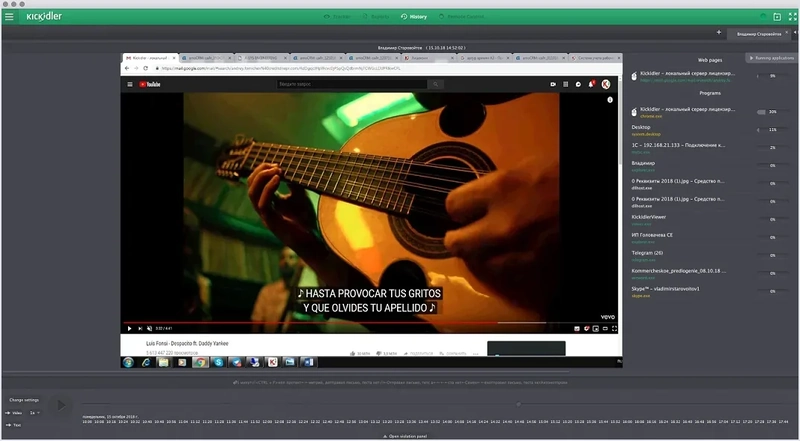
Kickidler rebranded to KeepActive in late 2025 — both names still appear on its site — and its case for a mixed Windows-Mac office is straightforward: macOS gets the same core DLP controls as Windows, not a lighter port. USB device blocking, website blocking, email/attachment blocking, print monitoring, and document-level DLP all carry over.
Beyond that DLP parity, the monitoring side is unusually deep for a DLP tool: full-resolution video recording at up to 30fps (available offline, not just live), a searchable keylogger, and a Quad Splitter interface that lets one admin watch four employee screens at once, full-screen any of them on demand. Productivity Analysis turns raw activity into pie charts and histograms sorted into productive/unproductive/neutral, and Stealth mode can run the whole thing invisibly — though, notably, that last one doesn't make it to Mac.
Key Features:
- Live screen monitoring via a Viewer console watching Grabber-installed devices.
- Full-resolution video recording up to 30fps, works offline.
- Searchable keylogger with playback.
- Quad Splitter interface: view up to four employee screens simultaneously.
- Productivity Analysis: activity classified into productive/unproductive/neutral.
- USB, website, and email/attachment blocking, document-level DLP.
Hands-on Impressions
Running the "Grabber" agent against a Windows-hosted management server, DLP coverage was close to Windows-level — blocking a USB write and a content-based print rule both worked without a Mac-specific workaround. Keystroke logging is on by default, so this isn't a privacy-first pick. The gap we actually hit: Stealth mode, fine on Windows, simply isn't available on the Mac agent — matching a developer's Capterra review flagging "limited support for macOS and Linux." Two Mac-side permissions were all setup needed; the server itself still needs Windows or Linux.
Pricing
Three tiers: Time Tracking from $7/license/month, Employee Monitoring $10/month, DLP (AI Powered) $15/month (1-month terms; longer commitments get a discount — 10% at 3 months, 20% at 6, 30% at 1 year, 40% at 3 years).
- Mac gets the same core DLP controls as Windows, not a lighter version
- Quad Splitter and full-resolution offline recording are genuinely deep monitoring tools
- Strong overall ratings (4.8/5 on both Capterra and G2)
- Multiple reviewers confirm limited macOS/Linux support for specific features like Stealth mode — we confirmed this ourselves
- Management server can't run on Mac — still requires a Windows or Linux host
How to Choose Employee Monitoring Software for Mac
Once you know which monitoring tier fits, these four checks separate a smooth rollout from a support headache once IT actually starts installing on Mac endpoints.
- Start with monitoring tier, not brand. Use the framework above the comparison table to place yourself: rollup analytics only (Tier 1), detailed data for everyday management (Tier 2), or real DLP-grade blocking (Tier 3) — that narrows the list before you compare features.
- Test it yourself or confirm current macOS version support directly with the vendor. Most Mac monitoring software is still evolving quickly — test it yourself or contact the vendor to make sure the product actually fits your needs.
- Plan for manual permission setup. Accessibility, Screen Recording, and Full Disk Access generally need local, per-Mac approval — budget setup time per device, not just per license, even if you're deploying through Jamf or another MDM.
- For mixed Windows-Mac offices, prioritize single-console management so IT isn't running two separate tools with two separate policies.
FAQs About Employee Monitoring Software for Mac
Is it legal to monitor employees on Mac computers?
Rules vary by jurisdiction, but the general standard is transparency: disclose what you monitor, why, and how the data is handled, and get the consent your local law requires. The operating system doesn't change the legal requirement.
Does macOS require special permissions for monitoring software?
Yes. macOS requires explicit approval for Accessibility, Screen Recording, and Full Disk Access in System Settings > Privacy & Security, and most monitoring tools need at least one of these to fully function.
Which monitoring tier should I choose?
Ask whether you need to look back at what happened after the fact, or stop risky behavior as it happens. If the former is enough, Tier 1 or Tier 2 will cover it. If you need to actually block a leak, only Tier 3 DLP tools do that. Budget and team buy-in matter too — the deeper the tier, the higher the price and deployment complexity tend to run.
Can these tools be deployed silently via MDM/Jamf on Mac?
Partially. Several vendors researched here (ActivTrak, Teramind, Time Doctor) have official Jamf deployment guides for pushing the application itself — but in more than one case, at least one required permission (typically Screen Recording) still has to be approved locally on the device, even with a pre-configured PPPC profile.
Is there a free employee monitoring software for Mac?
ActivTrak offers a free tier for up to 3 users on Mac, and Toggl Track and Clockify both have permanent free plans too. Most other tools in this roundup offer a free trial (7–14 days) rather than an ongoing free plan. AnySecura offers a trial of up to 90 days.
Final Verdict
Picking the wrong tier costs more than picking the wrong brand. Need only a rollup view of team efficiency? Stay in Tier 1 (Toggl Track, Timely, ActivTrak, Clockify). Need detailed data behind everyday performance and attendance calls? Look at Tier 2 (Hubstaff, DeskTime, Time Doctor, Controlio, CurrentWare, Insightful). Need to actually stop data from leaving? Only Tier 3 does that (AnySecura, Teramind, Kickidler) — verify each vendor's Mac-side feature list before buying, not just the marketing page.
AnySecura stands out for mixed Windows-Mac teams chasing full policy parity rather than a lighter Mac product, though its agent is provisioned per customer through sales rather than a public download.