We often need to share PDF files with friends, colleagues, or others. These files can be a design draft, a research report, or a business contract. To protect our copyright and prevent others from misusing the content, adding a watermark to a PDF document is important, as it gives the file a unique “identity stamp.” A watermarked PDF can also provide a clear declaration when the file is circulated.
Adding watermark to PDF files is very simple. Below are three common methods to add watermark to PDF—from using professional software like Adobe Acrobat and online tools to enterprise-level automatic batch watermarking. The first two methods are ideal for individual users handling single or occasional files. But if your business needs to batch-process sensitive documents automatically, or apply different types of watermarks such as text, images, QR codes, or dot-matrix marks, please go directly to Method 3 for an enterprise-grade solution.

You may also feel interested in: How to Add Watermarks in Word [Personal & Enterprise Guide]
How to Add Watermark to PDF with Adobe Acrobat
Adobe Acrobat is the go-to choice for PDF watermarking, especially if you need detailed control over your watermark or frequently work with large numbers of files. As a dedicated PDF tool, Acrobat gives you full flexibility when you add watermark to PDF, allowing you to adjust every detail precisely.
The process may sound technical, but if you follow the steps below, it’s quite straightforward:
Before you start, here are a few things to know: Adobe Acrobat is not free. It offers a 7-day free trial, after which a subscription is required. Acrobat allows users to add one or more watermarks to specific pages in one or multiple PDFs. For image watermarks, it’s recommended to use transparent PNG files for the best results.
Step 1 Open your file
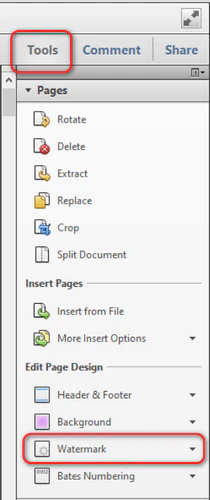
Open your PDF file with Adobe Acrobat. In the right-hand toolbar, navigate to Tools > Edit PDF > Watermark > Add.
Step 2 Customize your watermark
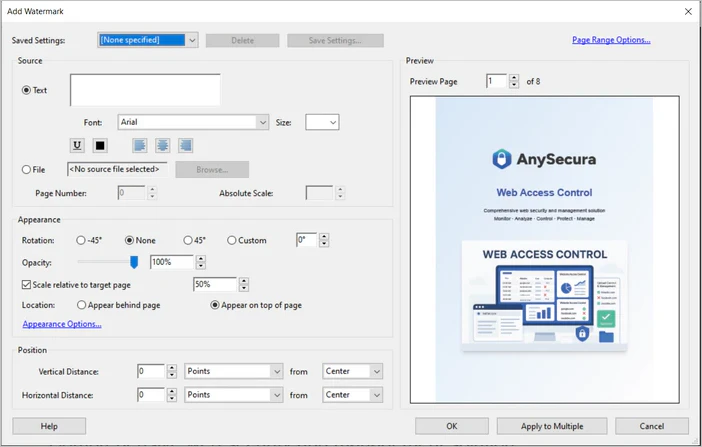
A settings window with multiple options will appear, allowing you to configure your watermark exactly as you want:
- Source: Choose between a text watermark (e.g., “Internal use only”) or upload an image such as your company logo. If you choose a text watermark, you can type the content and adjust the font, size, and color.
- Appearance: Customize the rotation (-45°, none, 45°, or custom). Acrobat provides precise positioning controls. The key setting is opacity—usually 10%–30% so the watermark is visible but doesn’t interfere with reading. You can also scale relative to the page, select whether the watermark appears behind or on top of content, and access advanced options such as showing the watermark when printing or on-screen, and maintaining position and size across different page sizes.
- Position: Adjust vertical and horizontal distance to place the watermark precisely where you want.
- Page range: If you only want the watermark on certain pages, specify the page range here.
Step 3 Preview and apply watermark to PDF file
The preview window on the right shows a live view of the watermark. Once satisfied, click OK, and your watermark will be applied to the PDF. Don’t forget to save the file.
One major advantage of Acrobat is that once you create a watermark template, you can reuse it anytime, making future tasks much faster.
How to Add Watermark to PDF Online
Installing Adobe Acrobat takes longer than usual tools. If you only occasionally need to add watermark to PDF, or don’t want to install Acrobat, online PDF watermark tools are a convenient alternative. They require no installation, work directly in your browser, and are perfect for quick watermarking tasks.
Simply search for "add watermark to PDF," and you will find many online tools such as iLovePDF, Smallpdf, and PDF24. Their processes are generally very similar:
Step 1 Open the website and upload your file
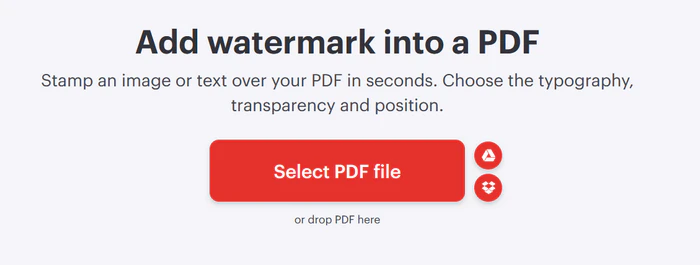
Here we use iLovePDF as an example. Go to the website, and you will see a large "Select PDF File" button. Click it to upload your PDF. The upload may take some time, depending on your network speed and file size.
Step 2 Set your watermark
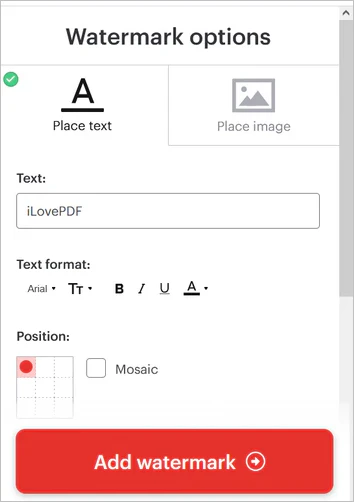
Once uploaded, all pages of your PDF will be displayed on the left side of the page. On the right panel, you will find two watermark options: "Place Text" and "Place Image." While customization may be more limited compared to professional software, most essential features—like adjusting text format, content, position, and transparency—are available.
Transparency options include: No, 75%, 50%, and 25%. You can also rotate the watermark and select which pages should have it applied. Additionally, you can choose whether the watermark appears over or under the PDF content. Adjust the settings to your preference.
Step 3 Add watermark to PDF file and download
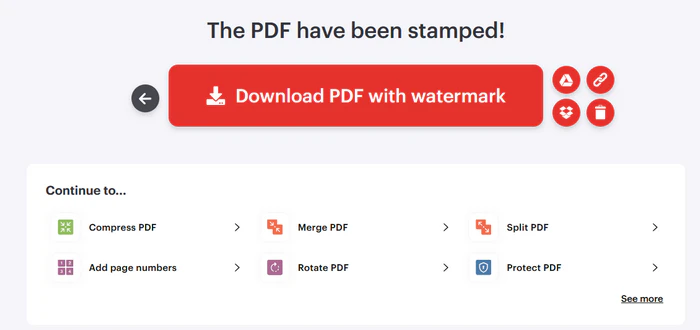
Click "Add watermark" to start processing. iLovePDF will apply the watermark on its server, usually in just a few seconds. Once completed, you will see the notification: "The PDF has been stamped!" You can then download the updated file directly to your computer.
Important reminder: Online PDF watermark tools are convenient, but they require uploading your documents to a third-party server. For sensitive files containing personal or confidential information, it’s safer to avoid online tools to reduce the risk of data leakage. In such cases, we strongly recommend using an enterprise-level solution - AnySeucra.
How to Batch Add Watermarks to Sensitive Files with AnySecura
For enterprise, document security goes far beyond basic watermarking. A research file containing core technology or a customer list with confidential data can cause serious damage if leaked. In these cases, a simple watermark is not enough. Companies need a smarter, traceable, and secure system — and AnySecura is one of the strongest solutions in this field.
AnySecura provides a complete document security system with powerful, intelligent watermark features:
Multiple Watermark Types
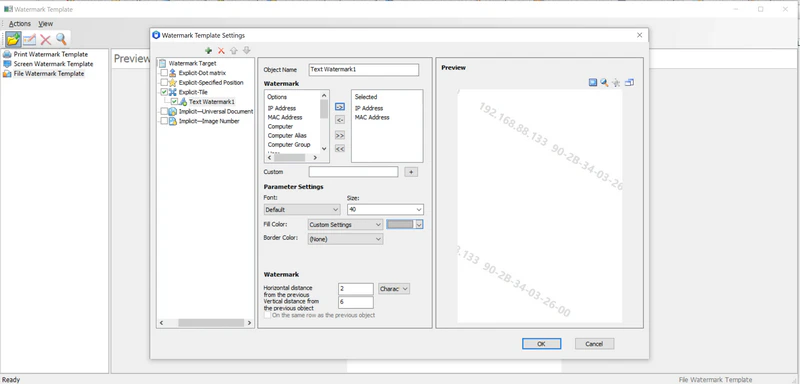
Compared to regular watermark tools, AnySecura offers a wider variety of watermark types. You can add text watermarks, image watermarks, QR-code watermarks, dot-matrix watermarks, or circulation information to PDF documents, Office files, and image files. Watermarks can also appear on-screen, within applications, or automatically when a document is printed. For example, a screen watermark can display “Confidential – For Internal Use Only” semi-transparently across an employee’s screen. Even if someone takes a photo of the screen, the watermark remains visible, providing clear proof of the source.
Invisible Watermarks
For highly sensitive files, invisible watermarks are an excellent option. These watermarks are embedded directly into documents or images and are invisible to the naked eye. They can later be extracted using specialized tools, making them ideal for protecting design drafts, confidential diagrams, or sensitive photos. To understand how unique identifiers can connect a leaked copy to its recipient, see this guide to forensic watermarking.
Smart and Traceable Watermarks
Unlike static watermarks, AnySecura’s watermarks are dynamic. They can automatically display the current user’s name, computer name, IP address, and operation time. If a file is leaked, the company can quickly trace it back to the source and identify the responsible individual.
Centralized Management and Policy Automation
IT administrators can configure different watermark policies for departments or security levels. For example, high-security R&D files may receive strong anti-copy watermarks, while general administrative documents may display only a simple logo. These policies are automatically applied to employee computers without requiring manual action, ensuring both security and efficiency.
Approval-Based Watermark Removal
Users can remove watermarks only through an approval process or a self-recording workflow, ensuring that sensitive documents remain protected and cannot be stripped of watermarks without oversight.
Automatic Watermarking During Transfer or Usage
Documents will be automatically added watermarks or circulation information when copied to USB drives or network drives, sent via chat or email, uploaded to websites, downloaded locally, or decrypted. This ensures that every stage of document usage is protected without manual intervention.
With these features, AnySecura safeguards sensitive files at every stage — on-screen, during printing, in transfers, and when shared externally — giving enterprises full control over their digital assets. For companies that prioritize data security, deploying a solution like AnySecura provides a reliable and comprehensive defense against internal and external leaks.
How to Add Watermarks to PDF for Enterprise
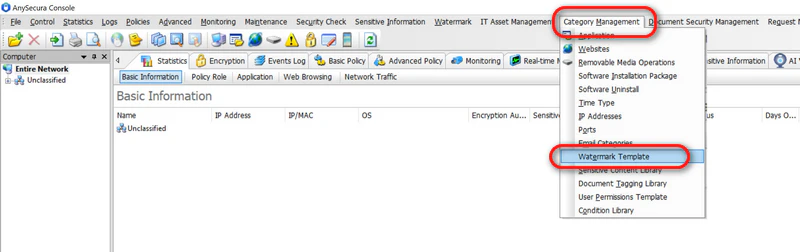
- Log into AnySecura and navigate to Category Management → Watermark Template to create your custom PDF watermark template.
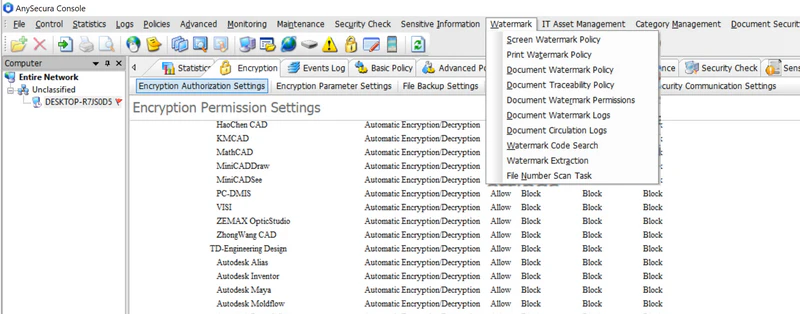
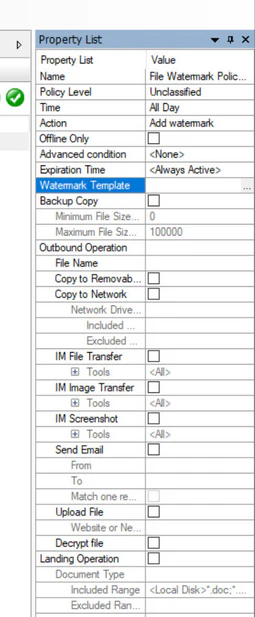
- Once the watermark template is created, administrators can configure policies to automatically apply watermarks during document operations such as decryption or external sharing. To do this, go to the Watermark policy settings.
- In the Computer section on the left, select the target devices, user groups, or departments to which the policy should apply. After making your selection, click Add to create a new watermark policy.
- Select the new policy, then in the properties panel on the right, click Watermark Template → ... to choose the template you set. Next, select the scenarios where the watermark should be applied and specify the applicable file types (e.g., PDF).
- Click Save to apply the policy. The selected documents in target endpoints will then be automatically watermarked according to the configured settings.
Related article: What is DLP? Definition, User Cases & Challenges
FAQs about PDF Watermark
How to get watermark out of PDF?
Not all watermarks can be extracted from a PDF, as some are permanently embedded into the file. However, if the watermark was added as a separate layer, you can try removing it with Adobe Acrobat. Simply go to Tools > Edit PDF > Watermark > Remove and Acrobat will delete the watermark layer if it is detectable.
You may also interested in: How to Remove Password From PDF Safely in Minutes
How to extract watermark from PDF?
Extracting a watermark from a PDF depends on how the watermark was added. If it exists as a separate image or text layer, you can select and copy it in a PDF editor, export images, or convert the PDF to Word to extract it. However, if the watermark has been flattened into the page like in scanned files, it cannot be extracted directly and requires manual image processing.
Can You Watermark a PDF for Free?
Yes. Many online PDF tools allow you to add watermarks for free, such as iLovePDF and other similar services. These tools let you upload your PDF, apply text or image watermarks, and download the file with a few clicks.

Discover how DLP software to prevent insider threats, and secure sensitive information across endpoints, cloud services, and networks. Learn more>>
Summary
There are three ways to add watermark to PDF. Adobe Acrobat DC is ideal for professionals who want full control. Online PDF watermark tools are quick and convenient for occasional use. AnySecura is the best choice for enterprises protecting sensitive digital assets. With these three methods in mind, you’ll know exactly how to handle watermarking the next time you need to add a watermark to a PDF file.