Adding watermark to PPT is a simple but powerful way to protect content, show ownership, or mark document status such as “Confidential” or “Draft”. Whether you are a student preparing slides, a professional sharing internal reports, or an enterprise managing large volumes of presentations, choosing the right watermark method matters.
This guide walks you through five practical methods to add watermarks to PPT files. We start with basic manual approaches for beginners and gradually move to bulk processing, security-focused tools, and automation options for advanced and enterprise users.

Method 1: Add Watermark to PPT Using Slide Master (Recommended)
Using Slide Master is the most reliable and professional way to add a watermark in PowerPoint. It ensures the watermark appears consistently on all slides and is harder to remove accidentally.
This method is ideal for most users because it does not require extra tools, works with all modern versions of PowerPoint, and keeps slide layouts clean.
- Open your PowerPoint file.
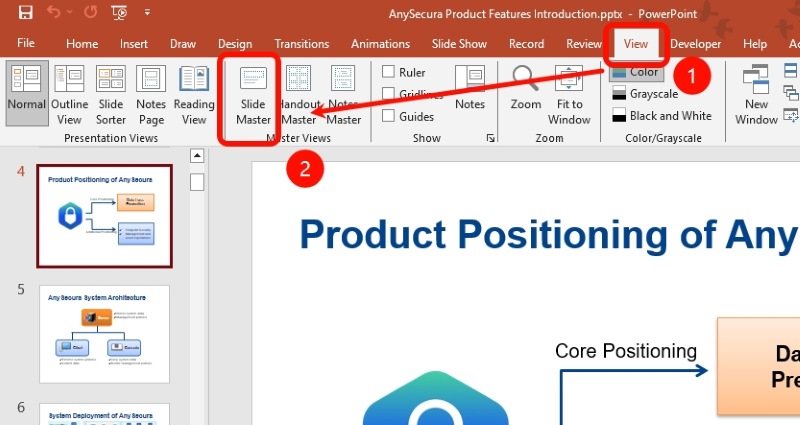
- Click the View tab and select Slide Master.
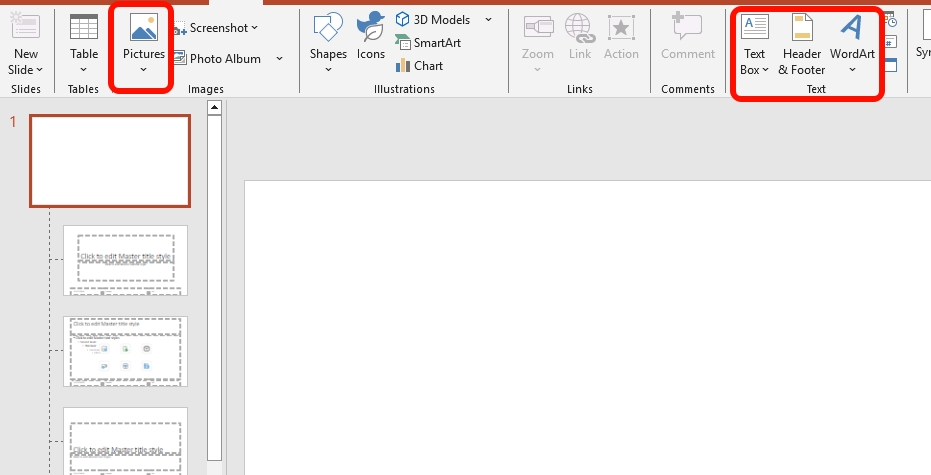
- Select the top master slide. Insert a text box from the right side of the menu, or insert an image from the left side if you want to use a logo as a watermark.
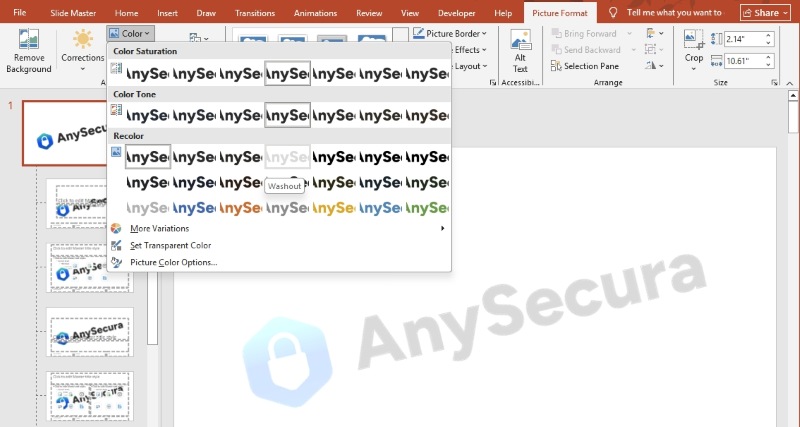
- If you are using an image, adjust the color in Picture Format. The Washout option is recommended for watermarks. If you are using text, adjust the transparency, size, and position until it looks subtle and does not interfere with slide content. If you are not sure how to do this, refer to Method 3 for more details.
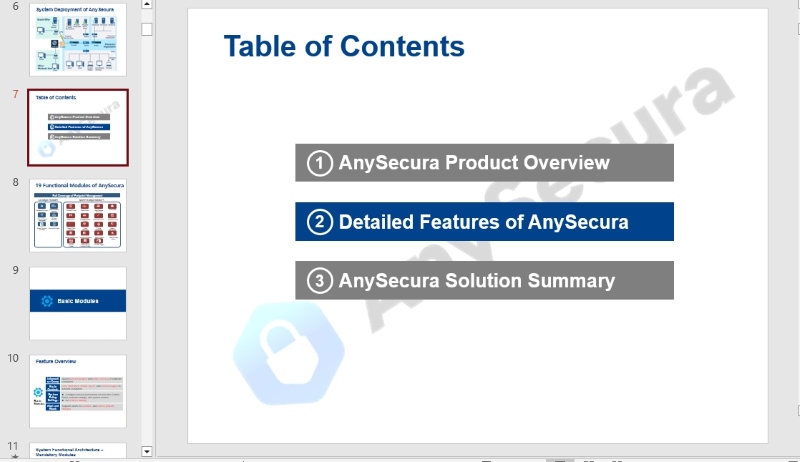
- Close the Slide Master view to apply the changes.

Once applied, the watermark will appear on all slides that use this master layout. If you need to update or remove the watermark later, simply return to the Slide Master and make your changes there.
Method 2: Bulk Add Watermark to PPT Using AnySecura
When PowerPoint files are shared frequently across teams or processed in large volumes, manual watermarking methods often become difficult to maintain.
Why Manual Watermarking Does Not Scale for Enterprises
Manual watermarking is typically designed for individual or occasional use. As document volume increases and collaboration becomes more complex, several limitations start to appear.
- No bulk watermarking: watermarks can only be added one file at a time. Handling dozens or hundreds of documents quickly becomes inefficient and error-prone.
- No automatic watermarking during transfer or usage: documents are not watermarked automatically when they are opened, shared, printed, uploaded, or transferred, relying entirely on manual actions.
- No standard watermark templates: different teams use different styles, wording, and placement, reducing consistency across the organization.
- No traceable watermarks: when a document is leaked, it is difficult to identify who shared it, from which device, and at what time.
- No centralized management or policy automation: IT teams cannot define watermark rules once and enforce them consistently across users, departments, and endpoints.
- No approval-based watermark removal: watermarks can be removed without authorization, leaving gaps in control and auditing.
As document usage grows, organizations may face a higher likelihood of internal data leakage, weaker accountability, compliance challenges, wasted employee time on repetitive tasks, and limited visibility into how sensitive documents are being used.
For this reason, many enterprises move beyond manual approaches and adopt AnySecura that support bulk watermarking, centralized control, and automated enforcement.
AnySecura: Built for Enterprise-Scale PPT Watermarking
AnySecura is an enterprise-grade document security solution. Instead of relying on employee behavior, AnySecura enables IT and security teams to control watermarking through centralized templates, policies, and auditability.
- Bulk + automatic watermarking: apply watermarks at scale and keep watermarking enforced during document usage and transfer.
- Smart, traceable watermarks: embed dynamic identifiers (e.g., user/device/time) so leaks can be investigated faster and more accurately.
- Standard templates: define approved watermark templates once and apply them consistently across teams.
- Centralized policy management: assign rules by user, department, device, and file type.
- Approval + auditing: control watermark removal via approval and keep logs for audit and incident response.
- Investigation tooling: use logs, code queries, and document ID scanning to trace watermark-related events and document history.
How to Add Watermarks to PPT Using AnySecura
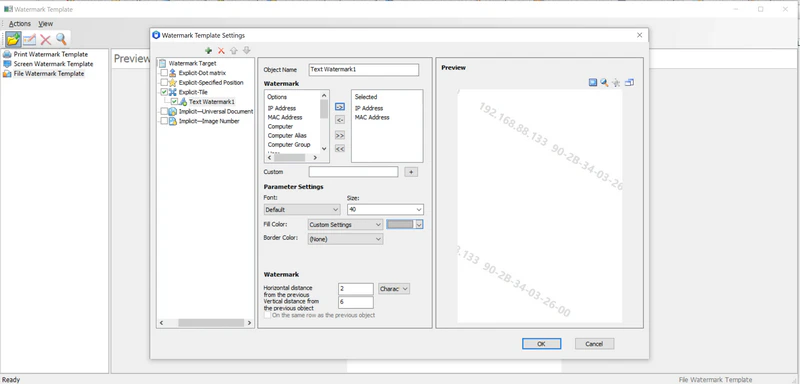
- Create a watermark template
Administrators start by creating watermark templates in the AnySecura management console. These templates define how the watermark looks and what information it contains.- Text or image-based watermarks (such as “Confidential” or company logos)
- Dynamic information, including username, department, device name, IP address, and timestamp
- Consistent placement, transparency, and style across all documents
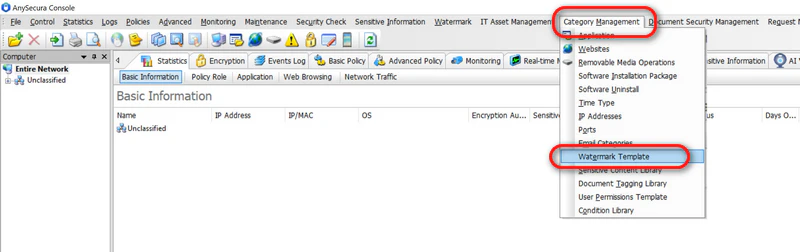
- Configure a watermark policy
After templates are created, administrators configure watermark policies. Policies determine when and where watermarks are applied.- Specify file types (PPT, PDF, Word, Excel, etc.)
- Choose scenarios such as file opening, printing, copying, emailing, uploading, or external transfer
- Assign policies by user, department, device, or group
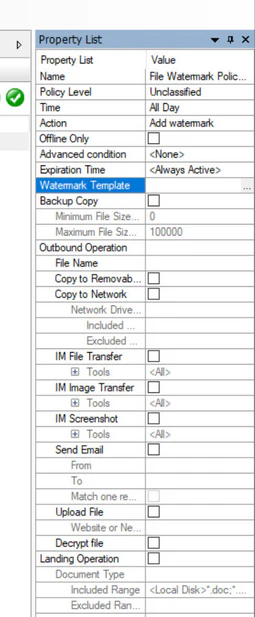
- Enable the policy
Once policies are enabled, AnySecura automatically applies watermarks in bulk. Documents are watermarked during normal usage without any manual action from employees. Whether a user opens a PowerPoint file, prints slides, shares them externally, or transfers them to removable media, the correct watermark is applied based on policy.
Related article: What is DLP? Definition, User Cases & Challenges
Method 3: Insert a Transparent Text Box on Slides
Insert a Transparent Text Box on Slides is the simplest method and works well for small presentations or one-time use. You need to manually add a semi-transparent text box to each slide. Here is how you do:
- Open the slide where you want to add a watermark
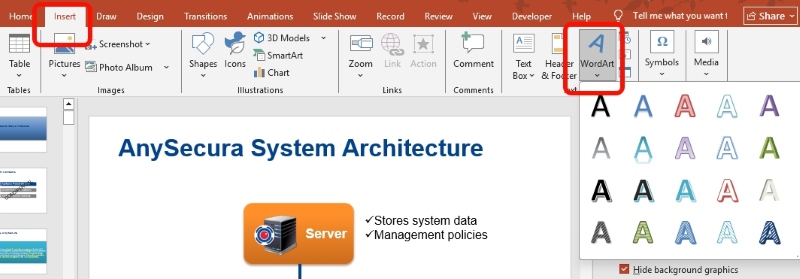
- Go to the Insert tab and click Text Box or WordArt
-
Draw the text box on the slide and type your watermark text, such as “Confidential”, “Draft”, or your company name

-
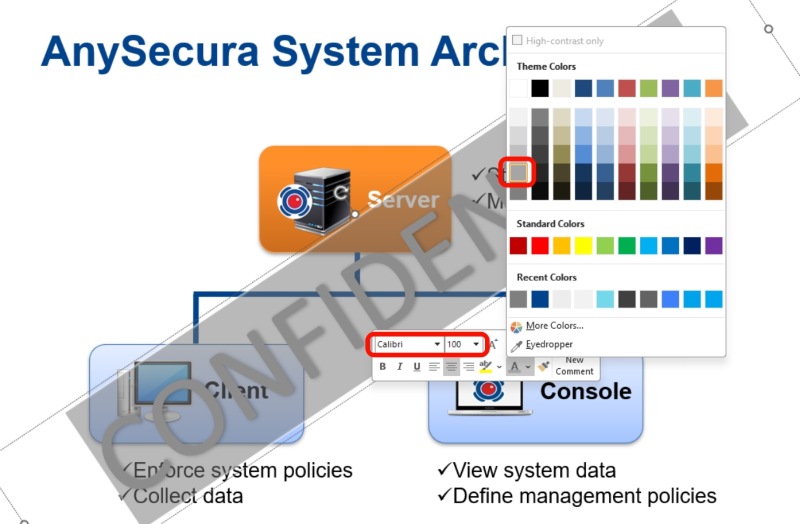
Select the text, then adjust the font size, font style, and color. When adjusting transparency, aim for a subtle look. A watermark should be visible but not distracting, and light gray or other soft colors usually work better than strong colors like red or black. If you are unsure which settings to choose, you can simply follow the example shown in the image above.
-
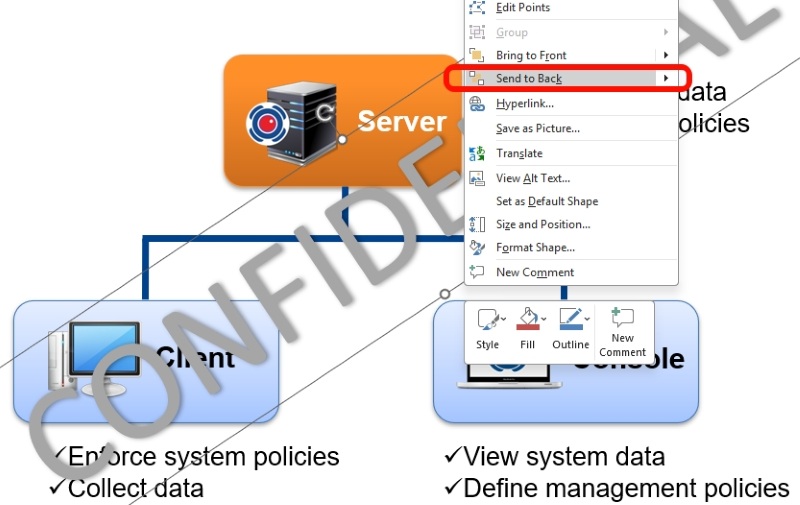
Click the text box, right-click on it, and select Send to Back so the watermark stays behind the slide content.
-
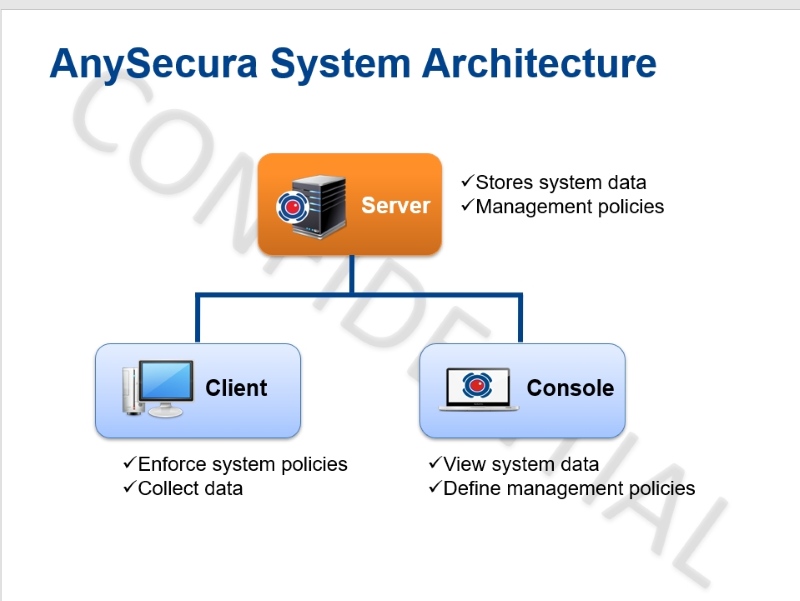
Move the text box to a suitable position, such as the center or diagonal across the slide
- Copy the text box and paste it onto other slides, adjusting placement if needed
After completing these steps, review your slides in slideshow mode to make sure the watermark looks consistent and does not interfere with charts, images, or text.
To keep placement consistent, you can use PowerPoint’s alignment guides or gridlines. This helps ensure the watermark appears in the same position on each slide.
If you later decide to remove the watermark, you will need to delete the text box from each slide manually. This is another reason why this method is best for small presentations only.
This approach is ideal for beginners who need a quick and flexible solution and are working with a limited number of slides. For larger decks or long-term use, methods like Slide Master or bulk tools are more efficient and reliable.
Method 4: Add Watermark to PPT using Background Image
If your watermark is a logo or a more complex visual design, setting it as a background image is a clean and visually consistent solution. This method places the watermark directly into the slide background, so it feels more natural and is less likely to interfere with text or charts.
It works especially well for branded presentations, marketing decks, and company templates where visual consistency across all slides is important.
- Open PowerPoint and select any slide in your presentation.
- Go to the Design tab at the top menu, then click Format Background on the right side.
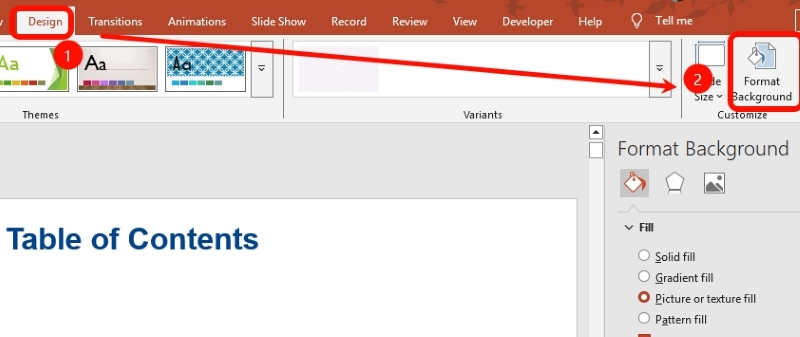
- Select Picture or texture fill from the background options. Click Insert and choose your watermark image, such as a company logo or branded graphic.
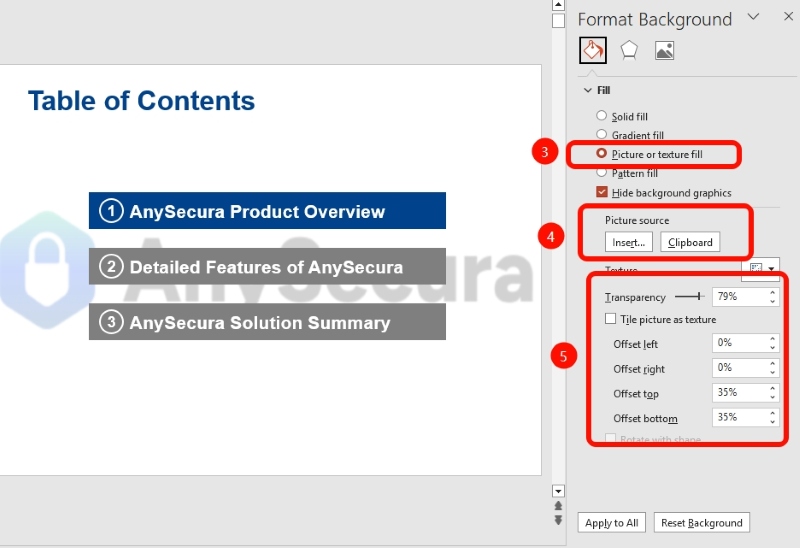
- Adjust the transparency slider so the image appears subtle and does not overpower the slide content.
- Once satisfied, choose Apply to All to add the watermark to every slide.

After applying the background image, review several slides to ensure the watermark looks consistent and does not reduce readability. A good watermark should be visible but never distracting.
This method keeps the main content layers separate from the watermark and reduces the risk of accidental edits during presentations. It is also easier to maintain a professional and uniform appearance, especially when multiple people collaborate on the same PowerPoint file.
Method 5: Convert PPT to PDF and Add an Unremovable Watermark
If you want a practical, no-install, no-design solution, using an online tool is one of the easiest ways to add a watermark , especially when you want the watermark to be hard to remove.
This method works by converting your PowerPoint into a PDF first, then adding a watermark to the PDF. The watermark becomes part of the file background and cannot be selected or moved like a normal PowerPoint object.
-
In PowerPoint, go to File → Export → Create PDF/XPS. This converts your PPT into a PDF, which allows the watermark to be permanently flattened.

-
Upload the PDF you just exported from PowerPoint.
You can upload one file or multiple files if you are processing a small batch.
-
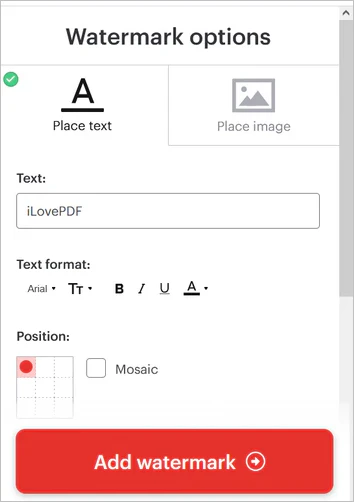
Choose whether to add a Text watermark or an Image watermark.
-
Text watermark: common choices are
CONFIDENTIAL,DRAFT, or a company name. A safe starting setup is opacity10–20%, rotation45°, and applying it toAll pages. - Image watermark: upload a logo and reduce opacity so it stays visible but does not overpower content.
-
Text watermark: common choices are
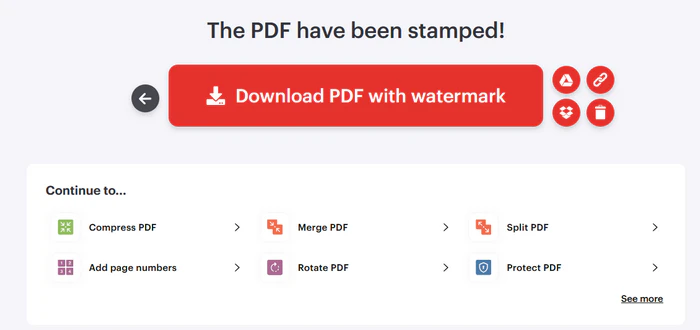
- Preview the watermark placement to ensure it does not block important content. When everything looks right, click Add watermark, then download the final PDF.
If you want to explore more ways to add a watermark to PDF, please see: How to Add Watermark to PDF (Comprehensive Guide)
After processing, the watermark becomes part of the PDF background. It cannot be clicked, selected, or moved like a PowerPoint text box or image. This makes the result much more secure than adding a watermark directly inside PPT, especially when you plan to share the file externally or send it to people you do not fully trust.
Note: Keep in mind that this method outputs a PDF, not an editable PPT. If recipients need to edit slides, you should use Slide Master or other methods instead.
FAQs about Add Watermark to PPT
What is the best way to add a watermark to PowerPoint?
For occasional use, PowerPoint methods like Slide Master or a background image work well. For large-scale use in teams, bulk and policy-based watermarking tools are more efficient.
Can I add watermarks to multiple PPT files at once?
PowerPoint does not support true bulk watermarking. To watermark many files at once, you will need a third-party tool or an enterprise solution that supports batch processing.
Are PowerPoint watermarks easy to remove?
In many cases, yes. Manually added text boxes and images can often be edited or removed by anyone who can open and edit the PPT.
If you need a watermark that is harder to remove or intended for content protection, consider using Method 2 (enterprise solution) or Method 5 (convert to PDF).

Discover how DLP software to prevent insider threats, and secure sensitive information across endpoints, cloud services, and networks. Learn more>>
Summary
Adding watermark to PPT can be simple for one-off use, but it becomes difficult to manage at scale. If your team handles many documents or needs consistent enforcement, consider bulk and policy-based watermarking. This is where enterprise tools like AnySecura can help automate watermarking and improve control.