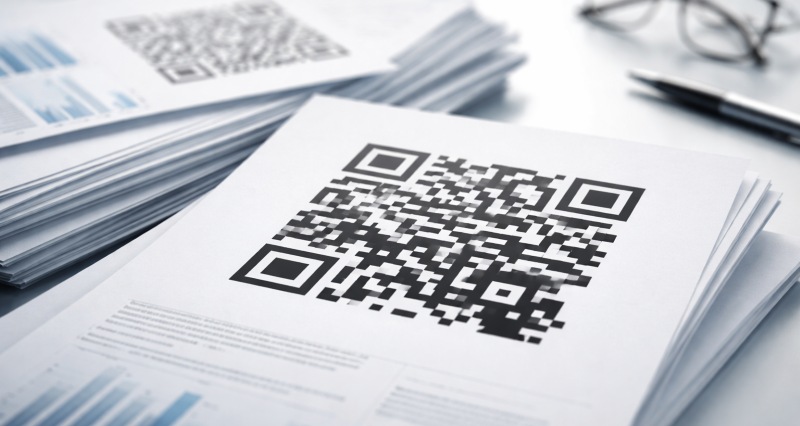
QR codes have become a standard element in printed materials for their convenience. They appear on business cards, brochures, product packaging, posters, and even internal company documents. QR codes in print help people quickly access websites, files, and data without manual input.
However, many printed QR codes fail to scan. The reasons are rarely technical. More often, they come down to decisions made during design and printing: size, contrast, file format, surface, and testing.
This guide will help you to grasp the best practices using QR codes in print, including what size and format you should use, and how to avoid the most common mistakes, especially in professional and enterprise environments where reliability matters.
How to Print QR Codes in the Best Size, Format, Color and Paper
When printed QR codes fail, size is almost always the first issue. That's why we address it first in its own section.
Design teams often reduce QR code size to save space or enhance layout aesthetics. While this may create a cleaner visual on paper, it drastically increases the risk of scanning failures.
What is the Minimum Size of QR Codes in Print
In practice, the minimum size of a QR code in print is 2 × 2 cm (0.8 × 0.8 inches). At this size, a QR code may scan under ideal conditions, but results are inconsistent and highly dependent on lighting, print quality, and the user's phone camera.
For business and professional use, a more reliable standard that balances aesthetics with functionality is that QR codes should be printed at 3 × 3 cm (1.2 × 1.2 inches) or larger.
This size allows phone cameras to clearly distinguish individual modules, even when print quality varies or older devices are used.
Ideal Size for QR Codes in Print for Different Use Cases
Once the minimum size is understood, the more important question becomes what size should actually be used in real projects.
Different printed materials create very different scanning conditions. A QR code on a business card is scanned from close range, while one on a poster or sign may be scanned from several feet away. Because of this, QR code size should always be matched to its context.
| Printed Material | Recommended QR Code Size |
|---|---|
| Business cards | 2.5 × 2.5 cm |
| Flyers & brochures | 3 × 3 cm |
| Posters | 4 × 4 cm or larger |
| Product packaging | 3 × 3 cm |
| Outdoor signage | Scale with viewing distance |
For every 1 meter (3.3 feet) of expected scanning distance, increase the QR code size by 1 cm. This rule helps ensure reliable performance without relying on perfect lighting or the latest phone models.
Color, Paper Choice, and Other Best Practices for QR Codes in Print
When printing QR codes, scan reliability depends on more than just size. Color selection, paper choice, and several practical production details all play an important role in whether a printed QR code works consistently in real-world use.
What Is the Best Color for QR Codes in Print?
Color contrast is the most critical factor. QR codes scan best when there is a clear difference between the code and its background. Dark colors on a light background, such as black on white, remain the most reliable option across different lighting conditions and phone cameras. While creative color combinations or inverted colors can work, they are more sensitive to printing variations and should be used cautiously in professional materials.
What Is the Best Paper for Printing QR Codes?
Paper choice also affects scanning performance. Matte or uncoated paper generally produces the most consistent results because it reduces glare and reflections. Glossy paper can still be used, but reflections from overhead lighting may interfere with scanning, especially when QR codes are small or printed in low-contrast colors. For critical use cases, avoiding glossy finishes reduces unnecessary risk.
Other Best Practices for Printing QR Codes
Beyond color and paper, several additional best practices help improve printed QR code reliability.
- QR codes should always be exported in vector formats such as SVG or PDF to preserve sharp edges during printing.
- Adequate quiet zones around the QR code should be maintained, and codes should never be stretched, distorted, or placed over complex backgrounds.
- Before final production, printed samples should be tested using multiple devices and under real lighting conditions.
While there are many visually appealing and creative QR code styles available, design flexibility should never come at the expense of scan reliability. Inverted colors, gradients, or low-contrast combinations are more sensitive to lighting, printing quality, and camera performance, and should be used cautiously in professional or enterprise materials.
Enterprise-Grade Use Case: QR Codes as Print Watermarks for Sensitive Files
Most people associate QR codes in print with marketing, linking to websites, campaigns, or product information. However, in enterprise environments, QR codes can serve a very different and far more powerful purpose.
Within many organizations, sensitive information still relies heavily on paper: financial reports, contracts, internal presentations, operational documents, and compliance materials. Once these documents are printed, traditional digital controls stop working. The paper can be copied, photographed, or shared with little traceability.
Learn what is DLP and how Data Loss Prevention (DLP) protects enterprise data from leaks and insider threats.Learn more>>
How QR Code Watermarks Protect Printed Documents
Printed QR codes can function as watermarks to protect sensitive internal data. Instead of guiding users to external content, these QR codes are embedded directly into printed documents to carry traceable information throughout the entire lifecycle of printing, distribution, and usage.
This approach provides three key advantages:
- More information can be carried on each printed page
Unlike visible text watermarks, QR codes can store structured data without cluttering the document layout. - Traceability across the entire print lifecycle
The information stays with the document, from printing to sharing or copying. - Deterrence against internal data leaks
When users know printed documents are traceable, the risk of unauthorized sharing is significantly reduced.
AnySecura: Enterprise-Grade Print Document Security
AnySecura is an enterprise-grade document security solution that helps to solve a problem most organizations quietly accept: once a document is printed, control is lost.
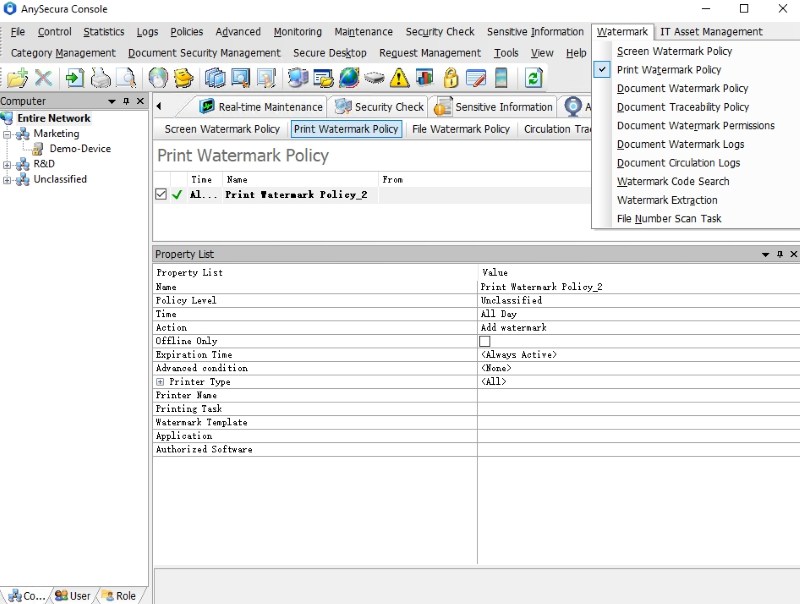
Instead of relying on employee awareness or manual processes, AnySecura allows IT and security teams to enforce print watermarking through centralized templates, policy-based controls, and built-in auditability. Every printed page becomes part of a managed system, not an unmanaged risk.
With AnySecura, print watermarks are fully customizable, allowing organizations to choose the level of visibility and protection that matches the sensitivity of their data:
- QR code watermarks for traceability and auditing
- Text watermarks for clear visual deterrence
- Image watermarks for branding or classification
- Dot matrix watermarks for low-visibility protection
QR code watermarks go a step further by turning printed documents into traceable assets. When the QR code is scanned, authorized users can instantly see:
- The printer's computer name
- The user who printed the document
- The IP address of the printing device
- The exact date and time of printing
- Additional identifiers based on policy (view full list)
This information stays with the document wherever it goes, helping organizations deter leaks, investigate incidents, and maintain accountability across the entire print lifecycle.
How to Add a QR Code Print Watermark with AnySecura
Below is a step-by-step guide to adding QR codes to printed documents with AnySecura.
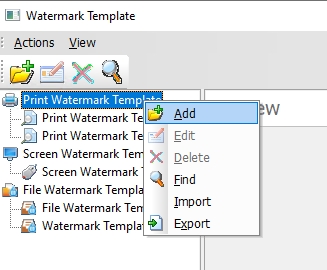
- Open the AnySecura Console, go to Category Management, and select Watermark Template.
Right-click Print Watermark Template and choose Add.
- Select Specific Position, then click the — button in the toolbar to open Add Watermark Object.
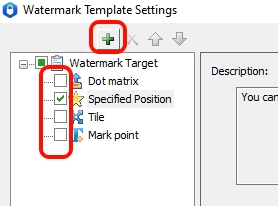
- Change the watermark type to QR Code Watermark and click OK.
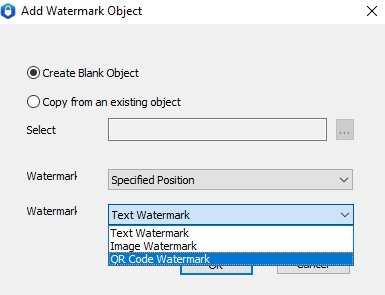
- Choose the information to embed in the QR code.
Common options include IP Address, Computer Name, Full Username, User Group, Date, and Print Job Name.
You may also add a custom message such as “Copyright Reserved”
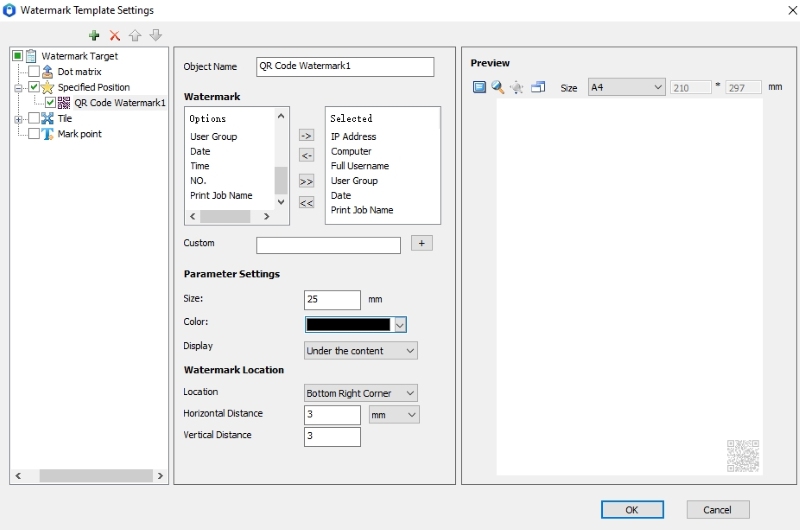
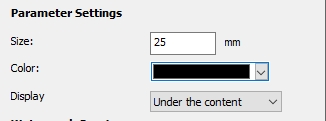
- Adjust parameter settings such as QR code size and color.
If unsure, follow the size and contrast recommendations explained earlier in this guide.
- Set the watermark location.
The bottom-right corner is commonly used.
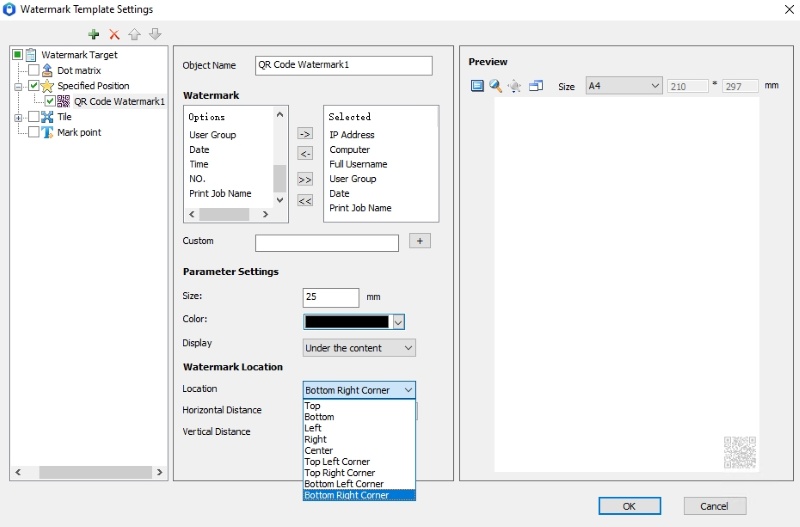
If Tile is selected instead of Specific Position in Step 2, the QR code will repeat across the page.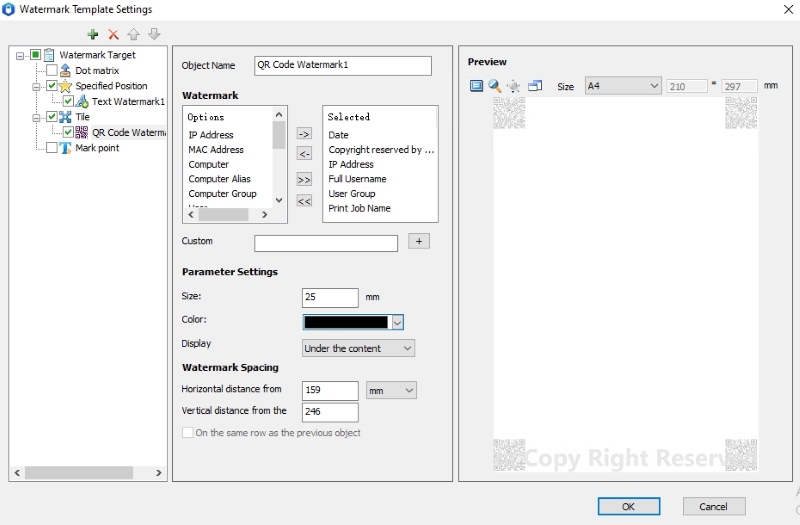
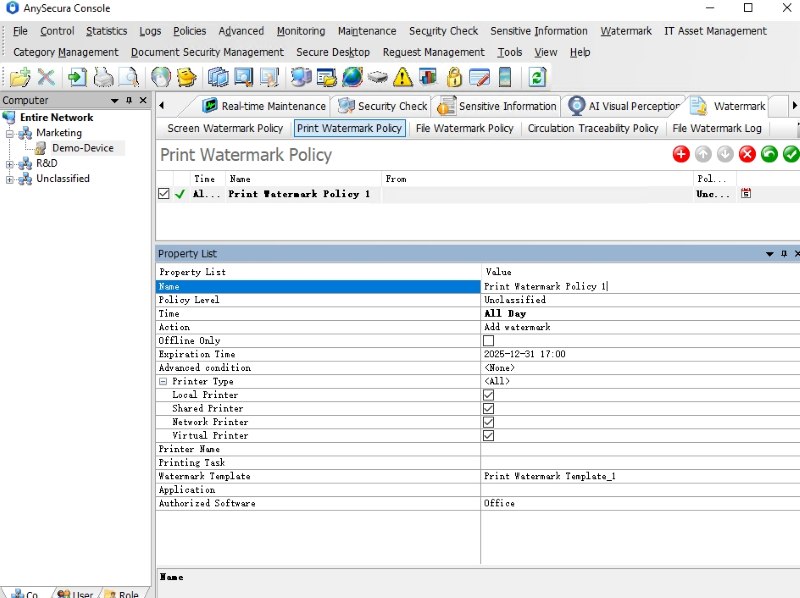
- Click OK, then configure a Print Watermark Policy to define when the watermark is applied (by time, printer, print type, or application).
Once enabled, the QR code watermark is automatically added during printing.
FAQs about QR Codes in Print
Why doesn't my QR code work when printed?
Printed QR codes usually fail because they are too small, have low contrast, or are printed at low resolution. Glossy paper, ink bleeding, and excessive data encoded in the QR code can also reduce scan reliability. Increasing the QR code size and testing it before final printing are the most effective solutions.
How long do QR codes last?
QR codes do not expire on their own. A printed QR code will work as long as the code remains physically readable and the linked destination is still active.
How to resize a QR code for printing?
The best way to resize a QR code for printing is to use a vector format such as SVG or PDF. If using an image file, export it at 300 DPI or higher at the final print size to avoid blurring and scanning issues. In AnySecura, watermark size, position, and color can be customized to match different print and security requirements.
Summary
Using QR codes in print effectively comes down to a few fundamentals: correct sizing, high contrast, proper file formats, and testing under real printing conditions. When these best practices are followed, QR codes become a reliable bridge between printed materials and digital content.
For organizations that handle sensitive or internal documents, adding print watermarks introduces an extra layer of accountability, helping reduce misuse and improve traceability after documents leave the printer.
If you want to see how QR code print watermarks and policy-based controls work in practice, you can start a free AnySecura trial to explore secure, enterprise-grade print protection in your own environment.