You might have noticed the term Collate Printing on your printer. So what is collate printing? Collate in printing is to arrange the pages of your document into sequential order for each copy you print. Collate printing makes sure each copy has all the pages in the right order when you print a lot of copies of a document. This is a small setting with a big impact on workflow efficiency.
In this article, we'll explore what collate printing is, how it works, when you should use it, and why it matters for productivity.
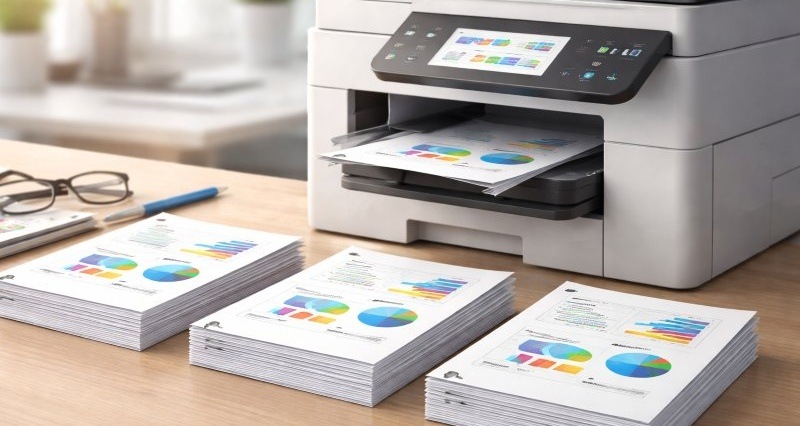
What is Collate Printing?
What is collate printing? Collate means "to gather or arrange in proper sequence," which is exactly what the printer does for you. The printer will print one complete copy of the document from start to finish and then repeat for the next copy, and so on. In the end you get a stack of collated document sets, each set containing all pages in right order.
In contrast, if collating is turned off, the printer will produce batches of each page separately. It will print all copies of page 1 first, then all copies of page 2, etc., resulting in uncollated stacks of pages. You would then have to manually sort or assemble the pages into complete documents.
An Example of Collated vs. Uncollated Printing
If you think the description above is too abstract, here is an example for you. Let's say you have a 3-page document and you need 5 copies:
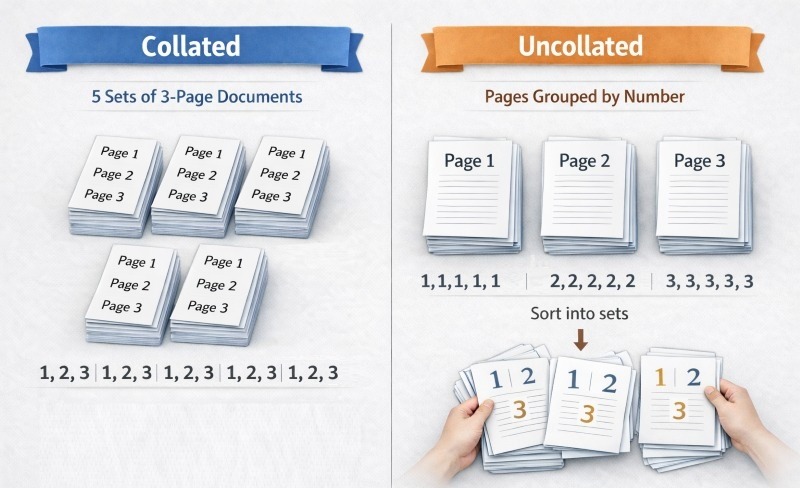
- Collated printing: The printer will output the pages in sequence for each set. The print order would be 1, 2, 3, then again 1, 2, 3, and so on for all 5 copies. You end up with 5 neat piles, each containing the full document in order.
- Uncollated printing: The printer will group each page together. It will print page 1 five times, then page 2 five times, then page 3 five times. You would finally get 3 stacks (one of all the page 1's, one of page 2's, etc.), which you or your team would have to sort into sets manually.
When and Why Should You Collate Your Prints?
When you need to give people documents in the right order, it is a good idea to turn on collating. Here are some common situations where you should use collating:
- Meetings, presentations, and training sessions: If you’re printing reports, slide handouts, agendas, collating ensures each person receives a full, correctly ordered set. No one has to stop the meeting to reorder pages or ask for missing sections, and the presenter doesn’t need to manage page-by-page distribution.
- Client-facing or formal documents: For proposals, contracts or any document that represents your company externally, collating helps maintain a professional appearance. Every copy comes out complete and in order, reducing the risk of undermining credibility or delaying approvals.
- Training sessions and onboarding materials: Training materials are usually designed to be followed step by step. Collating guarantees that each participant receives a ready-to-use document that matches the trainer’s flow. This avoids interruptions caused by page confusion and helps learners stay focused on the content rather than the paperwork.
Most modern office printers automatically default to collated printing when you print multiple copies, precisely because it's a simple tool that streamlines workflows, minimizes human error, and saves staff time. However, the collate feature is optional, you can turn it off if needed (we'll cover when to uncollate next).
When to Use Uncollated (Grouped) Printing
There are scenarios where uncollated printing (printing without collating) is actually preferable. You should turn collate off in cases such as:
- Separated Forms or Handouts: When you need multiple copies of individual pages for separate uses. For example, in an office, if you're printing flyer variations or coupons to leave in stacks, uncollated printing will group each version together.
- Assembly or Insertion Projects: Sometimes you plan to manually collate or assemble documents later, or insert printed sheets into binders/folders. For example, you haven't finalized the order of pages yet and will arrange them offline. Uncollated output gives you the flexibility to organize pages as needed after printing.
- Using Specialty Paper per Page: In cases where different pages require different paper (e.g. chapter dividers on heavy stock), some operators print uncollated by page type and then assemble sets manually.
"Uncollated" is sometimes labeled as "group" in printer settings, as noted earlier. If you accidentally leave collate off when you actually needed collated sets, you'll end up doing extra work sorting pages. So use uncollated mode intentionally, when it serves a specific purpose as mentioned above.
How to Collate When Printing (Step-by-Step)
Most software and printers have a simple checkbox or setting for collate printing. Here's how to you use them when printing:
- Prepare the Document: Put the pages of your document in the order before you print it. If your document is already a file and the pages are in order, then you are good to go. You can add page numbers or a table of contents to make it easier.
- Open the Print Dialog: In the application you're using (e.g., Microsoft Word, Excel, PDF reader), go to File > Print. You can also press Ctrl+P (Windows) or Command + P (macOS).
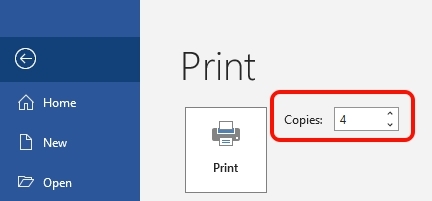
- Select Number of Copies: Enter the number of copies you need. The collate option typically appears when printing 2 or more copies of a multi-page document.
- Find the "Collate" Option: Look for a checkbox or button labeled "Collate" or an icon showing pages in sequence. In many programs, it's under a section like Settings or Preferences. For example, Microsoft Word's print menu has a collate toggle that shows either collated (pages 1-2-3, 1-2-3) or uncollated (1-1-1, 2-2-2) graphics.
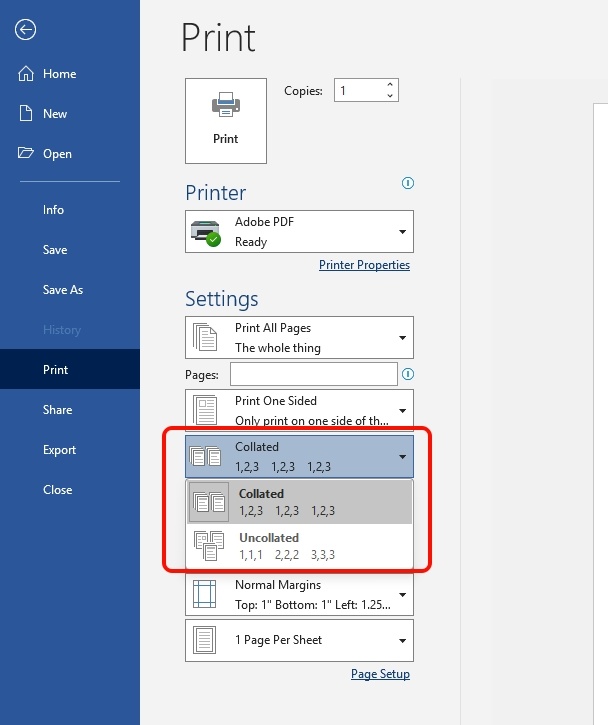
- Double-Sided and Other Settings: If you also want double-sided printing, select the duplex option as needed (usually "Print on both sides"). Collate and duplex can be used together for ordered two-sided sets. Also choose any other settings (color, page range, etc.) as required.
- Print the Document: Click Print and let the printer do the work. It will produce your specified number of copies, already sorted into complete documents.
- Verify Output: Check the first set that comes out. Ensure that page 1 through the last page are in the correct order, then separated from the next set. This quick quality check can catch any issues (like a misfeed or incorrect setting) before the entire job runs.
If you're using a copier or advanced printer, collating might be a physical button on the device. Check the printer's manual or touch-panel instructions for "Collate" if you're unsure how to enable it on that machine.
AnySecura: Efficient Print Management for Your Organization
Collating documents is just one way to improve printing efficiency. For managers concerned with productivity and information security, it's worth looking at the bigger picture of print management. Tools like AnySecura offer comprehensive features to help you manage and secure all printing operations in your organization. Here are a few advanced print control capabilities that go beyond basic collate settings:
Print Operation Records & Auditing
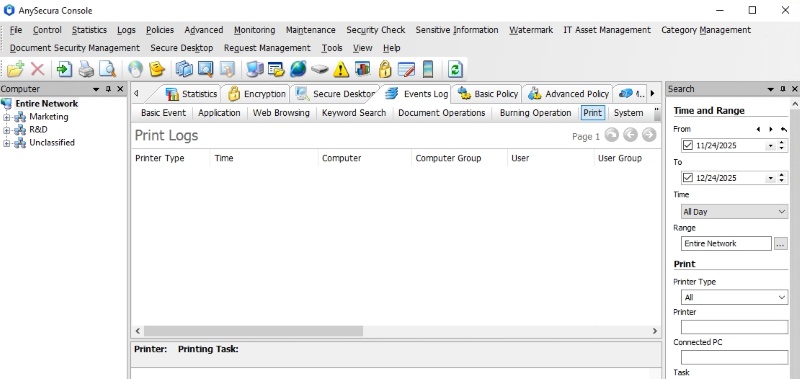
AnySecura keeps a detailed log of every print job, recording who printed, when, from which computer, which application, the document name, number of pages, printer used, and more. Managers can easily audit printing content, search logs by time or document, and even backup the printed content image for compliance. This means if someone prints a confidential 50-page report (collated, of course), you have a record and copy of exactly what was printed.
Restrict Sensitive Prints
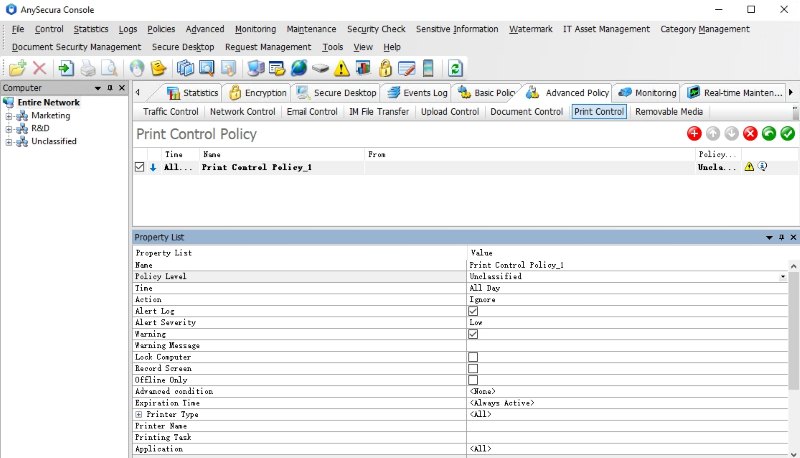
With AnySecura Print Control, you can set rules to prohibit printing from sensitive programs or of certain documents. For example, you might block direct printing from the company ERP or finance software unless approved. This prevents staff from printing collated copies of sensitive financial data or customer lists and taking them out of the office without oversight. It's an extra layer of security beyond the standard printer settings.
Automatic Watermarking
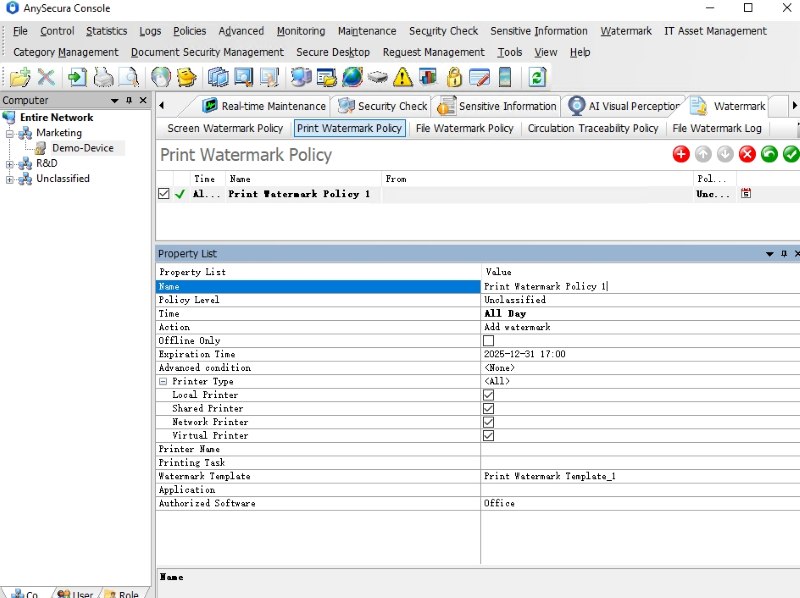
With print watermark features, AnySecura can automatically add identifying text, images, or QR codes to each printed page. The watermark could include the printer or PC name, the user's name, IP address, and timestamp of printing. This means every collated set of documents carries origin details, discouraging unauthorized distribution. For example, a QR code on each page can be scanned to reveal who printed it and when, reinforcing accountability.
Print Permissions and Approvals
AnySecura lets you control who can print and when. You can require certain users to apply for printing permission if they normally don't have it, or require approval to print documents that contain sensitive keywords. In AnySecura, users without default print rights can request one-time print access, and even request exceptions (like printing without a watermark if needed for formal documents) through a simple approval workflow.

What is a malicious insider? Learn how to identify different types, spot warning signs, and use effective strategies to protect your organization’s data and systems.Learn more>>
Cost and Resource Control
Beyond security, these tools help track usage and prevent waste. By monitoring print operations, a manager can see if someone unnecessarily printed 100 collated sets of a report, and coach smarter printing or set quotas. Combined with collate printing, this ensures efficiency (print only what you need, in the right format) and reduces paper waste.
With full visibility and control over every print job, AnySecura ensures all printing activities are tracked, accountable, and aligned with your company’s security and compliance policies, giving you true peace of mind.
FAQs about What is Collate Printing
Is collated the same as double-sided?
No. Collated printing determines the order in which pages are organized, while double-sided printing controls whether pages are printed on one side or both sides of the paper. You can use them together.
What happens if I don't collate?
If you don’t collate, the printer will print pages in grouped batches instead of complete document sets. This means all copies of page 1 will print first, followed by all copies of page 2, and so on.
Do I want collated or uncollated printing?
Choose collated printing if you are printing multiple copies of a multi-page document and want each copy ready to use. Choose uncollated printing if you need stacks of the same page, such as single-page handouts.
Conclusion
Collate printing is a simple feature that makes a big difference in saving time. By selecting that "collate" option when printing multiple copies, you ensure each person gets a complete, orderly set. We've seen that collated prints save time, prevent errors, and generally keep everyone happy (no one likes sorting papers or receiving jumbled handouts). On the other hand, knowing when to use uncollated printing can be useful for specific tasks like separate flyers or forms.
If your organization is ready to go a step further, just try a print management solution like AnySecura, gaining full control and insight into every print job.