PDF is one of the most common formats for storing contracts, reports, and personal information. Adding a password to a PDF is the most basic way to prevent others from viewing or modifying your file. But individual users and businesses have very different needs: individuals usually want something quick, simple, and free, while businesses require more control, more granular permissions, and protection against internal and external file leaks.
This guide covers both use cases and shows you how to password protect PDFs effectively based on your situation.
1. How to Password Protect a PDF (For Personal Use)
For individuals, PDF encryption is typically needed for files like resumes, transcripts, and personal bills. The priority is ease of use, no cost, and sufficient basic security. Below are three commonly used tools—desktop software, online services, and mobile apps—so you can add password protection to PDFs easily in any environment.
How Password Protect PDF Using Adobe Acrobat
Many people use Adobe Acrobat to password protect PDF at work. It’s a professional PDF editor with reliable encryption features. It allows you to set both “open passwords” and “permission passwords,” so you can choose exactly how much control you want.
Steps 1Import PDF Files
Launch Adobe Acrobat, then click File → Open in the top-left corner and select the PDF file you want to encrypt.
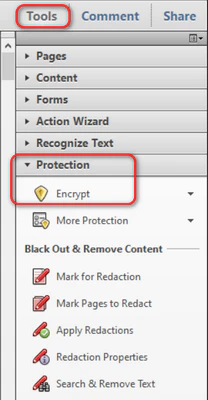
Click the Tools button in the top-right corner. In the panel that appears, locate the Protection module and click to open it. (In some versions, Protection may appear directly in the top menu bar—just click it.)
Steps 2 Customize PDF Password Settings
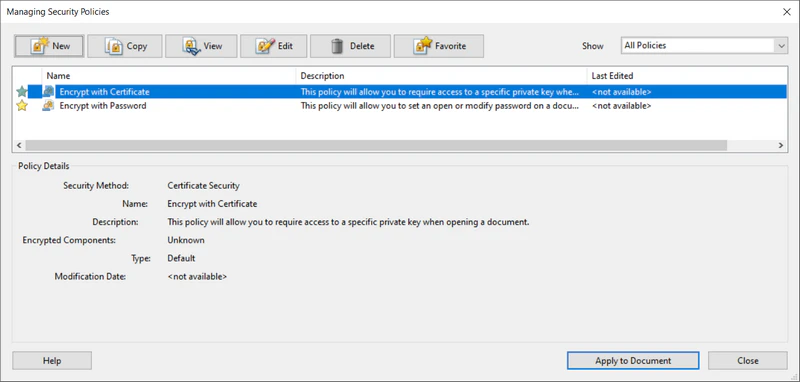
Once you’re in the Protection section, you’ll see several encryption options. Here’s a breakdown to help you choose the right one:
- Encrypt with Certificate: Ideal for business use. This method uses a digital certificate to encrypt the file. In simple terms, the file is “locked” with a certificate, and only users with the corresponding certificate can open it. You can precisely control who has access and even restricts printing, editing, and other actions. No password is required, making it more secure. This method is particularly useful for sending files to specific clients or key internal staff.
- Encrypt with Password: The most common choice for personal use. It’s straightforward and uses a password to protect the file. You can set both an Open Password and a Permissions Password as needed.
- More Protection: Includes advanced features such as Permission Management and Security Properties, allowing you to set the file’s security level or view its encryption history. Usually unnecessary for personal use, but enterprise administrators can use these features for more detailed settings.
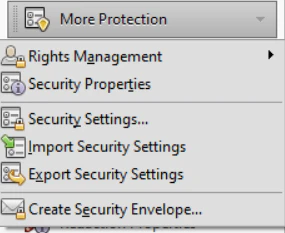
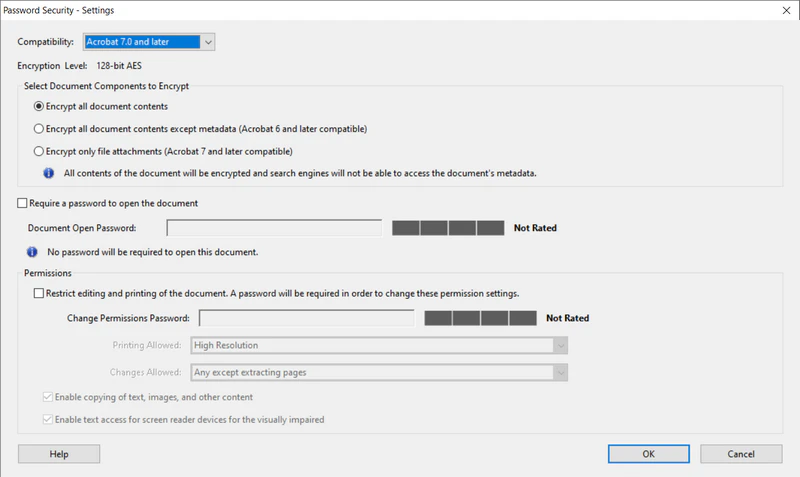
Using the commonly used Encrypt with Password option as an example: click it to open the settings window, then select the encryption type you need:
- Check Require a password to open the document: Users won’t be able to open the file without a password.
- Check Restrict editing and printing of the document: Set a password so users can open and view the file but cannot modify, copy, or print it.
You can set these two passwords separately or together (using different passwords is recommended for better security).
Steps 3 Add Password Protection to PDF
Enter your password(s) in the corresponding fields. (For the Open Password, use a strong password; the Permissions Password can be simpler, but avoid common passwords.) A strength indicator will appear—try to reach Strong. Click OK, then you can back on the file page, press Ctrl+S to save the file. Your PDF is now encrypted. If you want to save it as a new file, click File → Save As to avoid overwriting the original.
For businesses using Encrypt with Certificate, the key step is to prepare a digital certificate first. After selecting this option, import the certificate and assign authorized users. The remaining steps are similar to password encryption. Once saved, the encryption takes effect immediately.
Acrobat’s PDF encryption only provides basic protection. It can stop people from easily opening, editing, copying, or printing a PDF, but it can’t control what happens to the file afterward. It also depends on the PDF viewer to enforce these rules.
If your company needs stronger security—like managing access, tracking users, setting permission levels, or preventing leaks—basic PDF encryption isn’t enough. In that case, it’s better to use a professional enterprise solution like AnySecura. Go to Part 2 to learn How AnySecura protect your business PDF automatically.
How to Password Protect PDF Online Using SmallPDF [Free]
If you're using a public or shared computer, or don’t have any PDF software installed, an online encryption tool is very convenient. SmallPDF uses SSL encryption to protect PDF files during processing, making it a safe temporary solution. Here is how to password protect PDF online Using smallPDF:
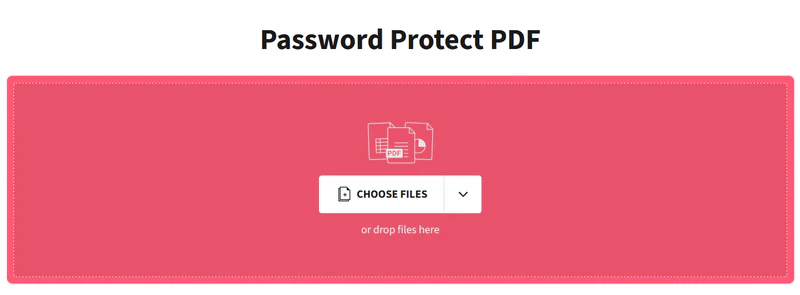
- Visit the SmallPDF website and select the Protect PDF tool.
- Click Choose File to upload your PDF (you can upload from your device or cloud storage).
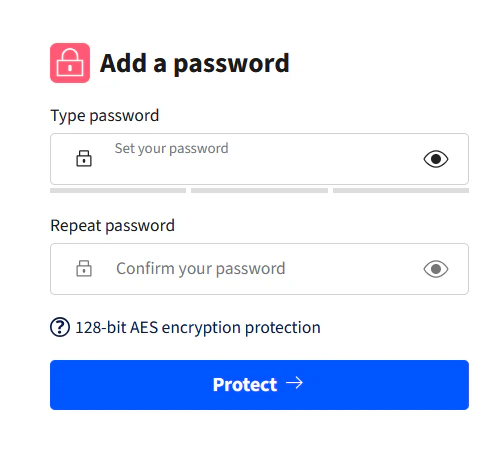
- After the upload is complete, set your password and confirm it.
- Click Protect, wait for the process to finish, then click Download to save the encrypted file.
Reminder: Avoid uploading highly sensitive files to online PDF password protection tools. Also, free versions usually have limitations, such as file size limits or monthly usage caps.
How to Add Password Protection to PDF on iPhone Using PDF Secure
Many people now handle work on their phones. PDF Secure is a lightweight app designed specifically for encrypting PDFs. Once encrypted, you can share the file instantly.
- Install PDF Secure from the App Store and open it. You’ll see an option to select a PDF.
- Upload the PDF stored on your phone and set a custom password.
- Tap Secure PDF & Save. Then save it to your device or share it directly.
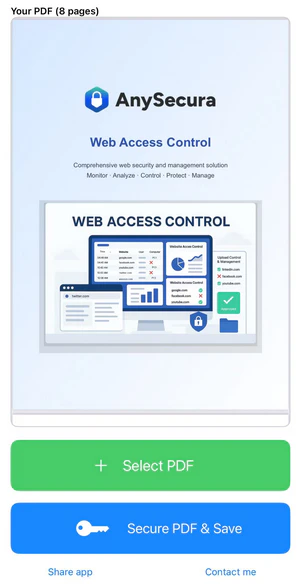
The app is very easy to use, but it lacks customizable password settings. You can’t set a strong, high-level password, and there are no additional security options for the PDF files. As a result, the app is suitable only for basic PDF protection scenarios.
2. How to Password Protect a PDF (For Business Use)
Encrypting PDFs for business use is far more complex: large teams, different devices, unclear permissions, losing control once files leave the company, and internal risks from unauthorized access. Encrypted files also require unified management. Basic PDF password protectors simply cannot meet enterprise needs.
AnySecura, an enterprise endpoint security solution, goes beyond simple password protection. It offers a complete security system that includes encryption, permission control, and activity tracking, giving your companies full lifecycle protection for important documents.
1. Core Transparent Encryption: Strong Algorithms + Centralized Control
AnySecura ensures PDF security from the ground up—so passwords cannot be bypassed or rendered useless.
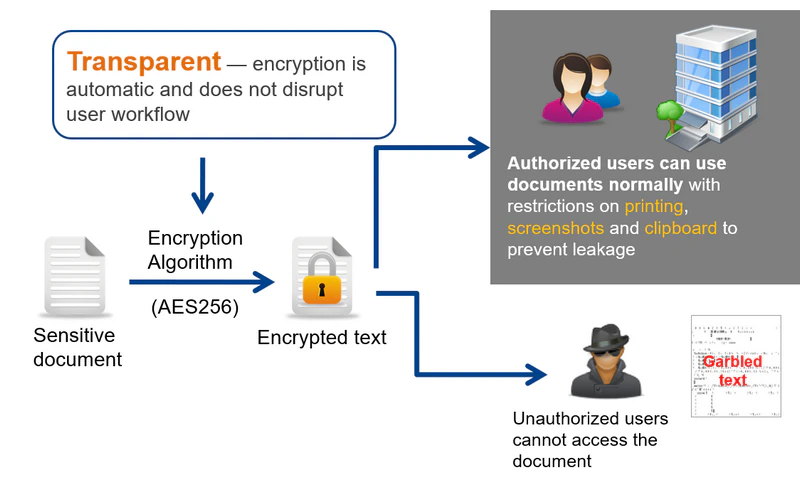
- Strong encryption algorithms: AnySecura uses AES symmetric encryption combined with RSA asymmetric encryption, much stronger than most basic tools. Even if someone copies the PDF, it cannot be opened without proper authorization.
- Centralized password policies: Administrators can define password rules according to sensitivity levels (e.g., public, internal, confidential), enforce strong password standards, and set password expiration periods—preventing employees from using weak passwords like “123456.”
- Automatic background encryption: When employees create or modify PDFs, the system encrypts them automatically in the background. No extra steps or training required, so efficiency is not affected.
2. Enterprise-Level Permission Control: Role-Based and Scenario-Specific
Whether for internal collaboration or external sharing, AnySecura manages permissions with precision—addressing the shortcomings of password-only protection.
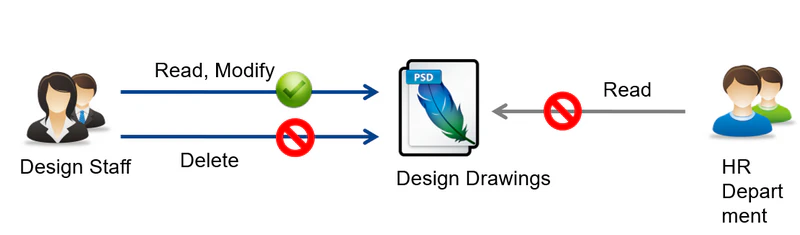
- Clear internal access control: Permissions can be assigned by department and role. For example, employees may only view confidential PDFs, managers may edit them, and executives may decrypt them. This prevents unauthorized internal access.
- Controlled external sharing: When sending PDFs to clients or partners, you can set limits on viewing, restrict expiration time, bind the file to a recipient’s device, block copying, printing, and screenshots, or require the use of a secure viewer.
- Secure work during travel: Employees without internet access can use offline authorization or USB keys to temporarily unlock PDFs. Usage time can be limited to prevent leaks.
3. Full Lifecycle Management: Built for Enterprise Scalability
AnySecura integrates PDF encryption into the company’s entire security architecture, making it easier to manage and maintain.
- Supports multiple file formats: Besides PDFs, Office documents and design files can also be encrypted. A single admin console can manage file security across all employee devices.
- Seamless integration with enterprise systems: Works with OA, ERP, CRM, and other platforms. Files are automatically encrypted and decrypted during upload or download—no manual steps required.
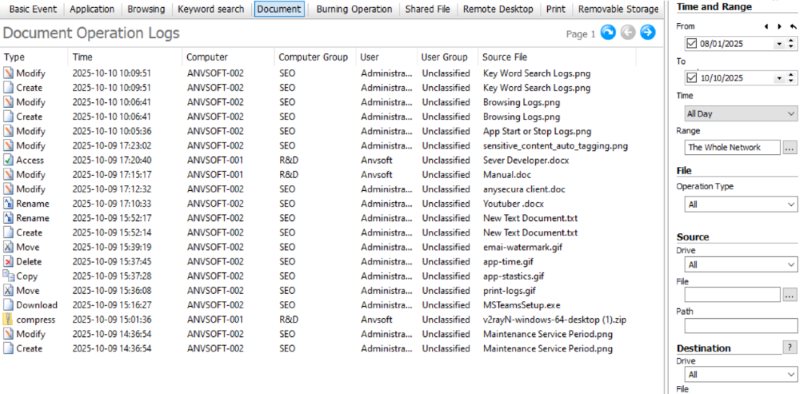
- Detailed audit logs: Every action—viewing, editing, decrypting, sending files—is recorded. In case of a leak, the responsible person can be identified quickly.
- High reliability: With backup servers, offline fallback mechanisms, and file backup, encrypted PDFs remain accessible even during outages or device failures.
4. How to Add Password Protection to PDF (For Administrators)
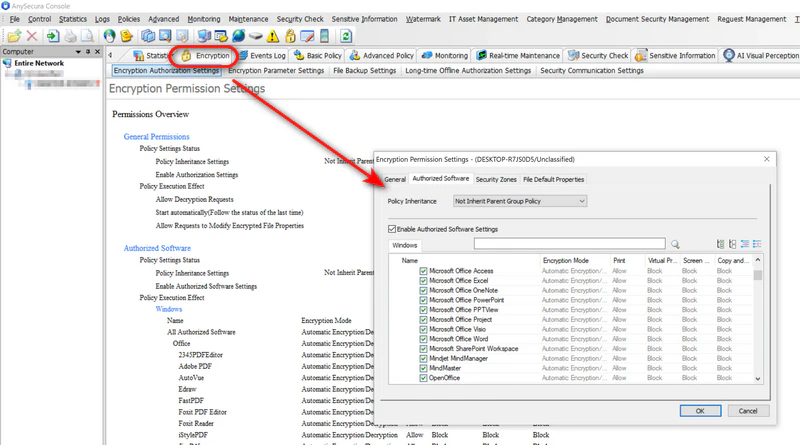
- Log in to the AnySecura admin console, navigate to Encryption, and create Application encryption rules.
- Assign these rules to the relevant departments or employee devices. The system applies them automatically.
- Employees work as usual. When saving a PDF, it is automatically encrypted according to the rules. For external sharing, employees follow an approval workflow; once approved, AnySecura automatically applies the correct restrictions.
- Administrators can view real-time logs of PDF activity and export regular reports.

Even with the best firewalls and anti-ransomware tools, your biggest cybersecurity threat may come from inside—your own employees or contractors. Keep reading to find out what a malicious insider is, and how to detect. Learn more>>
FAQs about Password Protect PDF
If a password is forgotten, can an encrypted PDF still be opened?
First, try to recall your password or use password recovery tools such as PassFab for PDF or PDF Password Remover. If you still cannot remember the password, most consumer tools offer no way to recover it — which is exactly the purpose of strong encryption.
Why can’t I open an encrypted PDF on another device?
Common reasons include:
- Incorrect password (double-check capitalization and symbols).
- Encryption incompatibility (AES is recommended for best compatibility).
- Enterprise-protected PDFs may be device-bound (you’ll need to open them on an authorized device or request permission changes).
How to remove password protection from pdf?
If you already know the password, removing password protection from PDF in Adobe Acrobat is straightforward:
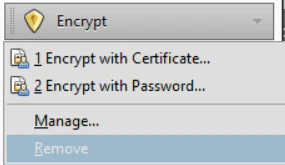
- Open the encrypted PDF in Adobe Acrobat and enter the password to unlock it. Then click Protection at the top and select Remove.
- When the confirmation window appears, confirm the removal. Save the file, and the PDF will no longer require a password to open.
This method works only when you have legitimate access to the file and the correct password.
More safe method for your company: How to Remove Password From PDF Safely in Minutes
Conclusion
The key to encrypting PDFs is choosing the method that fits your needs: For personal use and general privacy protection, free or common tools like Adobe Acrobat are sufficient—just make sure to set strong passwords and follow simple procedures. For businesses handling large amounts of sensitive data, basic tools are not enough. Only a professional solution like AnySecura—with tranparent encryption, permission control, workflow management, and audit logs—can truly prevent internal misuse and external leaks.
For both individuals and businesses, encryption is just the first step. You should also update passwords regularly and review permissions to maintain long-term security. By choosing the right tools and integrating security into daily operations, PDFs can become a secure “information container” rather than a potential risk.