Password-protected PDFs are common in companies. Contracts, pricing sheets, financial reports, HR documents, and customer records are often encrypted to prevent unauthorized access. While encryption protects sensitive data, teams frequently need to remove PDF passwords for audits, legal processes, or cross-department collaboration.
For business managers, this creates a unique challenge: How do you remove a PDF password safely, efficiently, and without risking compliance violations? This guide will show you fast, safe and enterprise-ready ways to remove a password from a PDF.

Related article: How to Password Protect a Word Document [Personal and Business Guide]
Method 1: Remove Password from PDF by Adobe Acrobat Pro
Adobe Acrobat Pro provides a direct and simple way to remove password from PDF if you already know the password. Because it is the official tool from Adobe, this method maintains the original file quality and security structure while removing the password protection.
- Open the PDF in Adobe Acrobat Pro.
- Enter the password to unlock it. And find Protect in the right-bottom corner
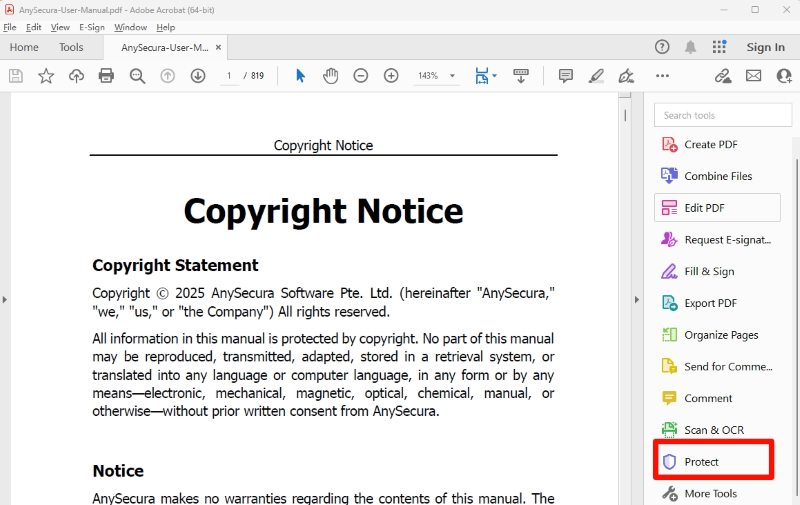
- Go to Tools —Protect —Advanced Options —Remove Security.

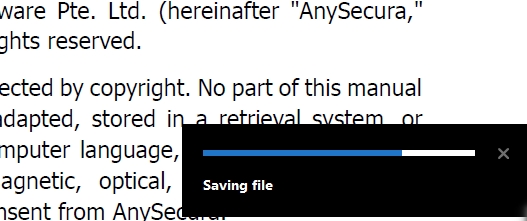
- Press Ctrl+S (Windows) or Cmd+S (Mac) to save the PDF without the password.
 Limitations
- No audit trail.
- No centralized access control.
- Not ideal for managing sensitive corporate documents across departments.
When this works well- Your team uses Adobe regularly.
- The file is not highly sensitive or regulated.
Method 2: Remove PDF Password Using Google Chrome
This method uses Google Chrome’s built-in PDF viewer to remove the password by re-saving the file. It is one of the simplest approaches and does not require installing any additional software.
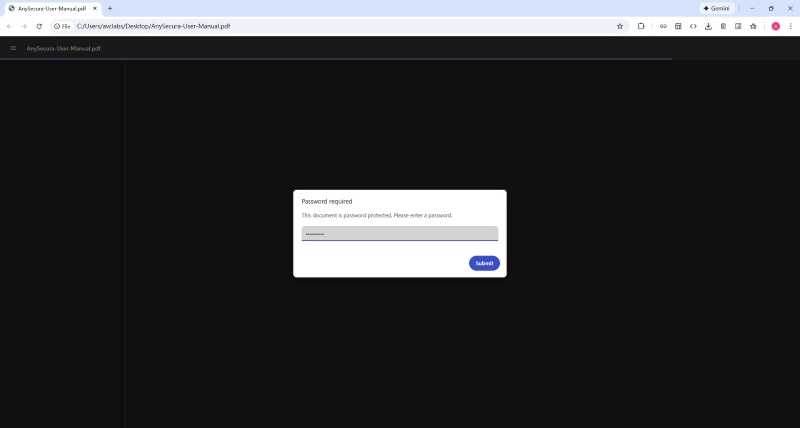
- Open the password-protected PDF in Chrome.
- Enter the password.
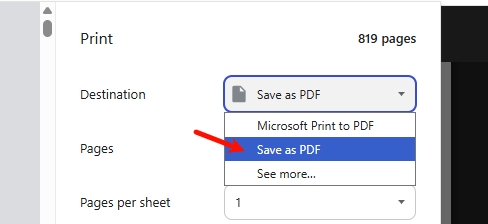
- Press Ctrl+P (Windows) or Cmd+S (Mac).
- Choose Save as PDF.
- Save the new file without the password.
 Limitations
- No security or compliance features.
- Easily bypasses internal document handling policies.
- Not suitable for documents containing regulated or confidential information.
When this works well- Non-sensitive documents.
- Occasional, personal-level tasks.
Method 3: Remove PDF Password using Online Unlock Tools
Online PDF Unlock Tools is most suitable for personal use, such as remove password from PDF that is non-sensitive (for example, a personal document or a publicly available file). Many websites allow you to upload a PDF and remove its password quickly. They are easy to use but not safe for business environments. For companies, especially for high-risk documents, this method should not be used.
- Go to an online unlock tool such as:
- Upload the password-protected PDF file.
- Enter the password if required.
- The website processes the file and removes the password.
- Download the unlocked PDF.
- Files are uploaded to third-party servers beyond your control.
- You cannot verify whether files are permanently deleted.
- Risk of leaks involving contracts, HR records, financial data, and customer information.
- Not compliant with security frameworks (ISO27001, GDPR, internal governance).
- No logs or traceability for audit purposes.
Learn what is DLP and how Data Loss Prevention (DLP) protects enterprise data from leaks and insider threats. Learn more>>
AnySecura: Enterprise-Grade Automated Document Encryption / Decryption
Most password-based document protection methods were designed for individual convenience, not for the security, compliance, and accountability that modern enterprises require.
Passwords are easy to share, easy to forget, and impossible to control. And when they are used to protect sensitive documents, contracts, financial statements, HR files, client records, they create operational friction and significant internal risk.
Why Password-Based Protection Fails in Enterprise Environments?
- Passwords Spread Easily and Uncontrollably: Once shared, a password may circulate across emails, chats, screenshots, and personal devices. Access becomes impossible to manage.
- No Visibility, No Audit Trail: Managers cannot answer basic governance questions: Who decrypted this file? / When did they access it? / Did they share or copy it?
- No Centralized Access Control: Anyone who knows the password can open the file—authorized or not. Passwords cannot enforce roles, departments, projects, or approval workflows.
- High Operational Costs and Human Error: Employees forget passwords, create weak ones, or reuse them across files. Internal collaboration slows down, and teams become dependent on insecure workarounds.
- Decryption Eliminates All Protection: Once a user remove password from pdf file, it becomes a freely shareable document unless manually re-secured, something most users will forget to do.

Insider threats in 2026 are smarter and harder to detect. Explore real cases, key trends, and practical strategies to prevent internal risks before they cause serious damage.Learn more>>
How AnySecura Solves These Challenges
AnySecura delivers enterprise-level automated encryption, controlled decryption, and complete auditability, ensuring your sensitive documents remain secure throughout their entire lifecycle, with capabilities below:
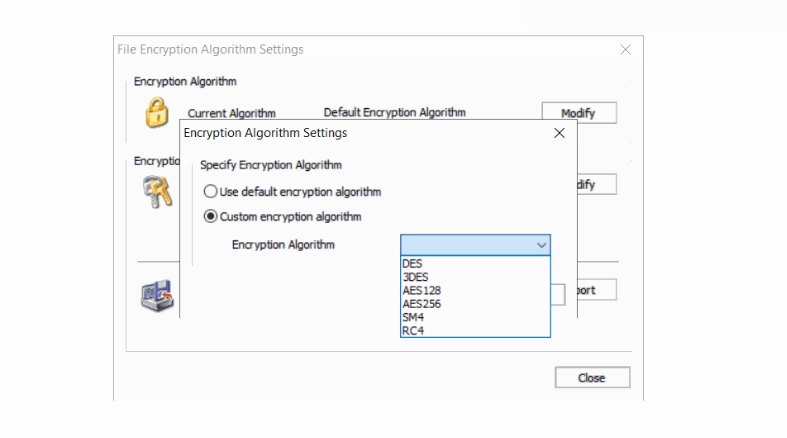
Strong Encryption Algorithms
- High-strength encryption: AnySecura uses all kinds of enterprise-grade encryption, far stronger than basic password protection.
- Always Protected: Even if a file is copied or taken outside the company, it cannot be opened without proper authorization.
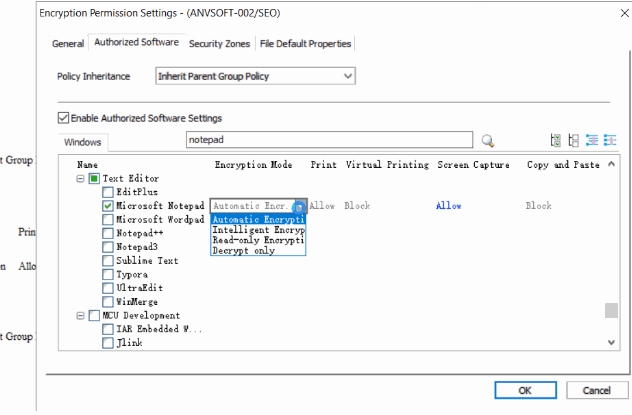
Automated Encryption: No Passwords Needed
- Instant Protection at Document Creation: Documents are automatically encrypted the moment they are created or added. No one needs to set, remember, or manage passwords, security is applied consistently.
- Zero Dependence on Passwords: Authorized users can open protected documents directly, without searching for passwords or learning decryption steps.
- Transparent Decryption for Authorized Users: Encryption and decryption happen transparently in the background, while employees work without interruption or complexity.
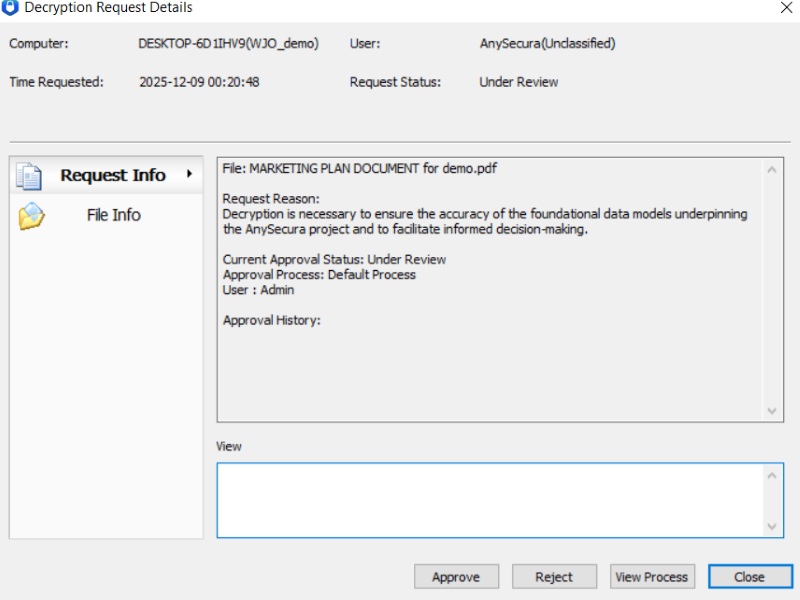
Eliminates Password Sharing Across the Organization
- Access Requests: Employees needing temporary access simply submit a request in the system. Teams no longer share passwords through email, chat apps, or phone calls.
- Multi-Level Approval Workflows: You can configure multi-step approvals to ensure sensitive files are decrypted only with proper authorization.
- Time-Limited Access Windows: Managers can define specific access durations. Once the window expires, the document automatically relocks.
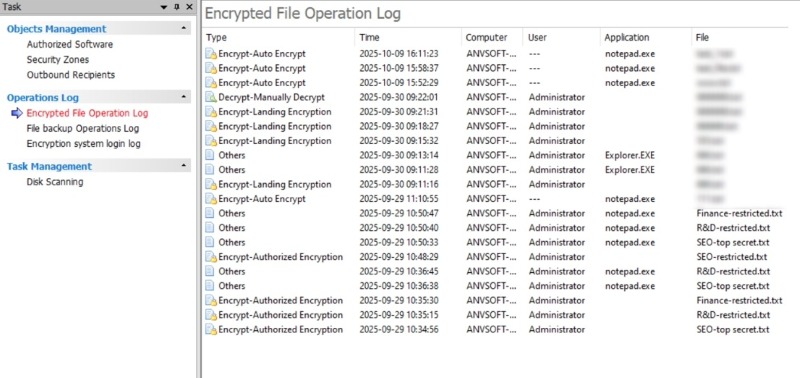
Full Audit Trails and Complete Transparency
- Every Action Is Recorded: Opening, decrypting, exporting, and sharing attempts are all captured automatically. Managers can see who accessed what file, when, and under which policy.
- Detection of Unusual Activity: AnySecura highlights abnormal access patterns for proactive risk response.
FAQs about Remove Password From PDF
Can I remove a PDF password without knowing the original password?
No. If the PDF requires a password to open, you must know the original password before removing it.
Is it legal to remove a password from a PDF?
Yes, if you own the document or have permission to access it. Removing passwords from documents you do not have authorization to access may violate company policy or the law.
Why do some tools say “Cannot unlock this PDF"?
This message usually appears when the tool is unable to access or decrypt the PDF file. Common reasons include:
- Incorrect password: The password entered does not match the one used to protect the PDF.
- Advanced security settings: The PDF uses stronger or non-standard encryption methods.
- Unsupported encryption type: The tool does not support the specific encryption algorithm used in the file.
- File corruption or DRM protection: The PDF may be damaged or protected by digital rights management (DRM), which prevents unlocking.
Conclusion
Removing password from PDF is simple. But keeping sensitive documents secure is not. Passwords are easy to share, hard to control, and offer no visibility or accountability.
For company, relying only on password-based protection creates unnecessary risk and slows down work. AnySecura replaces this outdated approach with automated encryption, controlled access, and full audit trails, ensuring documents stay protected without disrupting productivity.
Try AnySecura today, make your document security stronger, simpler, and truly enterprise-ready.