Keeping your files safe is essential, whether you're protecting private notes, business contracts, or client data. Microsoft Word offers built-in tools to lock your files with a password, and there are also alternative methods you can use when sharing documents.
This guide explains how to password protect a Word document no matter for personal document or in workplace, how to remove or change a password, workplace-level protection, and what to do when you forget your password.
1. How to Password Protect a Word (For Personal Use)
1. How to Password Protect a Word On Windows
If you work alone on your device and want to block others from opening or changing your file, then Word's built-in encryption is the best option to password Protect a Word. It protects both personal files and sensitive drafts without requiring extra tools.
- Open your document in Microsoft Word.
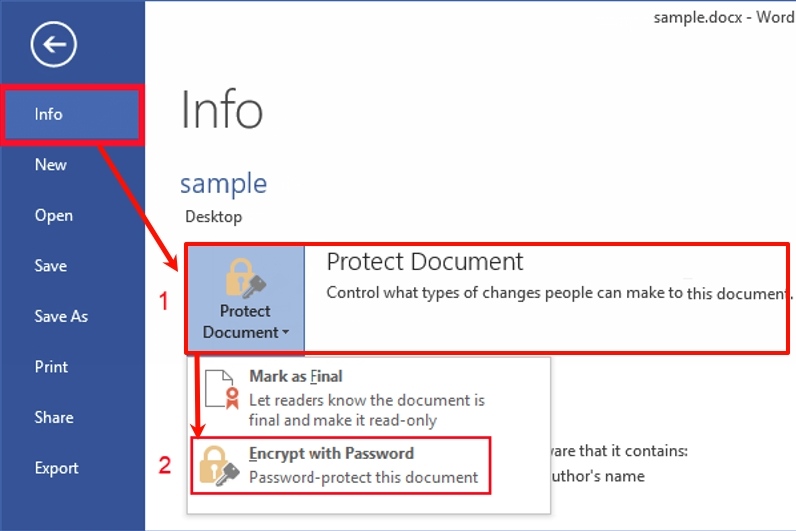
- Go to File → Info → Protect Document → Encrypt with Password.
- Enter your password.
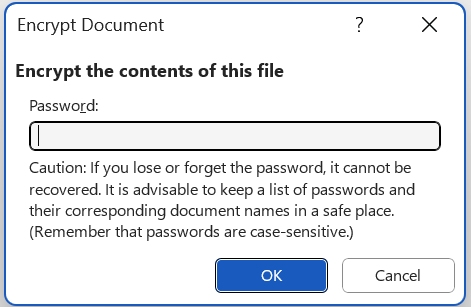
- Click OK and don't forget to save the document.
Once this is done, Word encrypts the entire file. Anyone trying to open it will be asked for the password before they can see anything inside.
- The menu labels may vary slightly, but File → Info → Protect Document is consistent.
- Older versions (like Word 2011 for Mac) may use Tools → Protect Document.
2. How to Password Protect a Word Document On Mac
Microsoft Word for Mac uses a different menu layout:
- Open the document.
- Go to Review → Protect Document → Password.
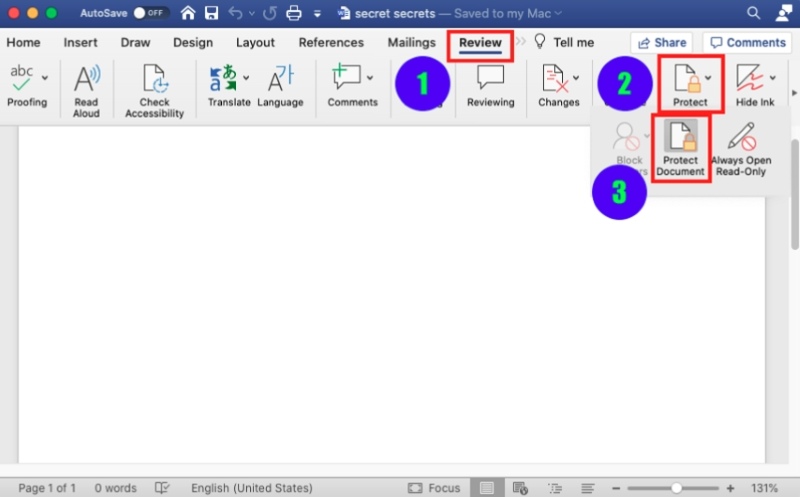
- Set an Open password, an Editing password, or both.
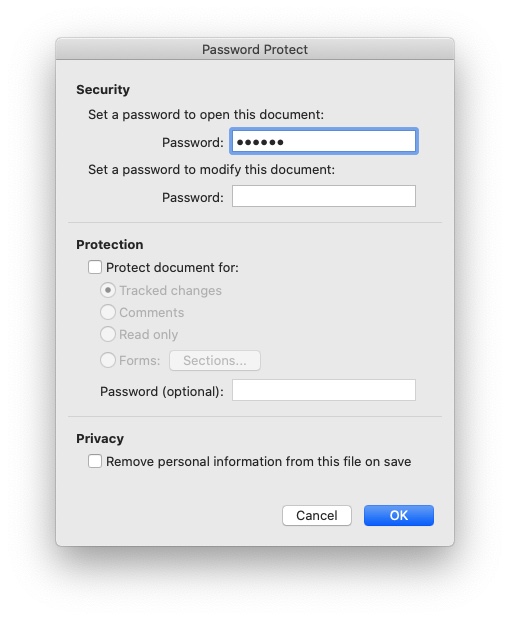
- Save the file.
- Use a strong password (at least 12+ characters, mix of letters, numbers, symbols).
- You can also restrict editing without requiring a password to open by using Restrict Editing under the same menu.
- If you're sharing the document, send the password separately (never in the same email or message).
- If you forget the password, Microsoft cannot recover it. Store it somewhere safe.
3. How to Password Protect a Word Document On Mobile Device
Microsoft Word on mobile devices does NOT support adding a password to a document. If you need to password-protect a Word file but don't have access to a computer, you can use an online tool instead. Only do this if your document is not sensitive, since it will be uploaded to a third-party service.
- Visit a website that offers Word-to-PDF conversion and PDF password protection, such as:
- Upload your Word document and convert it to a PDF.
- Go to the PDF password protection page on the same site:
- Enter the password you want to apply and download the protected PDF afterward.
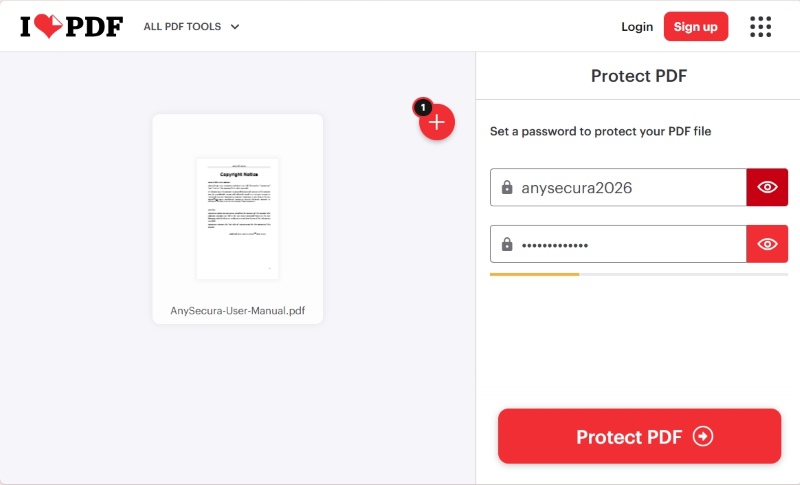
Using online tools can be a convenient workaround when you're limited to a mobile device. However, avoid this method for confidential, legal, financial, or personal documents, as your file must be uploaded to external servers.
2. How to Password Protect Word Documents in Workplace
Password protecting a Word document is enough for personal use, but it is far from sufficient for enterprise environments.
Why Word Passwords Are Not Enough for Organizations
- Employees may forget or share passwords, leading to accidental data exposure.
- Once a file leaves the company, passwords offer no control over how it is used.
- No audit trail to see who opened, edited, copied, or forwarded the document.
- No centralized management, security depends entirely on each employee's habits.
- No protection against screenshots, copying, printing, or virtual printing.
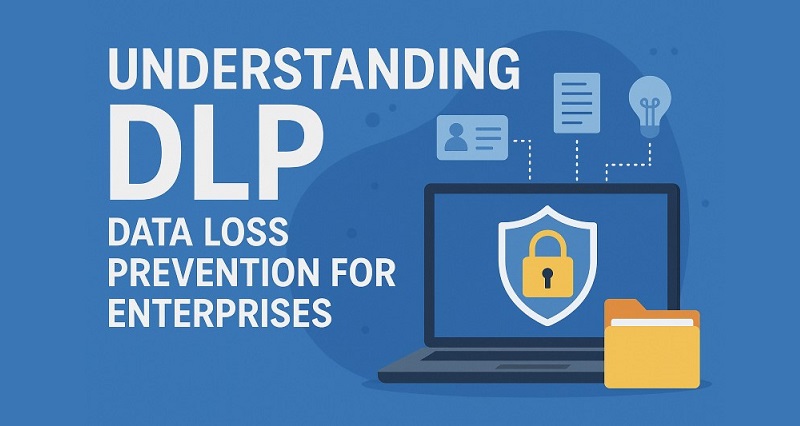
Learn what is DLP and how Data Loss Prevention (DLP) protects enterprise data from leaks and insider threats. Learn more>>
How to Protect Enterprise Word Documents
Simply adding a password is not enough for modern enterprises. Companies need automated protection that follows the document wherever it goes, not a manual setting that can be bypassed or forgotten.
This is why many organizations turn to solutions like AnySecura, which offers:
① Transparent Encryption & Always-On Protection
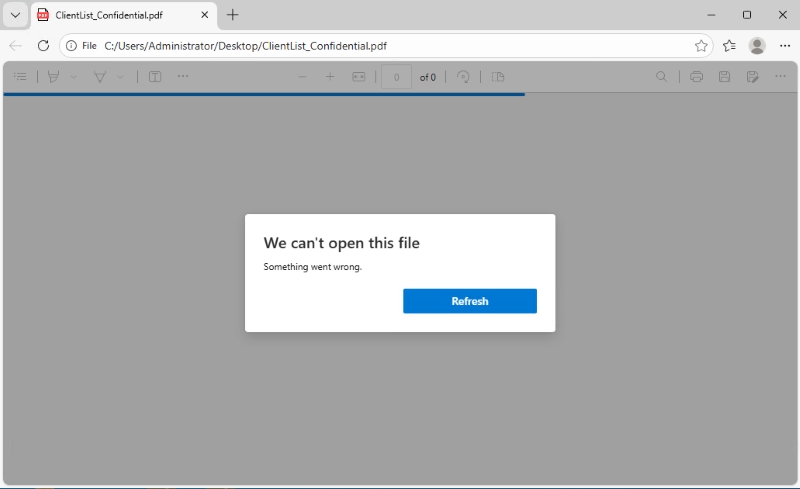
AnySecura encrypts documents automatically and keeps them protected at all times. Employees can open files normally in trusted environments, but in untrusted places, encrypted files simply won't open.
- Automatic encryption for important files (designs, financial data, source code, customer information)
- Full protection against copying, screenshots, virtual printing, and other extraction methods
- Department-level isolation so teams cannot access documents outside their scope
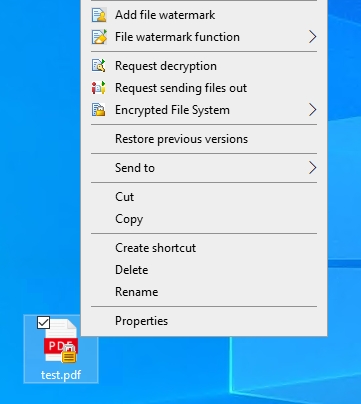
- Secure external sharing with limits on time, number of openings, and allowed actions
② Clear and Flexible Permission Controls
Managers can decide exactly who can open, edit, copy, print, or decrypt a document. If a user isn't authorized, they won't be able to open the file at all.
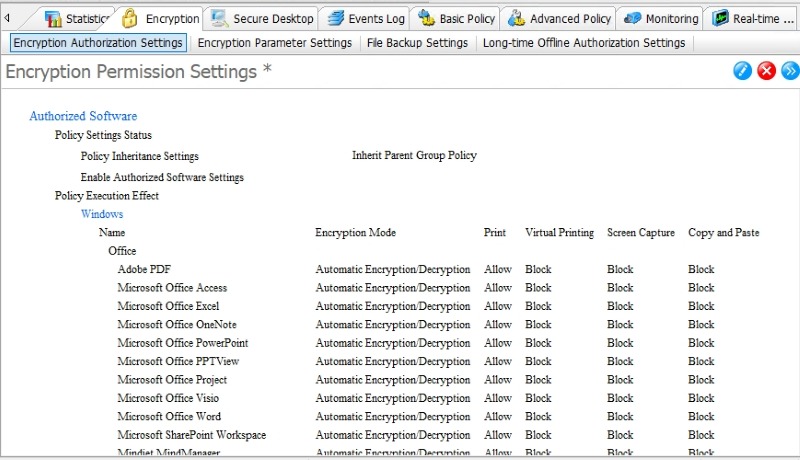
③ Different Encryption Modes for Different Needs
- Mandatory Encryption: Certain file types are always encrypted, no exceptions
- Intelligent Encryption: Encrypted files stay encrypted; plaintext stays plaintext when saved
- Read-Only Encryption: Users can view encrypted files but can't make changes
④ Safe Collaboration Inside and Outside the Company
AnySecura keeps documents secure no matter where they go or who needs to view them.
- Controlled external distribution and re-encryption after a set period
- Secure offline access for business trips or low-connectivity environments
- Mobile approval and viewing supported on iOS and Android
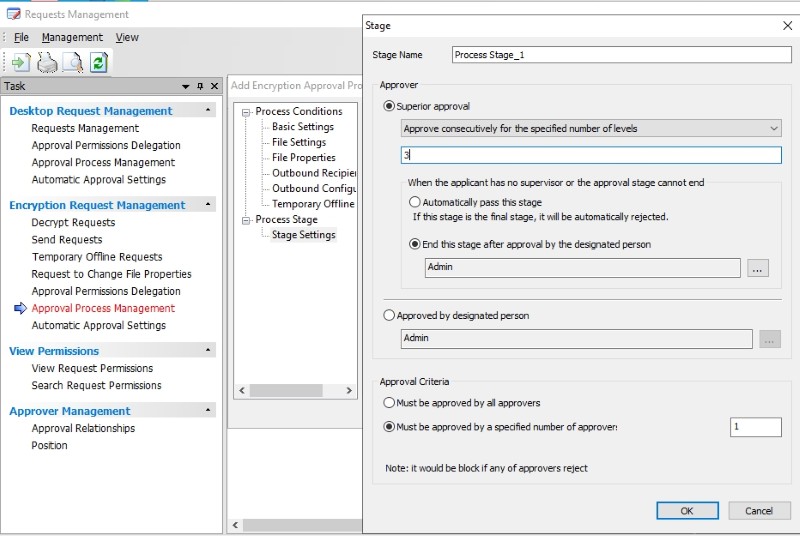
- Built-in approval workflows: single-level, multi-level, or countersign approvals
⑤ Built for Reliability and Business Continuity
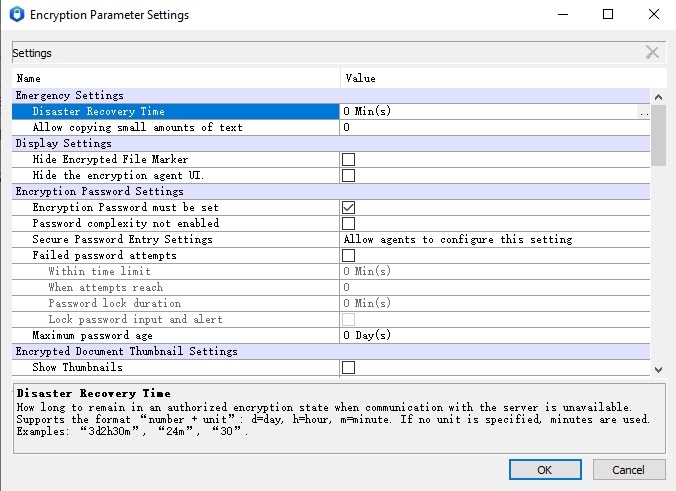
- Disaster recovery architecture to keep the system running during hardware failures
- Offline USBKey support that lets employees work securely without internet access
These five areas work together to create a simple, reliable, and centralized way to keep Word documents safe, no matter how they're shared or where they travel.
How to Add Password Protection to Word (For Administrators)
- Administrators log in to the AnySecura console, set up encryption policies.
- Assign them to departments or devices. The system applies these rules automatically.
- When employees edit or create a word document, it is encrypted based on the assigned policy. The document will automatically be decrypted for authorized person. If someone need to share a file externally, they submit a request, and once approved, AnySecura adds the proper restrictions.

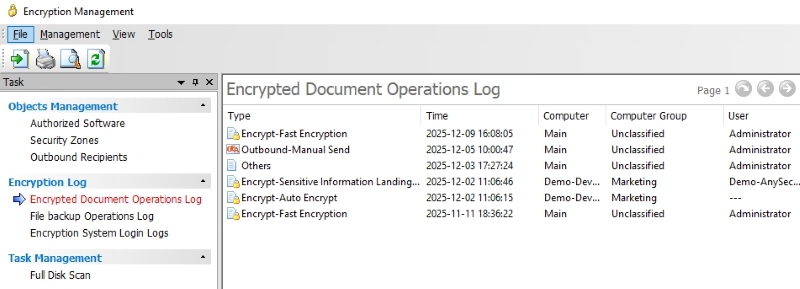
- Admins can check real-time activity and export reports whenever needed.
FAQs about How to Password Protect a Word Document
1. How to open a password protected word document if I forget the password
There is no official way to recover it. Even Microsoft cannot help bypass or restore passwords. Your only option is to use an older backup copy that wasn't encrypted.
This protects your privacy but also means you should store passwords safely.
2. How to change or update the password for a protected Word document
If you already have a password-protected Word document and want to change the password, follow the steps below:
- Open the document with the current password.
- Go back to the same encryption menu.
- Enter a new password.
- Save.
3. Are Word passwords compatible between Windows and Mac?
Yes. A file encrypted on Windows can be opened on macOS and vice-versa, as long as it is saved as .docx.
Conclusion
Password-protecting a Word document is an easy way to keep your information safe, whether you are working alone or managing documents across a company. For personal use, Word’s built-in encryption is simple and reliable. For teams and organizations, stronger tools like AnySecura offer better control, tracking, and protection.
No matter which method you choose, adding the right security helps prevent leaks, protects sensitive data, and keeps your documents safe wherever they go.