Watermarks are widely used to label documents, protect sensitive information, and show ownership. In everyday work, they help mark files as Confidential, Draft, or Internal Use Only. While adding a watermark in Excel may seem simple, the approach you choose can make a big difference, especially when documents are shared, printed, or used across teams.
This guide walks you through How to Add Watermarks in Excel both personal and enterprise-level ways. From simple built-in methods to automated bulk processing, you’ll learn how to choose the right solution based on your real needs.
How to Add Watermark in Excel [Personal Guide]
1. How to Add Image Watermark in Excel
If you already have a watermark image, such as a company logo, official seal, or any branding graphic, this method is especially useful. It works well for a wide range of situations, including branding internal templates, labeling confidential or compliance-related documents, and preparing client-facing reports where consistent visual identity matters.
- Go to Insert → Header & Footer.
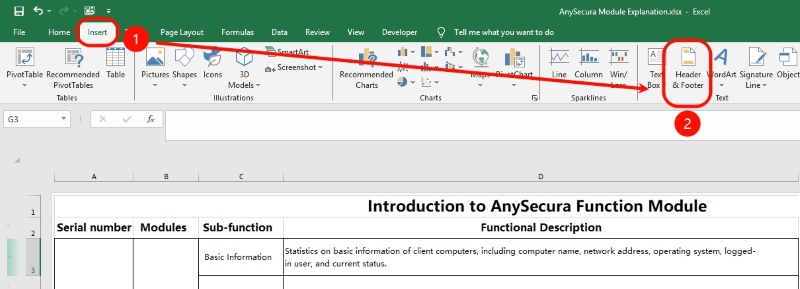
- Click inside the header area, and select Picture in the tool bar

- Upload your watermark image.
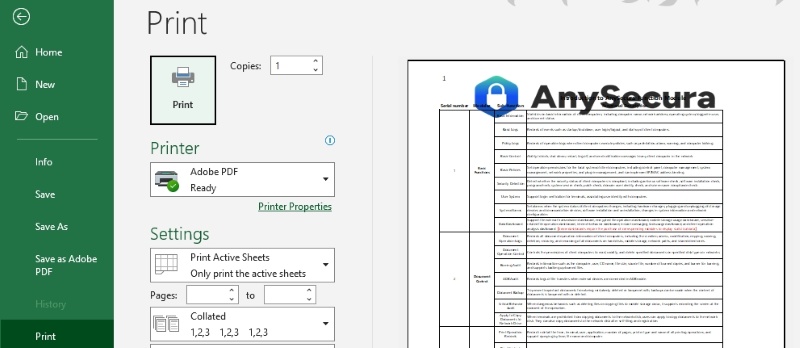
- Click Ctrl+P (Windows) or Command + P (macOS) to Print Layout to preview the result.
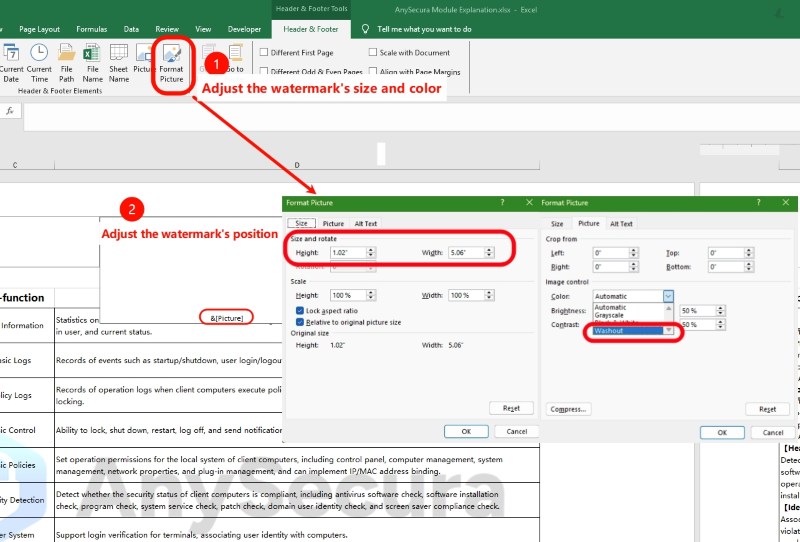
- If the watermark appears too large or too small, you can click inside the Header & Footer area, then select Format Picture (next to the Picture button in Step 2) to resize it. If the image looks too bold and affects readability, go to Format Picture → Picture → Color and set it to Washout to create a lighter, more transparent effect.
- If you want to move the watermark lower on the page, click inside the header area, locate "&[Picture]". Press Enter in front of it until the watermark shifts to the desired position. Alternatively, you can move the watermark to the Footer instead.
2. How to Add a Text Watermark in Excel
Text watermarks are flexible and easy to modify when you want to clearly label a worksheet with a status. This is the most common method for internal documents, early-stage reports, or any worksheet that needs a clear visual reminder of its classification.
For example, you might use "CONFIDENTIAL" on financial sheets, pricing documents, or sensitive internal data. Likewise, "DRAFT" is ideal for files still under revision so team members won't mistake them for final versions.
- Go to Insert → Header & Footer.
- Click inside the header area, and enter your custom text (e.g., "DRAFT" or "CONFIDENTIAL").
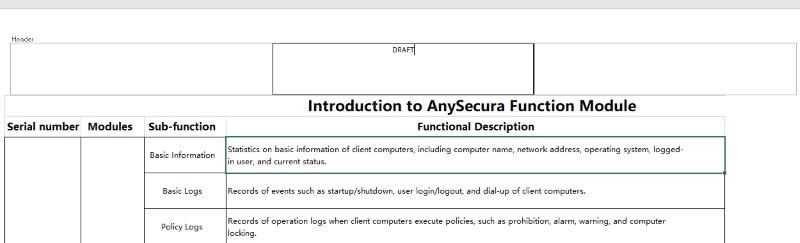
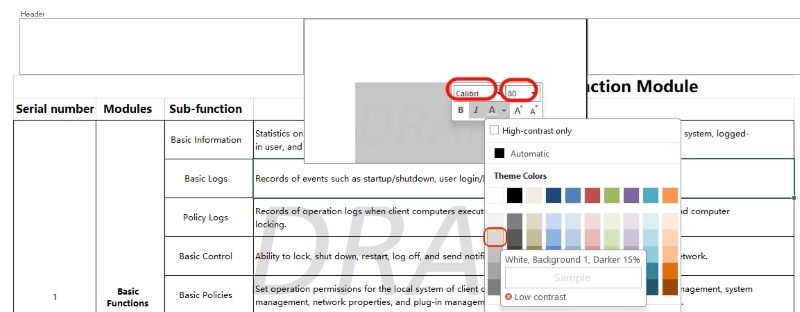
- Choose a clean, readable font such as Calibri, Arial, or Segoe UI. Adjust the font size so it stretches across the worksheet. For color, use light gray to make the watermark visible but not distracting.
- If you want to move the watermark lower on the page, click inside the header area and press Enter before the text you typed earlier.
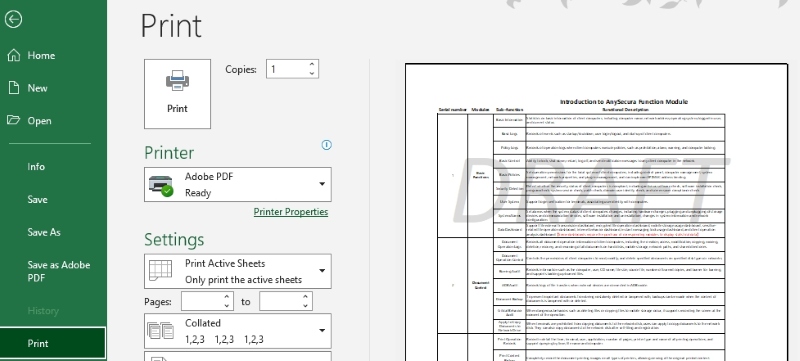
- Click Ctrl+P (Windows) or Command + P (macOS) to Print Layout to preview the result.
How to Add Watermark in Excel in Workplace
Excel makes it easy to add a “watermark” by placing an image in the header or footer. While this approach looks convenient, it is not suitable for enterprise use. Header and footer content can be removed by anyone with basic Excel knowledge in just a few clicks. It provides no real protection for the data and does not stop users from copying content, exporting files, or sharing screenshots without the watermark.
What Enterprises Must Consider When Adding Watermarks in Excel
When enterprises add watermarks, companies usually need to consider several key factors. From a security standpoint, the watermark must be difficult to remove and remain visible after printing, exporting, or copying. A solution that only works in Excel's editing view is not sufficient.
Speed and scalability are equally important. Enterprises cannot rely on manual editing or Excel UI operations. watermarking must be automated and capable of processing hundreds or thousands of files quickly. At the same time, companies need consistency. Watermarks must follow corporate standards for text, style, position, and opacity, and they must be easy to update when policies change. Any solution that fails to deliver consistency will quickly become a maintenance burden.
AnySecura: Best Enterprise Excel Watermarks Solution
AnySecura is a professional document security platform built for enterprise use. It delivers a complete and highly automated watermarking solution that scales across teams and document types.
Automatic watermarking at Enterprise Scale
Enterprises do not have time to watermark documents one by one. It's slow, inconsistent, and easy to get wrong. AnySecura allows organizations to apply watermarks automatically and at scale across Excel and other document types. Administrators can define rules centrally, and the system handles the rest.
With AnySecura:
- Old Excel files can be watermarked in bulk with one click
- New documents get watermarks when they're created
- Support for Word, Excel, PowerPoint, PDF, and image files
- Once rules are set, they take effect right away
This ensures all documents follow the same rules and standards, without relying on employees to remember anything.
Strong Leak Deterrence and Fast Source Tracing
AnySecura watermarks are designed to deter leaks and identify responsibility:
- Watermarks appear on screens, printed pages, and digital files
- Screenshots and photos still clearly show watermark information
- Dynamic identifiers (user, department, time, device) link files to people and device information
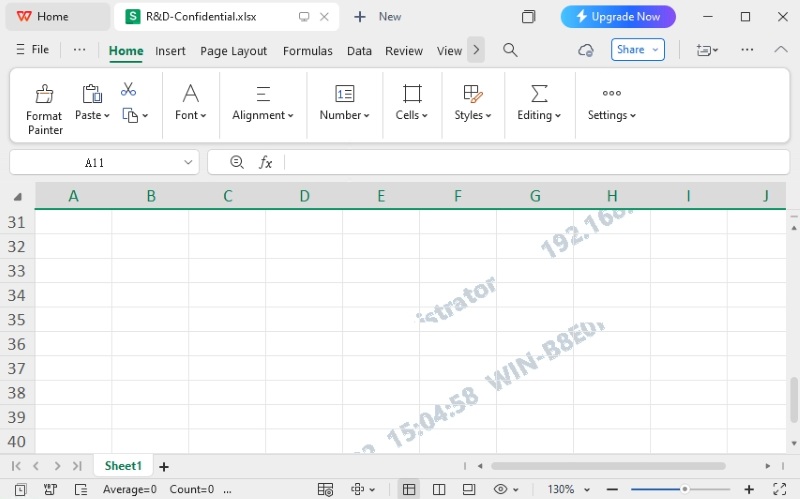
If a document is leaked, security teams can quickly trace: who accessed the document; from which device or computer; how the file was circulated.
Secure Sharing Without Breaking Daily Work
Security tools often slow people down. AnySecura is designed not to.
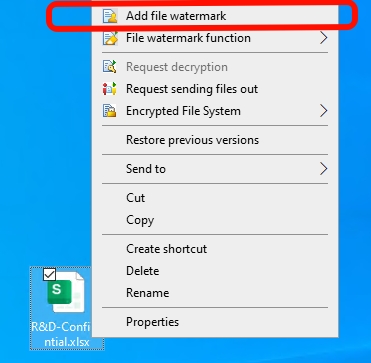
With AnySecura, files stay protected with non-removable watermarks, external sharing can be controlled through approvals, and watermarks are automatically added whenever documents are copied, emailed, uploaded, or shared
But employees don't feel the system. They continue using Excel exactly as before, without learning new software or following extra steps, while IT teams can deploy the solution quickly, connect it to existing systems, and stay fully in control without creating friction in daily work.
How to Add Watermarks in Excel with AnySecura
- Log in AnySecura console. Click Category Management → Watermark Template.
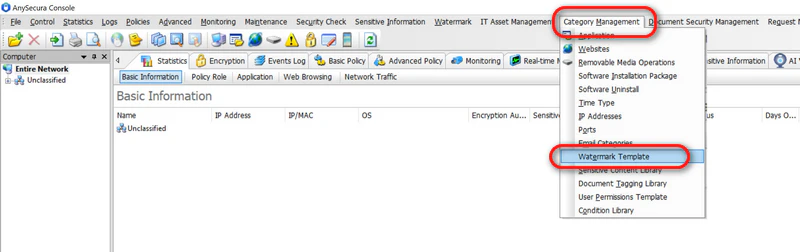
- Right click File Watermark Template, choose Add and adjust watermark template.

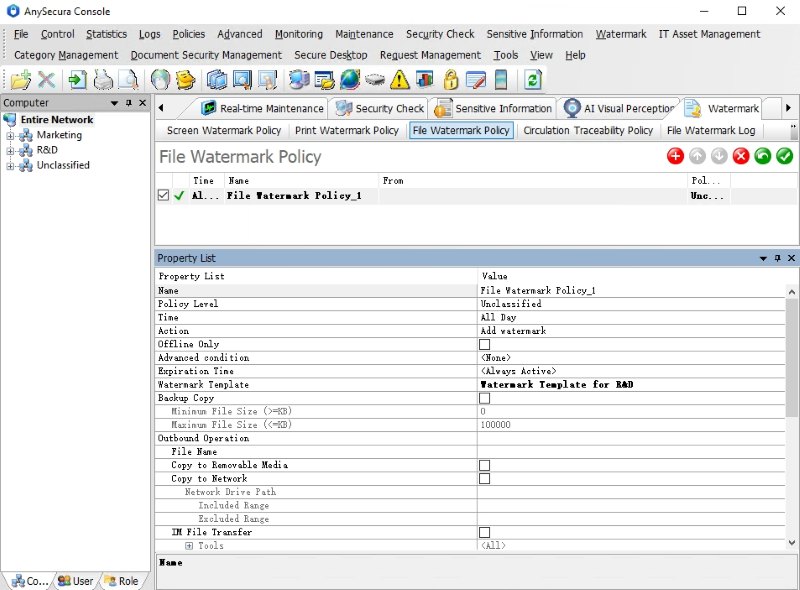
- After completing the watermark template configuration, go to the Watermark policy settings. From the Computer section on the left, select the device / user groups / departments you want the watermark policy to apply to, and click Add to create the corresponding watermark policy.

Learn how to password protect a PDF with Adobe Acrobat, online tools, mobile apps, and AnySecura enterprise-grade encryption. Learn more>>
FAQs About How to Add Watermark in Excel
Does Excel have a built-in watermark feature?
No. Unlike Word, Excel does not offer a one-click watermark option. Watermarks are added using workarounds such as headers, footers, text boxes, or background images.
Will the watermark appear when I print the Excel file?
Yes, if the watermark is added via the Header/Footer or as an image set as the sheet background. However, background images do not print by default.
Can I apply a watermark to multiple sheets at once?
Not automatically. You’ll need to add the watermark to each worksheet, unless you group sheets and apply the change simultaneously or use enterprise solution like AnySecura.
Conclusion
Adding watermarks in Excel is a simple way to label documents and reduce the risk of information leaks. For personal use or small teams, the built-in watermark features in Excel are often enough. However, in enterprise environments, manual watermarking quickly becomes inconsistent and difficult to manage at scale.
If you need an enterprise-ready solution to protect documents, control sharing, and trace leaks, without disrupting daily work, AnySecura is a practical and reliable choice.