
Overview
The OBurner tool is a dedicated burning tool for AnySecura, designed to be simple and user-friendly, capable of handling most burning tasks. This specialized burning tool requires the machine to have the AnySecura client installed in order to function properly. Without the client, burning is not possible, and only configuration files can be operated.
How to Use the Dedicated Burning Tool in AnySecura | User Guide
This guide will help you master the AnySecura Dedicated Burning Tool, starting with launching the OBurner.exe application to access its main interface.
You'll then become familiar with the layout, learning how the menu bar, toolbar, and disc display area work together to let you organize files and create secure, physical backups with ease.

Double-click to run the dedicated burning tool OBurner.exe to enter the main interface of the tool, as shown below:
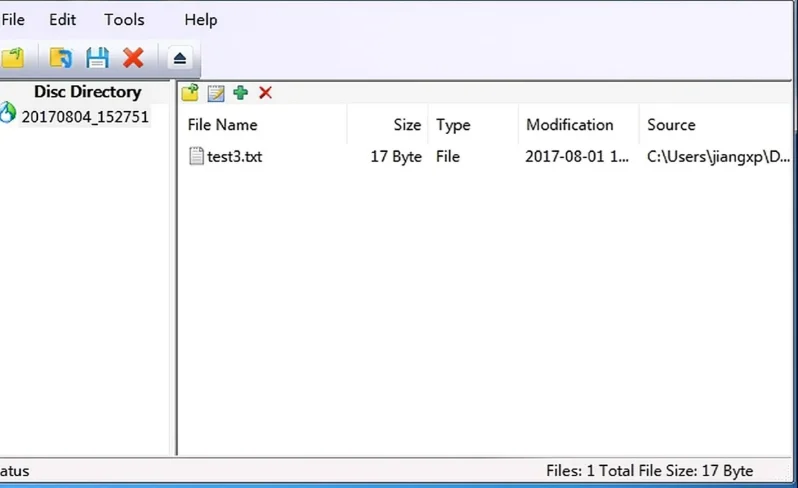
The main interface includes the following areas:
| Area | Description |
|---|---|
| Menu Bar | Contains all system menus, serving as the entry points for various function windows. |
| Toolbar | Contains commonly used functions: New, Open, Save, Burn, Eject Disc. |
| Disc Display Area | The left side shows the hierarchical structure of the disc directory. Selecting a node will display the files and folders within that directory on the right side. |
| Function Keys (on the top of the right-side view) | Allows you to perform related operations on the files and folders in the current directory. |
Toolbar Function Buttons:
| Icon | Description |
|---|---|
 |
New Button: Creates a new empty disc directory, which can also be viewed as creating a new configuration file. |
 |
Open Button: Opens an existing configuration file. |
 |
Save Button: Saves the current disc directory as a configuration file. |
 |
Burn Button: Burns the contents of the current disc directory to a disc. |
 |
Eject Disc Button: Ejects the disc from the optical drive. |
Function Icons in the Right-Side View of the Disc Display Area:
| Icon | Description |
|---|---|
 |
Back: Return to the previous directory (not the root directory). |
 |
New Folder: Create a new folder in the current directory. |
 |
Rename: Rename the selected file or folder. |
 |
Add: Add files or folders to the current directory. |
 |
Delete: Delete the selected file or folder. |