
How to Use Web Browsing Logs in Logs - AnySecura Manual
This guide will show you how to use the AnySecura Logs module to review web browsing activity across your network. You'll learn to access and interpret the detailed records captured from browsers like Chrome and Edge.
We'll then explore how to efficiently search these logs and use powerful right-click actions, such as opening a URL directly or categorizing websites, to streamline your security oversight.
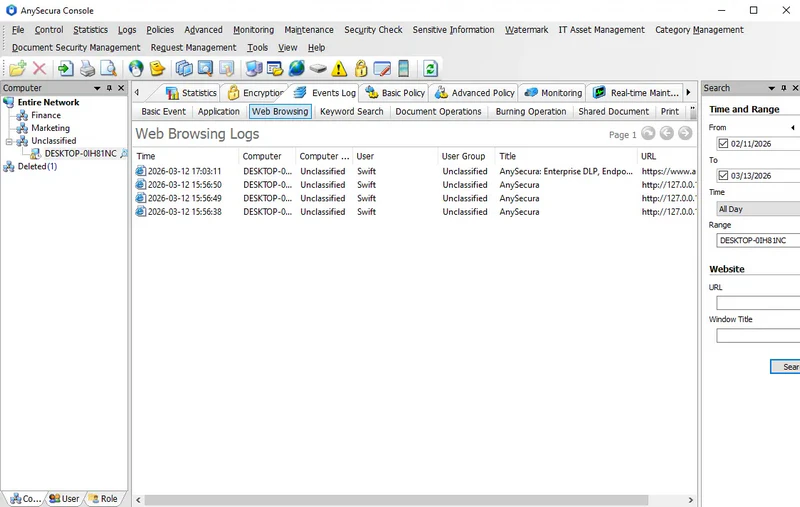
Web browsing logs record the websites visited on client computers, allowing administrators to review the browsing activity of users on those clients. Select the menu Logs → Web Browsing to view all web browsing logs.
Web browsing logs support records from various common browsers, including IE, IE, Google Chrome, Mircosoft Edge, and others.
The logs contain the following information: time, computer, user, title, URL, etc.
| Attribute Name | Description |
|---|---|
| Title | The title of the visited website. |
| URL | The full URL of the visited website. |
Note:
- Right-click Open URL to quickly navigate to the URL in the selected log and view the website details.
- Right-click Set Website Category to add the URL identification information from the log entry to a specified website category.
By default, all web browsing logs are displayed. Administrators can also set various query conditions for selective and targeted searches.
| Query Condition | Description |
|---|---|
| Time and Range | General query condition. |
| URL | Search browsing activity for a specific URL. Administrators can enter a URL directly or specify a category or website identification from the website classification. Multiple selections are supported using Ctrl+A, Ctrl+Click, or Shift+Click. Manual URL input supports fuzzy search. |
| Window Title | Search based on the window title of the website. For example, entering "Entertainment" will retrieve all logs where the website title contains "Entertainment." |