
How to Use Security Document Viewer in Security Viewer - AnySecura Manual
This guide will walk you through the simple steps to get the AnySecura Security Document Viewer onto your device, allowing you to securely access your documents from anywhere. You'll see how to either enter a web address or scan a QR code to reach the download page.
Once there, selecting your Android or iOS version is straightforward, and we'll also cover the quick trust process required for iOS to ensure the app runs smoothly on your phone or tablet.

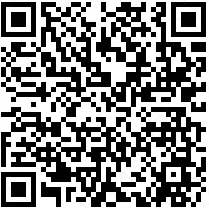
Enter the download URL for the Security Document Viewer in a browser, or directly scan the QR code on a mobile browser to access the website. You can then choose to download the version for Android or iOS.
Download URL for the Security Document Viewer: http://www.tec-development.com/apps/download.html
QR Code for downloading the Security Document Viewer:
Note
After installing the Security Document Viewer app on iOS, a "Trust" action is required:
For iOS versions between 8.0 and 9.0: After installation, open the app, and a prompt will appear asking whether to trust the app. Simply click Trust.
For iOS 9.0 and above: After installation, a prompt saying "Untrusted Enterprise Developer" will appear. You need to go to Settings > General > Profiles and trust the app there.