
Backup Server Tray Icon Status in AnySecura | User Guide
Understanding your AnySecura Backup Server's status is as simple as glancing at its system tray icon. This guide will help you interpret each icon state, from a healthy connection to common issues like authorization errors.
You'll also learn how to get a detailed status report with a right-click, confirming your server's connection and the last time it synchronized vital client data from the primary server.
The backup server's tray icon indicates its current status:
| Icon Status | Description |
|---|---|
 |
Service not started. |
 |
Parameters not set, including server IP or connection password, or authorization with the primary server not completed. |
 |
Connecting to the server. |
 |
Disconnected from the server and in backup mode. |
 |
Authorization error; the backup server cannot connect to the primary server. |
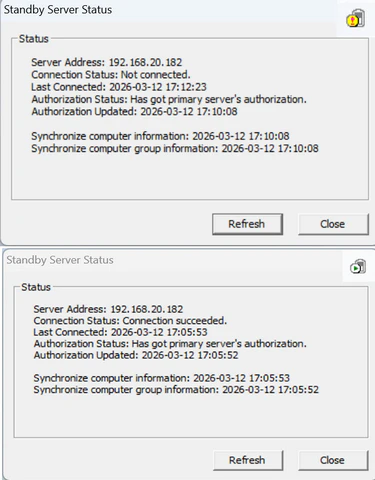
Right-click the backup server and select "Status" to view whether it is connected to the primary server, whether backup authorization is obtained, and the last time it retrieved all client information from the primary server.