
How to Use Client Control in the Console with AnySecura | User Guide
This guide will show you how to use the AnySecura Console to directly manage your organization's client computers. You'll learn to send notifications and commands to keep users informed and systems secure.
Building on that control, you can then lock workstations to prevent access or remotely log off users and restart systems, all from the central AnySecura Console to maintain operational integrity.
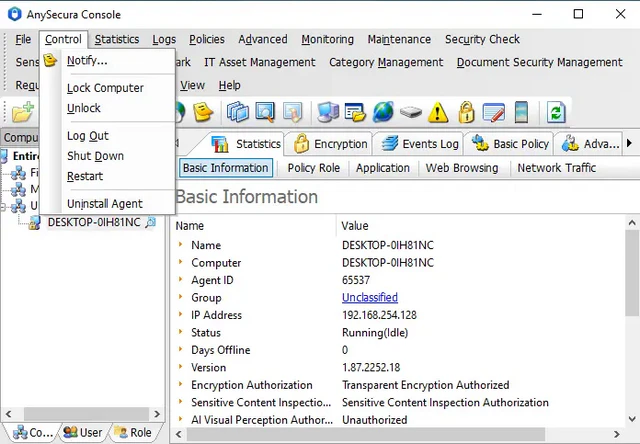
Administrators can control computers running the client module through the console. Control is only applicable to computers; it cannot be performed in user mode. The target computer must be online with the client module running.
3.5.1 Sending Notification Messages
To send notifications or commands to client users, use the Send Notification Message feature in the console.
Select the target client computer or group (if a group is selected, all computers within the group will receive the message). Then choose Control → Notify to open the dialog box. Enter the notification title and content, and click Send. A notification window will appear on the desktops of the target computers.
You can manage preset notification messages. Click the  button, and a menu will appear displaying the preset contents. Selecting an item will add it to the notification content box. To manage presets, click Manage in the menu to add, delete, or modify preset messages.
Note:
- Offline clients will receive the notification the next time they connect to the server.
3.5.2 Locking/Unlocking Computers
When a client computer shows abnormal behavior or for other administrative reasons, the administrator can lock one or multiple computers to prevent users from using the keyboard and mouse.
To lock a computer, select Control → Lock Computer. Locked computers cannot use the keyboard or mouse until they are unlocked. The locked status will be shown in the computer's basic information.
To unlock a computer, select Control → Unlock. The targeted computer will regain keyboard and mouse access.
For offline clients, locking commands can be sent in advance; the client will be locked upon its next connection to the server.
3.5.3 Log Off Users, Shutdown/Restart Computers
When it is necessary to shut down a computer running the client module, the administrator can use this function. By selecting Log Out, Restart, or Shutdown from the Control menu, the target computer will execute the command issued by the console. After performing the operation, the client module will exit and will only resume running when the user next logs in.