
How to Use Standby Server Management in Document Security Management - AnySecura Manual
This guide will show you how to manage your standby servers within AnySecura's Document Security Management module, ensuring your critical data remains protected and accessible. You'll learn to configure which servers can connect and how to secure their communication.
By mastering these settings, you can define a trusted network for your AnySecura Standby Servers and establish a secure authentication password. This setup guarantees that your clients can be seamlessly taken over by a standby server if needed, maintaining continuous security for all your documents.
The console menu "Document Security Management -> Standby Server Management" includes two options: "Settings" and "Change Connection Password."
Settings
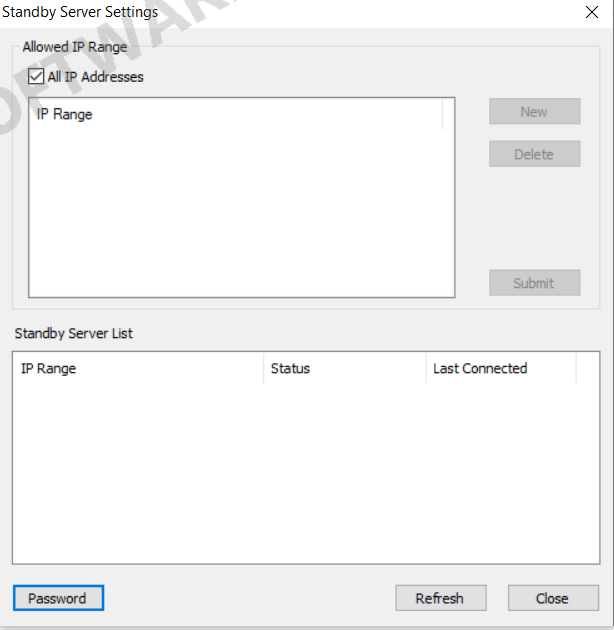
Click "Settings" to open the Standby Server Settings dialog and configure the access range for standby servers. Steps are as follows:
- 1. Go to the console menu: "Document Security Management -> Standby Server Management -> Settings" to open the Standby Server Settings window.
- 2. Set the allowed IP range for standby servers and click Submit. For example, if the allowed IP range is 192.168.0.1–192.168.0.100, any standby server outside this range cannot connect to the main server.
The Standby Server Settings dialog also displays a list of all standby servers currently registered on the main server.
Change Password
Click "Change Connection Password" to set the connection password between the standby server and the main server. Steps:
- 1. Go to the console menu: Document Security Management -> Standby Server Management -> Change Connection Password.
- 2. After setting the connection password, the standby server can successfully connect to the main server, authenticate through it, and obtain its authorization.
Note:
- Windows, Mac, and Linux clients can all be taken over by the standby server if the main server fails.