
Instant Messaging Monitoring for Employee Productivity in AnySecura
This guide will show you how AnySecura's monitoring module helps you understand employee chat activity across platforms like Teams and WhatsApp. You'll see how capturing this data creates an audit trail for accountability and helps identify distractions.
We'll then explore how to search these detailed logs, from finding specific keywords to exporting records, giving you the tools to foster a secure and productive work environment.
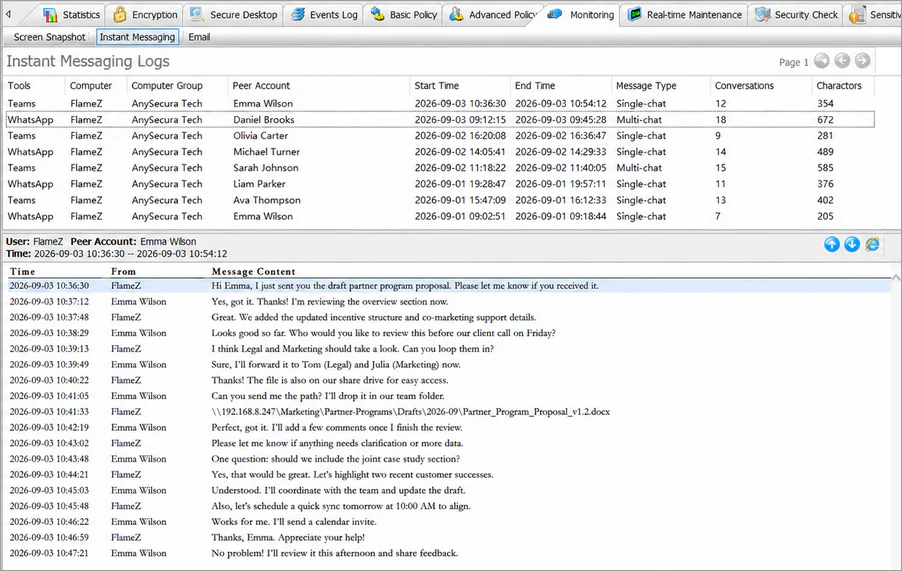
Instant messaging (IM) monitoring captures chat activity on client machines, providing a key audit trail for accountability, identifying inappropriate conversations, and preventing distractions that may affect work efficiency.
Supported Instant Messaging Tools
The system can record chats from a wide range of instant messaging platforms, including:
WhatsApp, LINE, Microsoft Teams, Skype, Google Talk, Zalo, Yahoo Messenger, ICQ, and LinkedIn.
Instant Messaging Content Logging
Recorded IM content includes the following fields:
| Field | Description |
|---|---|
| IM Tool | The instant messaging platform used. |
| Local Account | The nickname of the local account sending messages. |
| Counterparty Account | The nickname of the recipient or chat partner. |
| Start Time | When the chat session began. |
| End Time | When the chat session ended. |
| Message Type | Indicates whether the conversation is one-on-one or group chat. |
| Message Count | Number of messages exchanged, reflecting chat volume. |
| Chat Content | Detailed timestamps and message content. |
Chat content supports regular expression (regex) searches. Enter the format as R:+<regex>.
- Example: To find chats containing an ID card number, enter R:\d{17}[\d|x]|\d{15}.
- To find chats containing a phone number, enter R:0?(13|14|15|18)[0-9]{9}.
The system also supports viewing sent images and files:
- For files: a clickable file name link opens a standard download window.
- For images: whether sent as files or screenshots, a thumbnail and file name link are displayed. Double-clicking the thumbnail opens the full image; clicking the link opens a download window.
Saving Chat Content
Administrators can save chat records for future reference.
- Select one or more records, right-click Export Chat Record, and save as .htm or .xls.
- Using the right-click menu Export Logs, Chat Records, and Backup Files, administrators can export specific or all logs, chat records, and backup files simultaneously.
Chat Content Search
Chat records can be queried using the following criteria:
| Criteria | Description |
|---|---|
| Chat Tool | Search by instant messaging platform. Default is all; a specific tool can also be selected from the dropdown. |
| Message Type | Search by conversation type. Default is all; can select one-on-one or group chat. |
| User ID or Nickname | Search by either party's account ID or nickname to locate specific user chats. |
| Content | Search by message content; keyword queries allow quick location of relevant chats. |
| Message Count | Search by the number of messages; specify a range if needed. |
| Character Count | Search by the total number of characters; specify a range if needed. |