
How to Use Screen History Search in Monitor - AnySecura Manual
This guide will help you navigate the Screen History Search feature within the AnySecura Monitor module, showing you how to access recorded user activity. You'll see how to view the day's screen records for client machines where the policy is active.
To quickly find specific sessions, you can then apply various query conditions like date range or computer name. Understanding these filters and the resulting log attributes will make pinpointing the exact screen history you need a straightforward task.
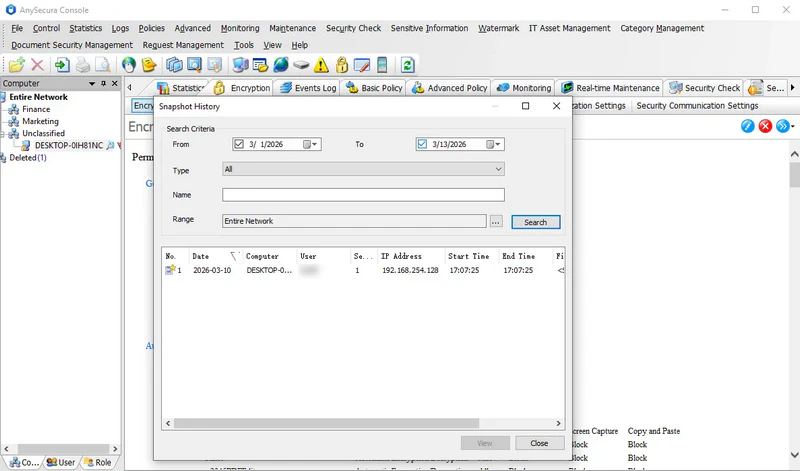
By selecting "Monitoring -> Search Screen History", administrators can view the screen history by default for the current day. Only client machines with screen recording policies enabled will have accessible screen records. Administrators can also apply specific query conditions to quickly locate the desired screen history.
Query Conditions:
| Condition | Description |
|---|---|
| Date Range | Set the start and end dates to query all screen history within the selected period. |
| Computer Name | Search for screen records of a specific computer. Supports fuzzy search (e.g., entering "TEC" returns all computers with names containing "TEC"). |
| Network Address | Enter a specific IP or IP range (e.g., 192.168.1.100-192.168.1.200) to query the corresponding computer's screen records. |
| Range | Select a computer group to query its screen records, including records from deleted groups. |
Screen Record Log Attributes:
| Attribute | Description |
|---|---|
| Date | The date of the screen record. Screen data is saved per day, with one file per day. |
| Computer | The client machine being recorded. |
| Session | Session ID. For a single logged-in user, the session ID is 0; for a second user, the session ID is 1. Multiple users generate multiple records, one per session. (On Vista, the first user's session ID is 1.) |
| Start Time / End Time | The start and end time of the screen recording. |
| File Name | The screen data is stored in the SQL database, with the file name displayed as <SQL>. |