
If your child says they are just doing homework, but a few minutes later they are on random websites, this page is for you. With AnySecura, you can block unsafe websites, block adult content, and still leave school websites available.
You do not need to set up anything complicated first. Just open the AnySecura Console, add a web rule, choose what to block, and save it. After that, you can also check what websites your child tried to visit.
How to Block Adult Content
If your main goal is to stop porn sites, explicit pages, or other inappropriate content, start here.
Step 1: Build your Website Categories list
Before the rule has anything to block, you need to tell AnySecura which sites count as off-limits.
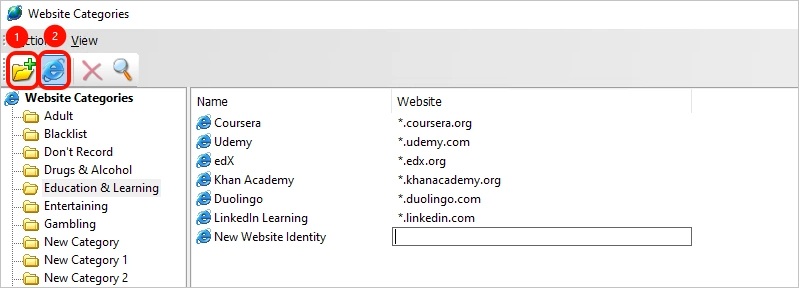
- Open Category Management → Website.

- Click the folder icon to create a new category. Name it something obvious like Adult Sites or Distracting Games. You'll see this name again when you build the rule, so make it recognizable.
- With that folder selected, click the website icon to add the sites you want blocked.
Step 2: Create a policy
- In the left menu, select your child.
- Go to Policy → Web Browsing in the toolbar.
- Click the "
 " icon to add a new rule.

Step 3: Name the rule so you can recognize it later
Use a simple name like Block Adult Content or Kids Safe Browsing. This makes it much easier when you come back later to edit the rule.

Step 4: Tell the rule which sites to block
- In the property list, set Action to Block.

- Click the … icon to the right of Website, then click "
 " in the pop-up window to add a website category.

- Select the folder you created in step 1. You can select more than one folder if you want this rule to cover several categories at once.

If all you wanted was a permanent block, you're done, skip this box. The settings below are for parents who want finer control.
- Time: apply the rule only during certain hours instead of 24/7. Useful if you're fine with weekend gaming but not Tuesday-night gaming. You can pick a pre-defined Time Type, or create your own — see Setting Up Time Types.
- Warning: show a pop-up when your child hits a blocked site. A message like "This site is blocked. Ask Mom if you need it for school." cuts down on the "the internet is broken!" complaints.
- Lock Computer: locks the entire machine the moment a blocked site is accessed. Effective, but it will also lock your child out mid-essay if a homework page accidentally triggers the rule.
- Record Screen: If you want to monitor what happens when your child tries to access a blocked website, you can enable this option. This will record screen activity during the attempt.
- Offline Only: If enabled, this rule only applies when the computer is not connected to the internet.
- Expiration Time: the rule auto-expires on a date you set. Useful for temporary restrictions (e.g., "no YouTube during finals week"). Default is no expiration.
Step 5: Save, then test it on your child's computer
Don't forget to save! Click " " to save your policy. After you save, open a browser on the child's device and try one of the blocked websites. If the rule is working, the page should not open normally.

How to Block One Specific Website
Sometimes you do not want to block a whole category. Maybe it is just one site that keeps pulling your child away from study time. In that case, add that site directly to the rule.
Go back to step 4 in the previous section, but this time, instead of clicking the folder icon, click the write icon to enter the specific URL of the website you want to block.

| If you want to block... | Type this | Example |
|---|---|---|
| One exact page | The full address | www.example.com/games |
| A whole site, including its mobile and other versions | *. then the site name |
*.tiktok.com |
| Anything with a word in the address | * then the word then * |
*game* blocks any site with "game" in the URL |
| One section of a site | The site, then /section/* |
*.reddit.com/r/gaming/* |
The asterisk (*) means "anything goes here." That's the only symbol you need to know.
For the most common cases — TikTok, Instagram, YouTube, etc. — just use *. followed by the site name. That catches the main site, the mobile version, and any subdomain the site uses.
The Strictest Option: Allow Only Specific Websites
If blocking individual sites isn't enough — maybe your child keeps finding new ones, or you want full control over what they can reach — you can flip the logic entirely: block everything, then carve out the sites they're allowed to use.
This takes two rules working together:
- Rule 1 — Block all websites: Create a new rule under Policy → Web Browsing. Set Action to Block, and leave the Website field empty. An empty field means the rule applies to every site.

- Rule 2 — Allow the sites they need: Create a second rule under Policy → Web Browsing. Set Action to Allow, then add every site your child is permitted to visit, school portals, homework tools, whatever you've approved. Add them the same way as before: use the write icon to enter URLs directly, or the Package icon to point at a Website Categories folder you've already built.

With both rules saved, your child can only reach the sites on your allow list. Every other site, including ones you've never heard of, is blocked by default.
FAQs About Blocking Inappropriate Websites
What if my child uses incognito mode or a different browser?
The rule applies to the all application by default. Chrome, Edge, Firefox, incognito windows — all blocked the same way.
Can I block one website but keep the rest of the internet working?
Yes. Add only that website to the web browsing rule. This is useful for one distracting site, one game portal, or one streaming website that keeps causing problems.
How do I know whether the block is working?
After saving the rule, try opening the website on the child's computer. Then open Logs -> Web Browsing to check what happened and confirm the browsing behavior.
