
The AnySecura Console allows you to easily manage your child’s digital habits. From here, you can monitor total screen time as well as specific usage for apps and websites.
How to Schedule Automatic Shutdowns
If you want the computer to automatically shut down, lock, or enter sleep mode at a specific time, use a Custom Configuration policy.
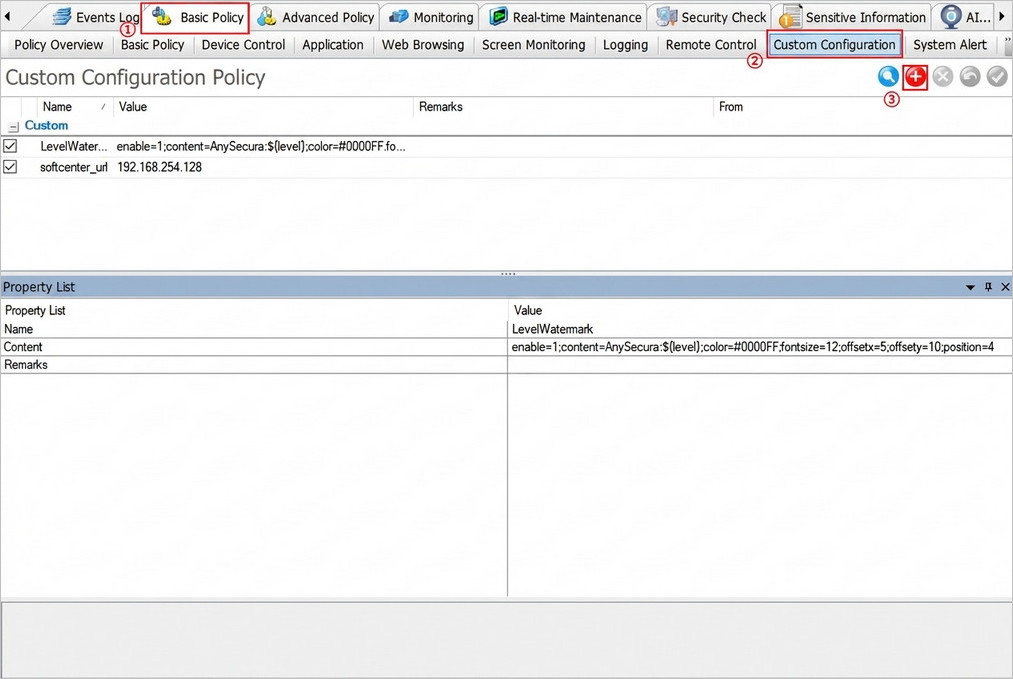
- In the toolbar, click Basic Policy → Custom Configuration, then click the "
 " to add a new policy.
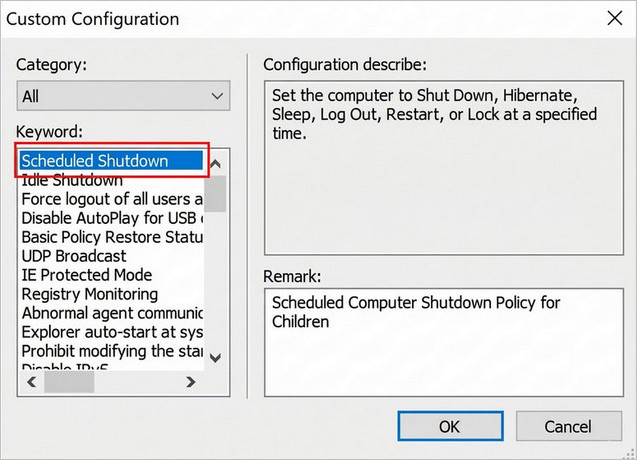
 - On the left-hand side, select Scheduled Shutdown from the Category menu.
- Remark: You can add a brief note here, such as "Bedtime Shutdown" (Optional).
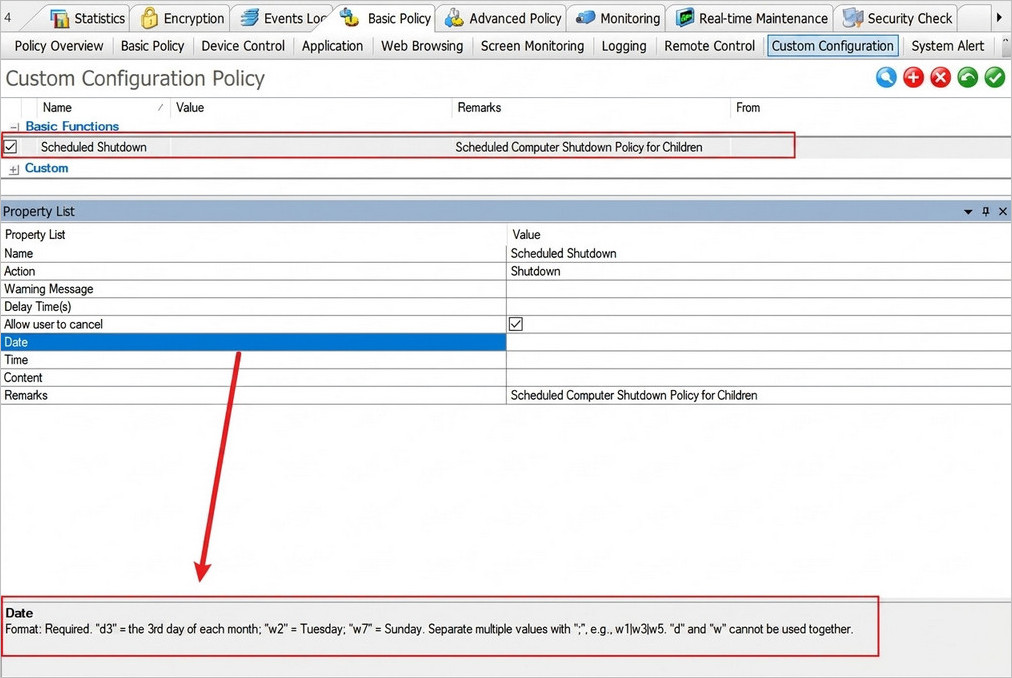
- Once created, the policy will appear in the list. Click on it to see the specific settings at the bottom of the screen.
| Parameter | Description & Format |
|---|---|
| Action | Choose what happens: Shutdown, Hibernate, Sleep, Restart, Logout, or Locked. |
| Warning Message | Enter the text that will pop up to alert your child before the action occurs. |
| Delay Time(s) | The countdown duration in seconds before the action is executed. |
| Date |
Select the days for this rule (Required). Format: w1 (Mon) to w7 (Sun), or d1 (1st of the month). Use | to separate multiple days (e.g., w1|w3|w5). Note: d and w cannot be used together. |
| Time | Set the specific time in hh:mm:ss format. You can set multiple times by separating them with |. |
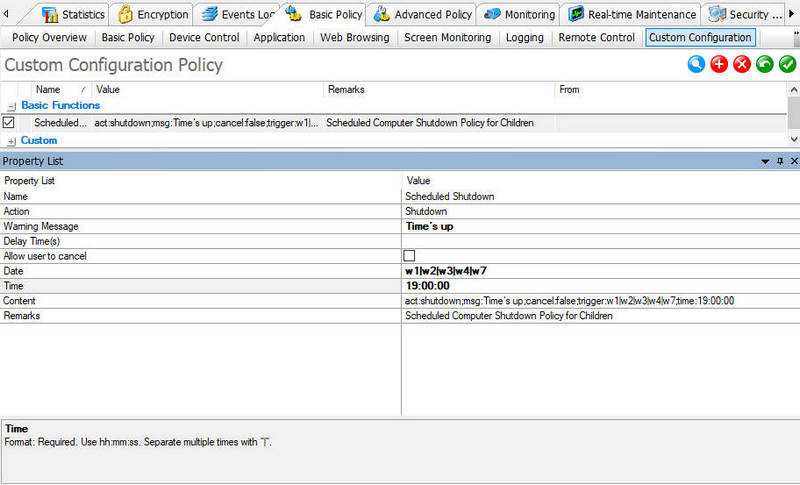
To set the computer to shut down at 7:00 PM every Sunday through Thursday, refer to:
Setting Up Time Types
To make tracking easier, you can categorize different parts of the day, such as "Study Time" or "Break Time."
- Go to Category Management → Time Type. You will see defaults like All Day, Active Time, Rest Time, and Weekend.
- You can edit existing slots or click "
 " to create a new category.
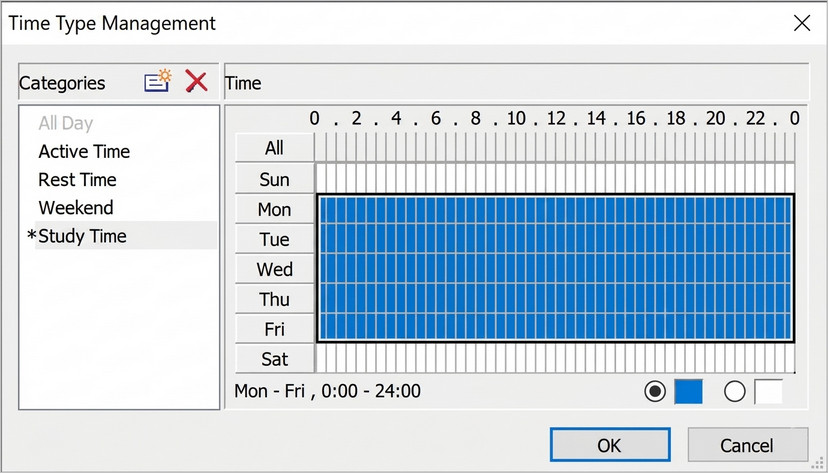
 - Click on the time grid; slots that turn blue are "active" for that category. Click OK to save.
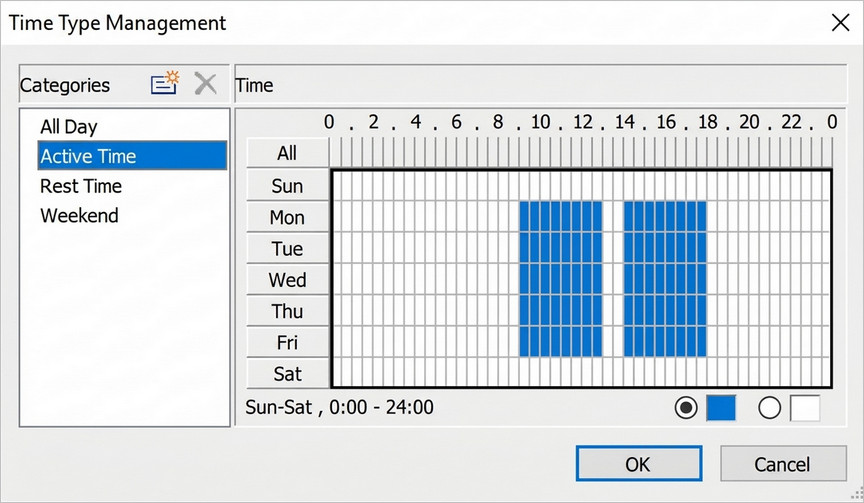
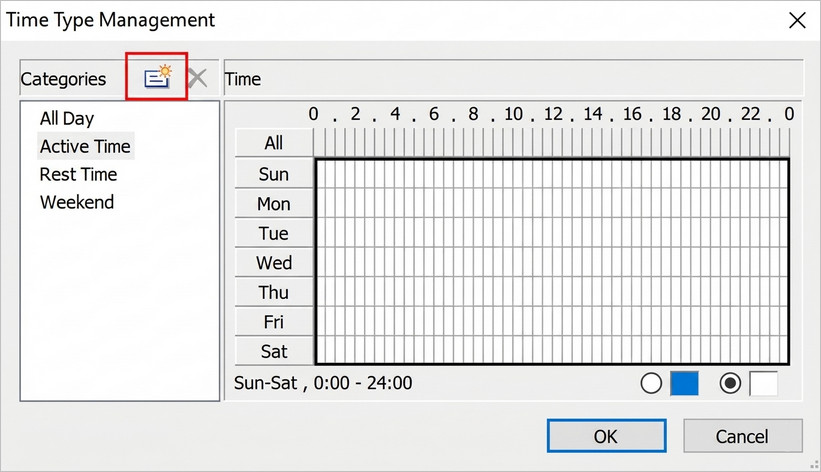
Create a "Study Time" category and set it for Monday through Friday.
How to Set App Time Limits
If you want to restrict specific software during certain hours, follow these steps:
- After setting up your Time Types, click Basic Policy → Application and click the "" to add an Application Control Policy.
- In the Property List:
- Set Action to Block.
- For Time, select a preset (like Study Time) or click Custom.
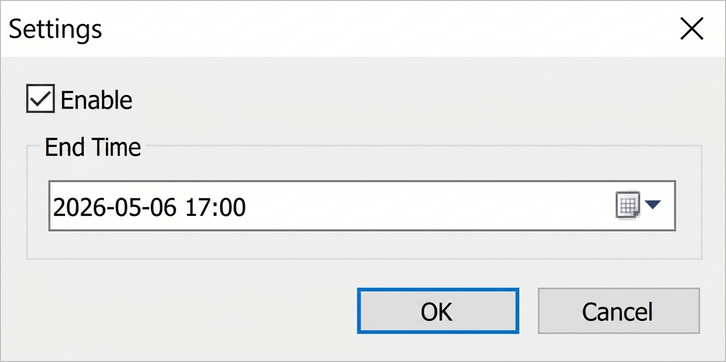
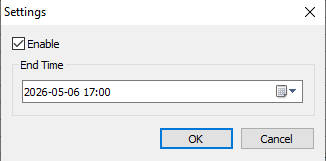
- Set the Expiration Time if needed by clicking the "
 " button. As shown in the image below, simply check "Enable" and select the desired date.
- Selecting Websites: Click the "" button in the Application column.
- Option1:Click the "
 " to type in a specific program name (e.g., the program name for Microsoft Edge is
 msedge.exe). - Option2: Click the "
 " select pre-defined Application Groups. For help creating these groups, see How to Create an App Category
⚠️Note:This is simple, but it might not work if your child renames the file. To avoid this, use Option 2
- Option1:Click the "
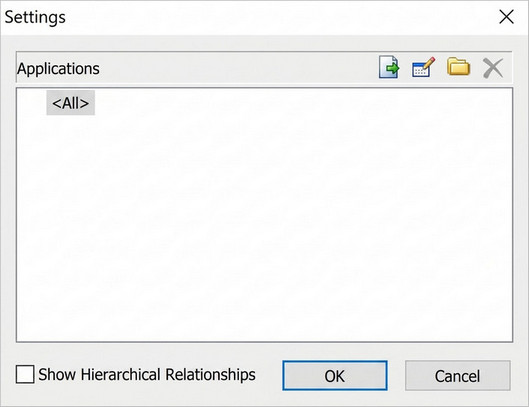
Do not block "All Applications," as this will stop essential system programs and cause the computer to malfunction.
How to Set Website Time Limits
Restricting web browsing is very similar to managing applications.
- Click Basic Policy → Web Browsing and click the red "" to add a Web Access Control Policy.
- In the Property List:
- Set Action to Block.
- Choose your desired Time or create a Custom schedule.
- Set the Expiration Time if needed by clicking the "" button. As shown in the image below, simply check "Enable" and select the desired date.
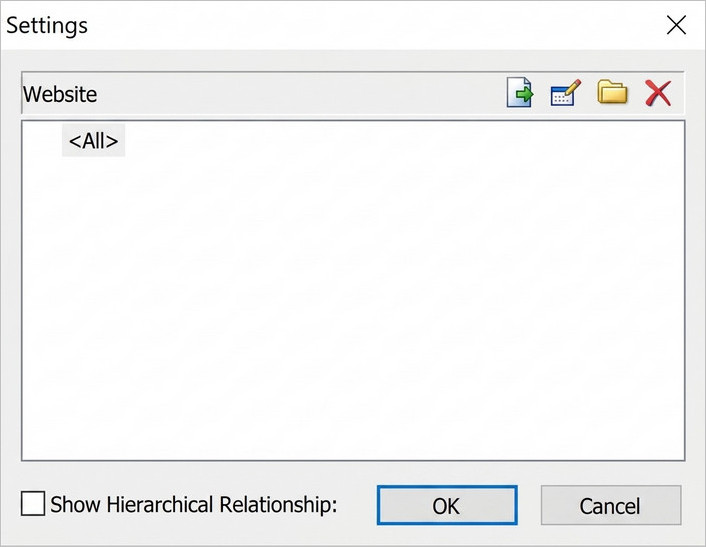
- Selecting Websites: Click the "" button in the Website column.
- Option1: Click the "" to type in specific website paths.
- Option2: Click the "" to select pre-categorized website groups.For help creating these groups, see How to Create an Website Category
- Option1: Click the "
- Selecting Browsers: In the Application column (defaulted to all), click "" to specify which browsers these rules should apply to. For instructions on browser selection, see How to Create an App Category.
Once you’re finished, click the " " to save and activate your settings.
FAQs About Time Management in AnySecura
Can I send a warning to my child before the computer shuts down?
Yes, absolutely. In the Custom Configuration settings, you can use the Warning Message field to enter a custom alert (e.g., "The computer will shut down in 5 minutes. Please save your work now."). Additionally, by adjusting the Delay Time(s), you can control the duration of the countdown, giving your child enough time to prepare and save their progress.
Can I set an "expiration date" for my restriction policies?
Yes. When setting up application or website restrictions, there is an Expiration Time option. This allows you to set a specific date when the policy will automatically stop being active. If you leave this blank, the system defaults to Always Active, and the rule will remain in effect until you manually delete or disable it.
What is the practical use of "Time Types"?
Think of Time Types as "labels" for different parts of your child's day. Once you have defined categories like "Study Time" or "Rest Time," they become shortcut options. When you create new app or website restrictions later, you can simply select your pre-defined category from the Time menu instead of manually entering complex time slots every time.
