
AnySecura allows you to manage the software installed on a computer directly. You can prevent games from running or set specific time limits, making it a perfect tool for families.
Here is an example of how to set up a "Block Games" rule.
How to Create an App Category (e.g., "Games")
To keep things organized, we recommend grouping your apps into "Packages" first.
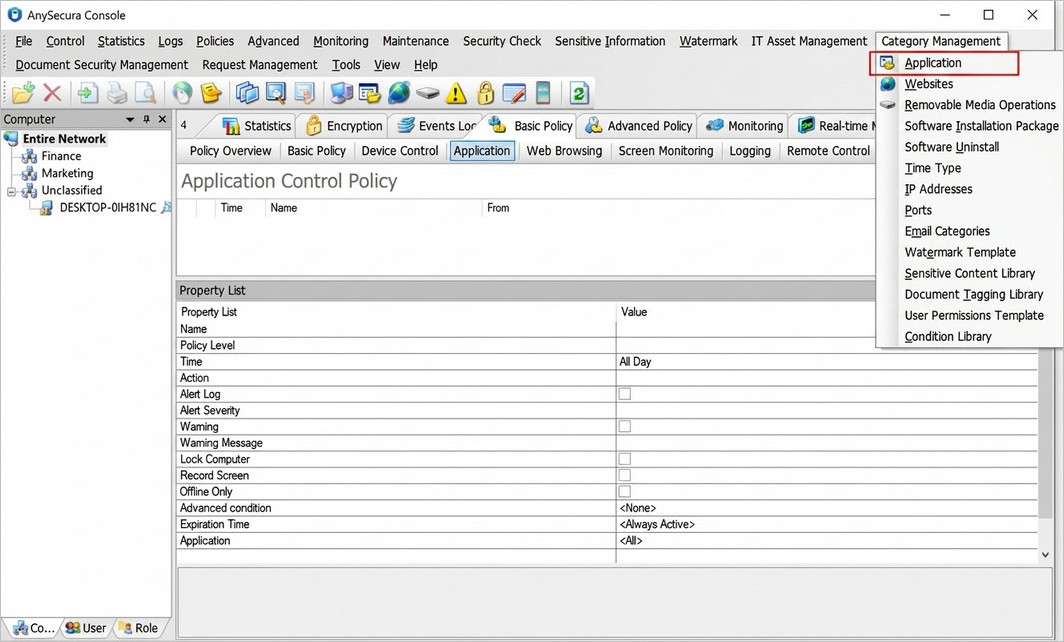
- First, go to the menu bar and click Category Management → Application.
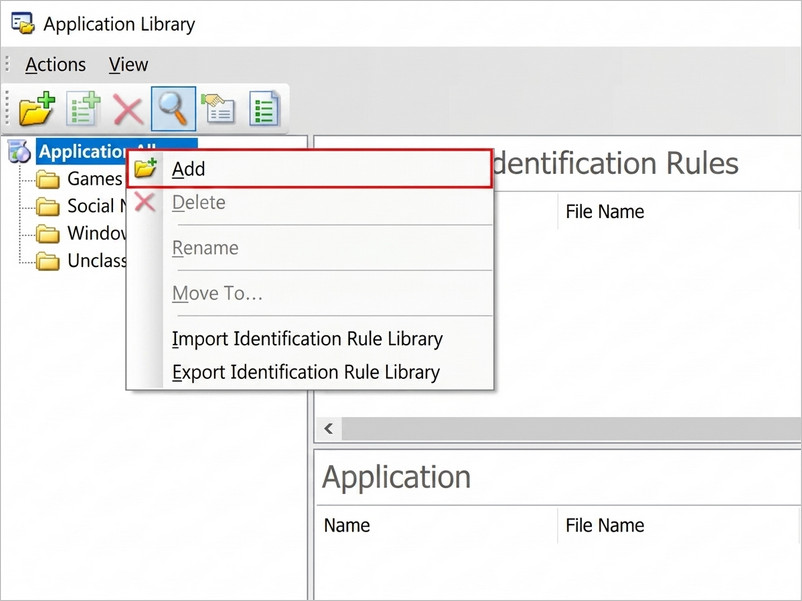
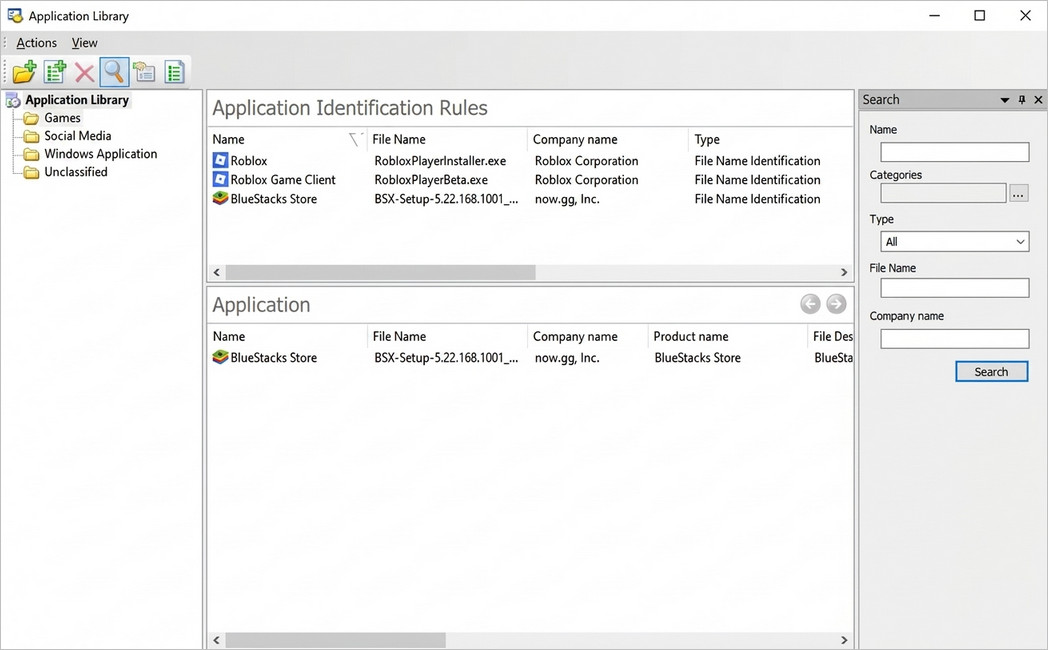
- In the Application Library, you will see an Unclassified folder containing all detected software. Click to create a new category and name it Games.
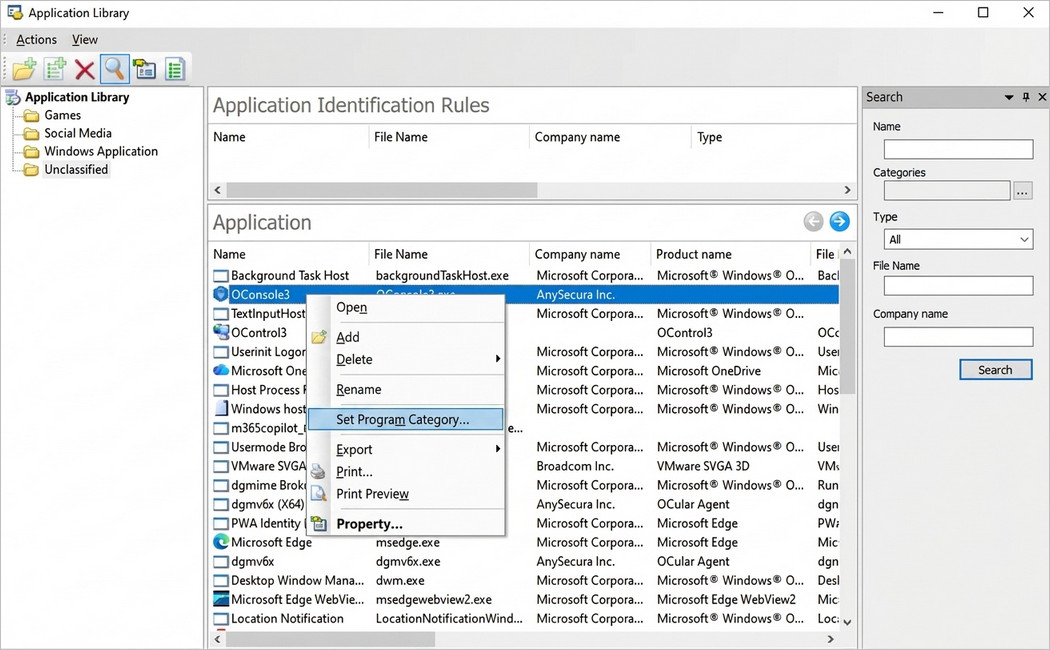
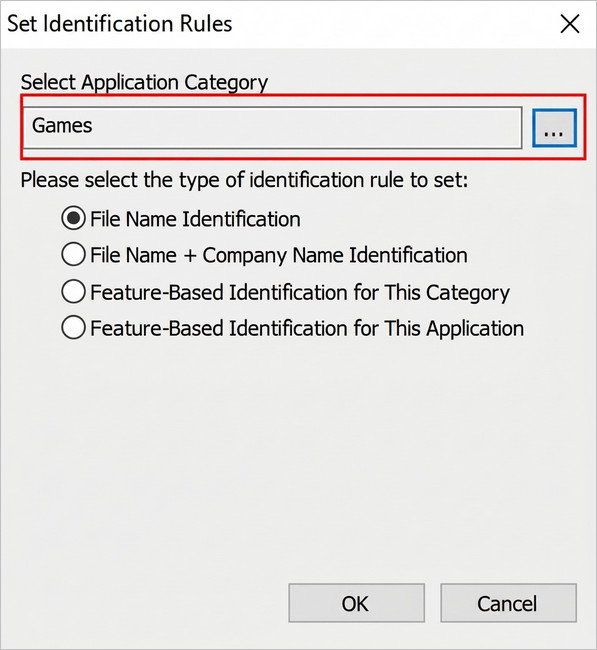
- Move the games you want to limit from Unclassified to Games. You can identify programs in several ways; using the File Name Identification is the easiest and default method.
- Check the Games folder to confirm the software has been successfully added.
How to Set Up an App Control Policy
- Click Basic Policy → Application, then click the red "
 " icon.
 - In the Policy Settings:
- Time: Choose when this rule applies (e.g., All Day, Weekend, or a custom schedule). You can also select a pre-defined Time Type; for details on how to create these, see Setting Up Time Types.
- Action: Select Block.
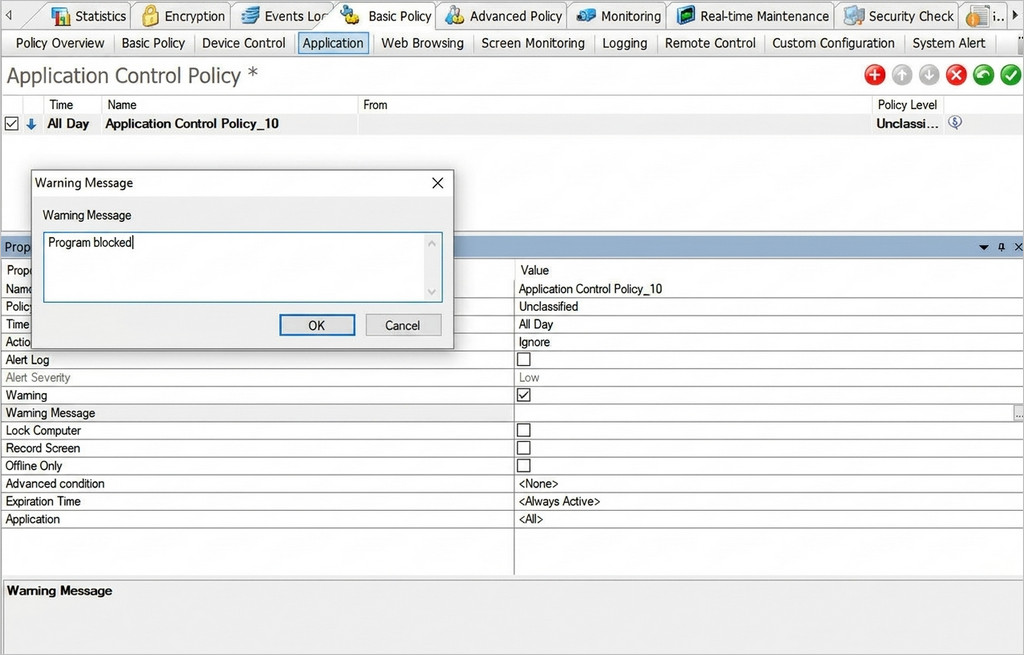
- Warning: Check this box to show a pop-up alert when the app is blocked. You can enter a message like: "Program Blocked."
- Lock Computer: If enabled, the computer will automatically lock if your child tries to open a blocked app.
- Record Screen: If enabled, the system will record screen activity when someone attempts to open a blocked app.
- Offline Only: If enabled, this rule only applies when the computer is not connected to the internet.
- Expiration Time: Set when this rule ends (the default is Always Active).
- Application: Click the "
 " button in this field to select the apps you want to block.
Do not block "All Applications," as this will stop essential system programs and cause the computer to malfunction.
-
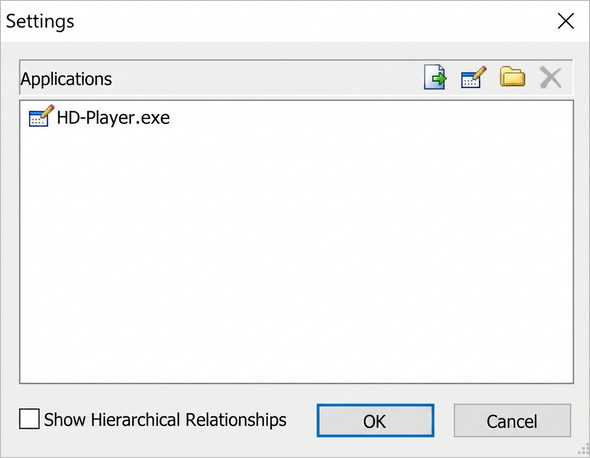
Option 1: Block by Process Name
Manually add the program's file name (e.g.,HD-Player.exe) by clicking the icon " ".
".
Note: This is simple, but it might not work if your child renames the file. To avoid this, use Option 2. -
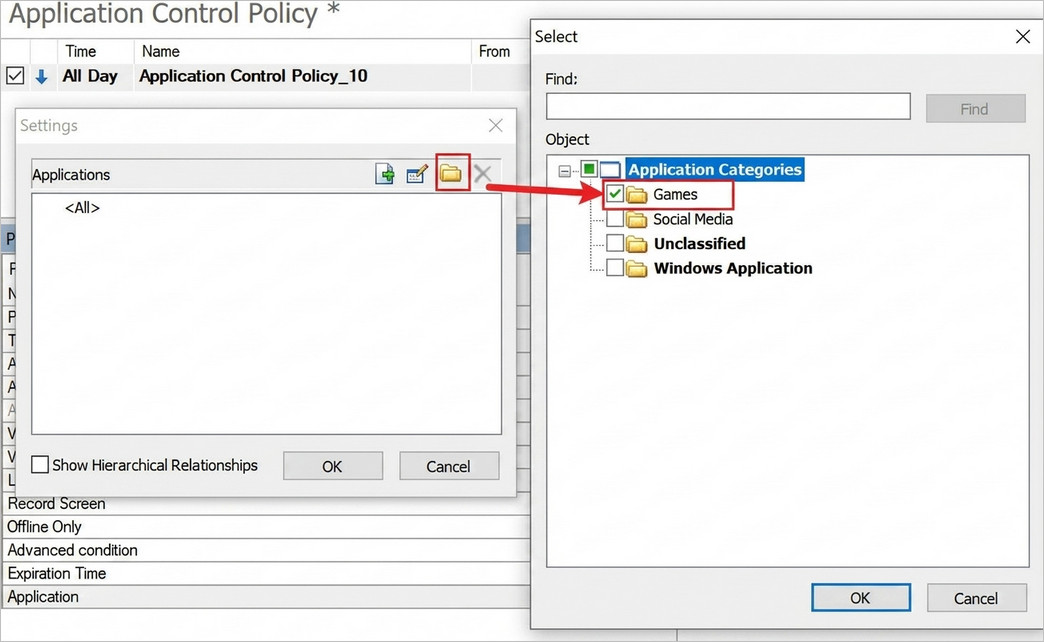
Option 2: Block by App Category (Recommended)
Choose the Games folder by clicking the " " and selecting Games.
Pro Tip: This is more secure. Even if the file name is changed, the rule will still work as long as the program itself remains the same.
Once you’re finished, click the " " to save and activate your settings.
FAQs About Application Management in AnySecura
What happens if my child renames a game file to try and bypass the block?
If you use Option 1 (Block by Process Name), the block might fail because it relies on the specific filename (e.g., game.exe). However, we highly recommend Option 2 (Block by App Category). By grouping apps into a category like "Games," AnySecura identifies the program itself. Even if the file is renamed, the restriction remains effective, ensuring your rules are stay in place.
Can I block certain apps only during school hours without affecting the whole day?
Yes, absolutely! When setting up your Application Control Policy, you can use the Time setting to choose exactly when the block applies. Instead of selecting "All Day," you can pick a pre-defined Time Type (like "Study Time") or create a Custom schedule. This way, games can be blocked during homework hours but remain accessible during free time.
Why shouldn't I select "All Applications" when creating a blocking policy?
Selecting "All Applications" will block every program on the computer, including essential system processes that Windows needs to run (like your taskbar or internet connection). This will cause the computer to malfunction or become unusable. To keep the computer running smoothly, always select specific apps or categories (like "Games" or "Social Media") that you wish to manage.
