
Sometimes parents want to know what happened today: what apps were used, how long the child stayed on them, what websites were opened, and whether screen time is getting out of hand.
This page explains how to review your child’s computer activity with AnySecura, including application usage, visited websites, screen time, and detailed browsing records.
Quick Overview: Which Page Should You Open?
| If you want to see | Open this in AnySecura | Best for |
|---|---|---|
| What software / website was used today and for how long | Statistics | Daily app time and weekly app trends |
| Which software / websites were visited | Logs | Exact website history and browsing details |
How to See What Software / Website Your Child Used Today and for How Long
If your first question is, "What did they spend time on today?", this is the page to open first.
Step 1: Open Application Statistics or Web Browsing Statistics
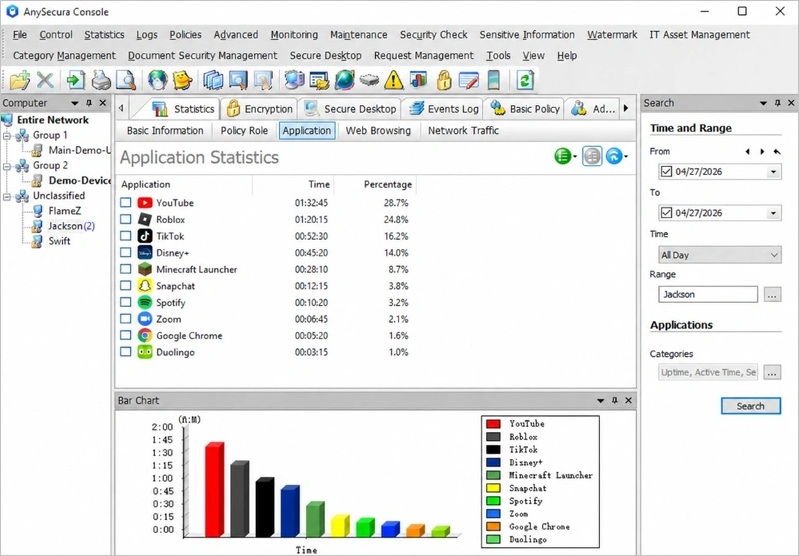
In the Console, open the Statistics section from either the top navigation tabs or the center dashboard tabs.
From there, choose either:
- Application Statistics — to view software and app usage.
- Web Browsing Statistics — to view website activity.
By default, statistics display data for the current day.
Step 2: Adjust the Time and Device Range
On the right side of the page, you can customize the time period and device scope for the report.
You can:
- select a specific date,
- define a custom time range, or
- choose a different child’s device from the Range selector.
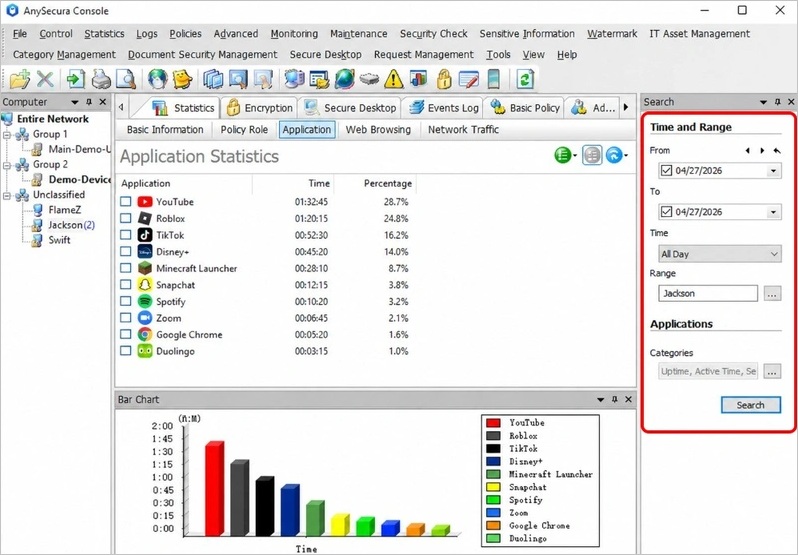
The Time option allows you to focus on specific periods of the day, such as study time, entertainment time, or bedtime activity.
For example, you can review:
- which apps were used during homework hours,
- how long gaming apps were used after school, or
- whether entertainment websites were accessed late at night.
To learn how to create and manage custom time ranges, see: How to Set Up Time Types.
Step 3: Choose a Statistics Mode
Click the Mode button in the toolbar to change how usage data is grouped.
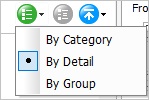
- By Name — Shows the total time spent in each app. For example, all Chrome usage is grouped together so you can quickly see how long it was used overall.
- By Detail — Shows more detailed information for each app. This helps you tell apart different versions or installations of the same application.
- By Category — Groups apps and websites into categories such as Games, Social Media, or Study, making it easier to understand how your child spends screen time.
Step 4: Review the Usage Results
The statistics table shows:
- the applications or websites accessed,
- total usage duration, and
- percentage of overall activity during the selected period.
Below the table, visual charts such as pie charts or bar charts provide a clearer overview of your child’s screen time habits and activity distribution.
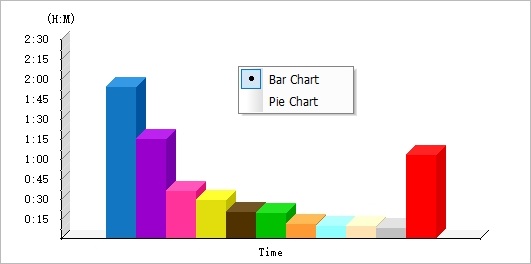
You can right-click the chart area to switch between pie chart and bar chart views, depending on which visualization is easier for you to understand.
You can also click any column header to sort the results.

If one app takes far more time than expected, that is usually the easiest clue that study time and screen time rules need adjusting.
Step 5 (Optional): Limit the Number of Results
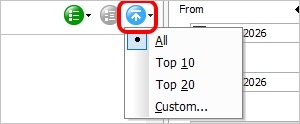
Use the Top filter in the toolbar to control how many entries are displayed.
Available options include All, Top 10, Top 20, or a custom number.
Note: The Top filter is unavailable in By Category mode.
To save or share the current statistics view:
- Right-click anywhere on the current page.
- Click the Export button above the data table.

How to See Which Software / Websites Your Child Visited
When you want to review specific browsing activity, such as visited websites, page titles, or exact URLs, use Logs instead of Statistics.
Logs provide a more detailed view of your child’s activity, helping you understand exactly what was accessed and when.
Step 1: Open Web Browsing Logs or Application Logs
Go to Logs and choose the page you want to review. Depending on the activity you want to check, you can open:
- Web Browsing Logs — to review visited websites and URLs.
- Application Logs — to review software and app activity.
Most filtering and viewing options work similarly to the previous Statistics section, including time range selection and device filtering.

Step 2: Filter by time period and device
Select the time period and child device you want to review. For example, you can check only today’s activity, after-school usage, or late-night browsing history.

Step 3: Review the page title and full URL
The logs display both the page title and the full website address (URL), making it easier to understand exactly what your child accessed.
This helps parents distinguish between educational content, entertainment websites, and potentially unsafe or distracting pages.
FAQs About Activity Logs and Reports
My child cleared their browser history. Will that affect what I see in Logs?
No. Web browsing entries on the Logs page are recorded by the AnySecura agent at the system level and are stored separately from the browser's own history. Clearing browser history does not remove them.
The Statistics page is empty or shows no data. Why?
The most common causes are: the AnySecura agent is not running on the target computer, the computer has been offline since the selected time range began, or the wrong device is selected in the Range panel.
