
How to Use Security Check Status - AnySecura Manual
This guide will help you master the Security Check Status feature within AnySecura's Security Check module. You'll learn how to navigate the console to view the overall health and compliance of your network at a glance.
We'll then explore how to drill down into the detailed results for any client, understanding what each check means and how to interpret the actions taken. You'll also see how end-users are notified of issues and how to perform an immediate recheck when needed.
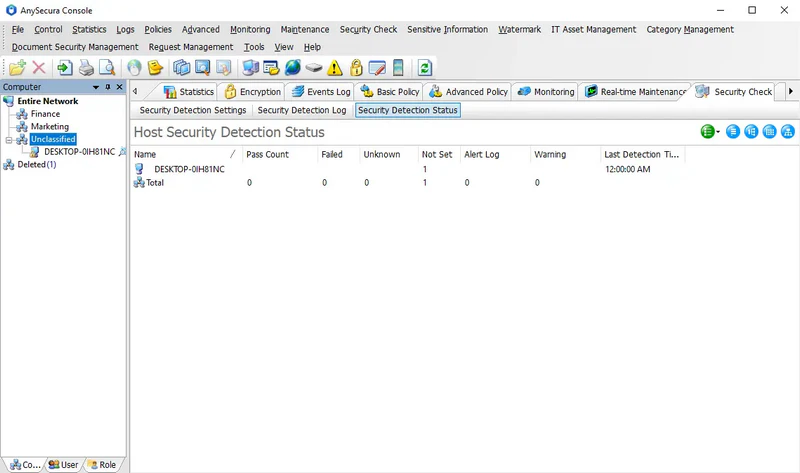
Console Security Check Status
Go to Security Check -> Security Check Status to view the security check status of clients.
When a single computer is selected, the information displayed includes:
| Content Attribute | Description |
|---|---|
| Overview of Status |
|
| Detailed Results | Displays the names, results, and actions for all security check conditions in the policy, including each individual check item. Items that pass are collapsed by default; items that fail are expanded to show detailed results. |
When selecting the entire network or a specific group, multiple view modes are available for monitoring.
| Icon | Description |
|---|---|
 |
Click to select a security check condition; statistics are displayed based on the selected condition. |
 |
Collapse all expanded nodes; only first-level nodes under the selected item are shown with the current condition's results. This is the default view. |
 |
Expand all collapsed nodes; shows all nodes under the selected item with the current condition's results. Computer icon colors indicate status: bright = online, gray = offline. |
 |
Display all computers or all computers within the selected group. |
 |
Display all computer groups. |
Client Security Check Status
When a security check policy has "Warning" enabled, a warning icon will appear in the system tray if the client fails the check, along with a pop-up balloon. Double-clicking the tray icon opens the Security Check Results window.
The Security Check Results window includes: Overview of Status and Detailed Results.
| Content | Description |
|---|---|
| Overview of Status |
|
| Detailed Results | Names, results, and actions of all security check conditions in the policy, including failed check items and warning messages. Passed check items are not displayed. |
By default, the client performs a security check every five minutes. If the conditions are already met but the Security Check Results window still shows a failure, it may be because the next scheduled check has not yet occurred. In this case, clicking the "Recheck" button in the Security Check Results window will trigger an immediate check and update the results.