
How to Use Batch Export in Software Center - AnySecura Manual
This guide will show you how to efficiently export multiple software packages at once using the Batch Export feature in the AnySecura Software Center. You'll learn to navigate from the initial selection screen to the final results, streamlining your software management tasks.
By following these steps, you'll confidently select the software you need, choose a destination on your server, and verify a successful export. This process helps you maintain organized, accessible software libraries directly from your AnySecura console.
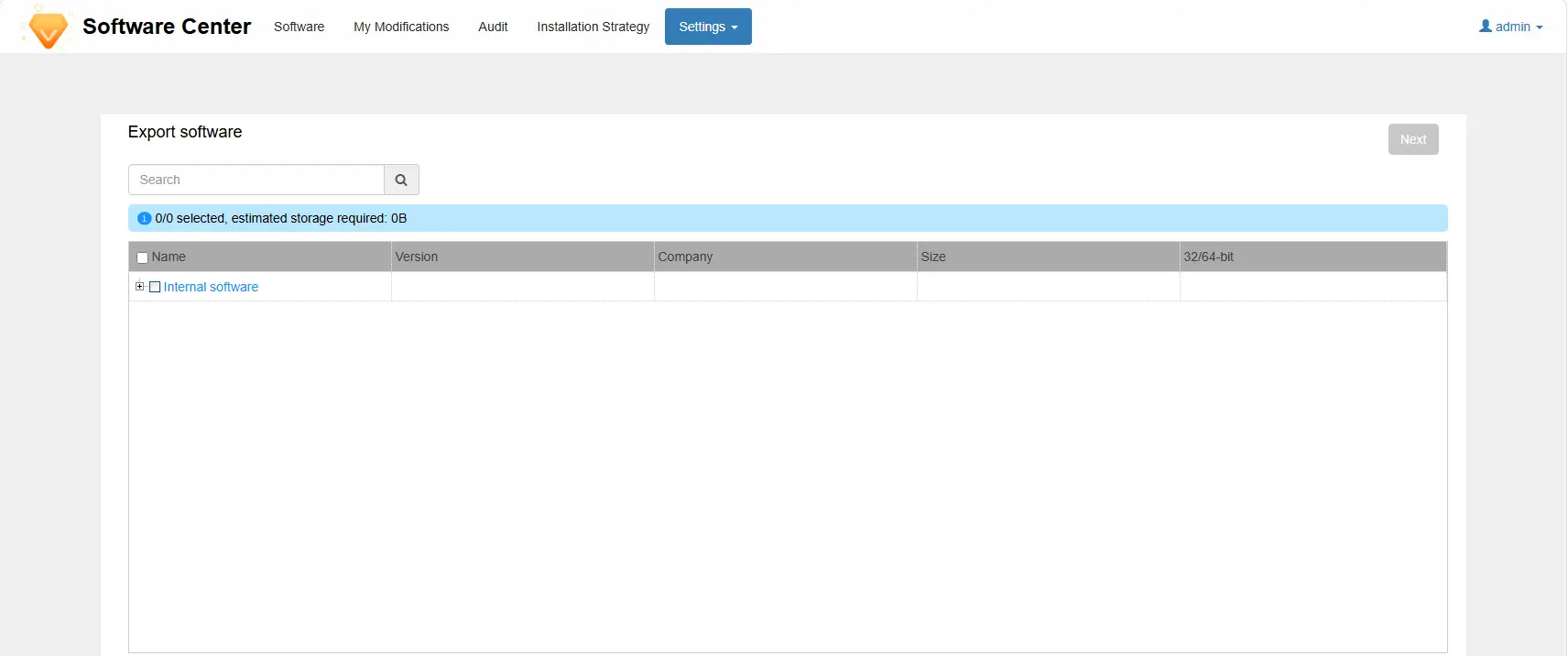
Administrators with batch export permissions and a classification management scope of "All" can access the software export interface through Settings -> Batch Export to perform batch software exports from the server.
Export Software
- 1. The Export Software page will display information for all software on the server. After selecting the software to export, click Next.
- 2. The Export Path page allows you to choose the directory on the server where the software will be exported. Click Select, choose the specific path in the server path window, and then click Start Export.
- 3. The Export Result page shows the final export status of each software. Successfully exported software can be found in the chosen export path. Click Back to return to the export software page.