
How to Use Batch Import in Software Center - AnySecura Manual
This guide will show you how to efficiently add multiple applications to your catalog using the batch import feature in the AnySecura Software Center. You'll learn to navigate from the settings to the import interface and prepare your software repository for upload.
We'll walk through selecting your files, initiating the import, and understanding the results. You'll see how your administrator permissions determine whether new software is listed immediately or enters a review state, giving you full control over your software library.
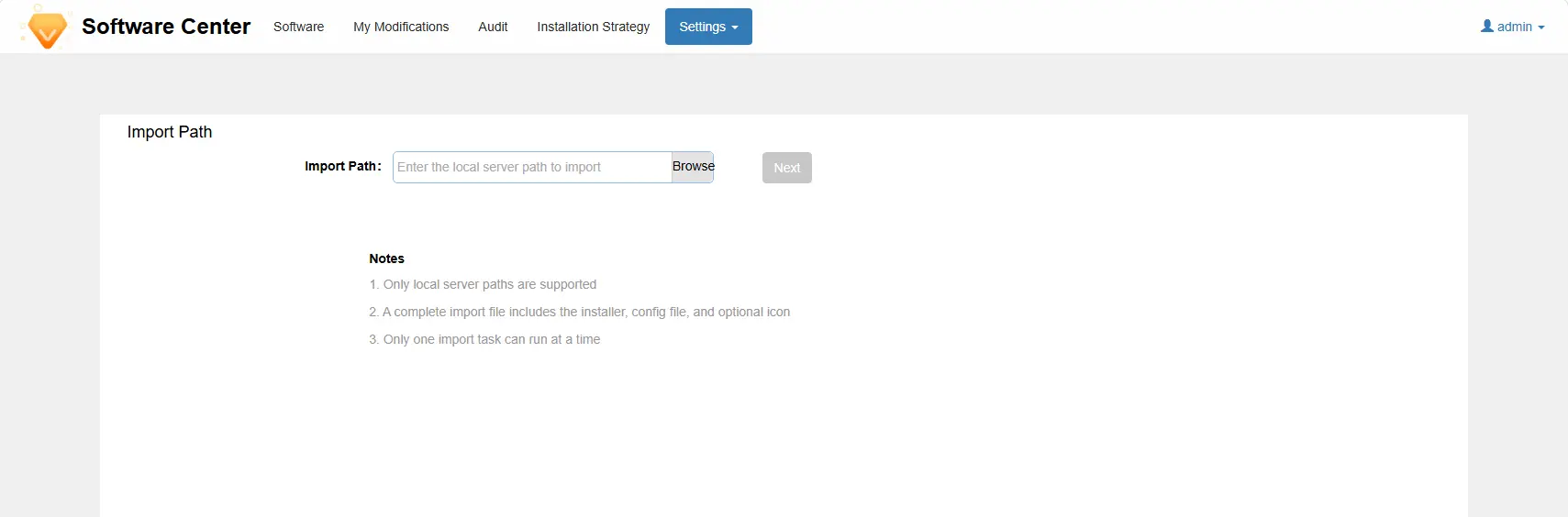
Administrators with batch import permissions and a classification management scope of "All" can access the software import interface through Settings -> Batch Import to perform batch software imports from the software repository directory stored on the server.
Note
Only software repositories exported using the Software Center export function are supported for import.
Import Software
- 1. The software repository needs to be placed in a local directory on the server before it can be imported. Click Select, choose the specific location of the local software repository in the server path window, and then click Next.
- 2. The Import Software page will display information about the software available for upload from the repository. After selecting the software to import, click Start Import.
- 3. The Import Result page shows the final import status for each software.
Note
The status of successfully imported software depends on the administrator's permissions:
1. If the administrator does not have software review permissions, after the software is successfully imported, it will enter a "pending approval" state and can only be listed after the review is approved.
2. If the administrator has software review permissions, the software will be listed immediately after a successful import without requiring further review.