
How to Use File Explorer Encryption Icons in Windows Encrypted Client - AnySecura Manual
This guide will help you quickly identify and manage your encrypted files directly within Windows File Explorer. You'll learn to recognize the different lock icons that show a file's security level, such as the solid lock for Public Area files in AnySecura.
Understanding these visual cues allows you to take immediate action. You can then right-click any file to access the full suite of AnySecura Windows Encrypted Client options, from simple decryption to securely exporting sensitive documents.
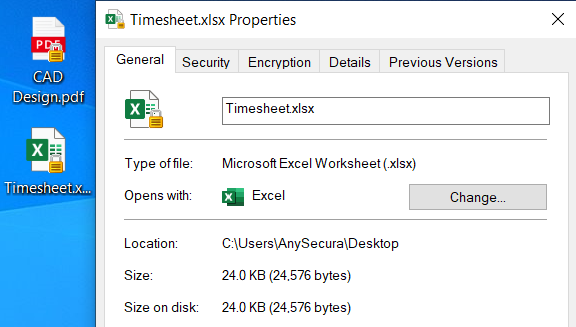
In File Explorer, encrypted files with the security attribute Public Area – Normal Level display a small lock icon without stripes in the lower-right corner. Encrypted files with other security attributes display a small lock icon with stripes.
Right-clicking an encrypted file in File Explorer opens a context menu with encryption-related options, such as Decrypt, Request Decryption, Export, and Request Export. The Encryption tab in the Properties dialog allows viewing and modifying the document’s attributes.