
How to Use Encrypted File Scan in Windows Encrypted Client - AnySecura Manual
This guide will show you how to use the Encrypted File Scan feature within the AnySecura Windows Encrypted Client. You'll learn to quickly launch a scan from your system tray to discover all the encrypted and unencrypted files on your machine.
Once your scan is complete, you'll see how to identify protected files and use the intuitive right-click menu to manage them. This gives you direct control to encrypt, decrypt, or export documents, helping you maintain security and workflow efficiency right from your desktop.
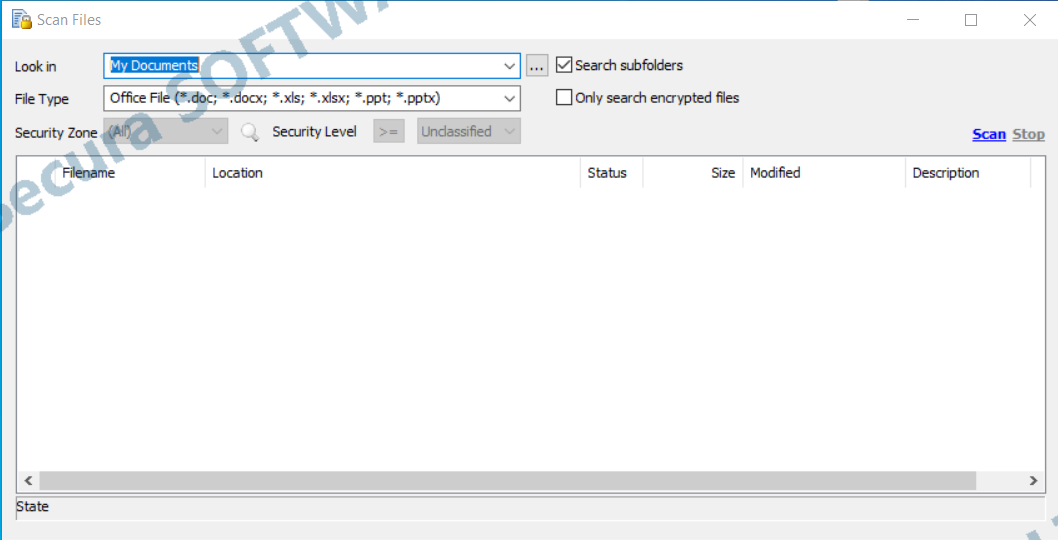
In the client system tray, right-click and select Scan Local Files to launch the scan tool.
Within the scan tool, you can specify scan paths, file types, whether to include subfolders, and whether to scan only encrypted files. Click Scan to detect both encrypted and unencrypted files on the local machine. Encrypted files are marked with a small lock icon.
In the scan results, selecting one or more encrypted files allows you to perform actions via the right-click menu, including Encrypt, Decrypt, Request Decryption, Export, Request Export, Export Extraction, and Modify Document Properties.