
How to Use Quick and Authorized Encryption in Windows Encrypted Client - AnySecura Manual
This guide will show you how to use the AnySecura Windows Encrypted Client to protect your files directly from File Explorer. You'll learn to apply robust encryption with just a few clicks, keeping your sensitive documents secure.
We'll explore both Quick Encryption for immediate protection and Authorized Encryption, which gives you control over security attributes. By the end, you'll be able to confidently encrypt any file and manage exactly who can access it.
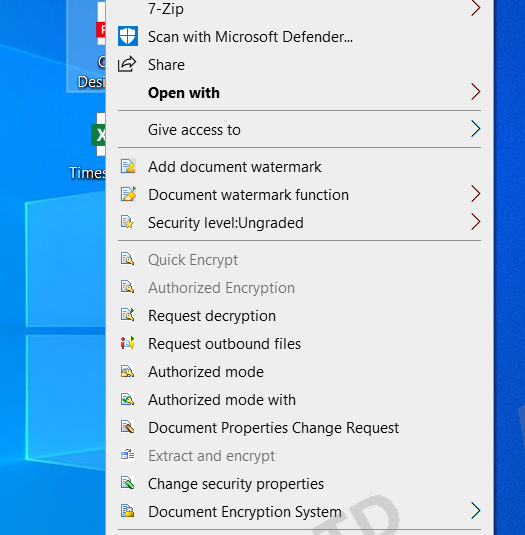
Follow two parts to encrypt a non-encrypted file quickly in File Explorer.
22.14.1 Quick Encryption
In File Explorer, select a non-encrypted file, right-click, and choose Document Encryption System -> Quick Encryption.
- If the file type is included in the console's Encryption Authorization Settings -> Document Default Properties policy, the file is encrypted according to the configured attributes.
- If the file type is not included, it defaults to Public Area – Normal Level.
In the scan tool, right-clicking a non-encrypted file and selecting Quick Encryption will also encrypt the file with the same behavior as in File Explorer.
22.14.2 Authorized Encryption
When a client machine is logged in with a user who has permission to modify encrypted document attributes, you can select a non-encrypted file in File Explorer, right-click, and choose Document Encryption System -> Authorized Encryption.
- This allows you to modify the document's security attributes and permissions.
- You can also set the configured attributes as the default, so they will be applied automatically for future encryptions.
In the scan tool, right-clicking a non-encrypted file and selecting Authorized Encryption has the same effect as encrypting via File Explorer.
Settings for security attributes and user permissions during authorized encryption can be referenced in the sections on Modifying Encrypted Document Security Attributes and Modifying Encrypted Document User Permissions in later chapters.