
How to Use Document Attributes in Windows Encrypted Client with AnySecura | User Guide
This guide will show you how to view and manage the security details of your encrypted files directly from your desktop. You'll learn to use the Document Attributes feature in the AnySecura Windows Encrypted Client, accessible through File Explorer or the scan tool.
Understanding these attributes helps you control exactly who can open, edit, or change the security settings of a document. You'll see how to define permissions for different security areas and specific users, ensuring your sensitive information is shared securely and precisely.
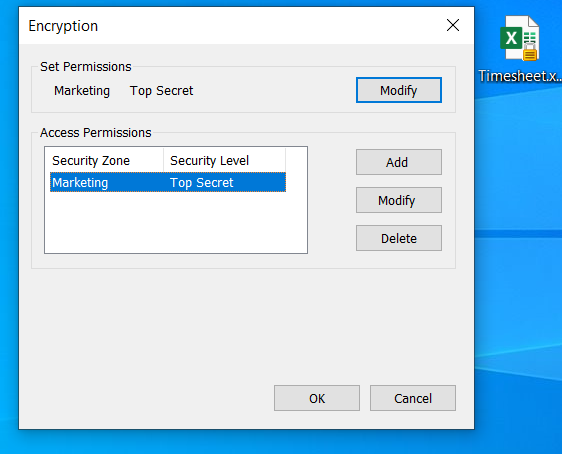
In File Explorer or the scan tool, use the Encryption tab or right-click menu View Document Attributes to view an encrypted document’s attributes.
Setting Permissions: Defines who can modify the document’s security attributes. Only one security area and level can be assigned.
Access Permissions: Defines who can open or edit the encrypted document. Multiple security areas and levels can be assigned.
User Permissions: Defines the reader objects who can open the document and their permissions, such as modifying or copying.
Note:
- Users granted Allow Direct Modification of Encrypted Document Attributes in the console can modify security attributes. If they also have Enable User Permission Control, they can modify user permissions.