Safari is everywhere on Apple devices. Your kids can be exposed to various inappropriate content.
On Apple devices, website blocking is handled through Screen Time rather than Safari alone. On iPhone and iPad, you can block websites by URL. On Mac, you can set website limits and use allowed or restricted website lists. This guide shows the exact steps for each device.
Why Blocking Websites on Safari Works Differently
We have many parents repeatedly say that "I blocked YouTube in Safari, but my kid is still watching videos!" Well, you didn't fail, the system design did.
On iPhone and iPad, Apple requires browsers to use WebKit, which is why Screen Time restrictions often affect Chrome and other browsers as well. However, app-based content and streaming apps are managed separately from website restrictions.
How Screen Time work on iPhone, iPad, and Mac
| Where Kids Open Websites | Does Screen Time Restrict It? | What You Should Know |
|---|---|---|
| Safari browser | ✅ Yes | Main Apple-supported restriction method |
| In-app browsers | ✅ Yes | Includes web views opened inside apps |
| Other browsers on Mac | Depends | macOS browsers are more independent than iPhone browsers |
| Native apps | ❌ No | Website blocking does not automatically block standalone apps like YouTube or TikTok |
So when you block a site in Safari, you are actually setting an iOS or macOS system-level rule that applies to: Safari browser, in-app web views (like links inside TikTok, Instagram, Roblox), all other browsers on the device (Chrome, Firefox, Edge, etc.).
👉 You May Also Need: How to Block Websites on Chrome in 2026: Desktop, Android, iOS
How to Block Websites on Safari on iPhone & iPad
Most parents agree that iOS or iPadOS should use Screen Time for website blocking, because it is the primary tool for iPhones and iPads to block websites on Safari and all in-app browsers for kids.
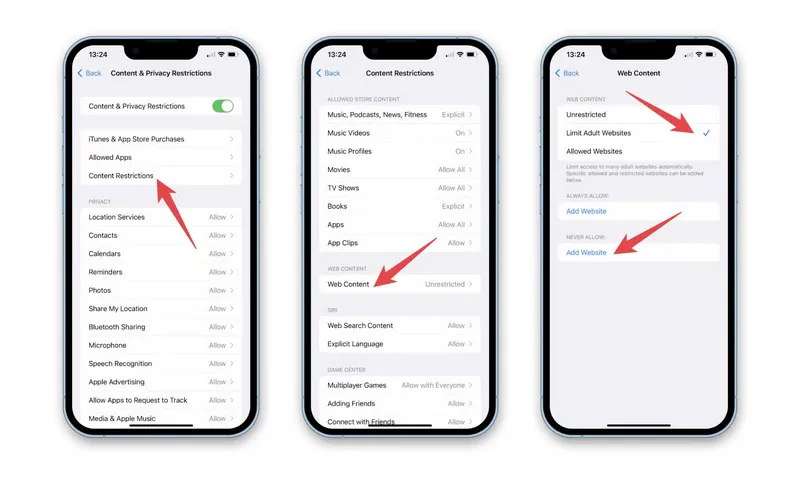
- You can tap Settings, Screen Time, Turn On Screen Time.
- Select "This is My Child's Device" if the iPhone or iPad belongs to your kids, and set a strong passcode (not 123456 or your birthday).
- Then, tap Content & Privacy Restrictions, choose to turn it on.
- Next, go to Content Restrictions, Web Content, Limit Adult Websites.
- Under Never Allow, tap Add Website and enter URLs to block.
- For strict control, choose Allowed Websites Only and add approved sites only.
Note: Some parents will notice that it still need to pick up their kids' iPhone every time they want to change something. Family Sharing can make Screen Time easier for you.
| Setting | Best For | How It Works |
|---|---|---|
| Limit Adult Websites | General family protection | Automatically filters many adult sites and allows manual additions |
| Allowed Websites Only | Younger children and strict control | Blocks all websites except approved ones |
"I blocked the sites, guess what? My kid just opens the app for streaming." As we mentioned earlier, Screen Time only blocks Safari and web views, it does not technically block apps like TikTok. To fully protect kids, you need a tool like AnySecura that blocks both web browsing and inappropriate apps. If any suspicious services are running by apps, it can help you intercept and ensure your kids' online safety.
How Family Sharing for Screen Time Helps Parents
Family Sharing makes Screen Time much more effective because parents can manage restrictions remotely from their own Apple devices. When parents enable it, you can change Screen Time remotely, manage multiple child devices from one account, approve or deny Screen Time requests, manage App Limits and have parent notifications.
How to Enable Family Sharing for Screen Time:
- For parents, open Settings on the iPhone or iPad, and tap your Apple ID name at the top. Select Family Sharing.
- Tap Add Member if your child is not already added, then choose your child's Apple account.
- After setup, you can open Screen Time to select your child’s profile.
- Now you are free to configure Web Content restrictions, App Limits, Downtime, and Communication Safety.
Once enabled, you can adjust website restrictions remotely without needing direct access to the kid's device. This is one of the biggest differences between Apple's ecosystem and traditional browser-only website blockers.
How to Block Websites on Safari on Mac
From simplest to the most powerful, Macs give you four ways to block websites on Safari.
Method 1: Screen Time on macOS
Screen Time, Apple's official system-level tool, is powerful for blocking websites on Safari, works across all browsers and apps on Mac. The best free option for home use.
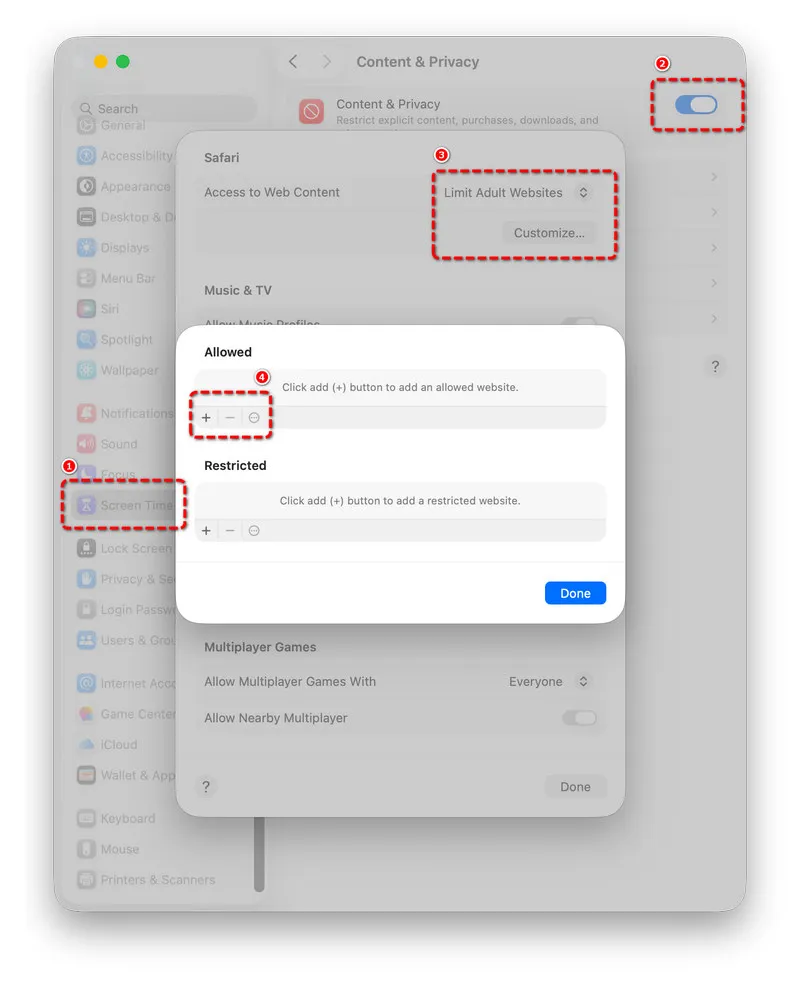
- Click the Apple icon and go to the System Settings, turn on Screen Time.
- Set a unique passcode that is different from your login password.
- Next, click Content & Privacy and turn it on.
- Choose Web Content, select Limit Adult Websites.
- Under Allowed or Restricted, click + and add harmful sites to block. For example, facebook.com, discord.com, roblox.com, instagram.com.
- If you want a strict control, choose Allowed Websites Only and list only approved sites for your kids.
Pro Tip: We recommend that you also go to App Limits, Add Limit, Web Browsing to set daily time limits for Safari.
Method 2: Safari Extensions
Extension is always another try for many parents. It's easy to use, but as we mentioned earlier, Safari extensions are not as powerful as Chrome extensions. Thus, this can only be your temporary method for kids.
- Open Safari on your Mac.
- Click Safari in the top-left corner, then go to "Safari Extensions".
- Browse and install Safari-compatible blockers. You can try 1Blocker or AdGuard for Safari.
- Open the extension from your Safari toolbar.
- Add websites such as youtube.com, tiktok.com, or instagram.com to your blocked list.
- Save your settings.
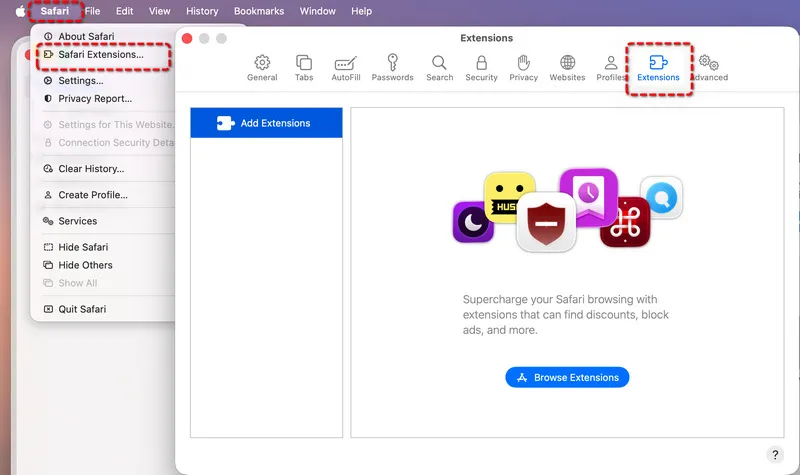
Safari extensions can help block distracting websites quickly on a Mac. However, extensions only affect Safari itself and can usually be disabled or bypassed by switching browsers. This makes extensions useful for temporary productivity or lightweight restrictions, but not ideal for long-term parental control.
As expected, certain kids can simply turn off the extension or install other unblocked browsers to bypass it entirely. But when parents use a real parental control to prevent kids from installing unblocked browsers or other apps on computers, the problem is solved.
Method 3: Edit Hosts File
Besides the Screen Time, the Hosts file redirects websites to a local IP and it blocks them across all browsers, including Safari. Harder to bypass than extensions.
- On your Mac, go to "Applications", "Utilities" and then open "Terminal".
- Type sudo nano /etc/hosts and you should enter your Mac password. Note that there are no characters show as you type.
- Scroll to the bottom and add lines like:
- Press Control + O to save, and then Control + X to exit.
- Now you can flush the DNS cache so changes take effect immediately. Type sudo dscacheutil -flushcache and press Enter.
127.0.0.1 youtube.com
127.0.0.1 tiktok.com
💡 Don't know what sites to block right now? Refer to these inappropriate websites for kids.
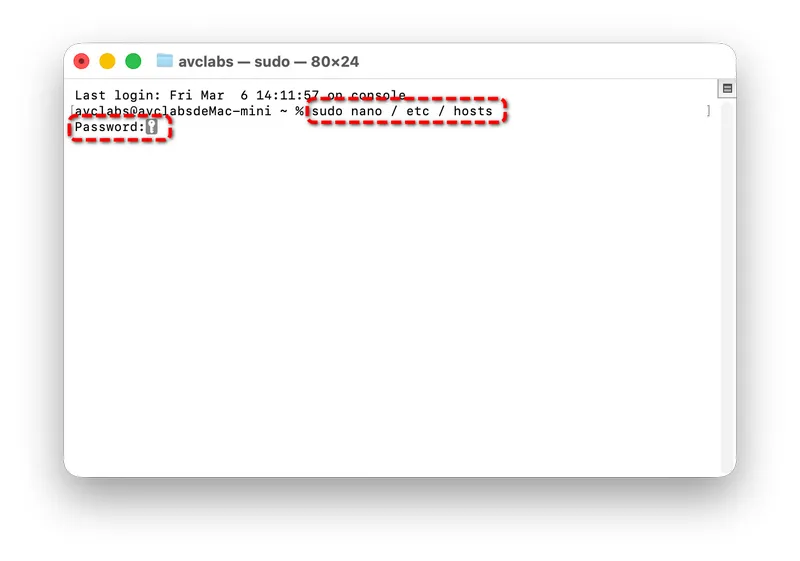
Note: This method blocks Safari completely, but tech-savvy kids (ages 12+) in U.S. households often learn how to edit the Hosts file back by watching tutorials. Our expert only recommends this if you disable Terminal access for standard user accounts.
When You Need Stronger Blocking & Protection Than Screen Time
Trying to manage restrictions on each device separately can be frustrating, especially when kids use multiple devices every day. Instead, there are more efficient ways to control access across all devices at once. While these methods are often used in schools and workplaces, many parents are starting to use them at home to create a safer and more consistent online environment.
Best for:
- Homes
- Schools
- Shared family networks
Method 1: Parental Control Software
For some families, browser-only or device-level controls are not enough, professional parental control tool can help manage multiple devices more effectively.
In this case, AnySecura parental control software is a reliable choice. It can not only block inappropriate websites in browsers but also block bypass tools by forbidding unauthorized installations on the device. It works across all browsers and apps, perfect for shared computers and kids who know how to bypass basic blocks.
Simple Demonstration for Websites Blocking:
- You will have a central dashboard. AnySecura's web filtering allows you to block individual websites, and create customized categories for websites to block, such as a simple Blacklist, Entertainment, Chatting, 18+ and more.
- Otherwise, you can also set a whitelist for your kids, so they can only access positive websites for researching. What's more, AnySecura lets you control apps on the device remotely as a whole package. You can set it to prevent from installing VPNs or harmful apps. Meanwhile, disallow intentional uninstall for learning apps.
- After you create the customized website categories, you can locate your kid's computer from the Anysecura control panel, and simply set the block rules for the websites you add. Your child will not be able to access these sites without your permission.
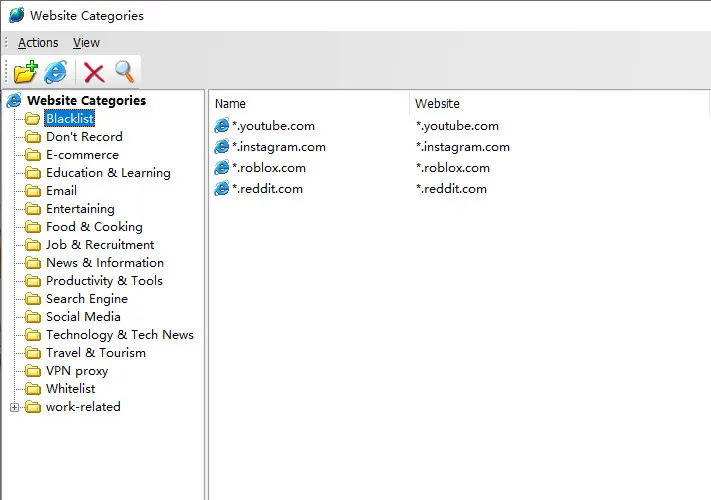
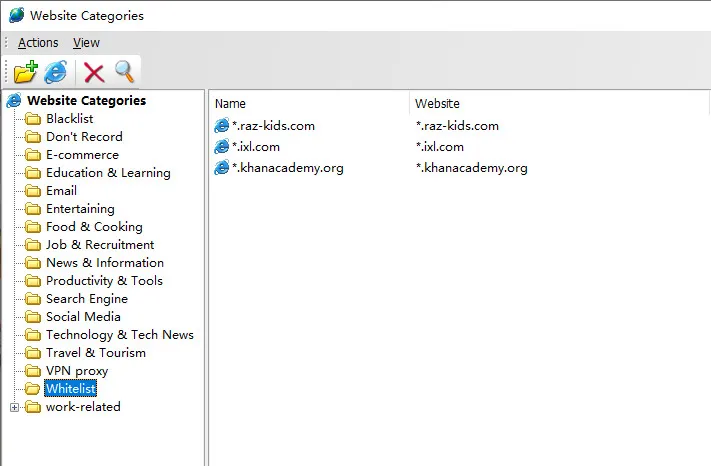

AnySecura is more than content filtering. It also monitors and records your kids' online activity so you know exactly what your child accessed. For instant messaging apps like Microsoft Teams, WhatsApp, and LINE, you can also see your kids' chat history, including who they chatted with and what was said. You will always be informed by our keyword detection feature whenever they engage in harmful communication.
Method 2: DNS Filtering
DNS filtering can block websites before they load on any device in your home. Works for iPhones, iPads, Android, and computers. All you need to do is select a reputable DNS service and change the settings as instructed. But here is one limitation, DNS only works on the WiFi you set, not 5G or 4G.
Household Example:
At home, parents often try DNS filtering to block inappropriate websites across devices. It may work at first, but kids quickly learn that switching to another WiFi network can bypass these controls. For example, a mom used OpenDNS FamilyShield to block gaming sites across her son's devices. It worked for 2 weeks perfectly. She surprisingly found that he finally used mobile data to bypass it.
Method 3: Router Blocking
Router blocking is also a wise option for whole-home control to block websites for every device on your WiFi. You can log into your router's admin panel (usually 192.168.1.1 or 192.168.0.1), and then find Parental Controls, Website Blocking. Add websites you want to block and save. However, because it operates at the network level rather than the device itself, it depends on kids or students staying within that network. In practice, switching to mobile data or another WiFi connection can bypass the restriction.
Why Safari Website Blocking Fails in Real Life
Whether your kids use iOS or Mac devices, you can set an ideal approach to Safari website blocking based on the above methods. Still, certain parents noticed that they are practical for a while, and then they will be broken down by kids. Here this part we will show you why it doesn't work and how kids bypass it in real life. So that you can have corresponding fixes.
Blocking Safari doesn't block other apps
Look at this and it's actually very common. A 13-year-old boy had Safari blocked for YouTube, but he used the YouTube app and watched videos for 3+ hours daily. Since Screen Time blocks Safari, not standalone apps, you should use AnySecura to block both Safari and apps in one dashboard. Other fixes like using App Limits to restrict usage time, are also feasible.
Worried about your kids or students being influenced by inappropriate content on YouTube? Learn how to block YouTube completely on different devices. Learn more>>
Restrictions depend on device control
As long as the device is under control, the restrictions hold up. But in real life, kids test limits. Guessing the passcode or getting into settings on a shared device happens more often than parents expect. Using a strong passcode helps, and make sure you have full control of the device.
Network restrictions only work on WiFi
This is the fact that you cannot change. DNS or router blocking does not affect cellular data. So in many cases, schools or homes block bad content for kids, but they still use mobile data to stream or play games. One effective fix is to combine with parental control software, blocking websites and apps regardless of the network.
👉 You May Also Be Interested In: How to Block Games on Roblox (2026 Guide)
Parents often can't control school-issued devices
This is a situation many parents run into. The problem isn't that the device isn't controlled, but you aren't the ones controlling it. If a school-issued iPhone or iPad is managed through MDM, parents can't adjust Screen Time, install parental control software, or modify Safari restrictions. Things get worse if school doesn't always block entertainment platforms completely. We recommend that you contact the school IT admin and request extra restrictions for kids online safety.
FAQs About Block Websites on Safari
How do I block a certain website in Safari?
On iPhone and iPad, you can use Screen Time (Web Content > Limit Adult Websites > Never Allow). On Mac, use Screen Time and add websites under web content restrictions. If you need a stronger blocking, try AnySecura. Anyway, Safari extensions are not recommended for they are easy to bypass.
How do I restrict content in Safari?
To restrict certain content, open Screen Time's "Limit Adult Websites" to auto-filter mature content, then add specific sites to Never Allow. If you want a more specific and reliable restriction, create website categories to block, such as gaming or 18+, via AnySecura, offering a safe and clean web browsing experience.
How to block YouTube in Safari iPhone?
Screen Time, DNS filtering, and router blocking are best for blocking YouTube in Safari iPhone. To learn more detailed steps and anti-bypass tips, refer to How to Block YouTube Completely.
Final Words
Blocking websites on Safari is really about managing web access on Apple devices. For most families, Apple's built-in Screen Time controls provide the simplest and most reliable starting point. If stronger restrictions are needed, combining Screen Time with AnySecura parental control software creates a more complete setup.