You try to block YouTube. You set up Screen Time, install a browser extension, or change DNS settings.
And your kids — or students — still get around it in under five minutes. Why? Because most guides only tell you what works *in theory*. They don't tell you what fails in real life when someone actually wants to bypass it.
We tested 7 popular methods on Windows, Mac, iPhone, and iPad. Some work. Many don't. This guide shows you exactly which ones hold up — and the only method that blocks YouTube across all apps, browsers, and devices.
Explore a list of 70+ unsafe websites to block and learn effective methods for blocking these sites on your children's computers and mobile phones. Learn more>>
Why People Want to Block YouTube Completely (Parents, Schools, Work)
YouTube is fun and useful in small doses, but sometimes it may be a major distraction for kids, students, and even working adults.
Moms and Dads: Many parents search for how to block bad content for kids on YouTube. When they say only allow "10 minutes" of YouTube for kids, but it quickly turns into hours. Even with YouTube Kids, addictive content still appears. Over time, you mostly worry about the endless scrolling, inappropriate video recommendations, and lost sleep or homework time.
Based on our experience, if you are trying to block YouTube for kids, simple methods like Screen Time or a browser extension are usually not enough. The combination of Screen Time to block apps and router blocking can prevent the most obvious gaps.
Schools: No doubt that schools need to keep students focused in class and prevent irrelevant streaming or browsing during lessons. We all know that students lack self-discipline in classrooms, even a few students watching YouTube can quickly disrupt the entire lesson. Teachers often struggle to keep students focused when entertainment is just one click away.
In most cases, router blocking or DNS filtering is usually the baseline for schools or classrooms. However, we still catch students using mobile data to bypass network restrictions. So additional monitoring tools are sometimes needed for enforcement to block YouTube fully.
Workplaces: Video addiction is no exceptions for adults. Instead of watching videos during work hours, workplaces often want their employees to stay productive and responsible for tasks.
Actually for companies, the goal is usually productivity rather than strict parental control. However, the behavior of adults is not much better than that of kids from our testing report. Network-level blocking works fine at first, but gradually only monitoring or management software can help.
Anyway, instead of trying everything, it's more effective to choose based on who you are managing.
👉 You May Also Need: 180+ Teen Slang Words Parents Should Know in 2026 (Updated)
Quick Overview of Blocking YouTube Methods
To block YouTube, you can use browser extensions, try YouTube Restricted Mode, edit the hosts file, change DNS settings, use router blocking, set screen time, or get monitoring software. Note that no single method is perfect, the most important thing is to fit your actual needs.
| # | Method | Difficulty | Works On | Effectiveness | Can Be Bypassed |
|---|---|---|---|---|---|
| 1 | Browser Extension | Easy | Single browser | Low | Yes (remove extension) |
| 2 | Restricted Mode | Easy | YouTube app/web | Low | Yes (log out) |
| 3 | Hosts File | Medium | Entire device (Windows/Mac) | Medium | Sometimes (edit Hosts file back) |
| 4 | DNS Filtering | Medium | All devices (same network) | High | Yes (VPN) |
| 5 | Router Blocking | Medium | Entire network | High | Yes (mobile data) |
| 6 | Screen Time (iOS) | Easy | iPhone/iPad | Medium | Sometimes (guess passcode) |
| 7 | Monitoring Software | Easy | All apps & devices | Very High | No |
As you can see, while basic methods are easy to set up, they are also easier to bypass. Monitoring software is clearly more reliable than others, best for schools and workplaces.
How to Block YouTube on Windows/Mac
Blocking YouTube on computers needs consistent, cross-browser methods that work whether someone uses Chrome, Edge, Safari, or any other browser. This part covers 6 approaches from simplest to most powerful, so you can pick what fits your skill level and needs.
1. Use Browser Extension (Chrome)
A browser extension gives you a quick way to block YouTube without installing extra software. This is the easiest method that you can try right now to stop YouTube from loading in just a few minutes.
How to Block YouTube on Chrome via Browser Extensions:
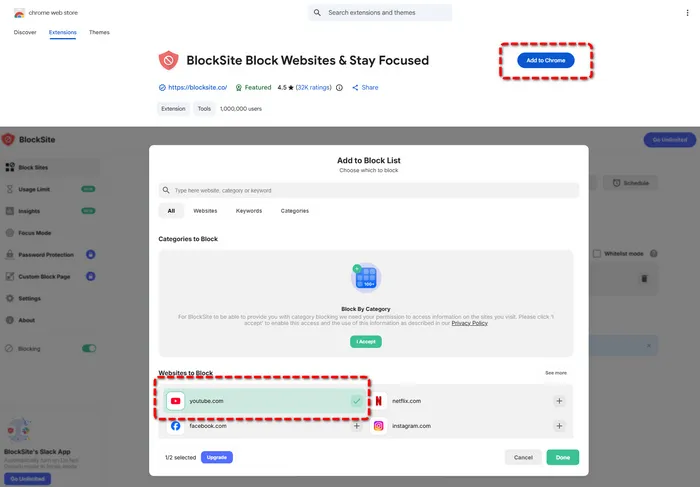
- Chrome is the most commonly used browser today. Open Chrome on your kids' computer and go to the Web Store.
- To block YouTube on Chrome, simply search for "Block Site" extension, and choose the top-rated one to "Add to Chrome".
- After it is added successfully, open it by clicking its icon from the toolbar. Then, tap "Add to Block List".
- Add
youtube.comor other inappropriate websites on this block list. Save the settings. When someone tries to open YouTube, the page will not load and will show a blocked message instead. - It works only for Chrome or the corresponding browser you set it on, so you should repeat it for every browser on the computer.
💡 Pro Tips: How to block YouTube on Safari
⚠️ Drawbacks:
- Only works on YouTube web versions.
- Kids or students may download another unblocked browser to access YouTube.
- Since no technical skills are required to set up, your kids can easily remove the browser extension and bypass it.
2. Use YouTube Restricted Mode (Basic Filtering)
To block bad content for kids on YouTube, YouTube actually offers a built-in feature called Restricted Mode (Parental Controls) to help you filter mature or inappropriate content from video results, and it works as a basic layer of protection for younger kids or students.
How to Use YouTube Restricted Mode:
- Open the YouTube app or its web version in any browser and sign in to the account that kids usually use to stream videos.
- Click the profile icon and find the Restricted Mode option. Turn on Restricted Mode to enable filtering.
- You can also lock this setting so other users cannot turn it off without your account password.
- This can be your first step for mild parental control if you trust the accuracy of the filter.
⚠️ What parents should know:
- It does not block YouTube entirely, only reduces exposure to harmful content.
- In real-life use, you may notice that even with Restricted Mode turned on, some distracting or borderline content still gets through.
- Older kids often figure out how to bypass it and may turn it off.
3. Use Windows Hosts File (System-Level Method)
If you want to block YouTube on a PC without installing third-party software, editing the Windows Hosts file is a powerful, system-level hack. Unlike browser extensions, this method redirects YouTube's traffic at the OS level, making it effective across all installed browsers like Chrome, Firefox, and Edge.
How to Use Hosts File on Windows:
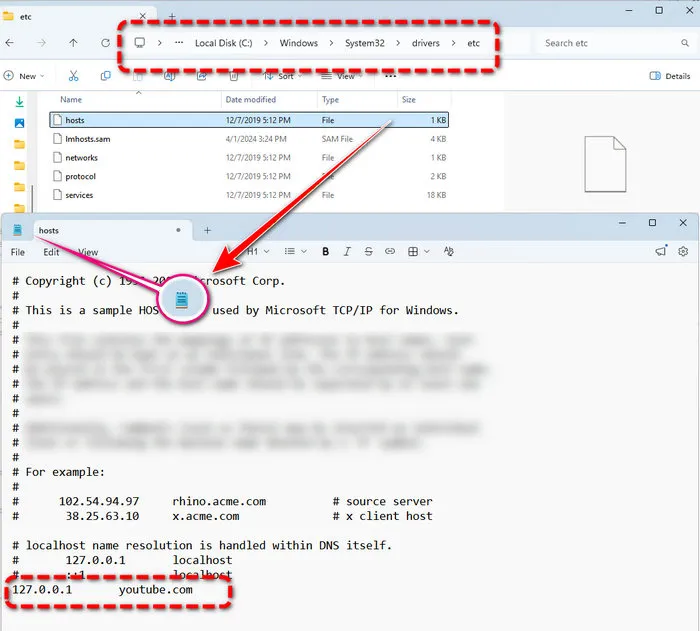
- Open Notepad with administrator.
- Next, navigate to the etc folder in the Windows system directory (
C:\Windows\System32\drivers\etc\hosts). Open the hosts file by Notepad and scroll to the very bottom. - Add
127.0.0.1 youtube.comthat redirects YouTube domains to a local address so the computer cannot connect to YouTube's servers. Note to press theTabkey to insert the space between the numbers and letters. PressEnterwhen you are done. - Press
Ctrl+Sto save the file. Then restart the browser for the changes to take effect. Your kids will find that YouTube is blocked entirely on the computer, even if they use a different browser or tries to load it from a shortcut.
How to Use Hosts File on Mac:
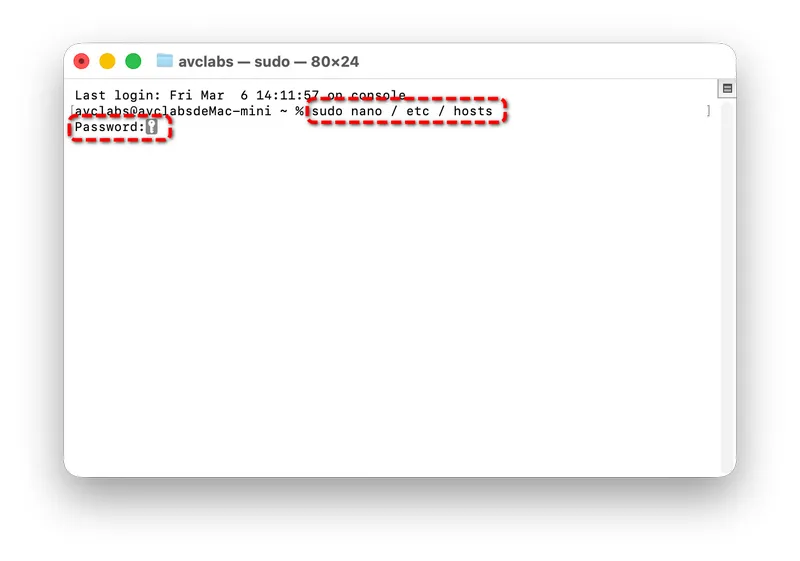
- Go to Applications, Utilities and then open Terminal.
- Enter the command: sudo nano /etc / hosts
- Scroll to the bottom with the arrow keys, and add the same YouTube domain lines as the Windows version.
- Next, you can simply press
Ctrl+Oto save,Ctrl+Xto exit Terminal, then enter sudo dscacheutil -flushcache to clear the DNS cache.
127.0.0.1 youtube.com
✅ Anti-Bypass Tip:
When we recommend this method to several parents, we found that some kids argue with their moms for unblocking YouTube, while others with basic tech skills can edit the Hosts file back or just use a VPN to bypass it, which is what we don't want to see. So we figure that to force the blocking. For Windows, just set the Hosts file to read-only. Right-click the Hosts file, navigate to Properties, then Read-only, done. For Mac, restrict Terminal access for standard user accounts, so only admin can edit Hosts.
4. Use DNS Filtering (All Devices)
When parents or school search for how to block YouTube completely, DNS filtering is often one of the advanced methods to try when simple browser blocks stop working. DNS filtering blocks YouTube at the network level, so it works on all devices connected to the same network and stops access across apps and browsers.
How to Use DNS Filtering:
- You can change the DNS settings on your kids' computer to use a filtering service that blocks YouTube automatically.
- Pick a trusted DNS provider like OpenDNS or AdGuard DNS that includes content blocking or domain-based filtering. Then enter the DNS addresses in your network settings.
- Save the changes and wait a minute for the network to refresh.
- YouTube will no longer load on any browser or app that uses that network connection.
- Actually it is great for families, classrooms or offices that want one rule for all devices at the same time.
⚠️ Limitations:
- In practice, tech-savvy kids can sometimes bypass it by switching DNS settings, using a VPN, or connecting to a different network. So they still have the chance to stream inappropriate videos, including violent, sexual, and cyberbullying content, and more.
- The category filtering may affect other webistes you use. If you only want to block YouTube for your kids, then this may not the perfect way.
5. Use Router Blocking (Whole Network Control)
If you want to block YouTube across multiple devices at once, router-level control is one of the most practical options. Unlike DNS filtering, which operates at the domain resolution level, router blocking enforces rules on actual network traffic, preventing devices from establishing connections to specified domains or IP addresses. It is more direct at the network level, but it only works within that specific network.
How to Use Router Blocking:
- Log into your router admin panel using a web browser and your router login information.
- Find the section for website blocking, parental controls, or access restrictions.
- Add youtube.com to the blocked list, and then save the settings and restart the router if needed.
- Now you can block YouTube for every device including laptops, tablets, and smart TVs on the network, best for controlling shared environments like homes or classrooms.
⚠️ Real-world issues:
- Kids switching to mobile data in bathroom, using a neighbor's WiFi, or installing VPN tools to get around the restriction.
- For schools, managing router rules across large networks can also become complicated.
6. Use Monitoring Software (Most Effective & Permanent Solution)
Browser extension and Restriction Mode? Too simple. Hosts file, DNS filtering, router blocking? Not 100% working. Why do kids always have tricks to bypass them? Don't be frustrated. If you want full control and strong protection, using monitoring software is the most complete choice. It blocks YouTube and lets you watch activity to make sure kids online safety.
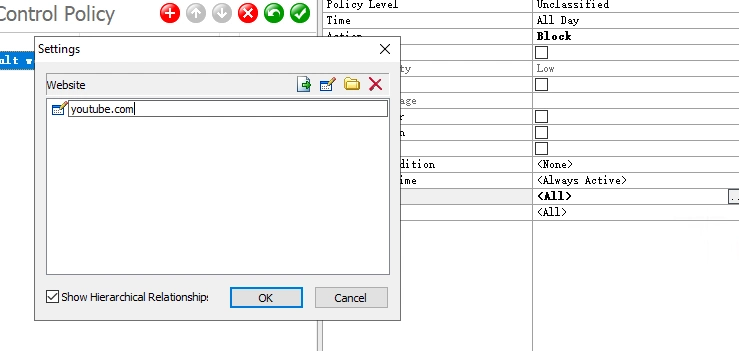
AnySecura is designed to help parents and admins block YouTube completely with just a few clicks. Whether for a family or school management, it controls all the computers you want to monitor within a single dashboard.
If you've tried 3+ methods and still find gaps, this is where monitoring software becomes necessary — not optional. From the control panel, you can add YouTube to your blocked list or set a category to block all video streaming sites at once.
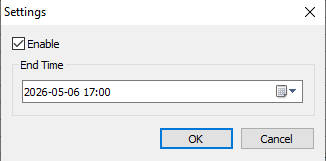
AnySecura also lets you set time limits so YouTube is only allowed during certain hours if you prefer not to block it full-time.
Besides, it records all browsing and app activity so you can check later. We know that many parents worry about their kids encountering cyberbullying or online predators. AnySecura allows you to monitor chats on social media with screen recording and automatic keyword detection. The software runs quietly in the background and cannot be easily uninstalled by kids or users without your permission.
👉 You May Also Need: How to Prevent Cyberbullying: Practical Steps Parents Can Take Now

How to Block YouTube on iPhone/iPad
A common situation for parent: checking their child's iPad at night and realizing YouTube has been running for over an hour again. So you are looking for how to block YouTube on iPhone or iPad.
In most cases, the school-issued devices will be locked or restricted from YouTube, but school rules may differ. When you find that inappropriate content is still appearing on your kids' phones, consider blocking YouTube in person. These settings are easy to set up and work for both the YouTube app and the website in browsers.
Screen Time
Screen Time is Apple’s built-in parental control feature to block YouTube on iPhone/iPad, but it only works if you set it up with full settings. Wonder why your kids still bypass it easily? Most parents like you miss these steps.
How to Use Screen Time:
- Open the Settings app and tap Screen Time. Turn on Screen Time and set a strong passcode that others cannot guess.
- Besides, go to Content & Privacy Restrictions and turn that feature on. This is the main control center for blocking apps and websites.
Block offical YouTube apps (tap Allowed Apps and toggle off YouTube) + block YouTube website on all browsers (Tap Content Restrictions, Web Content, select Limit Adult Websites, tap Add Website under "Never Allow" and enter youtube.com)
Critical Tips for Parents:
One really successful tip is that don't forget to turn off Allow Changes, which will prevent kids from turning YouTube back on or changing web settings. Under Content & Privacy Restrictions, tap Allowed Changes, and toggle off Apps and Web Content.
Kids are smart so you should be more strict. You can also consider blocking VPN apps and restricting app installs to keep kids from installing other browsers to access YouTube. Besides, things get better when you combine with other methods like DNS filtering or router blocking. We can see that in this way, kids really run out of the way.
One more particular situation: You can't change any settings on a school-issued iPhone or iPad due to MDM, while schools surprisingly don't restrict YouTube. In real cases, we learned that many parents leave a message that only parental control software works. So you should communicate with schools to seek cooperation for kids online safety.
FAQs About How to Block YouTube Completely
How do I block my child's access to YouTube?
Different methods are offered in this article to block YouTube fully. On computers, the hosts file or DNS filtering is a good option to prevent your kids' access to YouTube. On a school-issued iPhone or iPad, Screen Time can be your first choice to restrict apps and websites. However, they may not be enough. For the most reliable protection, it is recommended to use a parental control software like AnySecura to block YouTube across all browsers and apps, and keep your child from bypassing the rules.
How to avoid kids using YouTube?
YouTube Kids or YouTube Restriction Mode can still expose your kids to an unsafe online environment. The best way is to block YouTube completely so it does not load on any device your kid uses. You should combine app blocking with website blocking so they cannot use the app or a browser to watch videos. Using a monitoring tool make sure YouTube stays blocked and also help you stay aware of their activity.
How do I ban YouTube from Safari?
Open Settings on iPhone or iPad and go to Screen Time. Enter Content & Privacy Restrictions and choose Web Content. Pick Limit Adult Websites and add youtube.com to the Never Allow section. Safari will block the site immediately, and no one can open it without your passcode. This setting applies to all browser apps on the device, not just Safari.
How do I monitor my child's YouTube activity?
To monitor your child's YouTube activity, it is recommended to use a parental control tool that tracks browsing and app use in real time. AnySecura shows you every time your child tries to open YouTube, how long they stay, and provides keyword detection when there are inappropriate chats. You get full screen recording and logs, so you know right away if they are accessing YouTube when they should not be. You can also review history to understand their habits and adjust your rules as needed.
Conclusion
If you are trying to block YouTube completely, the biggest mistake is relying on just one method. We believe that you already know that simple tools may look effective at first, but they rarely hold up in real use. Once you understand where each method fails, it becomes much easier to choose the right combination.
Whether you are a parent protecting your kids, a teacher managing a classroom, or an employer keeping your team focused, AnySecura helps you take control and create a more focused and safe space without constant distractions from YouTube.