Blocking websites on Chrome isn't the same for all.
On managed Chrome browsers and ChromeOS devices, administrators can use URL blocklists or allowlists. For child accounts, Family Link can manage approved and blocked sites in Chrome. On iPhone, iPad, and Mac, parents can use Screen Time to restrict websites at the device level. This guide compares the options by scenario so you can choose the method that actually fits your use case. Let's see.

Kids browsing inappropriate content on Safari? Don't worry. This guide will help many parents block websites on Safari and protect kids' online safety. Learn more>>
Quick Comparison:
Remember that the key is to choose the method that matches your use case instead of trying to force one tool to do everything. Refer to the following comparison table so you can pick the right setup from the start.
| # | Method | Best for | Main Features | Limitation |
|---|---|---|---|---|
| 1 | Chrome Extension | Personal desktop Chrome | Browser-only website blocking inside Chrome | You must trust the extension, and some managed computers may block extension installs. |
| 2 | Hosts File | Families using one Windows or Mac computer | All browsers on the same computer | Works only on that device and can be reversed by editing the Hosts file again. |
| 3 | Parental Control Software | Parents needing monitoring and stronger restrictions | Multiple browsers and devices | Requires installation. |
| 4 | Screen Time (iOS) | iPhone and iPad | Device-level website restriction by URL | Works at the Apple device level, so it is best for Apple devices rather than Chrome alone. |
| 5 | Family Link (Android) | Child accounts using Chrome | Chrome activity management for supervised children | On Windows or Mac, a child can sign out of Chrome and use other browsers. |
| 6 | Digital Wellbeing (Android) | Seeing site usage and limiting time | Chrome site usage and time spent on sites | It help view site usage and time tracking, not a full website-blocking workflow. |
| 7 | Chrome Enterprise | Schools, offices, managed devices | URL control for managed Chrome browsers and ChromeOS devices | Good at basic URL management and stronger filtering for stricter needs. |
| 8 | DNS Filtering | Families, classrooms, shared WiFi | Every device connected to the same network | Blocks at the network level but does not control activity outside the filtered network. |
| 9 | Router Blocking | Managed Chrome browsers and ChromeOS devices | All devices using the router | Depends on router features and can fail if users switch networks or use mobile data. |
For parents with younger children: Use Screen Time on iPhone/iPad or Family Link on Android because both are built into the device ecosystem and easier to manage daily.
For shared family computers: Use the Hosts File if you want simple system-level blocking across all browsers on one Windows or Mac device.
For homes that need network-wide filtering: Choose DNS Filtering or Router Blocking because they apply restrictions to every device connected to the same WiFi network.
For schools and workplaces using managed Chrome devices: Use Chrome Enterprise URL blocklists and allowlists, which Google designed for managed Chrome browsers and ChromeOS devices.
For families needing stronger monitoring and anti-bypass protection: Consider Parental Control Software that combines website blocking with activity monitoring and centralized management.
For quick blocking: A simple Chrome Extension is usually the fastest option for desktop Chrome kids.
How to Block Websites on Chrome Desktop (Windows & Mac)
Chrome desktop does not have a native website blocker, so we rely on three practical methods that range from quick temporary fixes to system-level protection.
Method 1: Chrome Extensions (Browser-Only Block)
Chrome extensions have become widely popular among parents with younger kids. They are the fastest way to block websites on Chrome for short-term use and single-device control. Follow our detailed steps, and even parents with no technical skills can set up in less than two minutes.
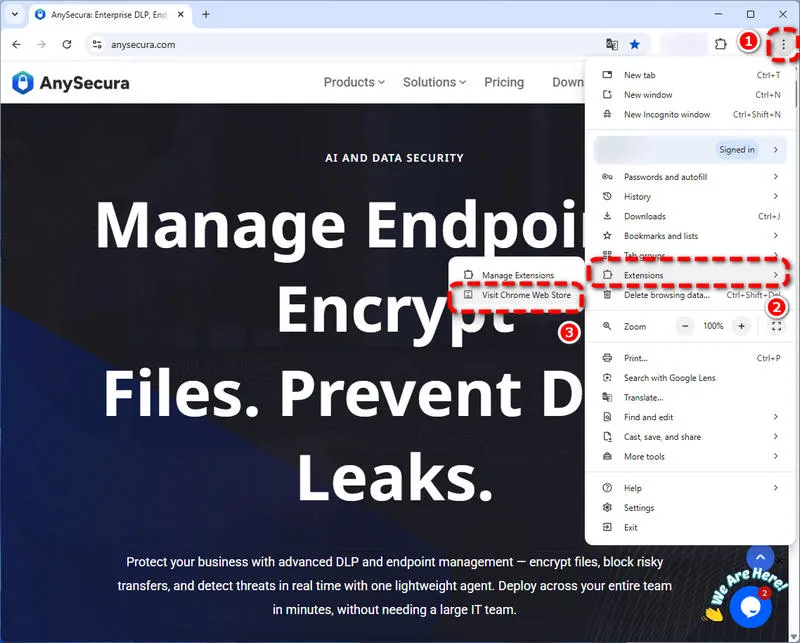
- Chrome Web Store. On Windows or Mac, open your Chrome browser and click the three-dot menu in the top right corner. Hover over "Extensions" and select "Visit Chrome Web Store".
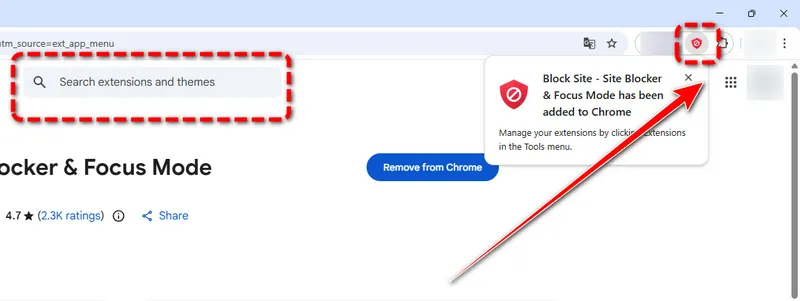
- Block Site extension. Search for a trusted blocker such as "Block Site", then click "Add to Chrome" and confirm the installation. Once the extension appears in your toolbar, click its icon to open it.
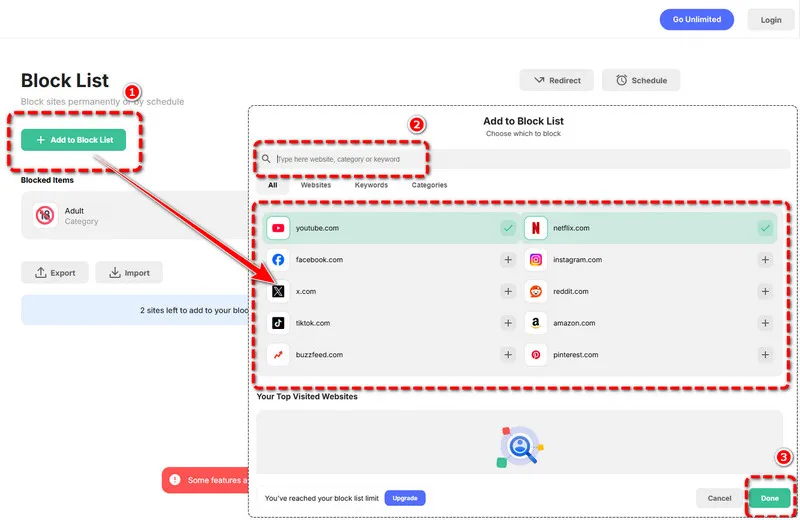
- Block websites on Chrome. Now you will see the following main interface. The various features may seem complicated for certain parents. But don't flit. What you need to set is simply the "Add to Block List". It gives you some default websites that you can add directly to block, such as youtube.com, netflix.com, facebook.com and instagram.com. For other sites, you can type the full URL you want to restrict and then save the blocklist. Besides, it allows you to block inappropriate content for kids by enabling the content filter.
- Password protection. For better protection, enable password protection in the extension settings so no one can uninstall or change your rules without permission. However, we have to admit that during testing, we didn't use this feature to strengthen the protection due to a premium subscription is required. For younger kids and busy parent, we believe that the block list and content category features are enough.
Method 2: Edit Hosts File (System-Level Block)
If a Chrome extension is too simple for you, also too simple for your kids, try editing hosts files to block websites on Chrome, which is harder to bypass. One good reason for parents to pick is that the Hosts file can redirect website domains at the operating system level, so it easily blocks access across every browser on your Windows or Mac computer, not just for Chrome.
For Windows:
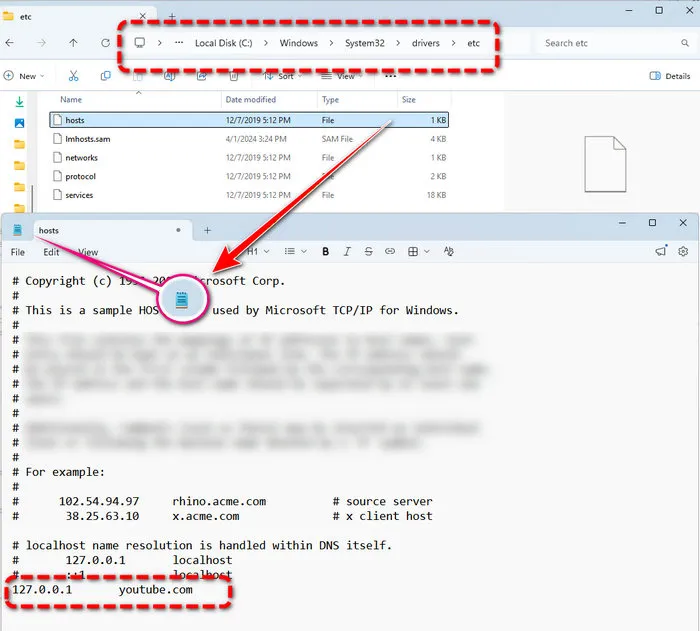
- Run Notepad as administrator. Press
Win+Sbutton, type "Notepad" in the search box, right-click it, and choose "Run as administrator". - Open Hosts file. In Notepad, go to File > Open and paste this path: C:\Windows\System32\drivers\etc\hosts.
- Edit Hosts file. Scroll to the bottom of the file and add a new line for each site you want to block: 127.0.0.1 website.com. Note that any unwanted site domain can replace website.com. One more detail for beginners, don't forget to put a Tab between the address and the domain. See the following example:
127.0.0.1 (press Tab key) youtube.com (press Enter key after each entry). - Save and apply. After you type all inappropriate websites for kids, press
Ctrl+Sto save the file and restart Chrome to apply the changes. Now not for the Chrome, even if your kids download other browsers like Brave or Opera, the listed websites are remain blocked.
For Mac:
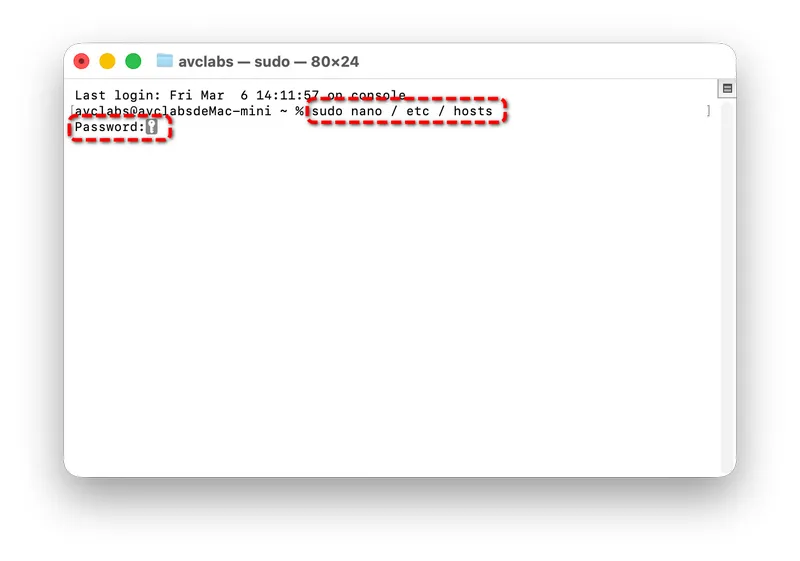
- Locate Hosts file. On your Mac, open Finder and press
Command+Shift+G. Type /etc and hit Enter to find the Hosts file. - Open Hosts file. Drag the file to your desktop so you can edit it, then open it with TextEdit.
- Edit Hosts file. Add the same blocking lines at the bottom using 127.0.0.1 website.com.
- Save Hosts file. When you enter all unwanted websites here, you can drag the Hosts file back to the etc folder, and enter your admin password to confirm. Next, clear your DNS cache to make the block take effect immediately.
Note: An interesting fact is that when you are googling how to block websites on Chrome, your kids are also searching for unblock. Tech-savvy kids can edit the file again to get around the rule. So you'd better make sure they don't have the full admin access.
Method 3: Parental Control Software (No-Bypass Block)
When the above method failed to block websites on Chrome in most families, we realized we needed a long-term, reliable solution that stops all bypass attempts. Here is parental control software that helps.
AnySecura Parental Control allows you to block individual URLs or entire categories on Chrome, such as adult content, gaming, or social media, from a single dashboard. Most importantly, AnySecura logs every online activity, records the screen automatically, and sends you real-time alerts based on keyword detection. So even if you are busy and not around your kids, you will know when and how they trigger potential risks and can block them in time.
How AnySecura Helps You Block Websites on Chrome:
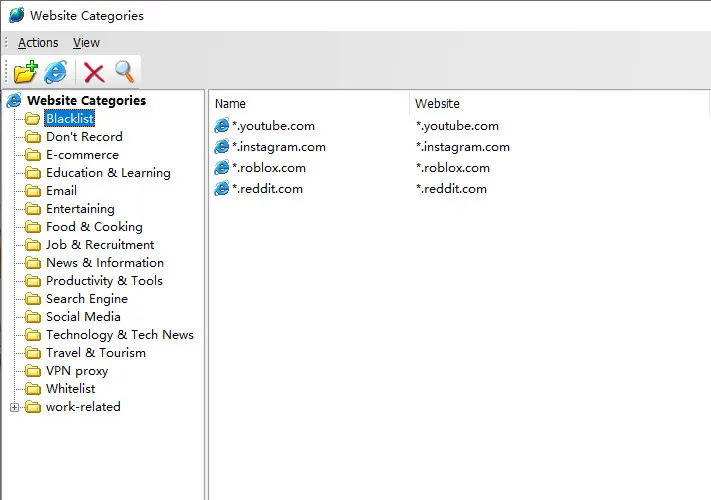
- Create Blacklists. Go to AnySecura control panel, in the Website Categories section, you can add any inappropriate websites like youtube.com, roblox.com, reddit.com and more. to restrict. Simply select this Action as a Block, and you don't have to worry about the bypass anymore.
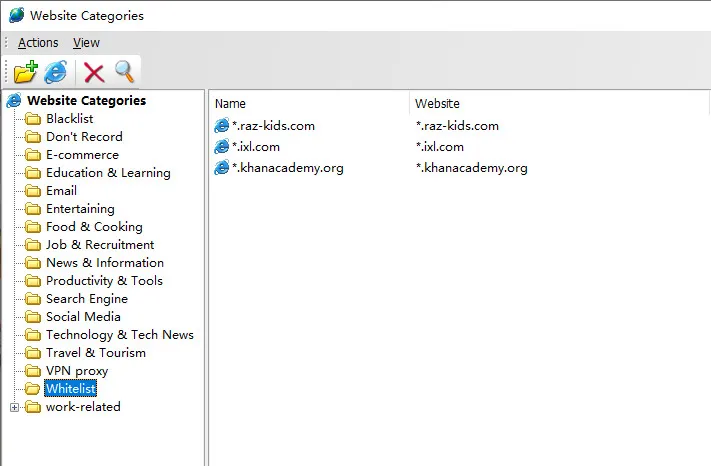
- Create Whitelists. Alternatively, you can set a whitelist, only allowing kids to visit learning websites such as Khan Academy, IXL or Raz-Kids. Then, they will be blocked if they access other unrelated sites.
- Create A Policy. After you set to block the Blacklist (or allow the whitelist), select your kid's device from the central panel. For example, go to "Jackson", "Policy", "Web Browsing", and then click the red Add icon to set the rules.
- Set Block/Unblock Rules. Go to the "Property List" in the right side panel, set the "Action" as "Block". Next, select the website categories you just created in the first step. Now, the block rule will take effect on the whole category.


How to Block Websites on Chrome with Screen Time (iPhone, iPad)
For Chrome mobile on iPhone and iPad, we recommend you use Apple's built-in Screen Time to restrict websites on Chrome and all other browsers.
Screen Time settings will apply system-wide and are harder to bypass than mobile extensions. Let's try blocking websites on Chrome now.
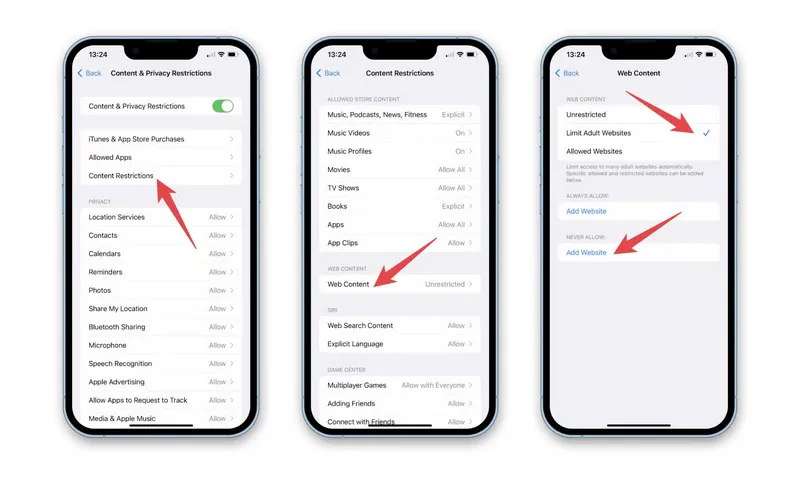
- First, open the "Settings" app on your iOS device and tap "Screen Time". Turn on Screen Time if you have not already, and select "This is My Child's Device" to enable child-friendly defaults.
- Switch on "Content & Privacy Restrictions".
- Choose "Web Content" and select "Limit Adult Websites". Under "Never Allow", tap "Add Website" and enter the URL you want to block, such as youtube.com or tiktok.com. Repeat for all sites you need to restrict.
- Remember to set a strong Screen Time passcode that your kids cannot guess. This not only blocks the sites on Chrome, but also Safari, and every other browser installed on the device.
How to Block Websites on Chrome Mobile (Android)
While most guides introduce parents to how to block websites on iOS Chrome, they ignore those who are using an Android device. Don't worry. Here we offer you two official ways. Google's own Family Link and the built-in Digital Wellbeing tool. Both work without third-party apps for basic control.
Method 1: Google Family Link for Child Accounts
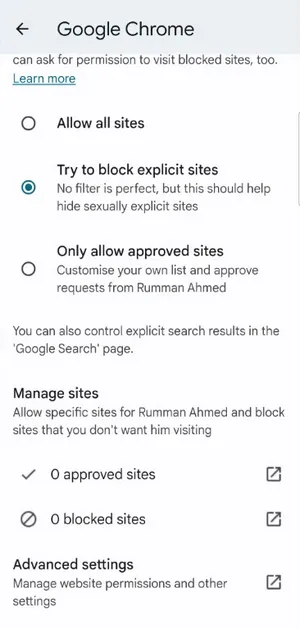
Family Link is popular and free, works well for younger children. If you never used this for your kids, set it now.
- Set up. Install the Google Family Link app on your parent device and set up a profile for your child.
- Link. On your child’s Android device, sign in with their Google account and link it to your Family Link app.
- Block. Open Family Link on your parent device and select your child's profile. Tap "Controls" and then "Content Restrictions". Choose "Manage Sites" and add the websites you want to block to the "Not Allowed" list.
- Apply. When it's done, the block will apply immediately to Chrome and other Google-connected browsers on your kids' Android device. Still, we can't guranteen that older kids will not seek other ways bypass it with secondary accounts or VPN apps.
Method 2: Digital Wellbeing for Time Limits
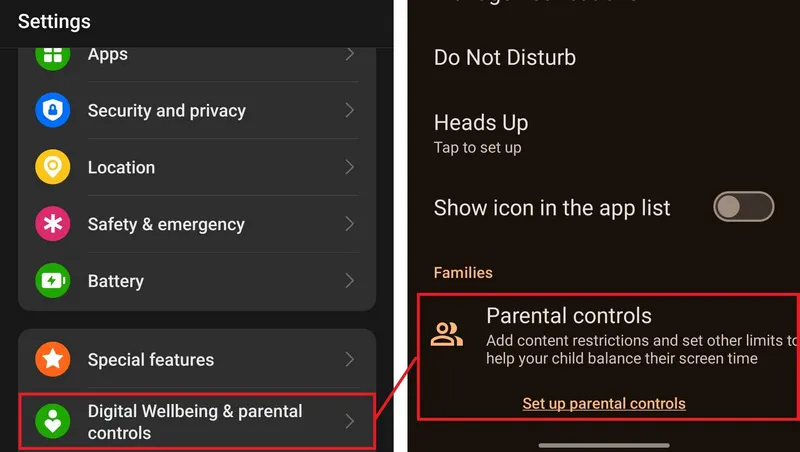
On Android, Google's Digital Wellbeing helps you view Chrome site usage and time spent on specific sites, which makes it useful for awareness and time tracking, but it may be weaker in terms of Chrome website-blocking feature.
- Open Settings on your Android device. Then scroll down and tap Digital Wellbeing & parental controls.
- Inside the Dashboard section, you can tap Chrome to see how much time is spent on different websites.
- Next, if you want to reduce browsing time, tap the timer icon next to Chrome and set a daily limit. Once the limit is reached, Chrome will pause until the next day.
- Besides, you can open Focus Mode and temporarily pause distracting apps while studying or working.
- Note: Digital Wellbeing works best for self-control and basic family guidance. For stricter website restrictions, you can combine with stronger parental controls.
How to Block Websites on Managed Chrome / ChromeOS
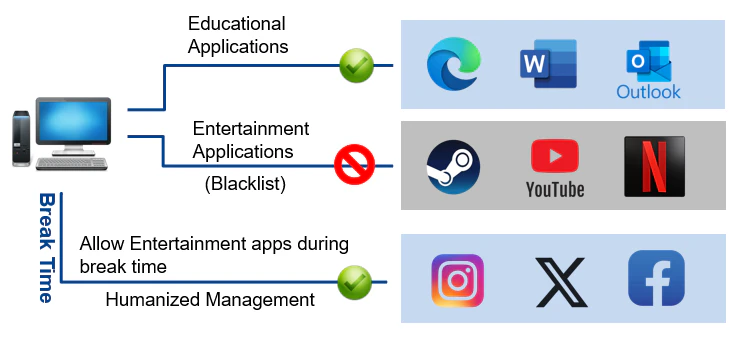
We also learn that businesses and schools need stronger, centralized control that standard user settings cannot provide. In this part, we will show you how to set enterprise-level website blocking. Here Chrome Enterprise and professional management software can solve your problem.
Use Chrome Enterprise Admin
If you are managing school or office devices, Google's official Chrome Enterprise tools are the right place to look. Google says URL blocklists and allowlists apply to managed Chrome browsers and ChromeOS devices, and they are intended for basic URL management.
- Log into the Google Admin Console for your organization.
- Navigate to Devices > Chrome > Settings > User & Browser Settings. And then simply find the URL Blocking section and enter all websites you want to restrict for your entire organization.
- Finally, you can save the settings to push the block to every managed Chrome device.
Use AnySecura Monitoring Software
The other professional way for enterprise solution is to use AnySecura. It lets you block websites on all company or school devices from one central dashboard, with real-time monitoring and anti-bypass protection. You do not need advanced technical skills to deploy or manage the system, making it ideal for teams of all sizes.
How to Block Websites Across All Devices
If you are not satisfied with single-device website blocking, you may need the network-level restriction. It will apply your rules to every phone, tablet, laptop, and desktop on the same WiFi network, ideal for families, classrooms, and office spaces.
Method 1: DNS Filtering
Actually, many parents are not familiar with DNS and consider it's complicated. Instead, DNS filtering is easy to set up. If we need to name a con, it would be bypassed with VPNs or mobile data. Still, worth trying.
- Choose a service. Choose a trusted DNS filtering service such as OpenDNS, CleanBrowsing, or AdGuard DNS.
- Change DNS settings. On your computer, change the DNS settings to use the filtering service's server addresses.
- Save and refresh. Save the settings and wait one minute for the network to refresh. Then, you will find that it blocks harmful or unwanted sites across all devices connected to the network, including Chrome mobile and on desktop.
Method 2: Router Blocking
Similar to DNS filtering, router blocking affects every device on the network, which effectively blocks inappropriate websites on Chrome.
- Open a web browser and log into your router's admin panel using the address and credentials printed on your router.
- Find the section labeled Parental Controls, Website Blocking, or Access Restrictions. Enter the URLs you want to block and save your configuration.
- Restart the router if prompted to activate the rules.
Why Kids/Students Still Get Around Chrome Restrictions
After viewing all these methods of blocking websites on Chrome mobile and desktop, you may notice that some ways you used for restricting kids, but actually have been bypassed by kids or students eventually. Why are they so smart, and why they always have unblocked tricks?
- VPN?
- secondary browsers?
- mobile data?
- admin access?
Actually, most basic blocking methods fail for the same common reasons. Your kids know how to install VPN or proxy apps to hide their browsing activity and bypass basic blocking. Moreover, when they switch to mobile data, the blocked websites on home or school WiFi are ineffective soon. Also, as we mentioned earlier in this article, we found that some tech-savvy kids are able to edit the Hosts file or change DNS settings to reverse blocks.
It is these bugs that explain why single-layer blocking rarely works in the long term. Thus, as a parent or administrator, you should not rely on only one method. Combination matters. To keep your kids away from adults, cyberbullying or violent content, the wise choice is to combine multiple methods with a dedicated monitoring tool like AnySecura.
More Practical Approach to Block Websites Effectively
Instead of relying on one weak method, build a layered blocking system to block websites on Chrome more effectively. For schools and organizations, starting with network-level blocking using a router or DNS filtering is a good option. As for the household, adding device-level restrictions with Screen Time, Family Link, or Hosts file edits may not be enough. Use AnySecura as the final layer to monitor activity, block bypasses, and protect kids' online safety.
FAQs About Block Websites on Chrome
How can I block specific websites on Google Chrome?
On desktop, a Chrome extension is the simplest option. On Android, Family Link is the better Google-native option. On iPhone and iPad, Screen Time can block websites by URL. For any supervised children, parental control software like AnySecura is regarded as a permanent protection by many parents because it logs all online activity for your real-time check or playback.
How to block 18+ content on Chrome?
To block 18+ content on Chrome, you can enable built-in content filters on your device or use a filtering DNS service. For full control and advanced screen monitoring, use AnySecura to block entire adult content categories and keep informed if your kids are streaming inappropriate content.
How do I restrict my child from certain websites?
It is recommended to use a combination of device restrictions and parental control software. First, you can set up Screen Time or Family Link for basic limits, then add AnySecura to block bad websites on desktop permanently and monitor your child's browsing in real time.
Final Words
Blocking websites on Chrome is not only for simple prevention, but for protection and guidance.
If you can take time to set up the right combination of these methods for your needs, your kids will enjoy a safer, more focused browsing environment. Whether for parents, schools, or workplaces, if anyone needs consistent, unbreakable website control, try AnySecura and it lets you remotely manage your kids' online activity when you are busy.