
How to Use the Audit Log View in Audit Console - AnySecura Manual
This guide will help you navigate the Audit Log View within the AnySecura Audit Console, showing you how to quickly filter logs by administrator for a clear view of system activity.
You'll then learn how to manage these logs effectively, using the built-in tools to print, export, or delete records as needed for your reporting and maintenance tasks.
The Audit Console includes the following components: Title Bar, Menu Bar, Toolbar, Administrator Bar, Data View, Query Bar, Status Bar.
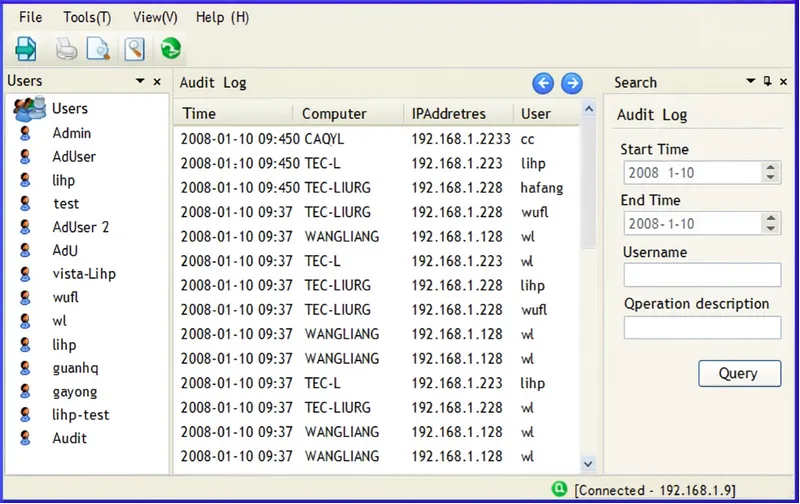
The Administrator Bar displays a list of all administrators and auditors. By selecting a specific administrator, the audit logs will show all the operation logs for that administrator.
The Audit Log View provides features for printing and exporting useful audit logs, as well as a delete function to remove unnecessary audit logs.
Audit Console
| Field Name | Description |
|---|---|
| Print/Print Preview | Select File -> Print/Print Preview to print the current audit log. |
| Export | Select File -> Export to export the audit log. There are two methods: right-click Export -> Current Page Records, or Export -> All Matching Records. |
| Delete | Select File -> Delete to delete audit logs. There are three methods: right-click Delete -> Selected Records, Delete -> Current Page Records, or Delete -> All Matching Records. |