
How to Use Audit Console Settings in AnySecura | User Guide
This guide will help you customize your AnySecura Audit Console to display administrator descriptions directly in the structure tree, making it easier to identify who is who at a glance.
You'll also learn how to interpret the detailed audit logs and use powerful query tools to quickly find specific events, ensuring you have full visibility into all console activities.
Audit Console Settings
Select Tools -> Options to configure the audit console settings. Check the option "Display Administrator Description After Admin Name". After restarting the console, the administrator description will appear next to the administrator's name in the administrator structure tree view.
Audit Log Content
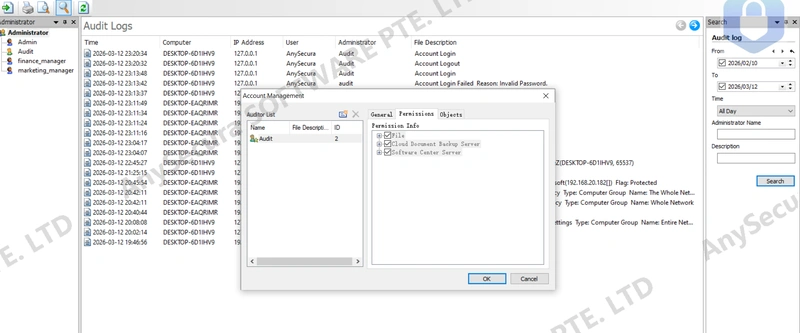
Audit logs include console login status, administrator operation logs, policy modification/deletion, real-time screen viewing, remote control, and administrator account/permission settings.
The content recorded in the audit logs includes:
| Field Name | Description |
|---|---|
| Time | The exact time of the administrator's action on the console. |
| Computer | The name of the computer from which the administrator logged into the console. |
| Network Address | The IP address of the computer from which the administrator logged into the console. |
| Administrator | The administrator's account name. |
| Administrator Description | A description of the administrator's account. |
| Description | A description of the administrator's actions on the console. |
Audit Log Query
Audit administrators can query the required log information using time range, administrator name, or operation description.
| Query Condition | Description |
|---|---|
| Time Range | Set a time range to query audit logs within that period. |
| Administrator Name | Query the audit logs of a specific administrator. The administrator list can be viewed in the administrator bar. |
| Operation Description | Query the audit logs based on the description of specific operations. |
Set Auditor Account
Select Tools -> Accounts. The system auditor can view and add new auditor accounts and set their functional permissions.
| Field Name | Description | |
|---|---|---|
| General | Specify the type of auditor and the login mode for the auditor. This is similar to the settings for the console administrator account. | |
| Functional Permissions | Includes permissions for saving and deleting audit logs. | |
| File | Includes permissions for exporting data and printing. | |
| Delete | Refers to the permission to delete log data. | |
| Document Cloud Backup Server | Permission to log in to the cloud backup server's web audit interface. | |
| Managed Objects | Select which administrators the auditor can audit. This grants the auditor permission to view the operation logs of the selected administrators. Multiple administrators can be selected. The system auditor can audit all administrators. |
Note:
Due to the sensitivity of the administrator audit logs, by default, the delete operation menu will not appear even if the delete permission is granted. It needs to be specifically enabled.
For the specific method to enable this, please contact online technical support.