
How to Use Security Level Permissions in Sensitive Information - AnySecura Manual
This guide will show you how to grant users the ability to see and manage document classifications, a task controlled by the Security Level Permissions feature within the AnySecura Sensitive Information module.
You'll learn to configure these permissions, from allowing simple viewing to enabling users to set appropriate classification levels, giving you precise control over how sensitive data is handled across your organization.
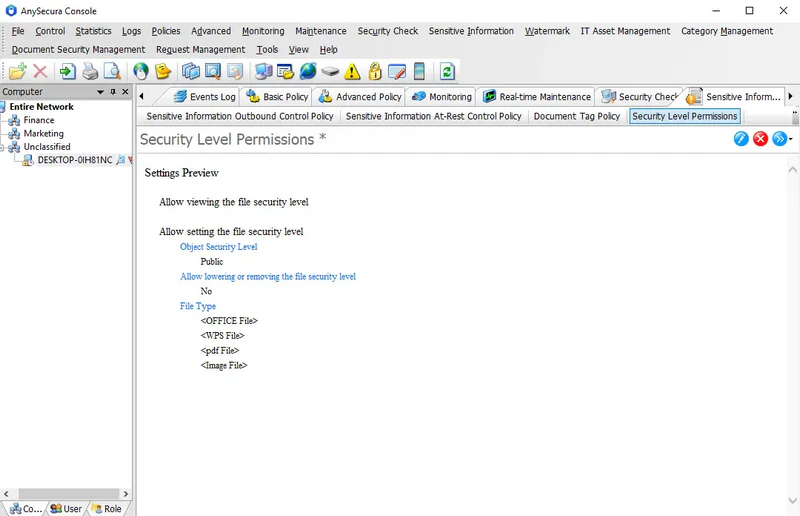
By default, clients cannot view or modify document classification. Administrators can grant the necessary permissions via Sensitive Information → Security Level Permissions.
| Icon | Description |
|---|---|
 |
Modify the classification permissions of the selected computer or user. |
 |
Delete the classification permissions of the selected computer or user. |
 |
Export or import policy files, or copy the current policy to other clients. |
The classification permission settings include the following:
| General Permission | Description |
|---|---|
| Allow Viewing Document Classification | Check this option to allow clients to view document classification.
Clients with this permission can:
|
| Allow Setting Document Classification | Checking this option automatically selects Allow Viewing Document Classification and grants clients the ability to view and set document classification. |
| Object Classification | Clients can set a classification equal to or lower than the specified level; they cannot set a classification higher than the specified level. |
| Allow Lowering or Removing Document Classification | If unchecked (default), clients cannot lower or remove the classification when setting it manually. If checked, clients can manually lower or remove the document classification. |
| Allowed Document Types | By default, all document types are selected. You can specify which document types clients are allowed to set classifications for. |
Note:
- Only the following document types currently support viewing classification via the COM add-in:
- 1. Office files(*.doc;*.docx;*.xls;*.xlsx;*.ppt;*.pptx)
- 2. Wps files(*.wps;*.wpt;*.et;*.ett;*.dps;*.dpt)