
How to Use Traffic Control Policies in Policies - AnySecura Manual
This guide will help you master AnySecura's traffic control policies, a powerful tool within the Policies module for managing network bandwidth and security. You'll learn how these rules prevent congestion and block unauthorized activity by controlling traffic flow from client computers.
We'll explore the key attributes—like IP ranges, port settings, and speed limits—that let you tailor policies for specific needs. By the end, you'll understand how to configure AnySecura to ensure smooth network operations, whether you're limiting general web access or blocking specific high-risk ports.
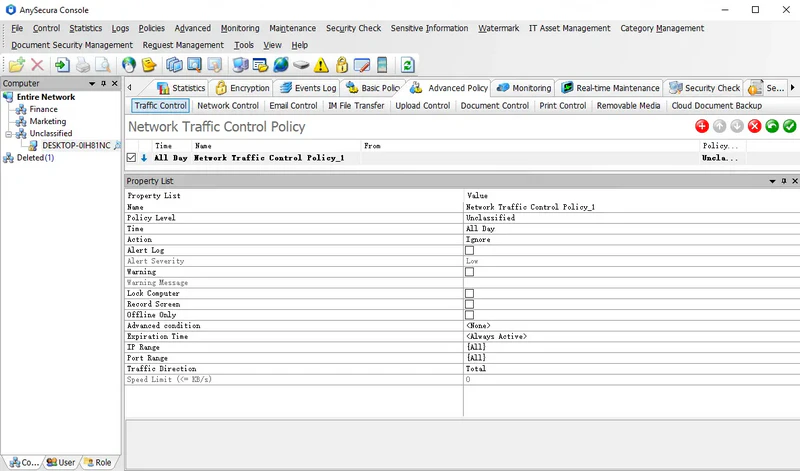
Network traffic control policies regulate client machine network usage to prevent congestion, ensure normal operation across the enterprise, and restrict unauthorized downloads or specific port traffic.
Traffic policies apply to computers, not individual users. Policy attributes include:
| Policy Attribute | Description |
|---|---|
| IP Range | Specifies the IP address range of communication peers. Default is {All}. Addresses can be added manually or selected from predefined network categories, represented by {…}. |
| Port Range | Specifies the range of ports used in communication. Default is {All}, including TCP: 0-65535, UDP: 0-65535, ICMP. Custom ports must be prefixed with TCP: or UDP:; otherwise, TCP is assumed. Port ranges can also reference port categories {…}. |
| Traffic Direction | Defines the flow of network traffic. Outbound traffic from the client is "Sent," inbound traffic is "Received." Sent + Received = Total traffic. |
| Speed Limit | Sets the maximum traffic rate in KB/s. Not applicable if the policy mode is Unlimited. In Limit mode, exceeding the limit pauses upload/download until average traffic falls below the threshold. In Ignore mode, speed is not limited, but configured actions (alert, warning, lock computer) will trigger if traffic exceeds the limit. |
If the policy action is Limit, when a client's traffic in the specified IP range, port range, and direction exceeds the set speed limit, uploads/downloads will be paused until the average traffic falls below the limit, effectively controlling the flow.
If the policy action is Ignore and no action is configured, the speed limit is inactive. If actions such as alert, warning, or lock computer are set, exceeding the speed limit in the specified IP range, port range, and direction will trigger the configured actions, but traffic will not be restricted.
Policy Example 1:
To prevent client machines from unrestricted Internet access that could heavily consume corporate bandwidth and affect overall network performance, a traffic control policy can be applied to specific machines.
Policy Settings:
- Action: Limit
- IP Range: Internet
- Port Range: Default or specified ports
- Traffic Direction: Selected direction
- Speed Limit: 20 KB/s
Effect: Clients' web access and upload/download speeds are limited to 20 KB/s.
Policy Example 2:
Traffic control policies can also block communication between clients and specific IPs or ports. To prevent FTP downloads:
- Action: Limit
- IP Range: {All}
- Port: TCP:21
- Speed Limit: 0 KB/s
Result: FTP downloads from clients are blocked.