How to Configure Print Control Policies in AnySecura
Learn how to control document printing and protect sensitive information with AnySecura.
Watch Now
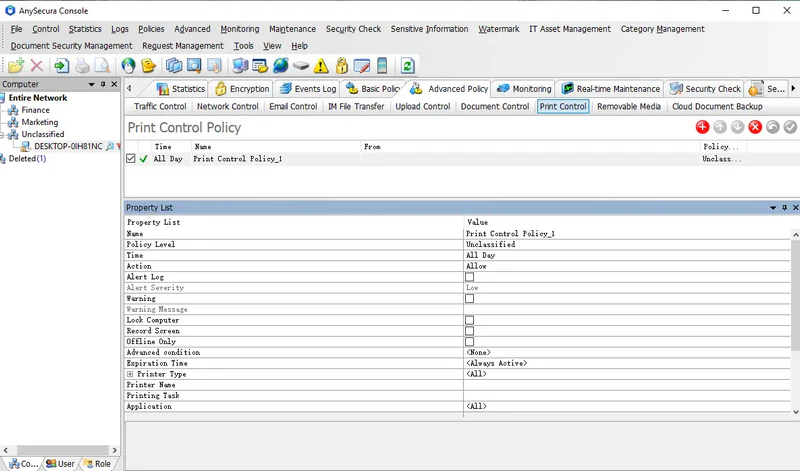
This guide will help you master the Print Control Policy within the AnySecura Policies module, a powerful tool for managing document printing across your organization. You'll learn how to define precisely which printers and applications can be used, giving you control over where and how documents are printed.
By configuring these settings, you can effectively prevent the leakage of sensitive information while also reducing unnecessary resource waste. We'll walk through each attribute, from setting printer types to enabling detailed content logging, so you can confidently build a policy that secures your data and fits your operational needs.
Learn how to control document printing and protect sensitive information with AnySecura.
Watch NowAdministrators can manage document printing by specifying printer types and enabling printing for selected applications. This helps prevent leakage of confidential documents and significantly reduces resource waste.
Print Control Policy Attributes:
| Attribute | Description |
|---|---|
| Printer Type | Four options: Shared, Network, Local, and Virtual. If none are selected, all printer types are considered selected. Saving the policy will automatically select all four types. |
| Printer Name | Set the printer name. Can specify a printer on a networked computer, e.g., \\server\* for all printers on \\server, or SomePrinter for a specific printer. |
| Printing Task | Specify the name of the print job; supports wildcards. |
| Application | Specify the application allowed to print. |
| Record Print Content | Optional when the mode is Allow or Ignore; unavailable in Prohibit mode. Selecting this option determines whether print content is logged. If not selected, the next matching policy decides logging. |
| Recording Mode | Default is no logging. Choose Record to save print content. |
| Print Records (Image) | When recording mode is Record, print content is saved as images. |
| Max Recorded Pages | Maximum pages to save in image format. More pages consume more storage; adjust based on needs. Logs can be viewed in the console under Logs → Document Print Logs. |
| Print Records (Text) | When recording mode is Record, print content is saved as text. |
| Max Recorded Pages | Maximum pages to save in text format. Logs can be viewed in the console under Logs → Document Print Logs. |
To prevent data leaks or printer misuse, a company can restrict client machines' printing:
Client machines attempting to print using these settings will be denied.
Note: