
How to Use IM File Transfer Policy in Policies - AnySecura Manual
This guide will help you understand how to use the IM File Transfer policy within the AnySecura Policies module to secure your company's data. You'll learn how this feature prevents sensitive information from being shared over popular instant messaging platforms.
We'll walk through configuring the policy's key attributes, from setting file size limits to enabling backups. By the end, you'll know how to create rules that both block risky transfers and maintain a secure, auditable record of approved file exchanges.
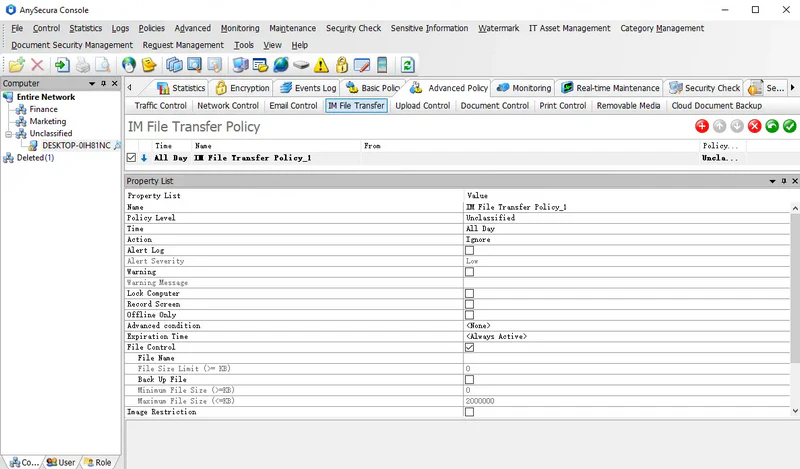
The IM file transfer policy controls the sending of internal company data through instant messaging tools, ensuring the security of corporate information.
It supports a wide range of IM platforms, including: WhatsApp, LINE, Microsoft Teams, Skype, Google Talk, Zalo, Yahoo Messenger, ICQ, and LinkedIn.
OfficeIM and LIMC currently only support message content logging and do not support IM file transfer control.
Policy Attributes:
| Attribute Name | Description |
|---|---|
| File Control | Enable this to control files sent via IM tools. |
| File Name | Specify the names of IM-transferred files to control. Supports wildcards and multiple entries separated by ; or ,. |
| File Size Limit | Effective only in "Prohibit" mode. Prevents sending files larger than the specified size (0-4,000,000 KB). |
| Back Up File | Choose whether to back up the specified sent files. Backed-up files can be viewed or saved under Logs -> Document Operations. |
| Minimum File Size (>=KB) / Maximum File Size (<=KB) | If backup is enabled, set the size range of files to back up. Only files within this range will be backed up. |
| Image Restriction | Enable this to control images sent via IM tools. |
| Back Up File | Choose whether to back up sent images. |
| Chat Tool | Select the IM platforms to which this control applies. |
Policy Example:
To protect internal data and prevent employees from sending files via IM tools, you can configure an IM file control policy to block documents containing specific keywords while backing up other files.
Policy Setup:
① Create a policy: Allow and enable the Backup option.
② Create a policy: Block with File Name: *keyword*.
With this setup, any file containing the specified keyword will be blocked from being sent, while other files can be sent normally but will be automatically backed up. Administrators can review the backed-up files in the Document Operations log to ensure compliance.