
How to Use Client Upgrade Management - AnySecura Manual
This guide introduces you to the Client Upgrade Management feature within the AnySecura Tools module, showing you how to control software updates across your network. You'll learn how to configure the system so that client computers seamlessly receive and install the latest security enhancements after a server upgrade.
We'll explore the settings that let you decide exactly when and how clients update, from enabling automatic upgrades to locking specific versions for testing. By the end, you'll be able to confidently manage your deployment's version consistency and ensure every endpoint stays current with your chosen AnySecura policies.
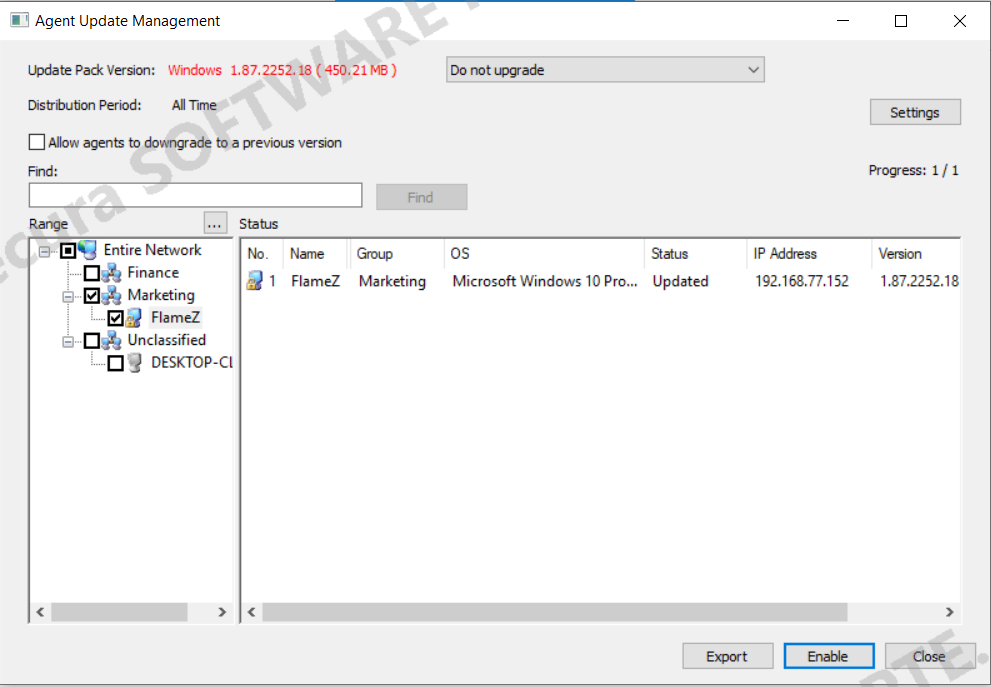
After the server is upgraded, the client upgrade packages are updated. Once the server distributes the clients and upgrade packages, clients will automatically install the updates. After a restart, the upgrade is complete.
By default, clients do not upgrade automatically, meaning the server will not distribute upgrade packages automatically. Settings for automatic upgrades must be configured through Client Upgrade Management.
Select "Tools -> Server Management -> Client Upgrade Management" to view the current client upgrade package version on the server. Through the upgrade settings, clients can be set to automatically upgrade or downgrade to match the server version.
| Parameter | Description |
|---|---|
| Upgrade Settings | |
| Package Version | Displays the current upgrade package version. The dropdown menu on the right allows selecting the upgrade setting. |
| No Upgrade | Selecting this option prevents all clients from upgrading. |
| Auto Upgrade | Selecting this option enables all clients to automatically upgrade to the latest version. |
| Only Upgrade to XX Version | This option locks the upgrade version and will display the specific version based on the current upgrade package on the server. Once a specific version is locked, clients will only upgrade to that version.
|
| Distribution Time Range | Upgrade files will only be distributed to clients during the specified time range. |
| Allow Client Downgrade | If the client version is higher than the server's upgrade package, selecting this option allows the client to downgrade; if unchecked, the client version remains unchanged. |
| Search | Enter Name, Computer, IP, or Last Logged-in User to find clients. Supports keyword search but not wildcards. |
| Scope | Upgrade files are only distributed to clients within the selected scope. |
| Status | Displays the status of clients within the selected scope, including computer name, IP address, current client version, and upgrade status. |