
How to Use Windows System Logs in Logs - AnySecura Manual
This guide will help you unlock the valuable insights hidden within your Windows client machines. You'll learn how to enable and configure the AnySecura Logs module to start collecting critical system events for security monitoring.
Once configured, you'll be able to navigate to the Windows System Logs view, where you can interpret the detailed event data to quickly identify potential issues or confirm system health.
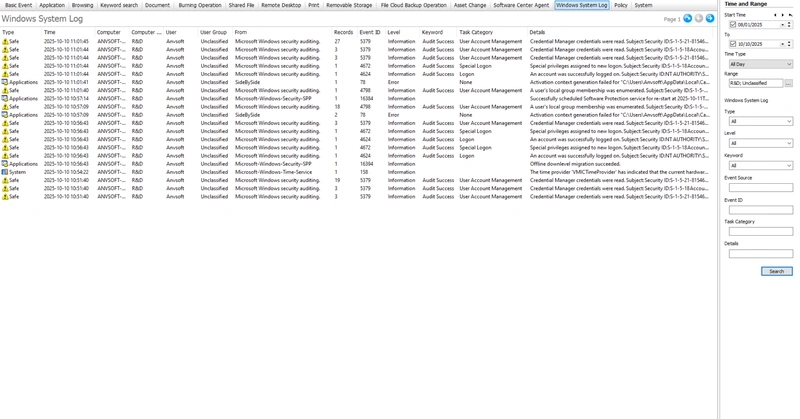
Windows logs record system events on client machines for later review. By default, Windows system logs are not recorded and must be enabled via Policy → Log Settings.
Administrators require the permission Tools → Accounts → Permissions → Logs → Windows System Logs to view client Windows logs.
Select Logs → Windows System Logs to view policy logs, which include:
| Attribute | Description |
|---|---|
| Type | The type of system log: Application, Security, or System. |
| Source | The event source of the system log; fuzzy search is not supported. |
| Records | Number of records in the log. |
| Event ID | The event ID of the log; fuzzy search is not supported. |
| Level | Log level: Critical, Warning, Detailed, Error, or Information. |
| Keyword | Log keywords. |
| Task Category | Task category of the log; fuzzy search is not supported. |
| Details | Detailed description of the log entry. |
Notes:
- After enabling the policy, only logs from the past 5 days are available in Windows system logs.
- The Keyword field only displays Audit Success, Audit Failure, or Classic; other values will appear empty.