
How to Use Secure Zones in Document Security Management - AnySecura Manual
This guide will help you organize your document security by creating secure zones within AnySecura's Document Security Management module. Think of these zones as digital departments, mirroring your company's structure to logically group and protect sensitive files.
You'll learn how to easily add, edit, or remove these zones, giving you precise control over who can access what information. We'll also explore the default Public Secure Zone, which provides a foundation for seamless, secure collaboration across your entire team.
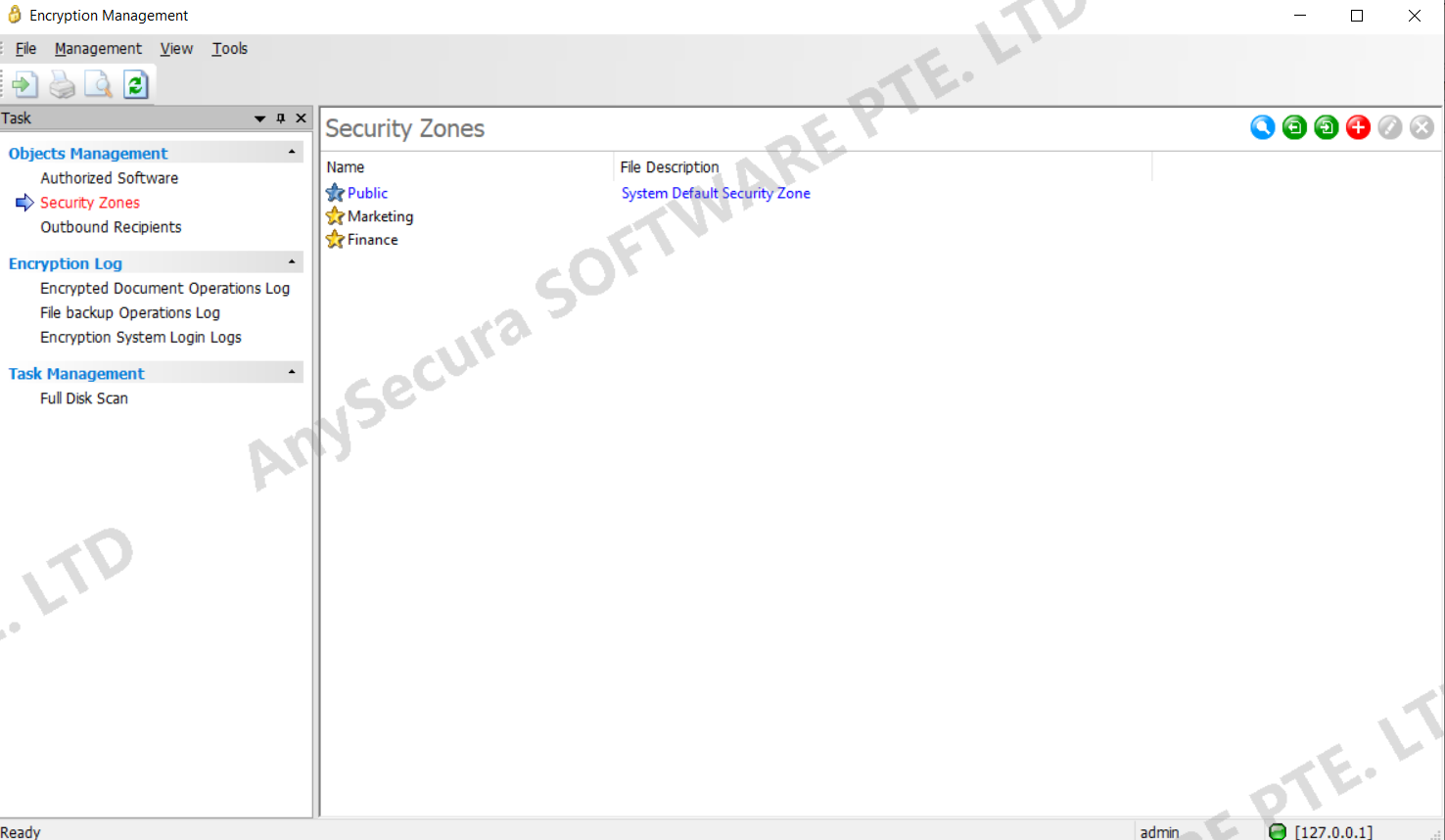
Before configuring encryption permissions for clients, define secure zones according to the organization’s department structure. In the Document Security Management window, secure zones can be viewed and modified.
Secure Zone Actions
| Icon Button | Action | Example |
|---|---|---|
 |
Add a secure zone and enter a description | Create HR Zone |
 |
Edit the secure zone name and description | Rename HR Zone |
 |
Delete a secure zone | Remove Test Zone |
By default, there is a Public Secure Zone that cannot be modified or deleted. Files automatically encrypted by authorized software are assigned to the Public Secure Zone at the standard level. To facilitate information sharing, all clients with encryption enabled have access to the Public Secure Zone at the standard level.