
How to Use Encryption System Information in Windows Encrypted Client - AnySecura Manual
This guide will show you how to access the powerful diagnostic tools within the AnySecura Windows Encrypted Client. By simply right-clicking the system tray icon, you can open the "Encryption System Information" window to gain immediate insight into your system's security status.
From there, you'll learn to interpret the current authorized processes and security objects, confirming your encryption policies are active. You can also view system logs for troubleshooting and check your offline authorization details, giving you complete visibility and control over your encrypted environment.
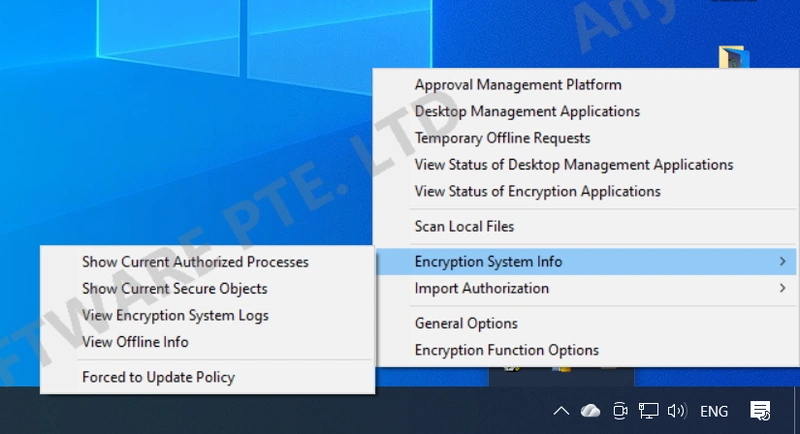
In the client system tray, right-click and select "Encryption System Information" to view the current authorized processes, current security objects, and encryption system details.
Current Authorized Processes
Under transparent encryption authorization, it shows the software currently opening encrypted documents.The process list is sorted alphabetically (A–Z).Under read-only encryption authorization, it shows software currently opening encrypted documents in read-only mode, marked with a "!" symbol.
Current Security Objects
Displays the client’s encryption authorization information, including general permissions, authorized software, security areas, and default document properties.This information is consistent with the encryption authorization settings on the console.
View Encryption System Logs
Shows system logs reporting failures such as encryption or decryption errors, as well as encryption system events.
Example: Opening an encrypted document in read-only mode under read-only encryption authorization.
View Offline Information
Displays long-term offline authorization time, temporary offline authorization time, and disaster recovery remaining time.