
How to Use Server Time - AnySecura Manual
Understanding how server time impacts your system is key to maintaining stability and security. This guide explains how the AnySecura console monitors for time discrepancies that can affect critical functions like policy enforcement and data logging.
You'll learn to navigate to the Server Time tool to view the current time and, once verified, use the Trust action to confirm its accuracy. This simple step ensures your console operates reliably by silencing unnecessary alerts.
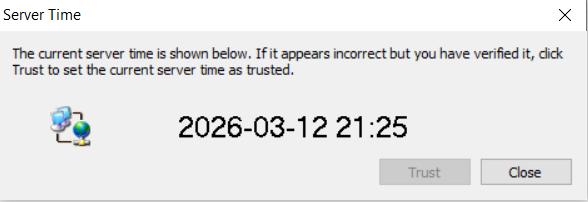
If the server time is incorrect—for example, if the system time on the server machine is manually set days ahead or behind—it can seriously affect the product’s stability and security. Many functions, such as policy validity, data generation time, and automatic clearing, rely on accurate server time.
When an abnormal server time is detected, a bubble alert appears when the administrator logs into the console and will continue to remind periodically. The administrator must correct the server’s operating system time and re-establish trust in the console.
Go to Tools > Server Management > Server Time to view the current server time. If the administrator confirms that the server time is correct, clicking Trust will stop the console from showing the alert bubble.