
How to Use Audit Logs in Cloud Document Backup Server - AnySecura Manual
This guide will help you understand how the AnySecura Cloud Document Backup Server's audit logs provide a clear record of administrator activity. You'll learn to view and search these logs to track specific actions, users, and times.
Building on this visibility, you can then configure the auditor blacklist and whitelist settings to precisely control which administrators are permitted to access the server, enhancing your overall security posture.
The WEB Audit Client primarily records logs of administrator actions on the Cloud Document Backup Server, making it easy to track what operations administrators have performed. Audit administrators with "Cloud Document Backup Server" permissions can log in to the server to view audit logs.
29.3.1 Audit Logs
Audit administrators can view audit logs, which include Cloud Document Backup Server login activity and administrator operation logs.
Audit logs record the following information:
| Field Name | Description |
|---|---|
| Operation Log | The type of operation performed. |
| Time | The specific time of the operation. |
| Login Computer | The name of the computer used to log in to the Cloud Document Backup Server. |
| Login User | The username used to log in to the Cloud Document Backup Server. |
| Details | Description of the administrator’s actions on the console. |
Audit administrators can query logs by time range, operation type, or file name.
| Field Name | Description |
|---|---|
| Time Range | Set a time range to query audit logs within that period. |
| Operation Type | The type of administrator operation. |
| File Name | The name of the file involved in the administrator’s operation. |
29.3.2 Auditor Blacklist/Whitelist Settings
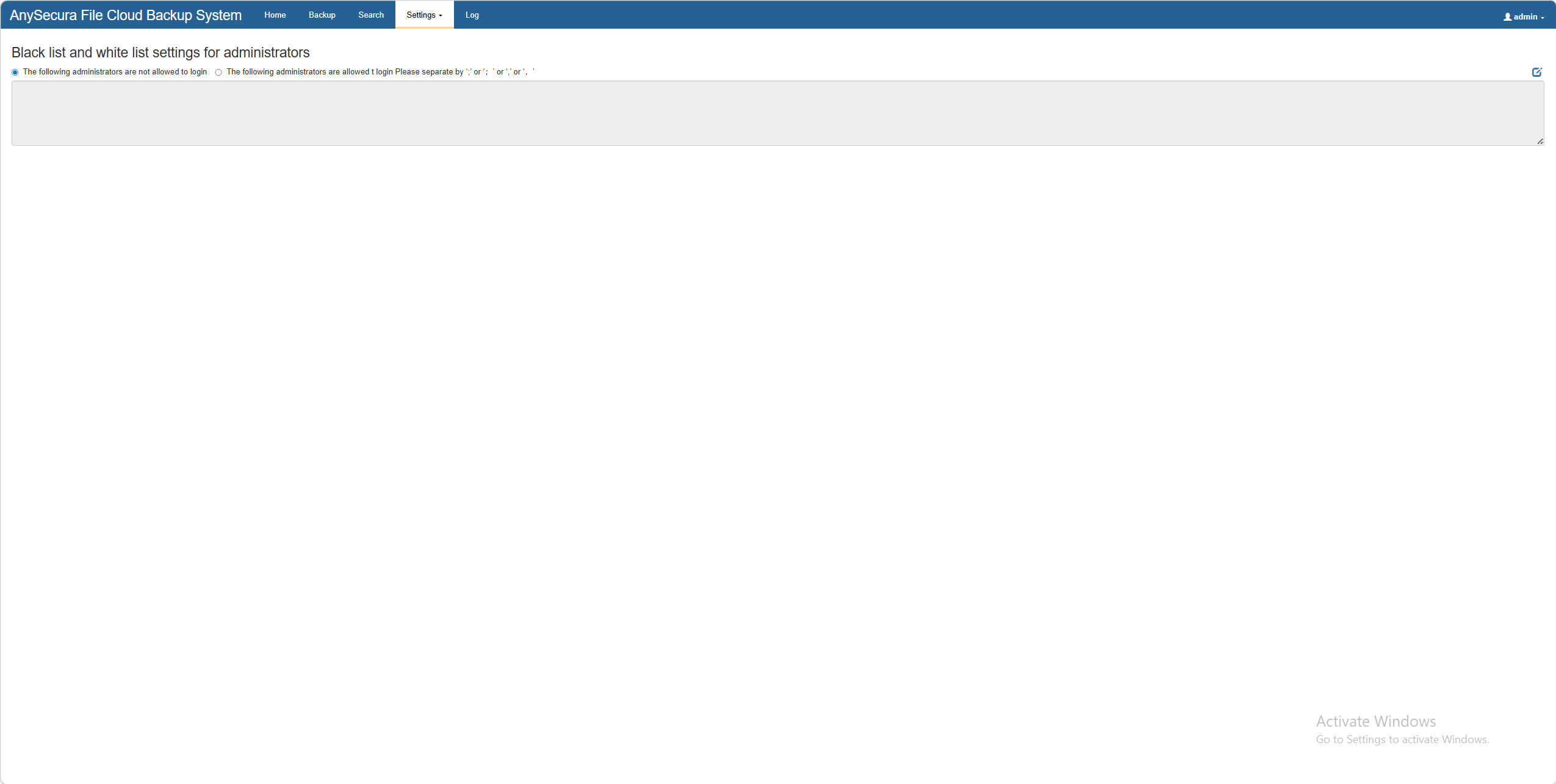
Auditor blacklist/whitelist settings are used to restrict audit administrators from logging into the Cloud Document Backup Server. By default, all audit administrators are unrestricted. You can choose to set a blacklist or whitelist.
Click the  to configure, check the appropriate options, and enter the audit administrator names. Separate multiple names with ";", ";", ",", or ",", then click the
  to save.
| Setting | Description |
|---|---|
| The following auditors are prohibited from logging in | Administrators in this list cannot log in to the Cloud Document Backup Server. |
| The following auditors are allowed to log in | Only administrators in this list can log in to the Cloud Document Backup Server; all others are denied access. |
Note:
- Administrators can set "audit" in the blacklist. When set to "audit", this account can only access the auditor blacklist/whitelist settings and has no other permissions.