
How to Use Predefined Conditions in Category Management - AnySecura Manual
This guide introduces you to the powerful library of predefined conditions within AnySecura's Category Management module. You'll learn how these reusable building blocks simplify the creation of complex policies for managing your devices.
We'll walk through creating, editing, and organizing conditions, empowering you to efficiently construct precise rules using parameters like device type or operating system. This will give you a streamlined and consistent way to apply your security and management strategies.
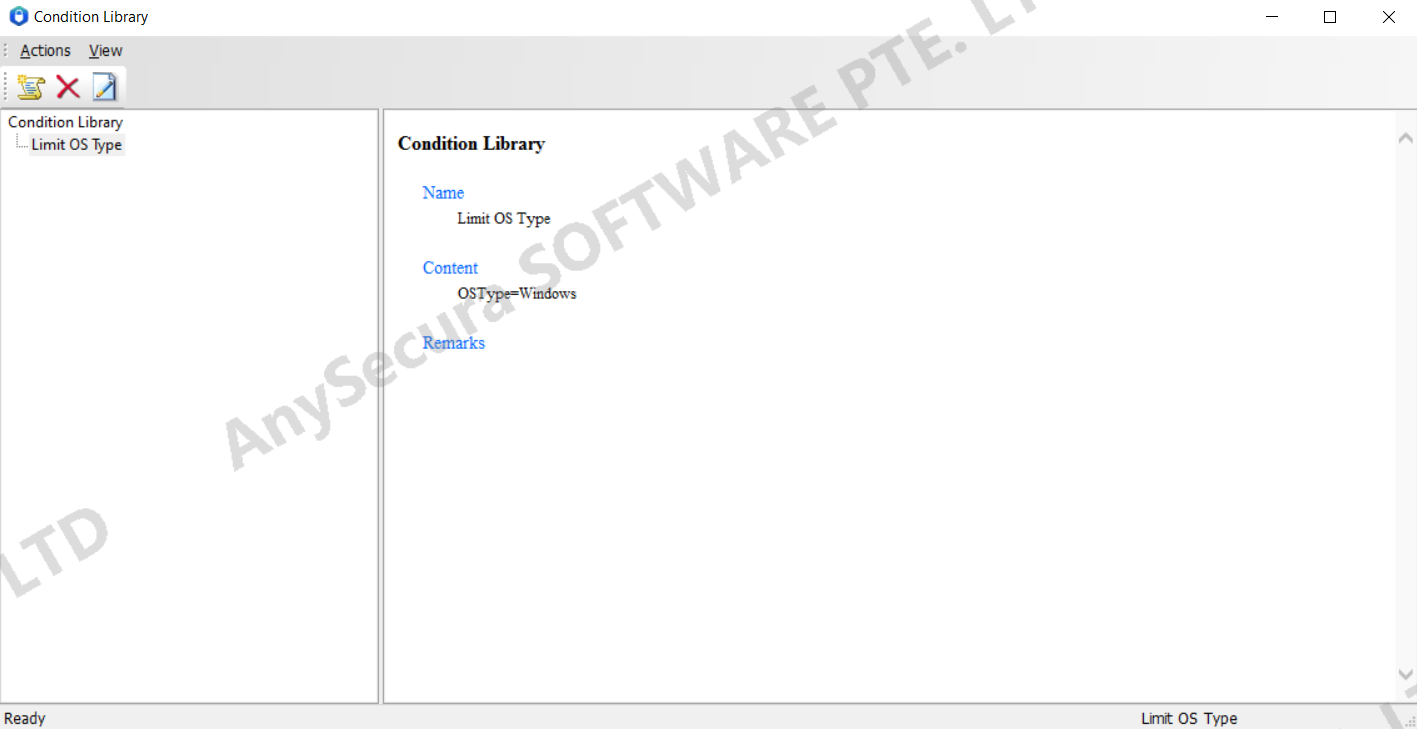
Administrators can predefine a library of conditions, which can be directly selected when configuring advanced conditions for various management policies.
| Operation | Description |
|---|---|
| New Condition | Click the add button " " to create a new condition. Set the condition name, content, and remarks. " to create a new condition. Set the condition name, content, and remarks. |
| Delete Condition | Select the condition to delete, then click the delete button " " to remove it. " to remove it. |
| Edit Condition | Select the condition to edit, then click the edit button " " to modify it. " to modify it. |
The currently supported conditions (parameters) include the following:
- OSType: Operation type
- OSVer: Operating system version
- OSName: Operating system name
- Devtype: Device type, currently supports two types — Notebook (laptop) and Desktop (non-laptop)
- DevName: Device name
- Ver: Client version
- IP: Device IP address
Brief instructions for condition settings are as follows:
- Format: [Parameter] [Operator] [Value]. Examples: DevType = Notebook, DevType in (Notebook, Desktop), OSName like "*Windows*"
- Multiple parameters can be combined using logical operators (AND, OR, NOT). Example: OSType = Mac and DevType = Notebook
- Parentheses can be used to define nested conditions. Example: (DevType = Notebook and OSType = Mac) or (not OSType = Mac)
- Supported operators: >, >=, <, <=, =, ==, <>, !=, like, not like, in, not in, exist