Master Application Control with AnySecura | Block, Allow, Monitor & Audit
Learn how to secure your enterprise endpoints with AnySecura’s Application Control.
Watch Now
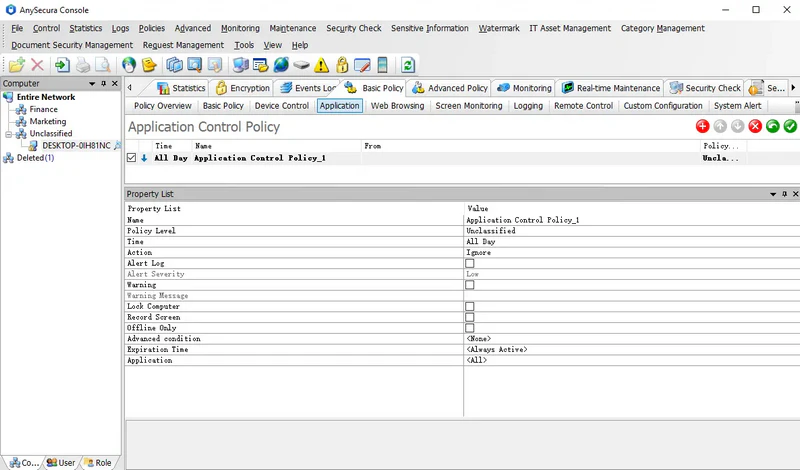
This guide will show you how to use AnySecura's application control policies to manage which programs can run on your network. You'll learn to restrict specific applications, like chat tools or games, to maintain security and productivity.
We'll explore the different methods to enforce these rules, from targeting individual processes to blocking entire categories or storage locations. By the end, you'll understand how to configure these powerful AnySecura policies effectively and safely for your environment.
Learn how to secure your enterprise endpoints with AnySecura’s Application Control.
Watch NowIn companies, administrators may want to restrict certain applications, such as BitTorrent clients, download tools like Thunder, chat software, or games. Application control policies can limit client machines from running these programs.
By default, newly added policies apply to all applications. Administrators must specify which applications to control. There are three ways to enforce application restrictions:
1. By Process Name
Administrators can add the application's executable name, e.g., thunder.exe. The policy works via string matching. If the client renames the program (e.g., thunder123.exe), the policy will not apply. To avoid this, use the second method.
2. By Application Category
Administrators select a category containing all applications to block. Even if the client renames the executable, the policy remains effective as long as the program itself is unchanged.
3. By Execution Path
Administrators can specify a path, e.g., Block APPDIR:e:\*.exe to block all programs on the E: drive. Similarly, to block all programs on the H: drive, set the policy to Block APPDIR:h:\*.exe.
You can also use $UDISK$ to represent USB drives and $CDROM$ for CD-ROMs.
Examples:
APPDIR:$UDISK$:\*.exe — blocks all programs on USB drives
APPDIR:$CDROM$:\*.exe — blocks all programs on CD-ROMs
Application policies can also control the running of services on client machines. When setting the policy, enter the service name in the application field using the format:
SERVICE:ServerName;
Example: To block the service bthserv, enter SERVICE:bthserv in the application field.
Notes:Use English half-width characters when typing.SERVICE must be uppercase; otherwise, the policy will not take effect.ServiceName refers to the service’s actual name, not its display name.
Warning:
Warning messages can include the name of the process that triggered the policy. To do this, insert $APPNAME$ in the message. For example, if a policy blocks chrome.exe and the warning is set to: "Company policy prohibits running this process: $APPNAME$", then when the client tries to run chrome.exe, the message displayed will be: "Company policy prohibits running this process: chrome.exe".