
Searching for how to block websites at work returns dozens of methods, each of which works under specific conditions and fails under others. The difficulty is not finding a tool—it is knowing which layer to control, because that layer determines exactly where the restriction holds and where it disappears without warning.
Before picking a method, two questions determine which approach actually fits: who needs to be blocked, and where must the restriction hold regardless of browser or network. This guide maps each scenario to the right control layer, then covers the setup.

For personal use on one device, a browser extension or the Windows hosts file is the fastest starting point. For a company enforcing rules across multiple devices or remote employees, a managed browser policy, DNS filtering, or endpoint web-control software is required. The right choice depends on your scope, authority, and whether users work outside the office network.
Which Website Blocking Method Is Right for You?
Before picking a tool, answer these questions:
- Who is being blocked? Just you, one employee, a department, or everyone?
- Where must the block apply? One browser, one device, the office network, or company laptops regardless of location?
- Do you own the device? Personal devices may be outside the scope of employer policy.
- Do you need evidence? Logs, reports, and blocked-attempt records are separate from access control.
Use this table to find your starting point:
| Situation | Best control layer | Admin rights needed? | Works off-network? |
|---|---|---|---|
| I want to block distracting sites for myself | Browser extension or OS focus tool | Usually not | Yes, on that device |
| I need to block sites on one work computer across all browsers | Hosts file or endpoint control | Yes | Yes, on that device |
| We use managed Chrome or Edge across the company | Browser enterprise policy | Management authority | Yes, on managed browser |
| We have a fixed office and need to cover all devices on our Wi-Fi | Router or DNS filtering | Router/network admin | No — office only |
| Employees work from home or travel | Roaming DNS, cloud gateway, or endpoint enforcement | IT admin | Yes, with correct deployment |
| We need different rules by department, time, or user | Centrally managed endpoint or web-control platform | IT admin | Yes, with correct deployment |
| We need browsing logs, reports, or upload control | Monitoring or endpoint web-control platform | IT admin | Depends on product |
The rest of this guide follows this order: personal and single-device methods first, then managed-browser and network controls, then enterprise-grade enforcement for remote employees and complex policies.
Block Websites on One Work Computer
If you only need to stop yourself—or one person—from opening certain sites on a single device, you have three practical options that do not require company infrastructure.
If the device is company-owned, check your employer's acceptable-use policy before installing software or editing system files. On a managed device, IT may already control what you can install. Ask before acting.
How to Block Websites in Chrome or Edge with an Extension
A focus extension is the fastest option. You install it in your browser, add the sites you want to block, and it intercepts navigation when you try to visit them. Many let you set schedules so the block only applies during work hours.
The main limitation is scope: the extension only works in the browser where it is installed. If you switch to a different browser profile or a second browser, the block does not follow you. Extensions are also easy to disable in a moment of temptation—removing them takes seconds.
For a personal commitment tool, that is usually fine. For an enforceable company rule, it is not.
Steps (Chrome):
- Open Chrome and go to the Chrome Web Store (search "Chrome Web Store" in a new tab).
- Search for a site-blocker or focus extension. Look for one with schedule support and check whether it requires a separate permission to run in Incognito or private browsing windows—not all extensions apply to private sessions by default.
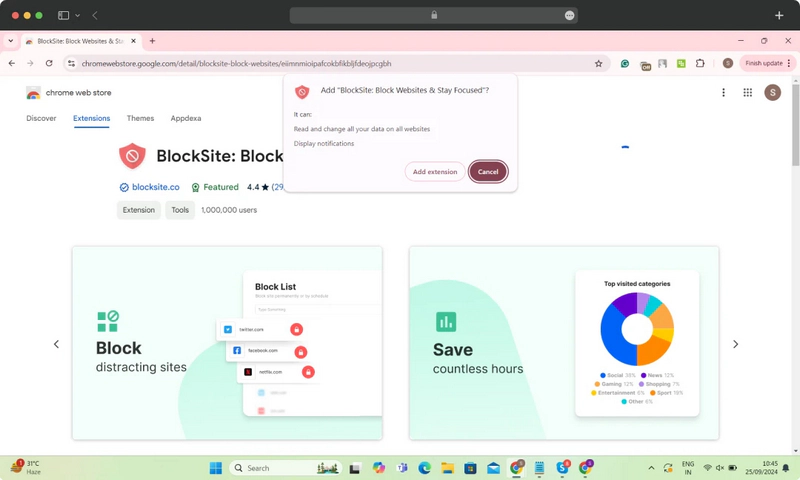
Click Add to Chrome → Add extension. Example shown with BlockSite. Review every requested permission before selecting Add extension
- After installation, click the extension icon in your toolbar to open its settings.
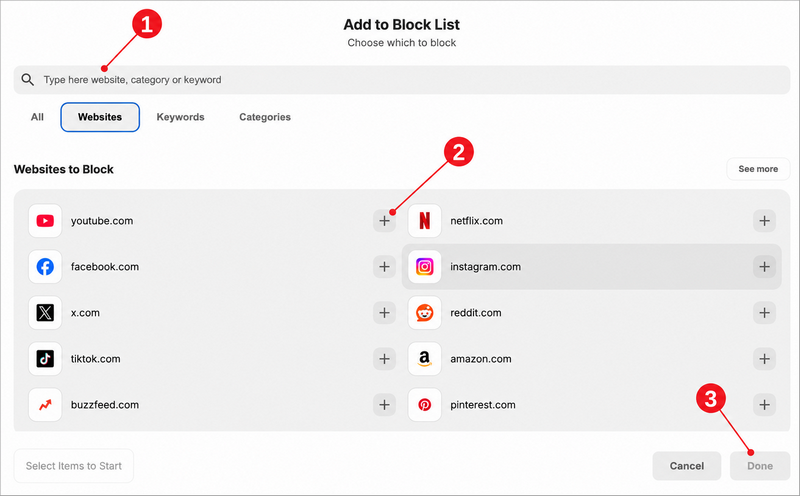
Add the websites you want to block. ① Search for a domain, ② select the + button beside the website, and ③ confirm with Done.
If the extension supports schedules, configure working hours so the block activates and deactivates automatically.
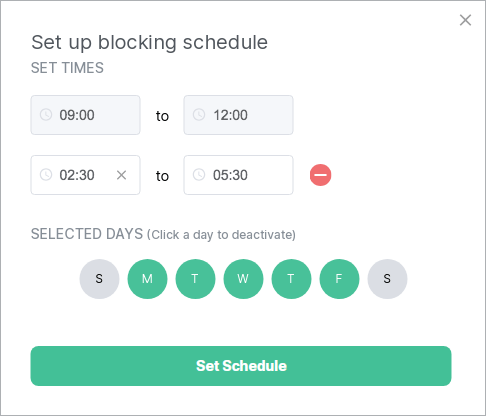 Example schedule with weekday time ranges. The available controls may change as the extension is updated.
Try opening one of the blocked websites. A block page confirms that the extension is active in this browser profile.
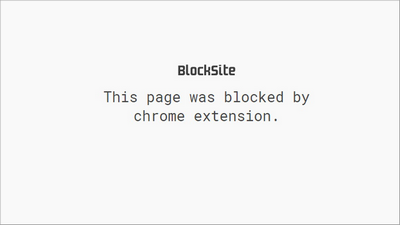 The message and design vary by extension version, but the requested site should not load.
Steps (Edge): The process is the same, using the Microsoft Edge Add-ons store instead.
What it does not cover: Other browsers on the same device, other user profiles, other devices.
How to Block Websites on Windows 11 Using the Hosts File
The Windows hosts file maps hostnames to IP addresses before your system contacts DNS. By pointing a site's hostname to a non-working address such as 127.0.0.1, you prevent all browsers on that device from resolving that hostname—without installing any software.
It requires administrator rights to edit the file, which is located at C:\Windows\System32\drivers\etc\hosts.
Steps:
Click Start, type Notepad, right-click the result, and select Run as administrator. Administrator rights are required to save changes to this file.
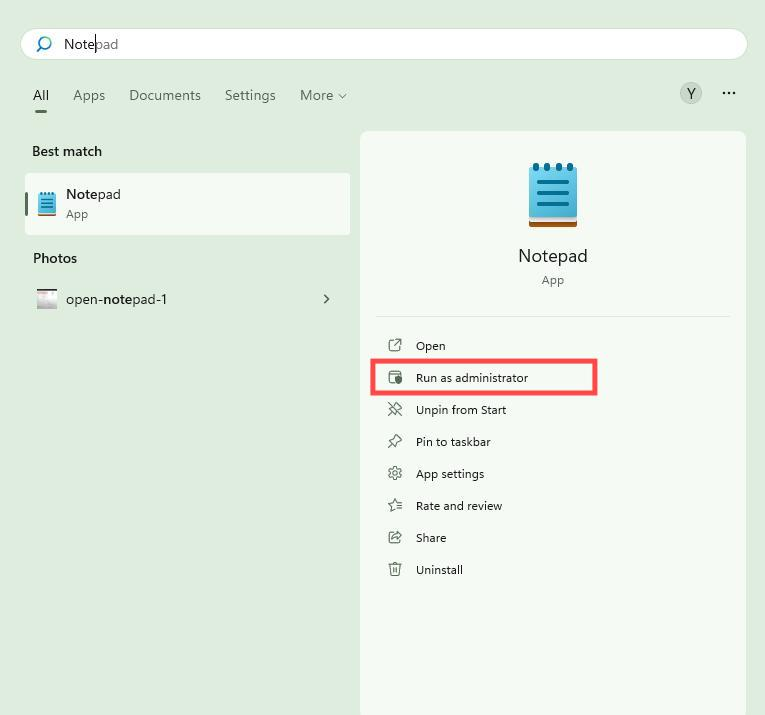 If you open it normally, Windows will not let you save changes in the system folder.
- In Notepad, go to File → Open.
- Navigate to
C:\Windows\System32\drivers\etc\. - Change the file type dropdown from Text Documents (*.txt) to All Files (*.*) so the hosts file becomes visible.
Open the file named hosts (it has no extension).
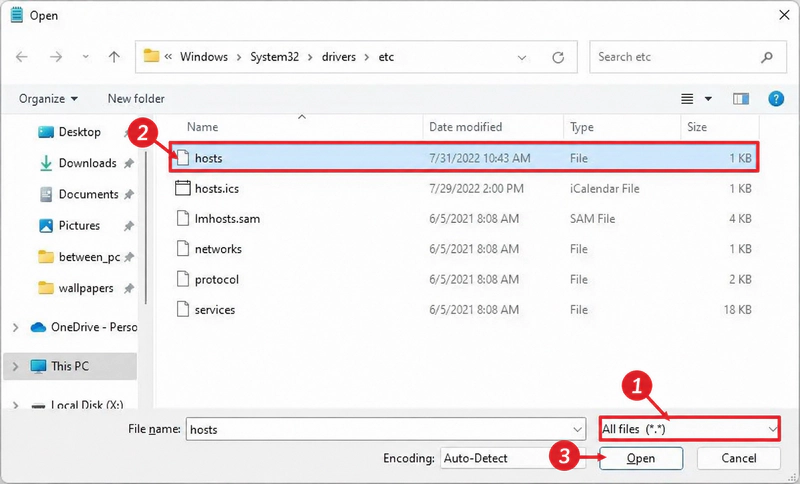 ① Select All files, ② select hosts, and ③ click Open. The file has no
.txtextension.Scroll to the bottom. Add one line per hostname you want to block, using this format:
127.0.0.1    www.example.com
127.0.0.1    example.com
Add both the
wwwand bare domain versions to catch both. Do not delete any existing lines above.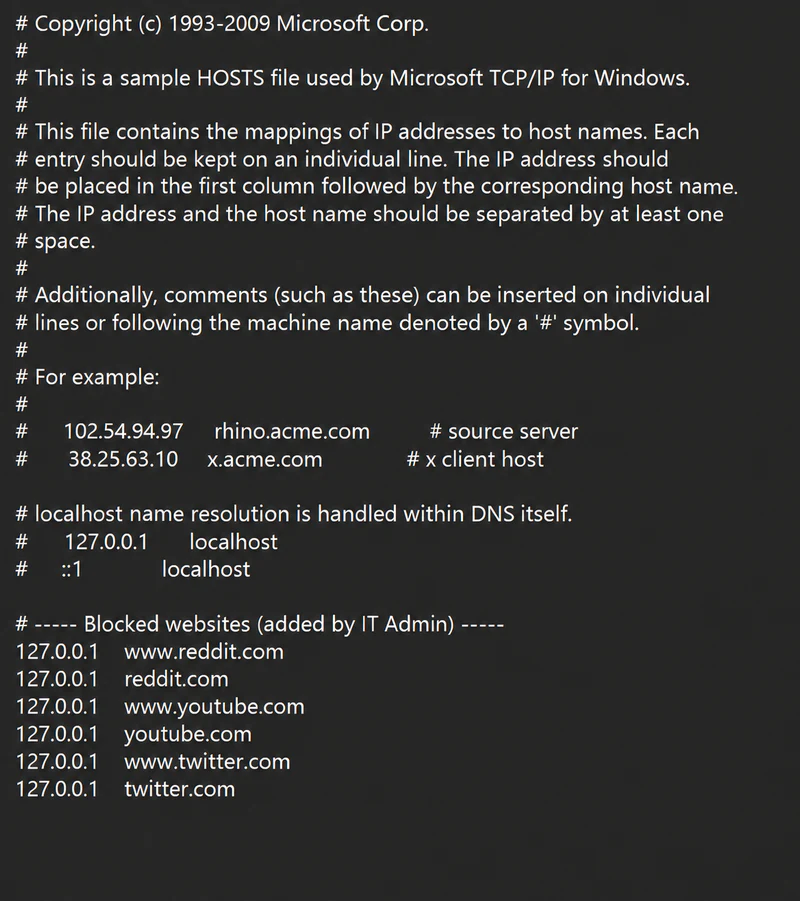 Add each hostname on its own line and include both the
wwwand bare-domain versions.- Press Ctrl+S to save. If Windows asks for permission, confirm.
Open Command Prompt as administrator (search "cmd", right-click the result, select Run as administrator).
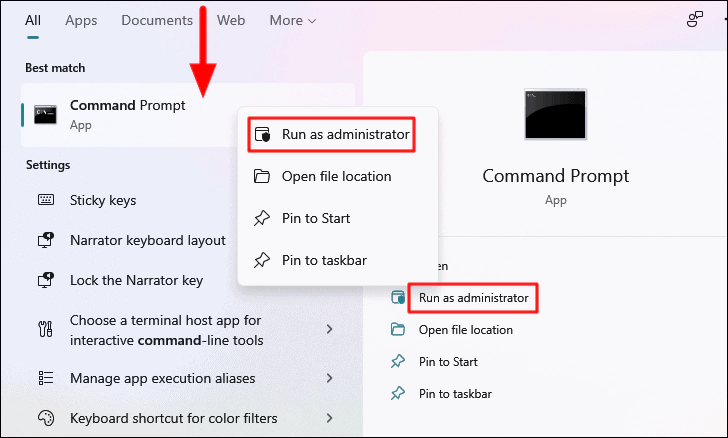 Right-click Command Prompt, then choose the highlighted Run as administrator option.
Type
ipconfig /flushdnsand press Enter. This clears the DNS cache so changes take effect immediately without restarting.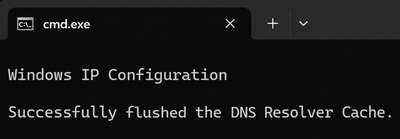 The success message confirms that Windows cleared the cached DNS records.
Open a browser and try visiting the blocked site. You should see a connection error or "site can't be reached" message.
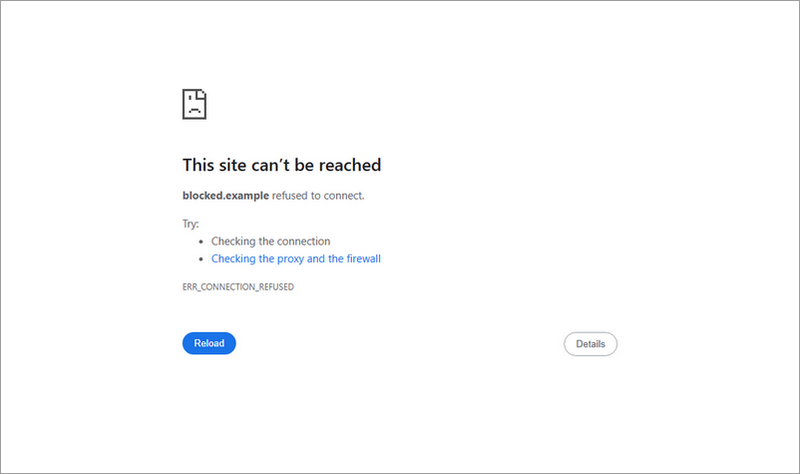 A successful local block can produce Chrome's
ERR_CONNECTION_REFUSEDpage, as shown here. The exact message varies by browser and operating system.
To undo a block: Open the hosts file the same way, delete the relevant lines, save, and run ipconfig /flushdns again.
What it does not cover: Sites accessed by direct IP address, subdomains not listed individually, VPN or proxy traffic, other devices on the network. The hosts file has no reporting capability and requires manual updates when your list changes.
How to Block Websites on a Mac with Screen Time
macOS Screen Time includes a built-in website restriction feature for Safari. It can limit broad categories of web content or block specific sites without installing another app.
Steps (current macOS):
- Click the Apple menu → System Settings.
- Click Screen Time in the sidebar. If this is your first time, click Turn On.
Click Content & Privacy.
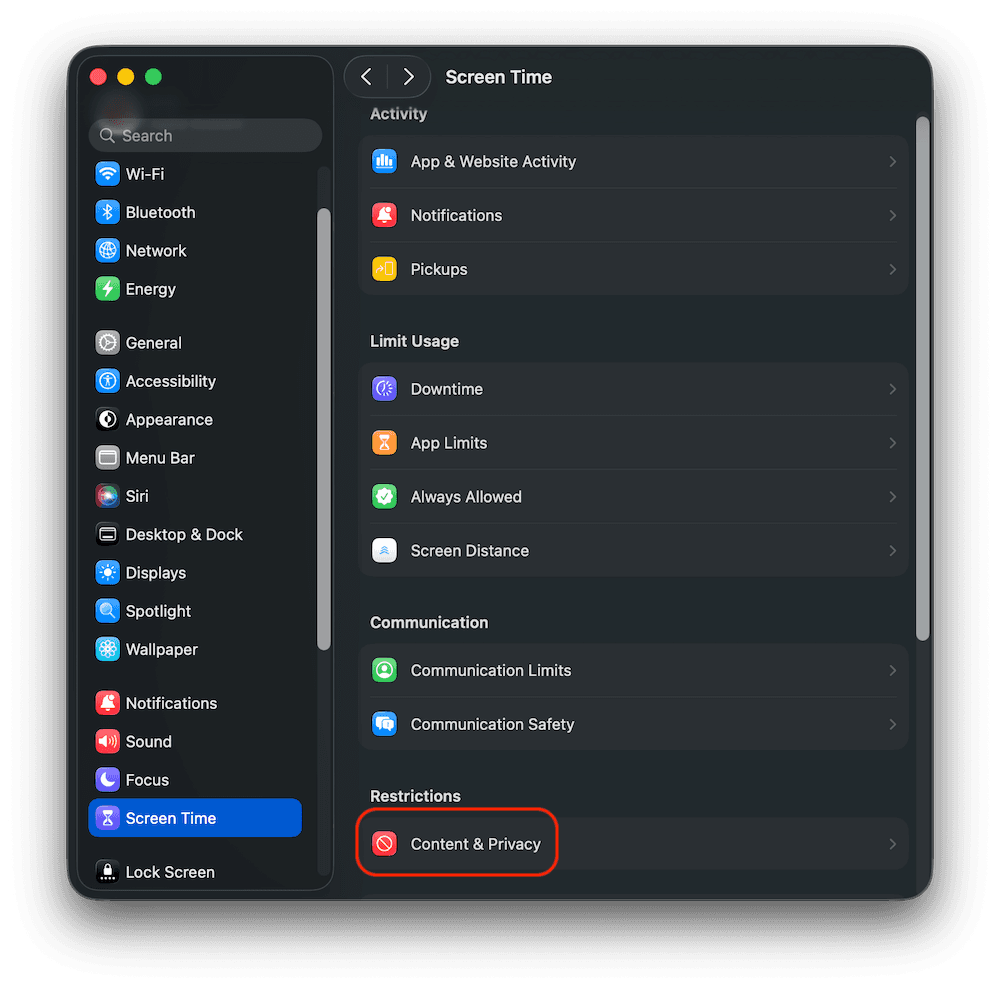 Select Screen Time in the sidebar, then click the highlighted Content & Privacy row.
- Toggle Content & Privacy Restrictions on if it is not already enabled.
Click App Store, Media, Web & Games.
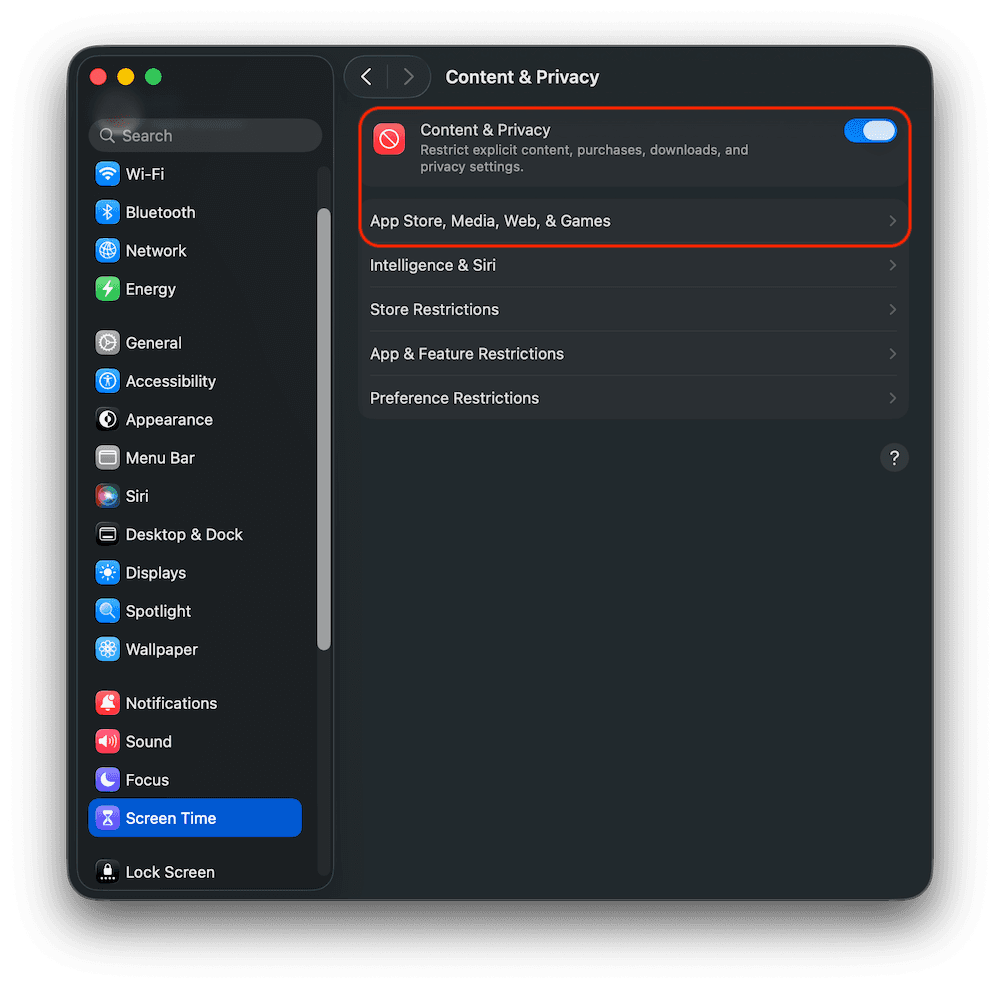 Turn on the highlighted master switch, then select App Store, Media, Web & Games.
Under Safari, choose one of the following access levels:
- Limit Adult Websites — automatically limits access to many adult websites and lets you add custom allowed or restricted sites.
- Allowed Websites Only — blocks everything except sites you explicitly approve. Use this for a stricter allowlist approach.
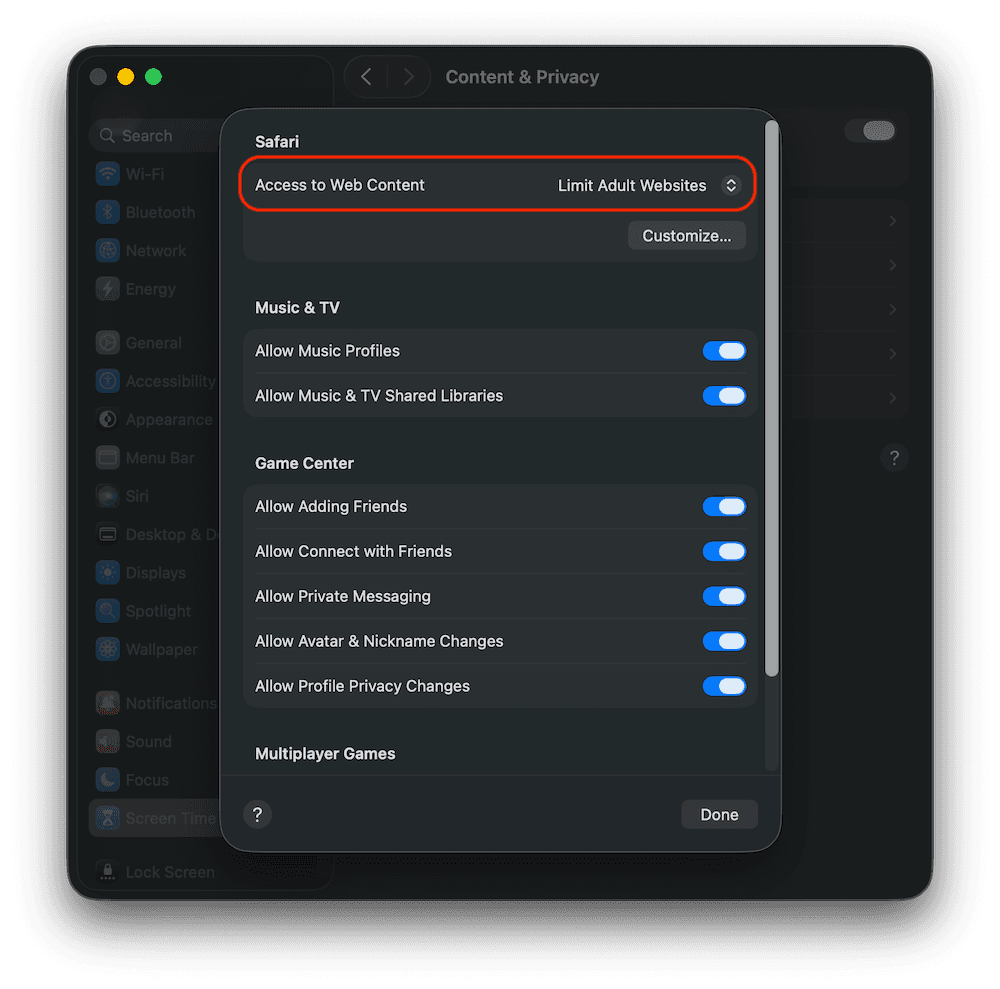 Select Limit Adult Websites for a denylist with custom exceptions, then click Customize. Choose Allowed Websites Only instead when Safari should open only approved sites.
To block a specific site with Limit Adult Websites, click Customize, click + below the Restricted list, enter the site address (for example,
reddit.com), and click Done.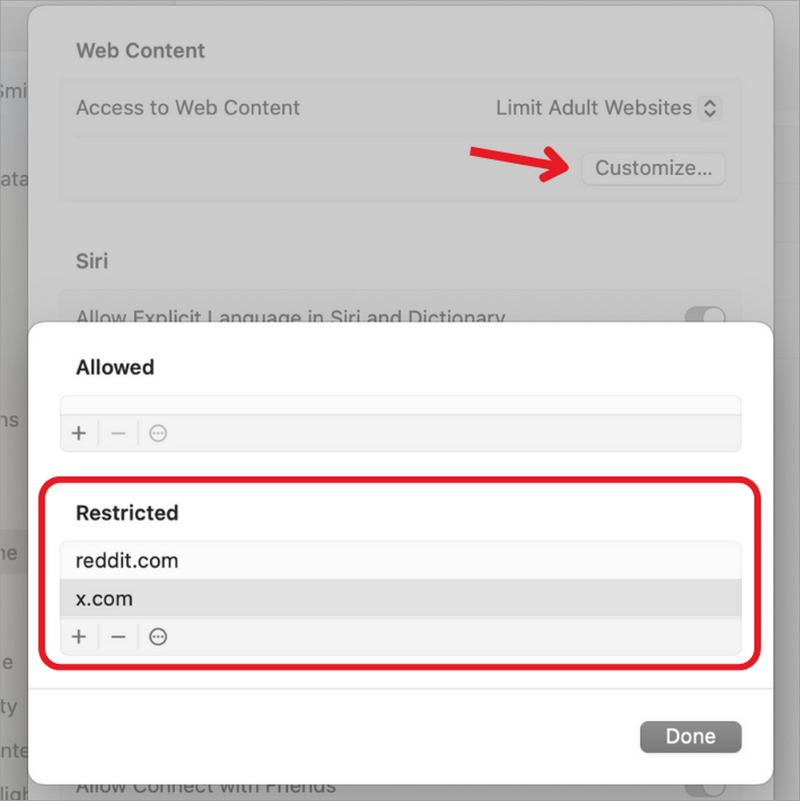 Do not place blocked sites in Allowed.
- Click Done, then test by opening a browser and visiting the blocked site.
To remove a block: Return to App Store, Media, Web & Games → Safari → Customize, select the site in the Restricted list, and click −.
What it does not cover: Other Macs, iOS devices, or third-party browsers such as Chrome and Firefox. Apple documents this web-content control under Safari; use a separate browser, DNS, or endpoint control when the rule must apply beyond Safari.
Enforce Website Rules Across Company Devices
When you need to apply website rules to multiple users, multiple devices, or an entire organization, you need a control layer with centralized management. This section covers the three most common enterprise starting points.
Use Chrome or Edge Policies for Managed Browsers
If your organization manages Chrome or Microsoft Edge through an admin console, a group policy, or a mobile device management (MDM) system, you can push URL block and allow lists directly to those browsers.
Chrome — via Google Admin console:
- Sign in to admin.google.com as a super administrator.
- Go to Devices → Chrome → Settings → Users & browsers.
- Select the organizational unit (OU) you want to apply the policy to. Policies applied to a parent OU inherit down to child OUs unless overridden.
- Search for URL Blocking in the settings search bar.
- In the Blocked URLs field, enter the URLs or patterns to block, one per line. Common formats:
example.com— blocks the domain and all subdomains*://example.com/*— blocks all schemes explicitlyhttps://example.com/specific-path— blocks one exact path
In the Blocked URL exceptions field, add any URLs that should stay accessible even if they match a blocked pattern. Exceptions take precedence.
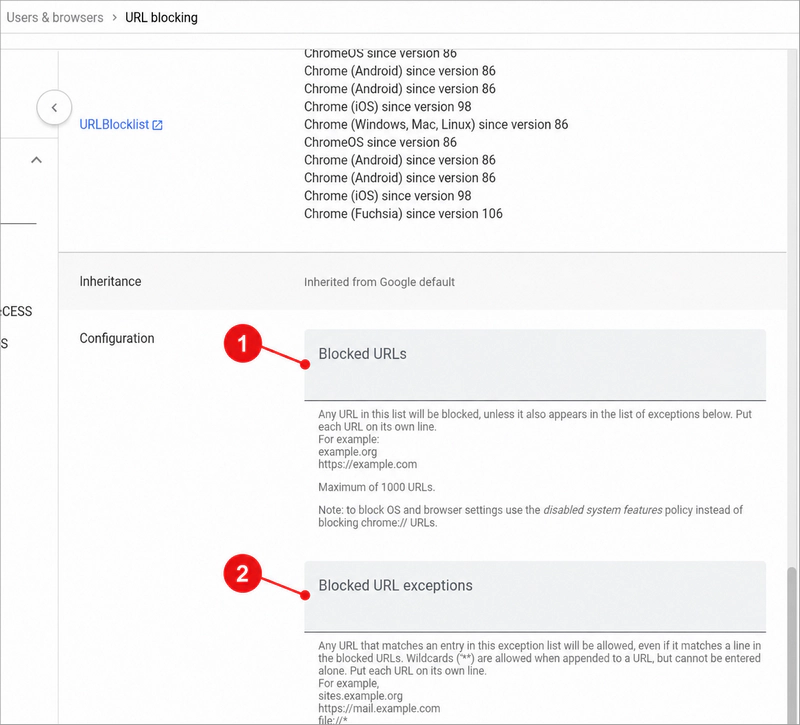 ① Add deny rules to Blocked URLs; ② add required exceptions below. Exceptions take precedence over matching blocked entries.
- Click Save. Changes propagate to enrolled browsers within minutes.
To verify, restart Chrome, open
chrome://policy, and click Reload policies. FindURLBlocklistandURLAllowlist, confirm the status is OK, then use Show value to check that the deployed entries match your configuration.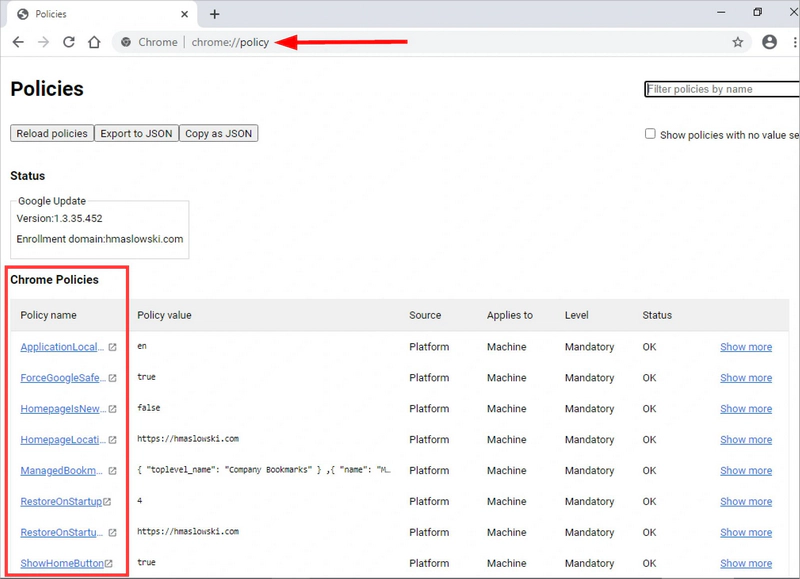 The policy names shown in this example are different, but the verification workflow is the same: reload policies, filter for
URLBlocklist, and confirm an OK status.
Google notes that both lists are capped at 1,000 entries and describes this as basic URL management. Organizations needing category-based or content-aware filtering may need a proxy or gateway in addition. Google Chrome Enterprise Help
Chrome — via Group Policy (Windows, on-premises):
- Download the Chrome ADMX templates from the Chrome Enterprise download page.
- Copy the
.admxfile toC:\Windows\PolicyDefinitions\and the.admlfile to the appropriate language subfolder. - Open Group Policy Management Editor and navigate to Computer Configuration → Administrative Templates → Google → Google Chrome → URL Blocking.
Double-click Block access to a list of URLs, enable it, and add your URLs.
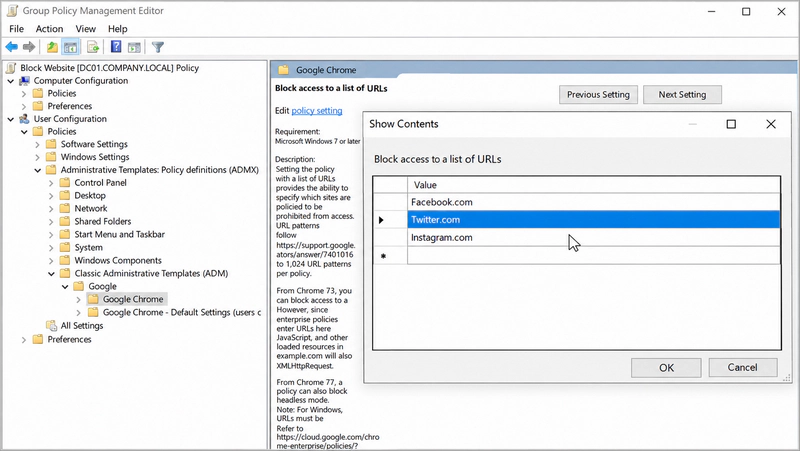 Enter one URL pattern per row.
- Double-click Allow access to a list of URLs to configure exceptions.
- Link the GPO to the target OU and run
gpupdate /forceon a test machine to confirm the policy applies.
Edge — via Group Policy:
- Download the Microsoft Edge ADMX templates.
- Add the templates to your Group Policy central store or local
PolicyDefinitionsfolder. - Open Group Policy Management Editor and navigate to Computer Configuration → Administrative Templates → Microsoft Edge.
Search for or browse to URLBlocklist. Double-click it, enable the policy, and add your URLs.
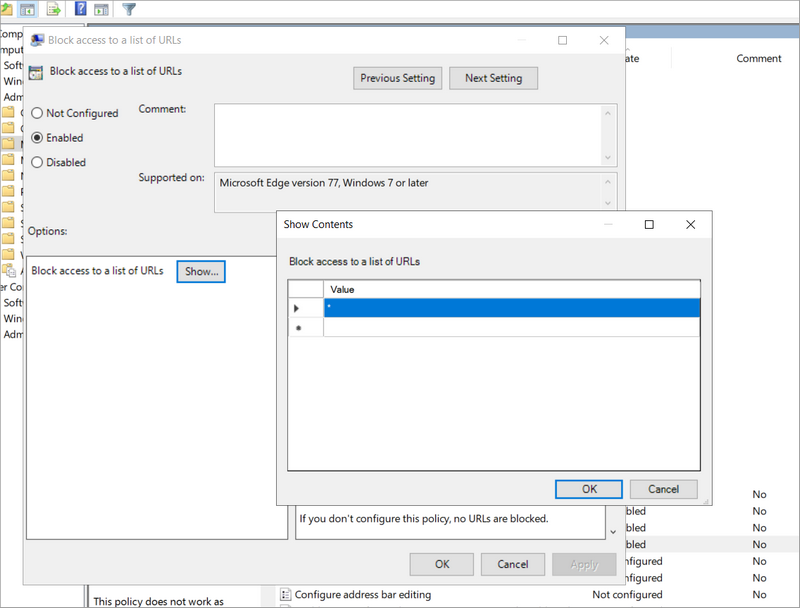 The
The*entry shown blocks every URL; use it only when you intend to create an allowlist-only configuration.- Configure URLAllowlist for exceptions.
To verify, open
edge://policyin a managed browser, click Reload Policies, filter forURLBlocklist, and confirm its status is OK.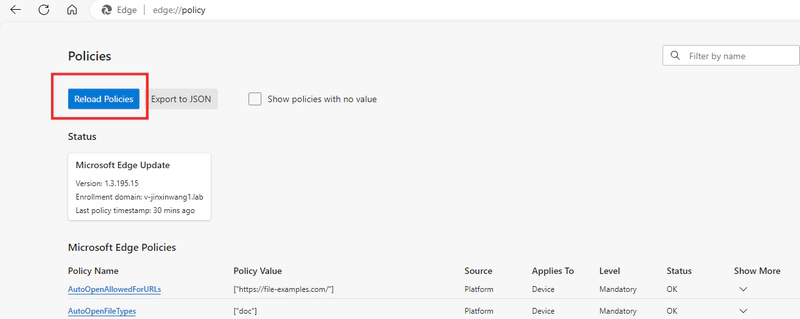 The policy names in this example are different, but the verification controls are the same: click Reload Policies, find
URLBlocklist, and check that its status is OK.
Both Chrome and Edge enforce a limit of 1,000 entries per list. Microsoft Edge policy docs
What it does not cover: Browsers on the same device that are not managed by your policy. If an employee opens Firefox or a personal Chrome profile that is not enrolled, the policy does not apply. Browser policies are browser-specific, not device-wide.
Use Router, DNS, or Firewall Controls on an Office Network
For a fixed office location, network-level controls block traffic before it leaves your building.
Router blocking is the simplest option for a very small office. Most business routers let you enter domain names or keywords to deny. The interface varies by brand and model, so consult your router's documentation for exact steps. Router blocking applies to every device connected to that network—but only while connected to it.
DNS filtering works by intercepting domain name lookups. When a device asks your DNS resolver to translate a domain name into an IP address, a filtering service can return a blocked response instead. Because DNS operates at the domain level, it blocks the entire domain—not individual pages or actions within a site. Business DNS filtering services support category-based blocking, scheduled rules, and centralized management. Some include roaming clients that extend enforcement when devices leave the office network.
Firewall rules can block traffic by IP address, domain name, port, or protocol. However, using firewall rules to block specific websites is less reliable than it may appear: large sites use CDN infrastructure with many IP addresses that change frequently, a firewall rule targeting one IP may overblock unrelated services sharing the same address, and HTTPS traffic details are not visible to a network firewall without additional configuration. Firewalls work well for blocking categories of traffic and applications at the network perimeter, but are not the most precise tool for granular website filtering.
What all three share: They apply only to devices on your office network. A laptop that connects via a mobile hotspot or a remote employee's home internet bypasses all of these controls.
Use Endpoint or Gateway Enforcement for Remote Employees
When employees work from home, travel, or use company laptops off the corporate network, office router and firewall rules stop applying. Covering remote users requires one of these approaches:
Roaming DNS client: Some DNS filtering services provide a lightweight agent installed on each device. The agent routes DNS queries through the filtering service even when the device is not on the office network.
Cloud Secure Web Gateway (SWG): A cloud SWG routes all web traffic through a policy engine in the cloud. It can filter by URL, category, application, and—when combined with TLS inspection—inspect request content. Traffic steering requires either a device agent, a VPN, or a network tunnel. Examples include Cloudflare Gateway, Zscaler Internet Access, and Cisco Umbrella.
Endpoint web-control software: A software agent installed on each managed device enforces web policies locally. It can apply rules even when the device is not connected to the corporate network, depending on the product and how it is configured. AnySecura, for example, works this way—a client agent on each managed computer enforces policies configured in a central console, and the architecture supports communication over local networks, VPN, and the internet, so the same rules reach office and remote endpoints alike.
The right choice depends on how many devices you manage, how consistent your browser environment is, and whether your primary requirement is domain-level filtering, full-URL filtering, or a combination with usage reporting and data controls.
Every method above has a boundary. DNS filtering and router rules operate at the domain level—they block an entire domain but stop applying the moment a device connects to a personal hotspot. Full-URL filtering, available in managed browser policies and HTTP-layer gateways, can target specific paths within a domain rather than the whole domain, blocking socialsite.com/messages while leaving socialsite.com/company-page accessible. Browser extensions are bypassed by switching browsers; managed browser policies don't follow unmanaged browsers on the same device; VPNs and encrypted DNS (DoH/DoT) can route around DNS-based filtering. There is no universally bypass-proof method—layering controls reduces the gap without eliminating it. For remote employees, the enforcement point must travel with the device: without an endpoint agent or a cloud gateway routing all traffic through your policy engine, office-side controls don't reach users working off-network.
Website Blocking vs. Monitoring vs. Upload Control: What Do You Actually Need?
Website blocking and website monitoring are different capabilities. Do not assume that adding a block rule also gives you visibility into what your employees are accessing.
Blocking vs. Monitoring vs. Data Control
| Capability | What it controls | What evidence it produces |
|---|---|---|
| Website blocking | Whether a site can be opened | A block event, sometimes nothing |
| Web filtering | Categories and URLs across a policy | Allowed and blocked request logs |
| Web usage monitoring | Which sites users visit and for how long | Activity logs, usage dashboards, reports |
| Upload control | Whether files or data can be sent to a site | Upload events, policy violations |
| DLP (Data Loss Prevention) | Whether sensitive content can leave managed channels | Content-matched incidents |
If you need to answer "did this employee attempt to visit this site, and when?"—that requires logging, not just blocking. If you need to answer "was a file uploaded to an unsanctioned service?"—that requires upload control or DLP, not URL blocking alone.
If the requirements above—per-user policies, time schedules, browsing records, and upload controls—are starting to stack up, you are describing a centrally managed endpoint web-control platform: software installed on each managed device that enforces policies from a central console, records browsing activity, and can restrict what users upload, all while following the device whether it is on the office network or not.
AnySecura: Endpoint Web Control with Logging and Upload Management
AnySecura is one option in this category. It uses an endpoint agent on each managed device and a central console for policy configuration, with an architecture that reaches both office and remote endpoints. Beyond URL blocking, it adds the reporting and data-control layer that simpler methods cannot provide on their own:
- Browsing logs and statistics: Records the time, computer, user, page title, and full URL for every site visited. Statistics are viewable by category, by site, and by device—giving administrators a clear picture of web usage across the organization.
- URL and category control: Block or allow websites by full URL, wildcard patterns (such as
*.domain.comor*keyword*), or administrator-created categories. An allowlist-only mode blocks all sites by default and permits only those explicitly approved. - Time-based and offline rules: Policies can apply only during working hours, carry an expiration date, or activate only when the device is offline—useful for enforcing a baseline without network dependency.
- Upload control: HTTP, HTTPS, and FTP uploads can be controlled per policy. An optional approval workflow lets users submit a request for temporary upload authorization to a specific destination, which an administrator can approve or deny.
The following console views show how those layers connect. First, administrators can group wildcard domains into a reusable website category such as Blacklist.
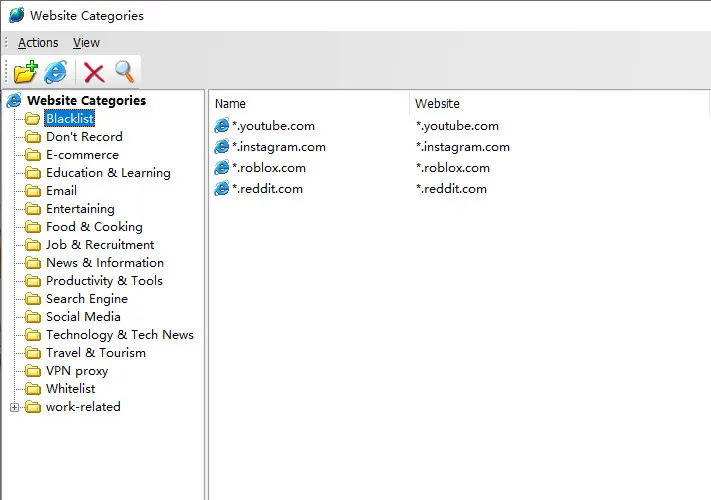
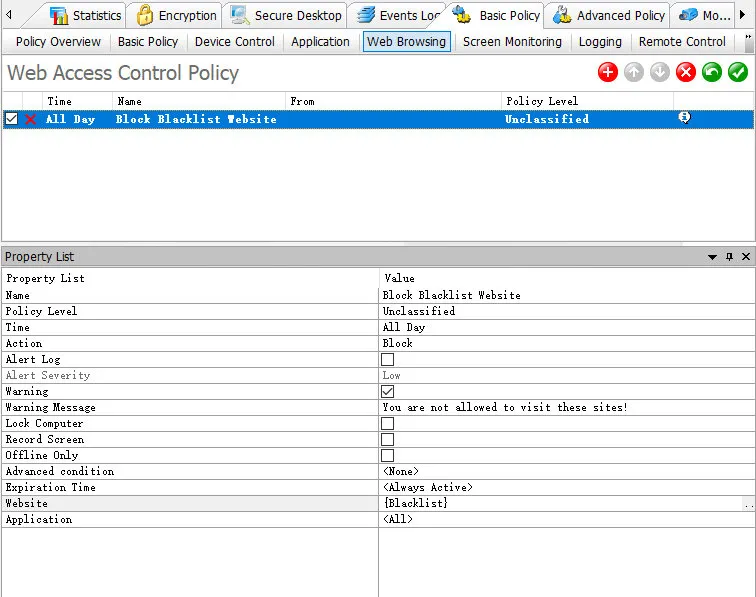
The category can then be selected in a Web Access Control Policy alongside the action, schedule, warning message, logging, offline-only, and expiration settings.
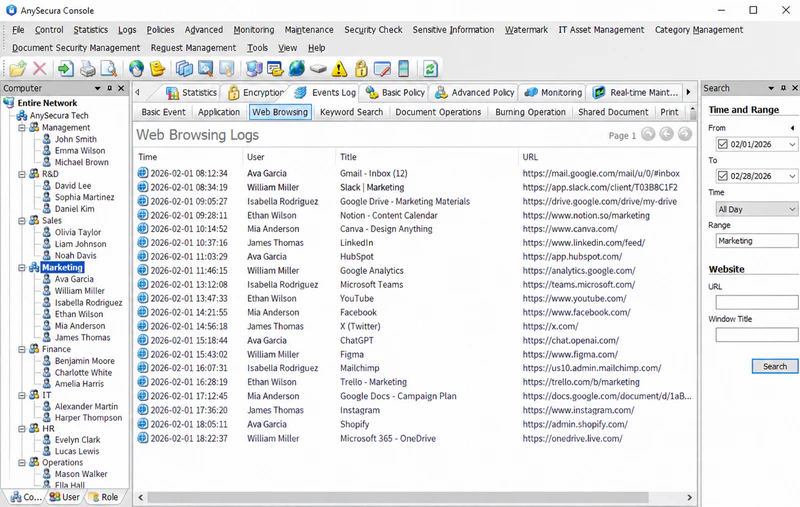
After deployment, the Web Browsing Logs view provides the audit layer, including timestamp, user, page title, and full URL, with filters for organizational range and website details.
Before committing to a deployment, a few boundaries are worth knowing. Website categories are administrator-created or imported—there is no built-in continuously updated threat reputation feed. The architecture is client–server rather than a cloud SaaS model. AnySecura provides client packages for Windows, macOS, and Linux, with web access control supported across all three platforms.
AnySecura is not a DNS filtering service, a cloud Secure Web Gateway, or a universal anti-phishing tool. It is one endpoint-based option to evaluate when your organization needs centralized policy management, identity-based rules, audit records, and optional upload control—and when simpler layers have reached their limits.
For more information: AnySecura Web Access Control

Even with website blocking in place, your biggest risk may come from inside. Find out what a malicious insider is, how they operate, and how to detect them before damage is done. Learn more>>
Roll Out Website Blocking Without Disrupting Work
A technically correct block that disrupts legitimate business activity creates immediate friction and erodes trust in the policy. Use this checklist before going live.
1. Define the goal before choosing the tool
Decide specifically what you are trying to achieve: reduce distraction, enforce an acceptable-use policy, prevent access to malicious domains, control uploads to unsanctioned services, or a combination. The goal determines the appropriate control layer and the evidence you need to confirm it is working.
2. Start in audit or observe mode when the product supports it
Some platforms let you monitor which sites would be blocked without actually blocking them. Running in this mode for one to two weeks before enforcement reveals how many legitimate business requests your initial blocklist would catch.
3. Build your blocklist conservatively
Start with a narrow, well-justified list. Blocking too broadly—entire social media domains, for example—can disrupt teams that use those platforms for legitimate work. Add categories or specific sites after you have verified that the collateral impact is acceptable.
4. Create an allow-rule process before launch
Decide who owns the process of adding allow rules when a legitimate business site is blocked. Define how quickly exceptions will be reviewed and what documentation is required. A policy with no exception process creates bottlenecks and encourages employees to work around controls rather than through them.
5. Test before enforcing
Before the policy goes live, test:
- Each browser your organization uses: A managed Chrome policy does not cover Firefox. An endpoint agent may behave differently in each browser.
- Office and home connections: Confirm that remote employees receive the same enforcement as office-based employees.
- Legitimate business applications: Some software-as-a-service tools use the same domains as general consumer services. Verify that business tools used by finance, HR, marketing, or operations are not accidentally blocked.
- Any sites that appear on your allow list: Confirm that allow rules take effect as expected.
6. Communicate the policy to employees
Employees who understand what is being filtered and why are less likely to attempt workarounds and more likely to use the exception process correctly. A clear acceptable-use policy—reviewed by HR or legal before distribution—sets expectations, reduces confusion when a block is encountered, and establishes the baseline for enforcement.
If your deployment includes browsing logs or usage monitoring, employees should be informed that this data is collected and how it may be used.
7. Review logs and false positives regularly
After going live, schedule a regular review of block events and usage reports. Look for patterns that indicate a legitimate site was blocked incorrectly, a category rule is too broad, or a department-specific exception is needed. Policies that are never reviewed become inaccurate over time as the web changes.
FAQs about Blocking Websites at Work
Can I block websites at work without administrator rights?
On a company-owned device, you likely cannot install software or edit system files without IT authorization. Your best option is to use an approved browser extension if your employer permits it, or to ask IT to apply a focus block on your behalf. Do not attempt to modify a company-owned device without explicit authorization.
Does incognito or private browsing bypass a website block?
It depends on where the block is enforced. A browser extension may require a separate setting to work in private browsing windows, and it can be disabled. A managed browser policy enforced through an admin console or MDM typically applies in private browsing windows within that browser. A network-level or endpoint-level control generally applies regardless of the browsing mode.
Can a VPN bypass company website blocking?
If your block is enforced at the office network level only—through a router or on-premises firewall—then a VPN that routes traffic through an external server can bypass it. If the block is enforced by an endpoint agent on the device itself, a user-installed VPN does not automatically bypass it, though this depends on how the agent handles VPN traffic.
Is DNS filtering enough for remote workers?
Only if remote employees' DNS traffic is still routed through the filtering service. This typically requires a roaming client, a device configuration profile, or a VPN. Without one of these, a remote device uses whatever DNS server the home router or ISP assigns, bypassing your filtering policy entirely.
Should we use an allowlist or a denylist?
A denylist—blocking specific sites and allowing everything else—is practical for most knowledge-work environments. An allowlist—blocking everything and permitting only listed sites—provides stronger control and is appropriate for kiosk workstations, regulated environments, or roles with very limited web access requirements. Most enterprise platforms support both approaches and allow you to combine them.
What is the difference between website blocking and employee monitoring?
Website blocking controls whether a site can be opened. Employee monitoring records which sites were visited, when, and for how long—regardless of whether a block was triggered. These are separate capabilities. Some platforms offer both; many do not. Do not assume that adding a block rule automatically gives you a browsing log.
Can we apply different rules for different employees?
Yes, with the right platform. Managed browser policies can target organizational units and groups. Endpoint web-control platforms typically support policies assigned to users, computers, groups, and roles, with a defined precedence when rules conflict. A single universal blocklist is a starting point; per-department or per-role policies require centralized management with identity integration.
Conclusion
There is no single best way to block websites at work. The right method is the one whose control scope, remote coverage, identity model, and evidence capabilities match what you actually need to enforce.
For individuals: Use the lightest authorized method—an approved extension or a system-level block on your own device. Do not modify a company-owned device without IT approval.
For businesses: Match the control layer to where your users work and what your policy requires. An office router rule is a starting point, not a complete solution. If your employees work remotely, your enforcement layer must travel with the device. If you need different rules by department, audit records, or control over data uploads, evaluate a centrally managed endpoint or web-control platform—and confirm that it covers your browsers, operating systems, and remote scenarios before deploying.
A website block is a rule. Like any rule, it needs an owner, a review process, an exception pathway, and evidence that it is working. Building those processes alongside the technical configuration is what makes blocking a sustainable policy rather than a temporary fix.