Are you trying to find the right way to protect a folder with a password? If you’ve been jumping between tutorials without a clear answer, this guide will help you.
There are many ways to do it. Some are quick and easy but only suitable for temporary protection. Others are more secure, but can slow down how you actually work.
In this guide, we go beyond just showing how to password protect a folder. We help you understand the trade-offs behind each method, so you can choose the right one before getting started.
1. How to Password Protect a Folder on Windows (3 Practical Methods)
Windows is where most users start—and also where confusion is highest. There is no built-in “set password on folder” feature. Instead, you need to choose between encryption, compression, or dedicated tools.
Here’s a quick comparison:
| Method | Best For | Security | Setup Time |
|---|---|---|---|
| Use Built-in Encryption | Personal files on one PC | Medium | 2 min |
| ZIP with password | Quick protection & sharing | Medium | 3 min |
| Enterprise Data Encryption Software | Business or sensitive data | High | 1 min |
Option 1: Use Built-in Encryption (EFS – No Password Required)
This method is best when you want protection against other users on the same device. It's built-in and fast. It is not a good fit if you expect to move files, share them, or enforce strict access boundaries.
Windows includes a feature called Encrypting File System (EFS). It protects folders using your Windows account credentials, not a separate password. The effect is like:
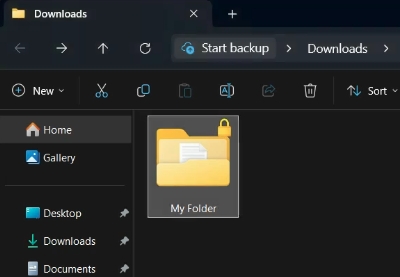
- When you are logged into your Windows account, you'll find a small lock-shaped symbol in the upper right corner of the folder icon. You can open the folder normally.
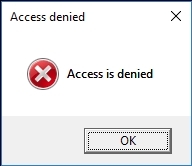
- When another user logs into the same computer with a different account, the folder appears, but they cannot open the files. They will see "access is denied".
- If someone copies the encrypted files to another device, the files remain encrypted and cannot be opened without your account’s encryption key.
- Right-click the folder
- Select Properties.
- In the tab "General" click on Advanced
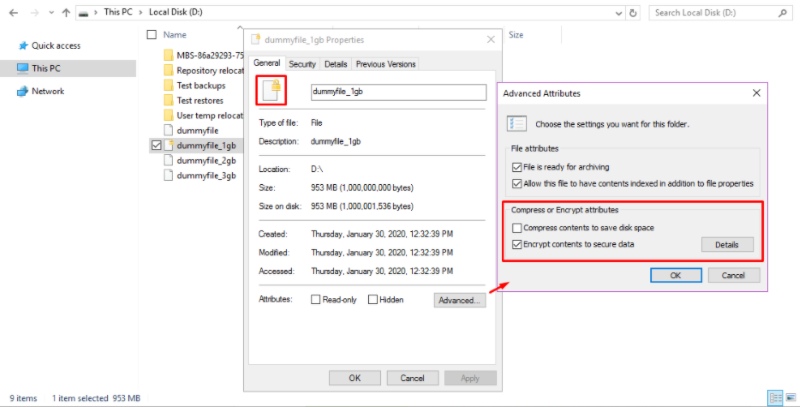
- Check the box Encrypt contents to secure data
- Click OK then Apply.
- Click Apply changes to this folder only or Apply changes to this folder, subfolders, and files.
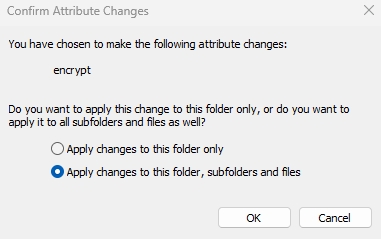
- Click OK
For a personal laptop, this is often enough to prevent other local users from accessing your files.
However, there is no independent password. Anyone logged into your account can access the files. It also works only on Pro and Enterprise editions. You also cannot easily share encrypted folders with others, and if your system profile is damaged or not backed up correctly, you may lose access to your own data.
Option 2: Password Protect a Folder Using a ZIP File (Easiest Method)
Using a ZIP file is the most widely used method. ZIP-based protection is practical when you need to store or transfer files securely. For example, sending documents via email or archiving personal data.
This behaves closest to what people expect. You create an archive and assign a password, so anyone opening it must enter that password.
Before you start, install 7-Zip (recommended) or WinRAR. Windows alone cannot set a password on ZIP files.
- Download and install 7-Zip.
- Right-click the folder → Select 7-Zip → Add to archive
- In the bottom-right section, enter your password and re-enter it to confirm
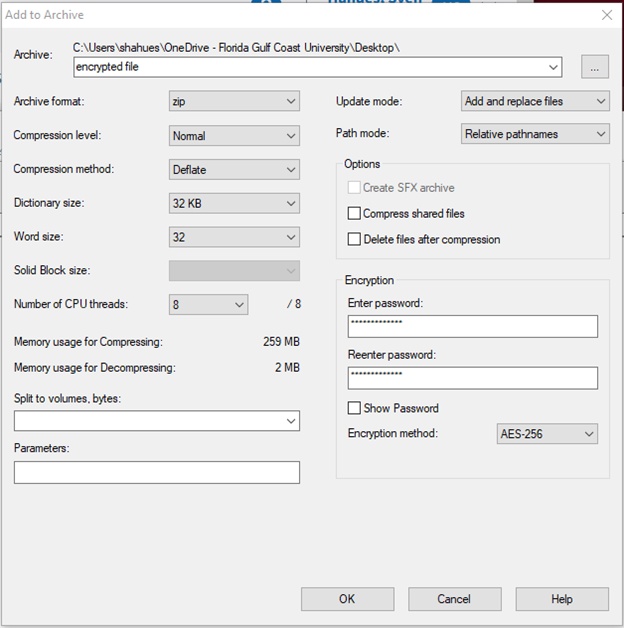
- Set Encryption Method to AES-256 (don’t leave default if unsure)
- Click OK
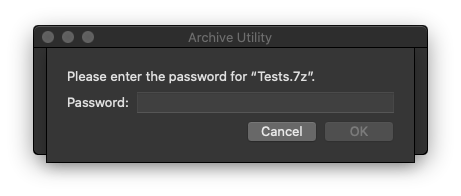
7-Zip will generate a .zip or .7z file that requires a password to open. It's recommended to double-click the archive and try opening a file and check if there is a prompt asking for a password.
If you’re working with files that need regular updates, this method becomes inefficient. You must extract the files, edit them, and then recompress the folder every time.
Also, not all archive formats use strong encryption by default, and weak passwords are common. If you are protecting sensitive business data, this approach is not reliable enough.
It’s recommended to include an explanation of the “Encrypt file names” option. If this isn’t checked, others still can’t open the files, but they can see what’s inside your folder (for example: 2026_Salary_List.pdf).
- Delete the original unprotected folder
- Empty your recycle bin
Otherwise, your “protected” version is meaningless because the original is still accessible.
Option 3: Use Professional Folder Protection Software [For Business]
Both EFS and ZIP password protection can be good in a personal setup. But in an enterprise environment, you need a more secure and flexible method.
EFS only works as long as the Windows account is secure. Once an account is compromised, there is no second layer of protection. It also becomes difficult to use in shared scenarios, since encryption tied to a single user disrupts normal collaboration.
ZIP password protection seems more secure, but it does not fit daily workflows. Files must be extracted to be edited, often leaving unprotected copies behind. Plus, the password itself adds another piece of sensitive information that must be managed carefully.
In business environments, organizations need a method that protects data effectively while maintaining workflow efficiency.
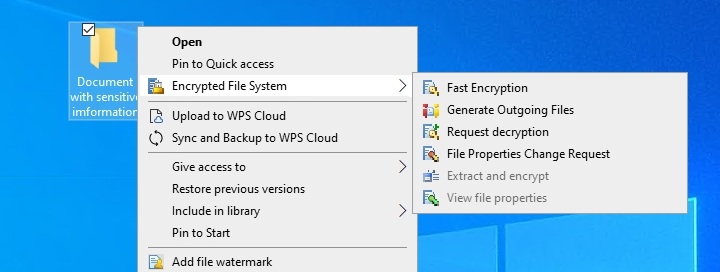
Solutions like AnySecura are designed to close this gap. It provides one-click encryption and automatic decryption, while also allowing organizations to control how data can be accessed, used, and moved. It provides features such as:
- Transparent encryption: Automatically encrypt and decrypt sensitive files and folders without requiring users to change how they work. Files remain protected even when moved across devices.
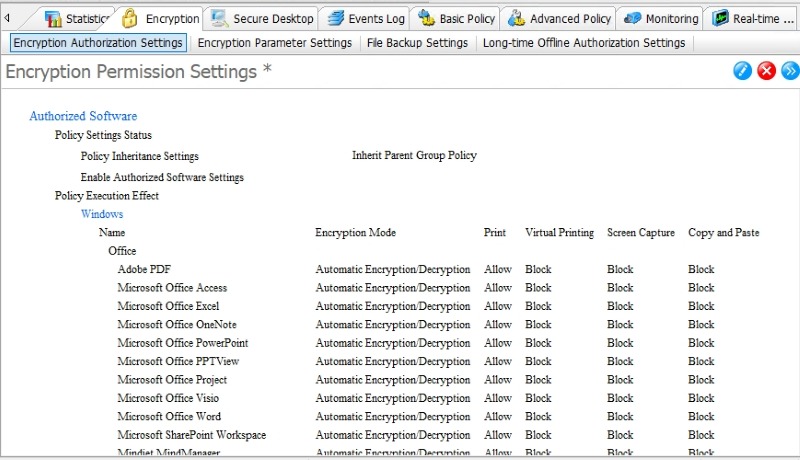
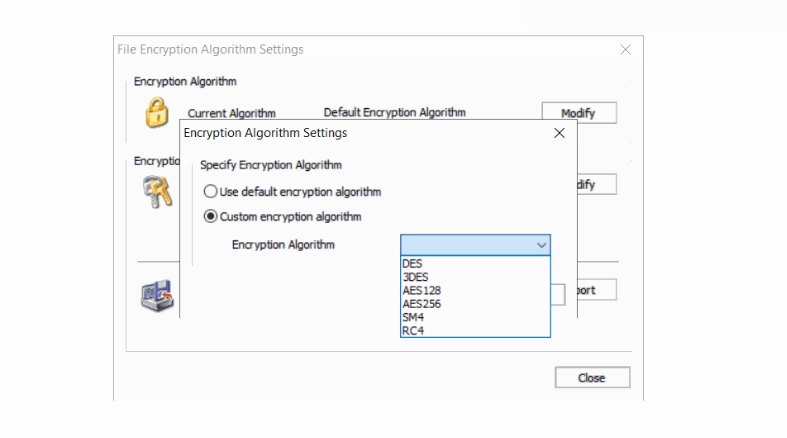
-
Multi-encryption algorithm: Protect sensitive work folders with enterprise-grade encryption algorithms.
- Enhanced control with encryption: Keep encrypted files safe with automatic backups, and seamlessly grant temporary decryption access to colleagues during collaborative workflows.
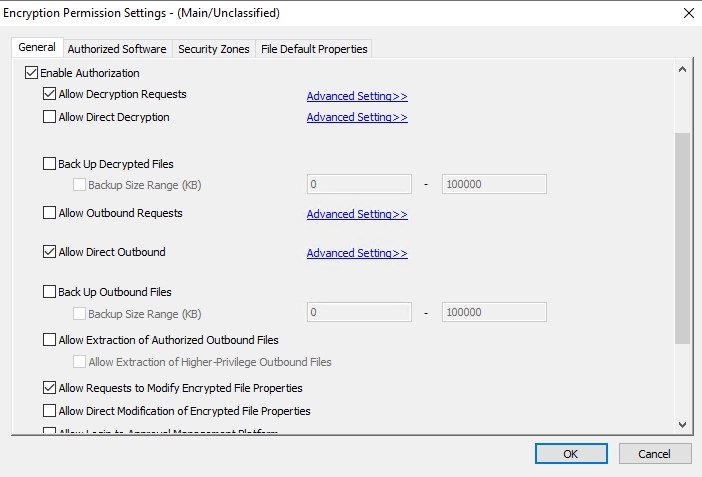
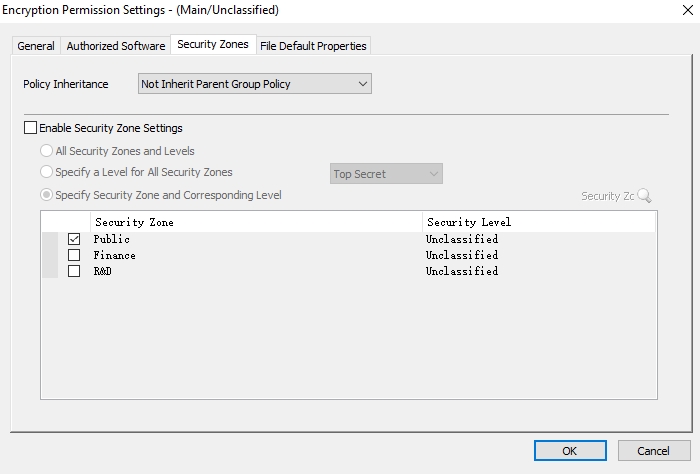
- Access control based on policies: Define who can access specific data based on roles, departments, or conditions, instead of relying on shared passwords.
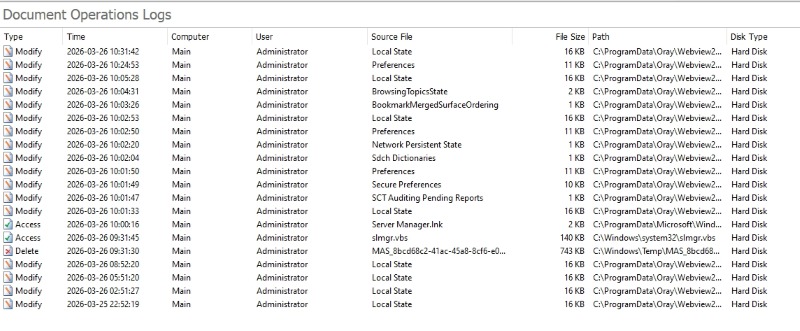
- Activity monitoring and audit logs: Track who accessed which files, when, and what actions were performed, providing visibility that basic methods lack.
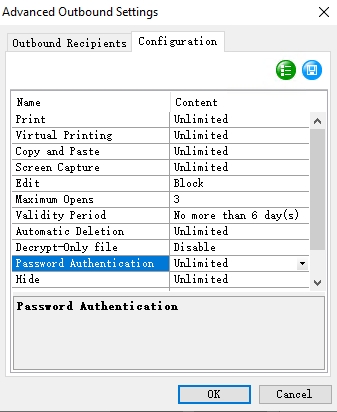
- Flexible sharing control: Secure external sharing-set expiration, access limits, password protection, and automatic deletion to prevent uncontrolled distribution.
How to Enable Transparent Encryption with AnySecura (Enterprise Guide)
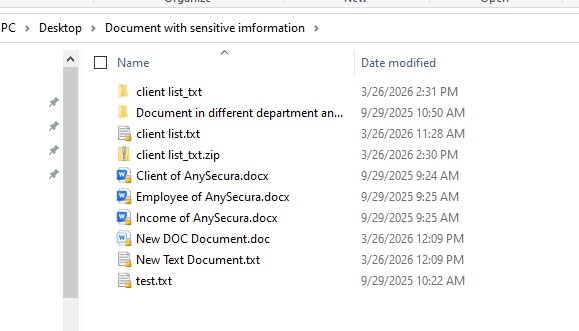
- Right-click the folder you want to protect.
- Select Fast Encryption from the menu.
- Open the folder, you will see that all files are encrypted. Their names remain visible, but the contents are locked.
- Try opening one of the encrypted files from another account or computer. Without proper authorization, the file will be inaccessible.
2. How to Password Protect a Folder on Mac
macOS uses encrypted disk images to password protect a folder. This method is secure and integrates well with macOS
- Open Disk Utility from Applications → Utilities
- In the menu bar, go to File → New Image → Image from Folder.
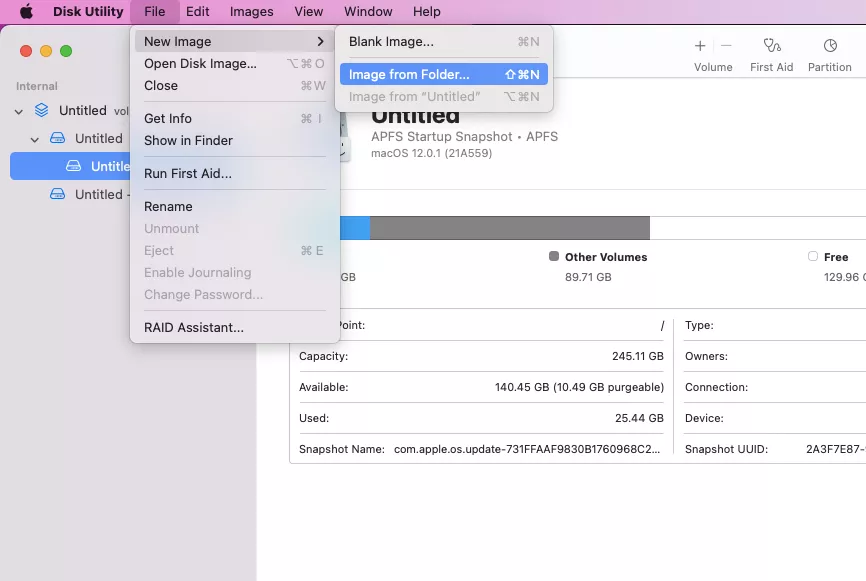
- Select the folder you want to protect and click Choose.
- Set a name and save location if needed. Then open the Encryption dropdown, choose an option, and click Save.
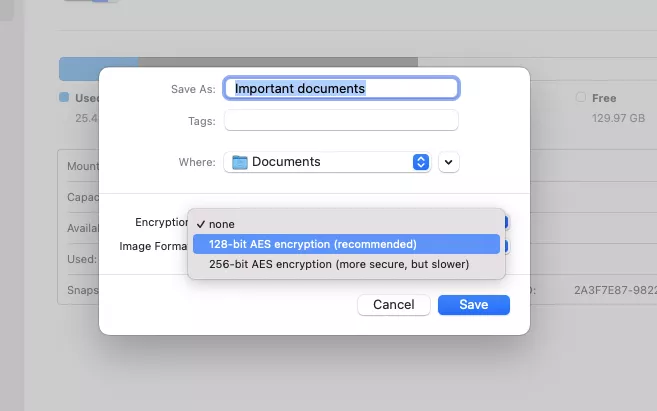
- Enter a password and click Choose.
- Under Image Format, select read/write so you can modify files later.
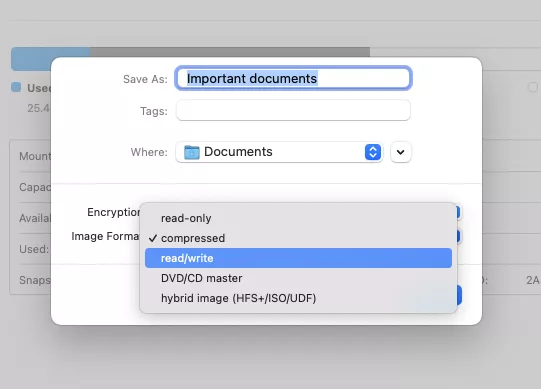
- Click Save and wait for Disk Utility to create the encrypted image.
Once the process is complete, you will have a password-protected disk image (.dmg) along with the original folder. If you no longer need the original, you can delete it.
To access the protected folder, double-click the .dmg file and enter your password. The disk image will mount like a normal drive, allowing you to view, add, or remove files.
FAQs about How to Password Protect a Folder
1. Why doesn’t Windows support direct folder passwords?
Windows focuses on file system permissions and encryption. Password-based folder locking is considered less secure and harder to manage at scale.
2. How do I protect a shared folder?
Use permission-based controls or professional tools like AnySecura. Simple password methods don’t scale well for multiple users.
Conclusion
Quick methods like ZIP files are easy and useful for everyday tasks. Built-in encryption works well for personal protection on a single device.
But when you need real security, especially in business contexts, you need more than a password. AnySecura is built for this shift, from simply locking files to controlling how data is accessed and used across your organization. Start exploring how AnySecura can help you protect sensitive data without adding friction to everyday work.