
Sooner or later, most enterprise IT admins have to figure out how to remove local admin rights from users. Admin rights make life easy for employees. They can install what they need and tweak settings whenever they want. But the same freedom invites unauthorized installs, malware, and config changes nobody can trace. If you manage a large fleet of Windows PCs, the hard part isn’t revoking the rights. It’s making sure people can still do their jobs afterward.
On Windows 10/11 in an enterprise environment, you can remove admin rights through Microsoft Intune, Group Policy (GPO), or the local user group. This guide covers each method step by step, plus prep work, verification, rollback, and what to do about software installs.
What Are Local Admin Rights, and Why Remove Them?
Local admin rights let a user do things on their own PC that need elevated privileges: installing software, changing system settings, managing local accounts, and editing permissions on protected files and folders.
Your IT team obviously needs those rights. Most employees don’t, at least not day to day. Office, a browser, and your business apps all run fine under a standard user account.
The risk is simple. If someone works under an admin account and accidentally runs malware, that malware gets the same privileges. It can change system settings, install more malicious software, and reach much more of the machine. Admin rights also let people install software without asking IT, which makes endpoints a lot harder to keep track of.
That’s why more companies are adopting the Principle of Least Privilege (PoLP). The idea is to give users only the access they need for their jobs, instead of handing out admin access by default.

Learn how PoLP works, why it reduces risk, and how to apply it across endpoints without disrupting daily work. Learn more>>
What to Do Before You Remove Local Admin Rights
Pulling admin rights without preparing first can break software installs and updates. It can even lock your own IT team out of managing devices. Run through these checks before you touch anything.
Check Who’s Currently a Local Admin
Open PowerShell as an administrator and run:
Get-LocalGroupMember -Group "Administrators"
This lists everyone in the local Administrators group, including local accounts, domain accounts, and security groups. Sort the results into three buckets: regular employee accounts, IT admin accounts, and emergency accounts. Then decide who goes and who stays.
One thing to watch for. If a user gets admin rights through a domain security group, removing their individual account won’t actually take the rights away. You’ll need to check group memberships too.

Keep an Emergency Admin Account
Before you remove anything, make sure your IT team still has a reliable way in. On enterprise Windows devices, Windows LAPS can manage local admin passwords and give you emergency access through a controlled process.
⚠ Note: Don’t empty out the whole Administrators group. If a policy is misconfigured, you could end up with devices you can’t recover through normal channels.
Check Software Compatibility
Most office software is fine with standard user rights. Some older business apps, drivers, and update tools may not be.
Make a list of your critical business software and find out which of it depends on admin rights. Then test on a small group of devices first. If employees tend to install software on their own, set up central deployment or a temporary elevation option ahead of time, so the change doesn’t catch them off guard.
How to Remove Local Admin Rights in Windows 10/11
There are three common ways to do it. Microsoft Intune suits cloud-managed devices. Group Policy suits Active Directory domain environments. The local user group or PowerShell works best for a handful of machines or manual fixes.
| Method | Best for | Centralized management |
|---|---|---|
| Microsoft Intune | Cloud-managed Windows devices | Yes |
| Group Policy (GPO) | Active Directory domain environments | Yes |
| Local user group / PowerShell | A few PCs or test devices | No (single machine only) |
Method 1: Microsoft Intune
If you manage Windows devices with Intune, an account protection policy lets you change the local Administrators group on all your devices without logging into each one.You can also refer to Microsoft's official account protection documentation for more details.
Steps:
- Sign in to the Microsoft Intune admin center.
- Go to Endpoint security > Account protection.
- Create a new policy. Choose Windows as the platform and Local user group membership as the profile.
- In the configuration settings, select the local Administrators group.
- Choose Remove (Update) and specify the users or groups you want to remove.
- Assign the policy to a test device group and deploy it.
- Check the policy status and confirm the target accounts are no longer in the local Administrators group.
Intune gives you a few ways to manage group membership, and the differences matter:
| Action | What it does |
|---|---|
| Add (Update) | Adds the members you specify and keeps existing ones |
| Remove (Update) | Removes the members you specify and keeps everyone else |
| Add (Replace) | Replaces the current membership with the list you specify |
If you just want to take admin rights away from certain employees, Remove (Update) is usually the right pick. Stay away from Add (Replace) unless you’ve double-checked the full member list. One missing name and you could wipe out your IT admin or emergency accounts.
For large rollouts, start with a test device group. Once you’ve confirmed the permissions changed as expected and your business software still works, widen the rollout bit by bit.
Method 2: Group Policy (GPO)
If your PCs are managed through Active Directory, Group Policy can change local admin group membership in bulk. It works for any domain-joined device, and it’s a natural fit for traditional Windows domain setups.
Steps:
- Open Group Policy Management.
- Create a new GPO, or edit an existing one used for device management.
- Go to Computer Configuration > Preferences > Control Panel Settings > Local Users and Groups.
- Create a new Local Group item and set the action to Update.
- Select the built-in Administrators group, then specify the users or security groups to remove.
- Link the GPO to the test OU that contains your target computers.
- Wait for Group Policy to refresh, then check the Administrators group on the target devices.
To force a refresh on a test device, run:
gpupdate /force
Then check the result with:
Get-LocalGroupMember -Group "Administrators"
Group Policy Preferences and Restricted Groups can both manage local group membership, but they behave differently. Restricted Groups enforces an exact member list, so a bad configuration can overwrite legitimate admin accounts. If all you need is to remove specific users, pick the option that won’t replace the whole member list by accident.
Method 3: Local User Group or PowerShell
If you only need to fix one or two PCs, you can edit the local Administrators group directly through Windows or PowerShell. No centralized policy required.
Option A: Computer Management
- Right-click the Start menu and open Computer Management.
- Go to Local Users and Groups > Groups.
- Double-click Administrators to see the current members.
- Select the user you want to remove and click Remove.
- Confirm the change, then have the user sign out and back in.
This works on Windows 10/11 Pro, Enterprise, and other editions that include the Local Users and Groups console. Windows Home usually doesn’t have it.
Option B: PowerShell
Open PowerShell as an administrator and run:
Remove-LocalGroupMember -Group "Administrators" -Member "username"
Swap in the actual account name. If you’re removing a domain account, use the full account identifier so you don’t accidentally hit a local account with the same name.
Then confirm it worked:
Get-LocalGroupMember -Group "Administrators"
If the user still has admin rights, they probably get them through another security group, and you’ll need to deal with that group too.
PowerShell is great for a single device. For anything bigger, Intune or GPO is easier and keeps your configuration consistent.
How to Confirm Local Admin Rights Have Been Removed
Once you’ve made the change, check three things: the local group membership, what the user can actually do, and the policy status. A “success” message in Intune or GPO doesn’t guarantee the admin rights are really gone.
Check the Administrators Group
Open PowerShell as an administrator and run:
Get-LocalGroupMember -Group "Administrators"
Make sure the target account is no longer listed. If it’s gone from the list but the user still has admin rights, look for indirect access through another security group.
Test the User’s Actual Permissions
Have the user sign out and back in, then try something that needs admin rights, like changing a protected system setting.
A standard user should be asked for admin credentials instead of being allowed through. Make sure they can’t just approve the prompt with their own credentials. Otherwise you might mistake an ordinary UAC prompt for a successful removal.
Check Intune or GPO Policy Status
In Intune, look at the device’s policy deployment status and any error messages in the admin center. For GPO, run:
gpresult /r
This shows whether the policy was applied. If permissions didn’t change the way you expected, check that the device is in the right scope, that the policy synced properly, and that no other policy is overriding it.
Common Problems After Removing Admin Rights (and How to Roll Back)
After a bulk removal, you may find that some devices didn’t pick up the policy, some software won’t install, or some employees still have admin rights. Figure out the cause first, then decide whether you need to restore anything.
The User Still Has Admin Rights
If you removed the account but the user can still do admin tasks, there are a few likely explanations. They may have rights through another security group, the policy may not have taken effect yet, or another Intune or GPO policy may be adding the account back.
Also keep in mind that a user’s permission token doesn’t update right away when group membership changes. Have them sign out and back in before you check their actual permissions.
Software Won’t Install or Update
Some installers and updaters need admin rights. After the change, employees may not be able to run them on their own, though software that’s already installed usually keeps working.
Start by checking whether the software can run under a standard user account. If it can’t, push it out through Intune or another enterprise deployment tool. For maintenance tasks that truly need admin rights, have IT handle them or use an approved temporary elevation process.
How to Restore Local Admin Rights
If you removed the rights through Intune or GPO, change the original policy first, then apply the new configuration to the target devices. If you only restore the rights manually, the next policy sync may just strip them again.
For devices you changed manually with PowerShell, run this from an account with admin rights:
Add-LocalGroupMember -Group "Administrators" -Member "username"
If the user originally had admin rights through a domain security group, restore their membership in that group as needed.
And if you’ve lost admin access to a device through normal channels, fall back on the emergency admin account you set aside earlier, Windows LAPS, or your company’s official device recovery process.
Managing Software Installs and Temporary Elevation After Removing Admin Rights
Once employees lose local admin rights, they’ll still need to install new software, update drivers, or run the odd maintenance tool. You don’t have to give permanent admin access back for these occasional needs. Central deployment and on-demand elevation can cover most of it.
Deploy and Update Software Centrally
For common office software and business apps, your IT team can use Intune or another deployment tool to install and update everything centrally.
Say you need to roll out a new business app to 200 Windows PCs. Instead of asking each employee to download and run the installer, IT can push it out in one go. That reduces the need for admin rights, and it keeps software versions and install settings consistent.
Give Temporary Admin Rights for Specific Tasks
Some tasks really do need admin rights, such as installing certain drivers or running system maintenance tools. For these, a privilege management tool with on-demand elevation lets specific actions run with elevated rights once they’ve been approved.
Temporary elevation doesn’t mean adding someone to the Administrators group for good. You can control who gets approved, what they can do, and how long the access lasts, so a one-off need doesn’t quietly turn into permanent admin access.
Handle Legacy Software That Needs Admin Rights
Some older business apps just won’t run properly under a standard user account. They may need access to certain folders, registry keys, or system settings.
When that happens, first work out exactly what permissions the software needs. If it only needs access to a protected folder, see if you can adjust the permissions on that folder instead of giving the user full admin rights over the whole system.
For problems you can’t fix with a configuration change, treat them as exceptions and review them regularly to see whether they’re still needed.
Strengthen Endpoint Management with AnySecura
After you remove local admin rights, you still have to manage software installs, app usage, and everyday endpoint maintenance. Intune or GPO handles Windows permissions. AnySecura can sit alongside them to manage endpoint software and app behavior in one place and cut down on unauthorized actions.
AnySecura offers several endpoint management features:
- Centralized software distribution: IT admins can push software and install tasks remotely, so there’s no need to visit each machine. For installers that need admin rights, you’ll still need to make sure the client has the right permissions to run them.
- Application control: Use allowlists, blocklists, and runtime policies to stop unauthorized programs from running and reduce the use of non-compliant software.
- Software asset management: See what’s installed across your endpoints, along with related details, so your IT team can spot unapproved apps and keep track of what’s been deployed.
- Endpoint activity auditing: Log app usage and related endpoint actions to support security reviews, software management, and troubleshooting.
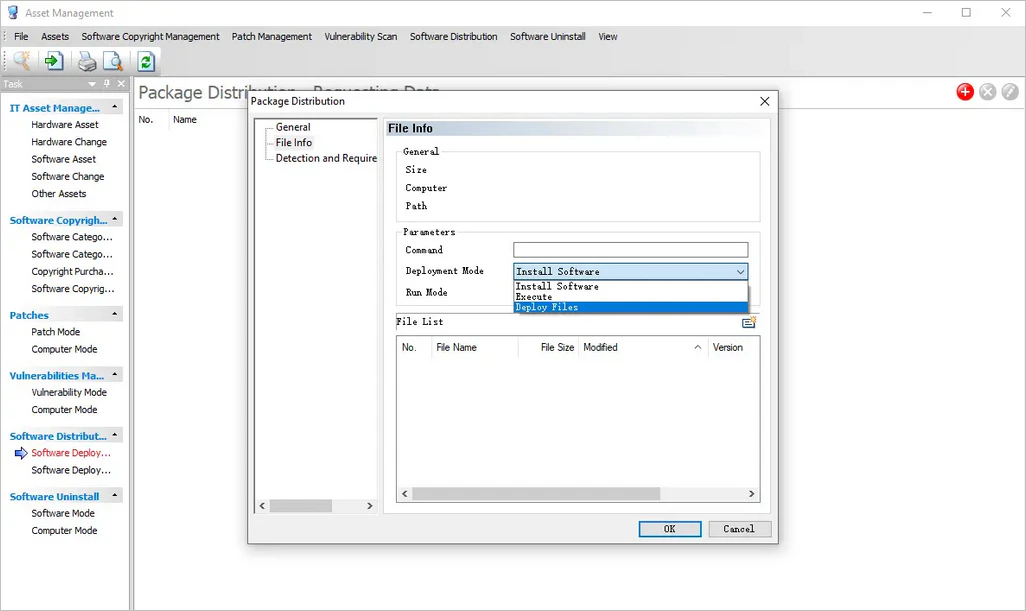
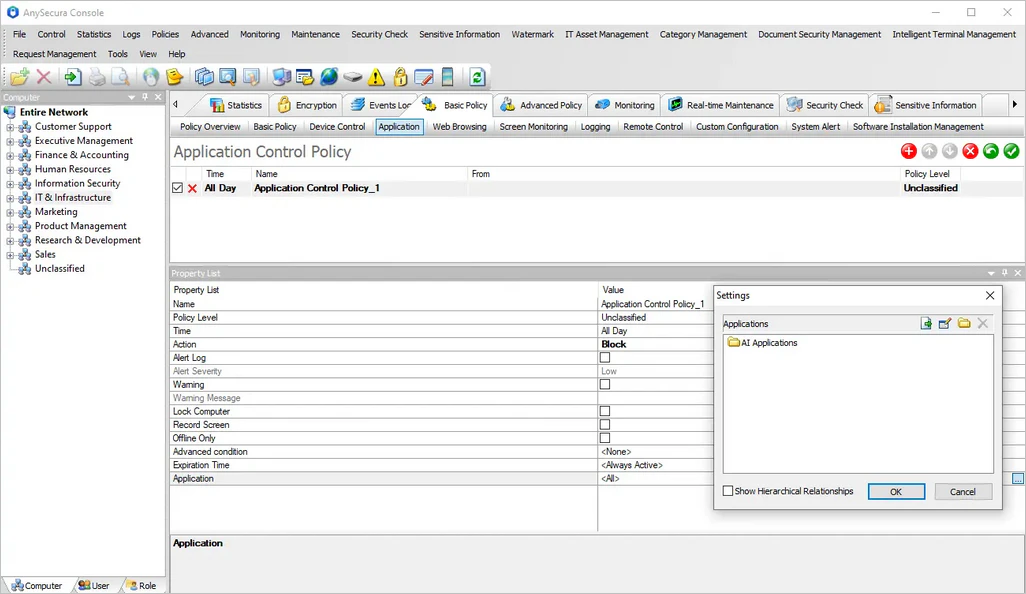
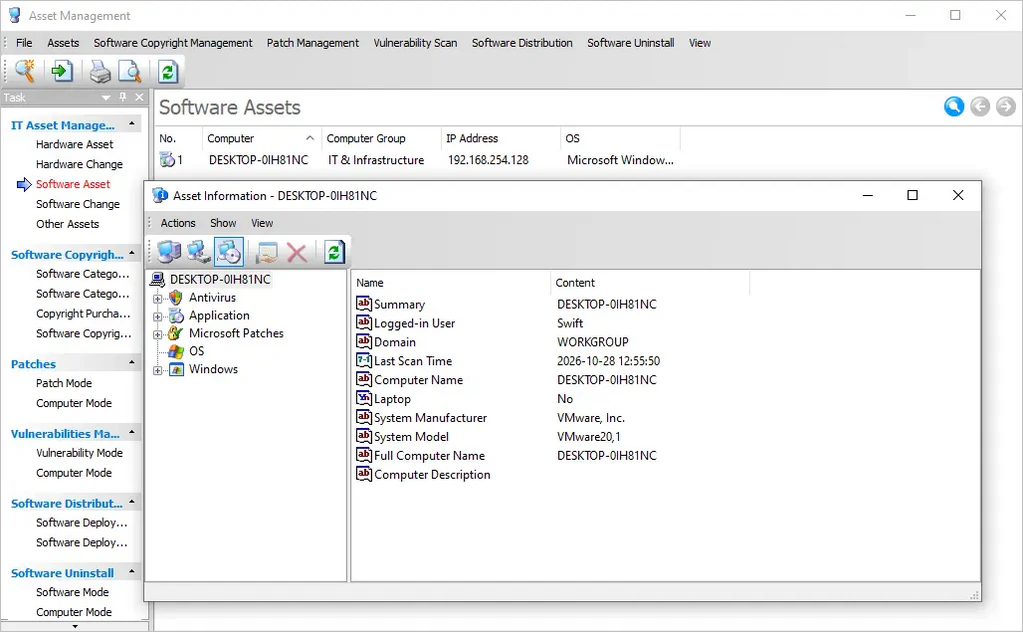
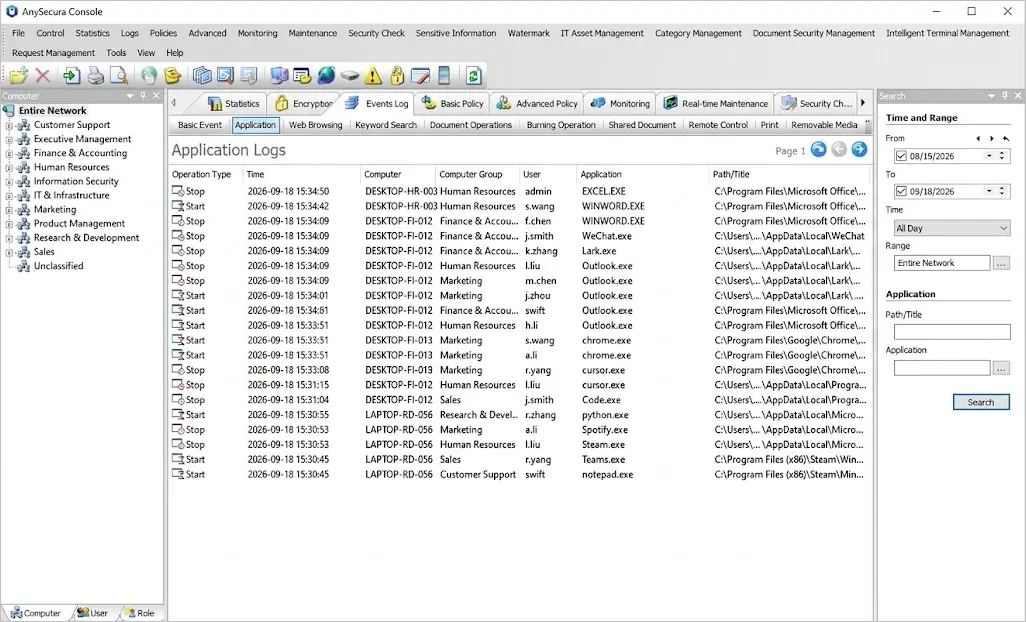
To be clear, AnySecura doesn’t replace Windows local admin rights management. A sensible approach is to use Intune or GPO to remove unnecessary admin rights, then use AnySecura’s software management, application control, and auditing to keep endpoint usage and maintenance consistent.
Best Practices for Removing Local Admin Rights at Scale
For companies with a lot of Windows devices, removing local admin rights isn’t a one-time cleanup. Your IT team also needs to review permissions regularly, handle exceptions, and make sure new devices follow the same rules from day one.
A few habits worth building into your routine:
- Review admin accounts regularly. Find out which users and security groups have local admin rights, and remove access that’s no longer needed.
- Use centralized policies. Manage company devices through Intune or GPO wherever you can, so permission settings stay consistent across PCs.
- Keep a reliable emergency access method. Use something like Windows LAPS to manage emergency admin accounts so you never lose control of a device.
- Roll out changes in stages. Test on a small set of devices first, then expand to more departments and endpoints.
- Set up a process for software and permission requests. Employees should still be able to get their work done without permanent admin rights.
- Review exceptions on a schedule. If someone genuinely needs admin rights, document why, and take the access back once the need is over.
Removing local admin rights is only one piece of reducing the risk from high-privilege accounts. Pair it with application control, software deployment, and other endpoint management measures, and you get much better control over what runs on employee PCs and what changes get made to the system.
FAQs about Removing Local Admin Rights
Does removing local admin rights delete the user account?
No. Taking a user out of the Administrators group only removes the admin rights they got from that group. Their account, personal files, and installed software stay as they are. They can usually still sign in to Windows and use any app that doesn’t need admin rights.
How do I remove local admin rights from multiple PCs at once?
Use Microsoft Intune or Active Directory Group Policy. Intune works for cloud-managed Windows devices, and GPO works for AD domain environments. Both let you apply a policy to a defined set of devices, so you don’t have to touch each PC.
Will removing local admin rights affect software that's already installed?
Most everyday office software will keep working. Some older apps, drivers, and update tools may need admin rights, though. Test your critical business software on a few devices first, then roll the change out in bulk.
Can employees still install software without local admin rights?
It depends on the software. Some apps can be installed by standard users. For anything that needs admin rights, IT can install it through central deployment, remote assistance, or approved temporary elevation.
What's the difference between disabling the local Administrator account and removing admin rights?
Disabling the built-in Administrator account stops that specific account from being used to sign in. Removing admin rights means taking a user or group out of the Administrators group. Even with the built-in account disabled, other users may still have admin rights, so check the full membership of the Administrators group.
Conclusion
On Windows 10/11 in an enterprise environment, removing local admin rights cuts down on unnecessary high-privilege actions and lowers the risk from malware and unauthorized system changes. You can do it with Microsoft Intune, Group Policy, or PowerShell, depending on how you manage your devices. Whichever route you take, verify the permissions, keep emergency access in place, and test software compatibility first.
Removing admin rights is just one piece of endpoint security. You also need to keep managing software installs, app usage, and endpoint activity. AnySecura offers centralized software distribution, application control, software asset management, and endpoint auditing to help IT teams manage Windows devices more efficiently.
Want to tighten up your endpoint security management? Take a look at AnySecura’s features, or request a free demo to see how it can make your IT team’s day-to-day work easier.