
Most teams reach for USB blocking software the same way: after an incident, an audit finding, or a new compliance requirement makes "anyone can walk out with a USB drive full of customer data" suddenly unacceptable. The problem is that "block USB" isn't really one decision. Some teams need every port dead. Others need read-only access so files can be viewed but not copied. This guide rounds up the best USB blocking software for 2026, each one tagged with what it's actually best for, starting with the option most vendors never mention: not buying anything at all.
📌Quick answer: If you only need to stop USB drives on Windows, Group Policy is free and takes ten minutes — but it can't audit, approve exceptions, or touch a Mac.
For real device control, look for one of three broad approaches depending on your need:
- Full lockdown — ThreatLocker Storage Control's zero-trust default-deny
- Read-only/audited access — Netwrix Endpoint Protector, miniOrange, ManageEngine Device Control Plus, Acronis DeviceLock
- Allow-but-encrypt — AnySecura, Scalefusion Veltar. The approach most vendors barely cover, and the one that lets people keep working instead of just saying no.
USB Blocking Software Compared
The table below focuses on two things most vendors don't lead with — encryption enforcement and temporary-access workflows — next to the basics every buyer should check before signing anything.
| Software | Platforms | Device Whitelisting | Read-Only Mode | Encryption Enforcement | Temporary Access & Approval | Audit Logs |
|---|---|---|---|---|---|---|
| AnySecura | Windows, macOS, Linux | By registered device (serial-level) | Yes, adaptive per connection | Yes — transparent, automatic | Yes — self-service request, auto-expiring | Full device/file activity log |
| Group Policy (Windows) | Windows only | — | — | — | — | — |
| Microsoft Intune | Windows; granular control ties to Defender for Endpoint | Yes, with Defender for Endpoint P2 | Limited, policy-dependent | — | — | Yes, via Defender for Endpoint |
| ThreatLocker Storage Control | Windows, macOS, Linux | Default-deny, explicit allow | Yes | Yes — policy option, not default | Yes — admin-approved, manual | Yes, down to device serial number |
| ManageEngine Device Control Plus | Windows (7–11, Server), macOS (Big Sur–Sequoia) | Whitelist-based | Yes | — | Yes — time-limited grants | Yes |
| Netwrix Endpoint Protector | Windows, macOS, Linux | Group/policy-based | Yes | Yes — "Enforced Encryption" module | — | Yes — Content Aware Protection + eDiscovery |
| miniOrange | Windows, macOS, Linux | Group-based policies | Yes | Yes — enforces BitLocker on external storage | Emergency disablement switch | Yes |
| Scalefusion Veltar | Windows, macOS, iOS, Android, ChromeOS, Linux | By serial number, vendor/product ID, user, or department | Yes | Yes, gated to the "Security Pro" tier | — | Yes |
| Acronis DeviceLock DLP | Windows (full); macOS (device/port control only) | Whitelist-based | Yes | Yes — data can only be written to devices encrypted via DeviceLock's own scheme | Offline temporary access codes | Yes |
| Teramind | Windows only | By hardware ID | Yes, plus a charging-only mode | — | — | Yes, including bypass-attempt logs |
Encryption enforcement is more common than most buyers assume — AnySecura, ThreatLocker, Netwrix Endpoint Protector, miniOrange, Scalefusion Veltar, and Acronis DeviceLock all support some form of it, though the mechanisms vary widely: ThreatLocker's and Veltar's are opt-in policy settings, miniOrange enforces Windows' own BitLocker rather than a proprietary engine, and Acronis restricts uploads to devices already encrypted through its own scheme. AnySecura is still the only one pairing encryption with a self-service, auto-expiring approval flow instead of manual admin approval.
Why You Need USB Blocking
A USB port is a physical bypass around every network-based control a company has — firewalls, web filters, and email security never see a file that walks out on a thumb drive. USB blocking software closes that gap by letting IT and security teams control what can plug into a company's ports, and what those devices are allowed to do once connected.
The risk breaks down into three overlapping categories:
- Data exfiltration — accidental or deliberate copying of sensitive files to removable media
- Insider threats — a departing or disgruntled employee taking source code, customer lists, or design files on the way out
- Malware introduction — infected drives (including the classic "USB drop" attack, where devices are deliberately left somewhere public hoping someone plugs one in) and BadUSB-style devices that impersonate a keyboard to run commands the instant they're connected
Compliance frameworks like GDPR, HIPAA, and SOC 2 increasingly expect documented control over removable media too — so even a policy that ends up fairly permissive should start from an actual decision, not silence.
Free and Built-In Ways to Block USB Ports
Every commercial USB blocking product skips this section, for an obvious reason: it competes with their own sales pipeline. But if your entire requirement is "stop USB drives on Windows PCs," you may already own the tool.
Group Policy: What It Can and Can't Block
Windows has had a built-in way to block removable storage since Windows 7, using Group Policy:
- Open the Group Policy Management Console (
gpmc.msc) - Navigate to Computer Configuration → Policies → Administrative Templates → System → Removable Storage Access
- Enable "All Removable Storage classes: Deny all access"
- Link the GPO to the relevant OU and run
gpupdate /force
This works, and it's free. But it comes with real limits that several sysadmin guides point out plainly: it only blocks devices Windows recognizes as removable disks. Keyboards, mice, printers, and USB-to-serial adapters aren't affected — which also means it does nothing against a device pretending to be a keyboard. There's no centralized audit trail, no approval workflow for legitimate exceptions, and a local administrator can often work around it. It also doesn't exist on macOS, so a mixed-OS office needs a second solution regardless.
Managing Windows user privileges? Learn how to remove local admin rights using Intune, Group Policy, or PowerShell, including preparation, verification, and rollback.
Microsoft Intune: Two Paths, Two License Tiers
If your organization already manages devices with Microsoft Intune, there are two ways to control USB access, and the difference matters for budgeting:
- Settings Catalog policies apply Windows administrative-template settings through Intune and don't require a Microsoft Defender for Endpoint license — this gets you GPO-equivalent blocking, cloud-managed.
- Attack Surface Reduction (ASR) device control, which supports granular allow/deny rules for specific devices, is built on Defender for Endpoint's device control capability and requires a Defender for Endpoint Plan 2 license — Intune alone isn't enough.
Admins working through Microsoft's own Q&A forum report real friction here: a device-control option that used to be available under ASR has reportedly been removed or relocated in newer builds, configuring "block storage but allow other USB devices" takes more trial and error than expected, and conflicting policies can silently overwrite each other. It's a legitimate free-tier option if you're already paying for the licenses — just budget time for the configuration, and know that granular control has a real licensing cost attached.
When Free Is Enough
Group Policy or Intune's basic tier is probably enough if all of these are true:
- You're Windows-only, no macOS or Linux endpoints to cover
- "Block everything" is an acceptable policy — you don't need some users to have read-only or encrypted access instead
- You don't need a searchable audit log or a self-service exception process
- Local admin rights are tightly controlled, so the bypass risk is manageable
If any of those don't hold — mixed OS, need for exceptions, compliance reporting requirements — it's time to look at dedicated USB blocking software.
8 Best USB Blocking Software Tools for 2026, Compared by Use Case
The eight tools below all treat USB control as more than an on/off switch: each one can scope a policy to a specific device rather than an entire category, layer in read-only or encrypted access instead of a flat block, and log what actually happened after a drive was allowed to connect.
1. AnySecura
👍 Best for
Teams that need USB drives to keep working rather than just get blocked, while making sure anything copied off one is useless anywhere else.
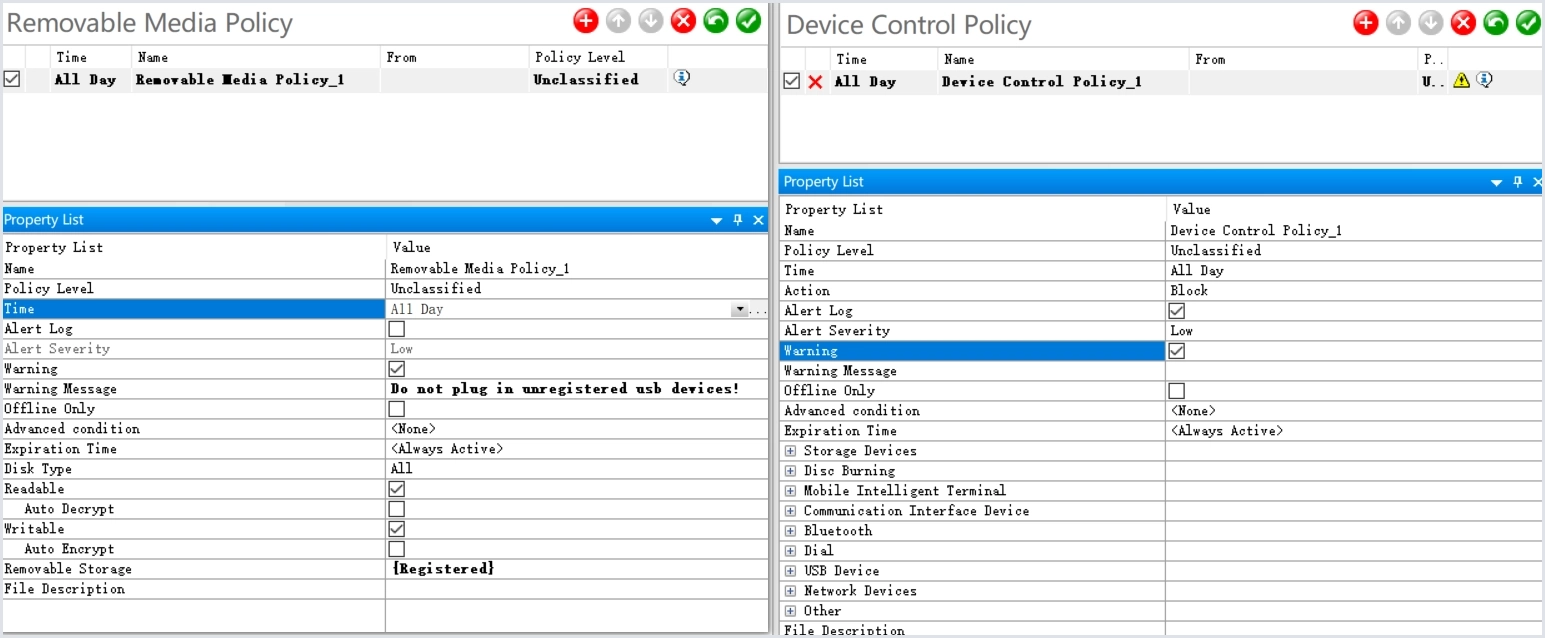
AnySecura's Removable Media Control starts from a different premise than most of this list: USB drives don't need to be shut off entirely, the data on them just needs to stay safe no matter where the drive ends up.
That idea plays out in two steps at the product level: first, every drive has to be registered before it can connect at all; second, anything written to a registered drive is transparently encrypted with no extra action from the user. Plug that same drive into an unauthorized machine, and the files come out as unreadable garbage. Beyond USB storage, AnySecura's companion Device Control product extends the same policy engine to USB human-interface devices, Bluetooth, network adapters, and burning devices, with rules that can vary by time of day.
Even when a situation calls for something outside the default policy, the exceptions can go through a self-service request that expires automatically rather than becoming a permanent hole. On the compliance side, the company also holds ISO 9001 and ISO/IEC 27001 certification — credentials worth having on hand if sign-off is part of the buying process.
Key Features:
- Device whitelisting by registration: only USB drives that have completed registration and authentication can connect at all.
- Transparent encryption: files written to a registered drive are encrypted automatically, readable only on company-designated machines.
- Full-lifecycle activity logging: connection, file read/copy/modify/delete, and disconnection are all logged, with automatic flagging of frequent or non-compliant activity.
- Role- and time-based access governance: read/write permissions can differ by department, person, or time of day.
- Multi-level approval with auto-expiring access: temporary permissions go through tiered sign-off and expire automatically, with a break-glass override for emergencies.
- Adaptive encryption / read-only mode: a device can be set to read-only instead of a full block-or-allow choice.
- Granular device-subtype control: storage, communication interfaces, USB peripherals, and network devices can each carry separate policies.
- Mobile and ADB access control: blocks phones from connecting via USB, Wi-Fi, hotspot, or Bluetooth, and disables ADB access specifically.
Hands-on Impressions
Registering a test drive and then trying it on an unregistered machine was the clearest demonstration of what AnySecura actually sells — the files opened fine on the approved laptop and were unreadable garbage everywhere else, with no extra steps on our end. The self-service request flow for temporary access resolved in minutes rather than requiring a ticket. We don't have independent G2 or Capterra review data to check that experience against — AnySecura's third-party review footprint is still thin, which is worth knowing going in. Agent rollout across the test group was straightforward.
Pricing
AnySecura's published starting price is $216 per seat per year — about $18 per seat per month — with volume discounts available for larger deployments; An exact quote depends on seat count and which modules you need.
- Only vendor here pairing mandatory encryption with self-service, auto-expiring temporary access
- Device coverage extends well past USB storage — HID, Bluetooth, network adapters, burners, and mobile/ADB
- ISO 9001 and ISO/IEC 27001 certified, with full Windows/macOS/Linux support
- No independent G2 or Capterra review history yet to cross-check vendor claims against
2. ThreatLocker Storage Control
👍 Best for
Organizations that want a genuine zero-trust, default-deny posture and are prepared for a real adjustment period while policies get tuned to the environment.
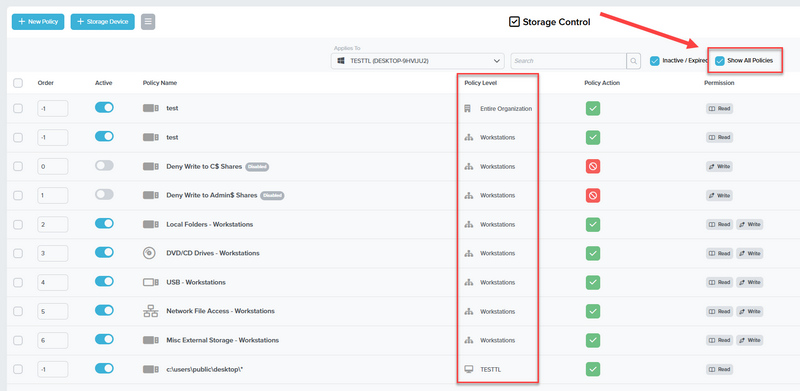
Most tools on this list default to allow and then block specific things. ThreatLocker Storage Control flips that logic entirely — nothing connects unless a policy explicitly approves it, the same zero-trust model the company built its application-allowlisting product on.
That default-deny scope goes beyond USB, too: local folders and network shares fall under the same policy engine as external storage. Within that engine, policies can be scoped down to device serial number, time of access, file type, or endpoint group — the finest-grained targeting in this lineup — and mandatory encryption and read-only access are both available as policy options rather than defaults.
All of that policy granularity is backed by unusually well-documented platform support for a security vendor: Windows 7 through 11 and Server 2008 through 2025, macOS 12.6.2 and later, and specific supported Linux distributions are all spelled out in ThreatLocker's own system-requirements documentation, version by version.
Key Features:
- Device whitelisting: devices are approved individually; anything not approved is invisible to the OS once connected.
- Default-deny architecture: a zero-trust posture — nothing connects unless a policy explicitly allows it.
- Serial number and file-type policy scoping: rules can target a specific device serial number, vendor, or file type.
- User and endpoint group policies: access rules can be scoped by who's asking and which endpoint group they're in.
- Encryption enforcement: approved external devices can be required to be encrypted.
- Read-only mode as an alternative to a full block.
- Admin-approved temporary access: requests route to an admin, who can approve in seconds.
- Alerts and serial-level audit trail: every file copied, moved, or deleted is tracked down to the device serial number.
Hands-on Impressions
Flipping a fresh policy to default-deny is where the zero-trust trade-off shows up immediately: within the first day, unapproved devices generated a real stream of access requests rather than the occasional exception we expected. The admin-approval flow itself was fast — seconds, not a ticket queue. Once the device list stabilized, ordinary use was uneventful. Setup itself is straightforward; the friction is in policy tuning, not installation.
Pricing
ThreatLocker doesn't publish a price list. Reseller channels cite figures from roughly $49 per endpoint up to a $223.99-per-endpoint enterprise bundle, but neither number comes from ThreatLocker's own site, so treat them as directional rather than a quote.
- Finest-grained policy scoping in this lineup — serial number, file type, time, and endpoint group
- Genuine zero-trust default-deny, not a whitelist bolted onto an allow-by-default model
- Encryption enforcement and read-only both available as policy options
- No public pricing — every figure available comes from a reseller, not ThreatLocker directly
- Default-deny means a real tuning period with more access requests early on
- Temporary access is admin-approved manually, not self-service like AnySecura's
3. ManageEngine Device Control Plus
👍 Best for
Teams that want straightforward whitelisting, read-only access, and an audit trail without adopting a bigger security platform.
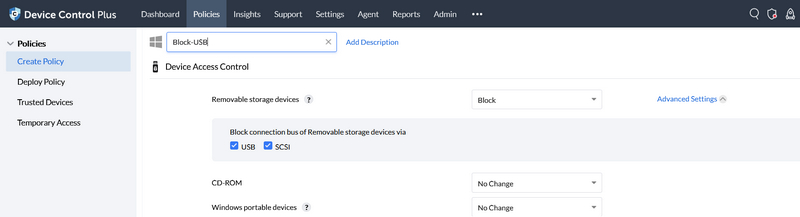
ManageEngine takes the more familiar whitelist route rather than ThreatLocker's default-deny model, and backs it with clearly documented platform support: Windows 7 through 11 plus Server editions, and macOS from Big Sur through Sequoia.
That whitelist-based pitch holds up in practice, too: real customer feedback on Capterra credits it with controlling which USB devices, printers, and scanners can be used, not just a generic "security tool" impression. On the commercial side, pricing is quote-only, but ManageEngine is one of the few vendors here offering a genuine choice between an annual subscription and a perpetual license with separate maintenance, rather than subscription-only.
Key Features:
- Instant detection and blocking of unverified devices: unrecognized USB devices are caught and blocked immediately, trusted ones pass through.
- Default port lockdown option: admins can lock USB ports by default unless explicit permission is granted.
- Trusted device whitelist: a maintained list of approved devices, with nothing else gaining access unless authorized.
- Read-only mode and file-level limits: transfers can be restricted by file size or type, not just blocked or allowed outright.
- Role-based access control: device permissions differ by user role.
- Temporary access grants: time-limited access for one-off exceptions, granted instantly.
- Instant alerts and audit reporting: unauthorized access attempts trigger alerts, with logs of who used which device on which endpoint.
- Behavioral analysis: device and user behavior patterns are analyzed to flag anomalies.
Hands-on Impressions
Setting up the trusted device list was quick, and testing a mismatched device confirmed the block held without extra configuration. The one gap is that the policy still has to be actively maintained since there's no default-deny fallback. Deployment was uneventful on both Windows and macOS test machines.
Pricing
No published price. ManageEngine's quote page offers a choice between an annual subscription or a one-time perpetual license plus annual maintenance, and Device Control Plus can be deployed standalone or as an Endpoint Central add-on.
- Real Capterra reviews specifically confirm the USB/peripheral whitelisting experience, not just general sentiment
- Rare choice between subscription and one-time perpetual licensing
- File size/type transfer limits go beyond a binary block-or-allow
- No default-deny option — the whitelist has to be actively maintained
- Linux endpoint support isn't clearly confirmed for Device Control specifically
- Capterra review sample is still fairly small
4. Netwrix Endpoint Protector
👍 Best for
Teams that want device control backed by real content inspection and genuine multi-OS consistency, not just a device-level switch on Windows.
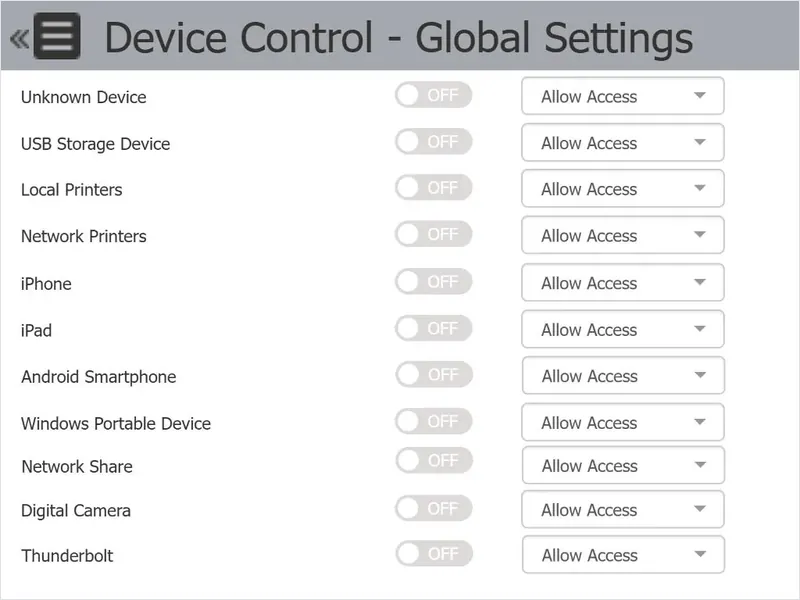
Netwrix leads with real cross-platform consistency, with the same Device Control and content-inspection capability across Windows, macOS, and Linux rather than a flagship Windows build and a thinner Mac port.
That consistency comes from four modules working together: Device Control covers USB and 45+ device types down to specific removable-storage sub-types (flash drives, memory cards, external HDDs); Content Aware Protection inspects data in motion for sensitive content, not just which device is carrying it; eDiscovery scans data already sitting on endpoints; and a separate Enforced Encryption module adds FIPS-validated encryption with remote wipe and password reset if a device goes missing.
On top of that module lineup, permission tiers go beyond a simple allow/deny toggle, down to trust levels tied to a device's encryption status, and end users can see a custom on-screen notice explaining exactly which policy blocked a file — a transparency touch most vendors here skip.
Key Features:
- Broad device and port coverage: USB, Bluetooth, printers, and 45+ device types in total.
- Removable-storage sub-types listed explicitly: flash drives, U3/autorun drives, memory cards, and external HDDs are each named, not lumped together.
- Default-deny for most device types out of the box.
- Multi-tier permissions: read-only, allow-but-exclude-from-scanning, and trust levels tied to a device's encryption status.
- Vendor/product ID and serial-number whitelisting.
- Enforced Encryption module: FIPS-validated, with remote wipe and password reset for lost devices.
- Offline enforcement: device restrictions still apply when an endpoint isn't connected to the network.
- Custom end-user block notifications: users see exactly which policy blocked their file and why.
Hands-on Impressions
What stood out during testing wasn't a single feature but the fact that the same policy behaved identically whether we pushed it to a Windows or a Mac test endpoint. The one thing we couldn't verify ourselves is how deep that parity goes on Linux specifically. Installation on each platform took the standard agent-push route.
Pricing
Fully quote-based — Netwrix cites a custom pricing model tied to deployment size and seat count. The 30-day free trial is longer than most competitors here, which typically default to 14 days.
- Genuine cross-platform consistency, backed by an independent customer review rather than just a marketing claim
- Enforced Encryption module adds remote wipe and password reset for lost devices
- Only vendor here offering custom, policy-specific block notifications to end users
- Fully quote-based pricing with no public anchor figure
- macOS/Linux feature parity is a vendor claim without a detailed feature-by-feature breakdown — worth confirming before rolling out beyond Windows
5. miniOrange
👍 Best for
Teams that want heavy monitoring and alerting, plus a fast way to shut off a policy that's causing problems mid-incident.
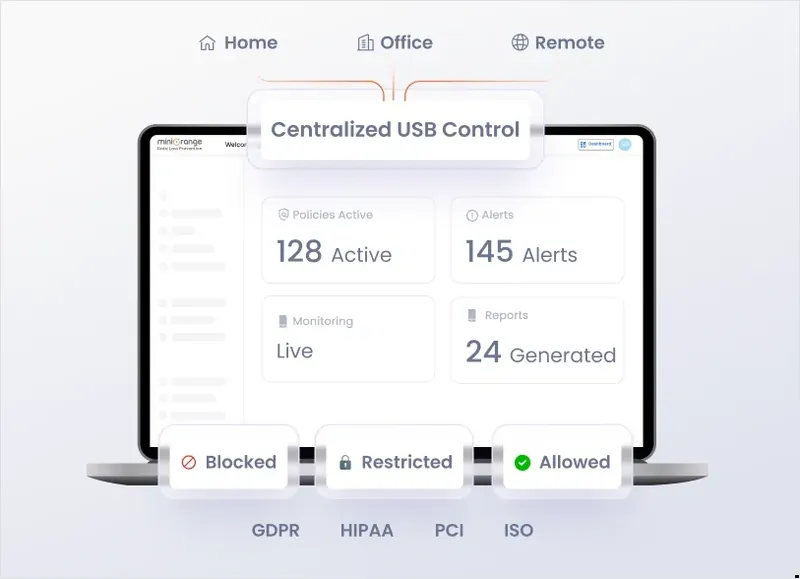
miniOrange folds USB blocking into a broader DLP suite, and its most distinctive feature is one almost nobody else in this lineup builds in: an emergency policy-disablement switch for when a block causes an unexpected business disruption.
Coverage itself runs from device-level whitelisting up to disabling USB ports entirely, with read-only mode as a middle option, and policies can be scoped by user group, role, or department. A less-publicized page on device control adds one more layer: it can also enforce BitLocker on external storage — not a proprietary encryption engine, but a real way to force encryption on Windows endpoints without a separate agent.
That breadth carries through to pricing, too — USB blocking is included at every tier rather than reserved for the top one, which is unusual; Scalefusion, by comparison, gates the equivalent capability behind its highest add-on tier.
Key Features:
- USB device whitelisting: only trusted, approved devices are allowed to connect.
- Full USB port disablement: an option to block all USB connections outright, not just unapproved ones.
- Read-only mode: file viewing allowed, modification and transfer blocked.
- Group/role/department-based policies.
- Emergency policy disablement: a fast override switch to turn off a policy mid-incident.
- BitLocker encryption enforcement on external storage.
- Peripheral coverage beyond USB storage: printers, webcams, and Bluetooth devices.
- Real-time alerts and compliance reporting.
Hands-on Impressions
One click on the emergency disablement switch turned off an active block policy fleet-wide during testing — no ticket, no waiting on IT to push an update, which is control most vendors here simply don't offer. Toggling BitLocker enforcement on a test drive worked as advertised, though it's worth remembering that's Windows' own encryption being enforced, not a proprietary layer. We found no independent G2 or Capterra reviews specific to the DLP/USB product line to check this against. Agent deployment across group policies was routine.
Pricing
Three tiers — Starter, Professional, and Enterprise — none with a published number; all route to "Get a Quote" based on user count, endpoint count, and selected modules. The trial requires no credit card.
- Only vendor here with a one-click emergency policy-disablement switch
- USB blocking included at every tier, not gated to the top one
- BitLocker enforcement adds encryption without a separate agent
- No third-party review data specific to the DLP/USB product line — G2/Capterra ratings on file are for miniOrange's broader IAM brand
- Fully quote-based pricing with no anchor figure at any tier
- Encryption enforcement relies on Windows' native BitLocker rather than a cross-platform engine
6. Scalefusion Veltar
👍 Best for
Organizations already running, or considering, Scalefusion for broader device management that want USB control on the same platform rather than a separate tool.
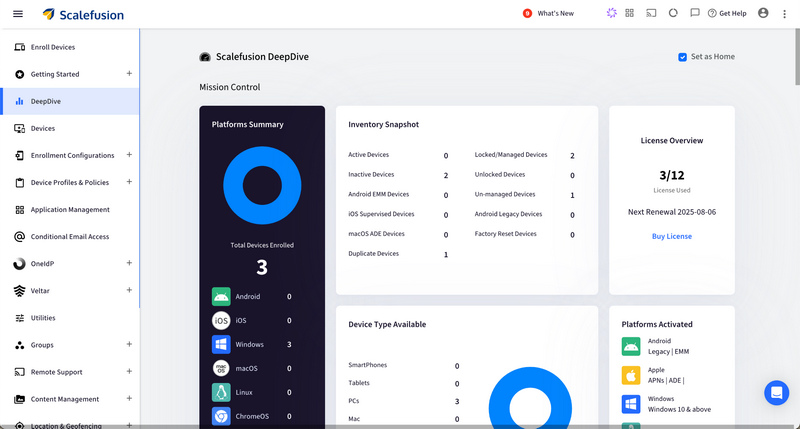
Veltar is the security module of the broader Scalefusion UEM platform, and it's the only product in this lineup with a genuinely complete platform matrix — Windows, macOS, iOS, Android, ChromeOS, and Linux, all named explicitly on its own product page.
On the policy side, whitelisting can key off serial number, vendor ID, product ID, user, or department, and — a feature none of the other seven products here match — policies can flex dynamically based on IP address, device timezone, compliance status, or user role, enforced locally by an agent even on offline or hybrid endpoints.
Veltar's USB control and DLP capability isn't included in Scalefusion's base UEM tiers, it's gated behind the $4/device/month Security Pro add-on — the only vendor here that publishes an actual price tied to the USB feature itself.
Key Features:
- Multi-dimension whitelisting: serial number, vendor ID, product ID, user, or department.
- Read-only mode for safe device usage without full blocking.
- Encryption enforcement: policy can require only encrypted USB storage to connect.
- Dynamic, contextual restrictions: policies can adjust based on IP address, device timezone, compliance status, or user role.
- Offline and hybrid endpoint support: policies enforce locally via agent even without a live connection.
- Policy scoping by user, group, department, or device type.
- Audit and compliance reporting on blocked activity and policy enforcement.
- Six-platform support: Windows, macOS, iOS, Android, ChromeOS, Linux.
Hands-on Impressions
Changing a test device's network location during testing triggered a different access rule automatically, without touching the policy itself — that's Veltar's contextual policy engine at work, and none of the other tools here reproduce it. We couldn't find independent reviews naming Veltar specifically; Scalefusion's own G2/Capterra ratings cover the whole UEM platform and don't mention USB control in the reviews we checked. Agent setup itself was standard for a UEM client.
Pricing
USB control and DLP are bundled into the Security Pro tier at $4 per device per month ($48/year), on top of Scalefusion's base UEM plans, which range from $2 to $6 per device per month. It's the only vendor in this roundup with a published price tied directly to the USB feature.
- Only complete six-platform matrix in this lineup, confirmed on its own product page
- Dynamic, context-aware policies (IP, timezone, compliance status) that no competitor here matches
- The only published, feature-specific price point in this roundup
- USB/DLP capability isn't included in base UEM plans — it requires the separate Security Pro add-on
- No independent review data specific to Veltar as a standalone product
- Feature page is light on file-type/size limits and a detailed device-class breakdown
7. Acronis DeviceLock DLP
👍 Best for
Windows-heavy environments that want serious audit/forensic depth and are fine with a reduced feature set on any Mac endpoints.
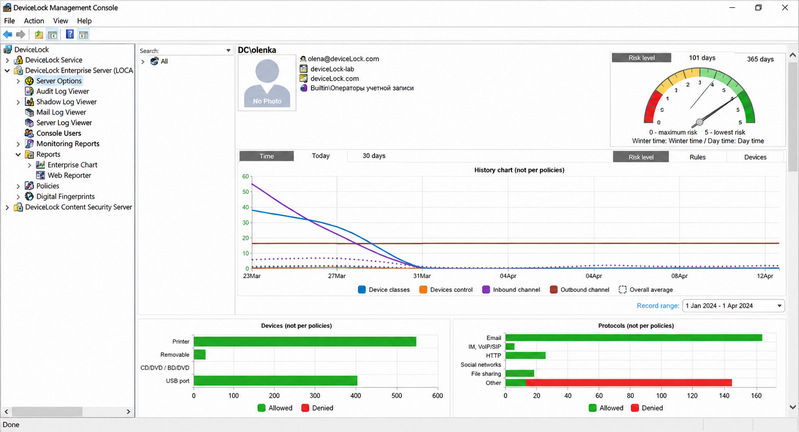
Acronis DeviceLock is one of the longer-running names in this space, built on a modular architecture — Core (device/port control), NetworkLock (network-aware context rules), and ContentLock (content-aware rules) — that lets you buy just the piece you need.
That modularity comes with a catch: the Mac agent only ships with the Core module, so network- and content-aware rules simply aren't available on macOS. On the audit side, DeviceLock supports shadow copying — mirroring full copies of files moved to external storage into a searchable log — and can narrow that to only content-aware matches once Content-Aware Rules are layered on, cutting down noise most competitors don't address at all.
Back on the control side, device policies extend past storage to USB HID devices, printers, audio, and cameras, with whitelisting available on both the device and the user dimension, plus an offline temporary-access code for situations without network access.
Key Features:
- Kernel-level interception with ACL enforcement for device access requests.
- USB peripheral sub-type control: HID devices, printers, audio devices, and cameras, not just storage.
- Device- and user-level whitelisting.
- Encrypted-upload enforcement: policy can require data only be written to devices encrypted through DeviceLock's own scheme.
- Offline temporary access codes for situations without network connectivity.
- Shadow copying: mirrors full copies of files moved to external storage into a searchable log.
- Content-aware shadowing: narrows shadow copying to only files matching sensitive-content rules.
- Modular architecture: Core, NetworkLock, and ContentLock can be licensed separately.
Hands-on Impressions
Every file moved to a test USB drive during Acronis testing showed up as a retrievable copy in the shadow-copy audit log, and narrowing that to content-matched files only cut the noise down to something an admin could actually review. The Mac gap is real, though: on our macOS test endpoint, only the basic Core module functioned. Windows installation was routine; the Mac agent needed no extra configuration, just fewer available policies once it was running.
Pricing
Acronis doesn't publish pricing on its own site. Capterra lists a flat $615 one-time fee, which matches earlier reseller figures, but since neither is Acronis's own pricing page, treat it as directional rather than confirmed.
- Shadow copying plus content-aware filtering is a level of forensic detail most competitors here don't attempt
- Modular licensing means you can buy just device/port control if that's all you need
- The Mac limitation is admitted in the vendor's own documentation, not something we had to dig for
- Mac agent only covers basic device/port control — no network- or content-aware rules
- No pricing confirmed directly from Acronis's own site
- Temporary access is limited to offline codes — no self-service, auto-expiring flow like AnySecura or ManageEngine offer
8. Teramind
👍 Best for
Organizations that already want a full behavioral-monitoring platform and are fine treating USB control as one piece of that, rather than a standalone tool.
USB blocking here is one module inside a much larger insider-risk and employee-monitoring platform, and the forensic depth shows: bypass attempts against the USB policy itself get logged, not just successful transfers.
That module-level scope is broad: hardware-ID whitelisting, a charging-only mode that permits power but not data, malware scanning on connected drives, and file-type-specific transfer restrictions, plus a master-password re-authentication step for accessing already-approved devices. What the USB-specific page doesn't mention anywhere, though, is macOS or Linux — the official language is explicitly Windows-only for this module.
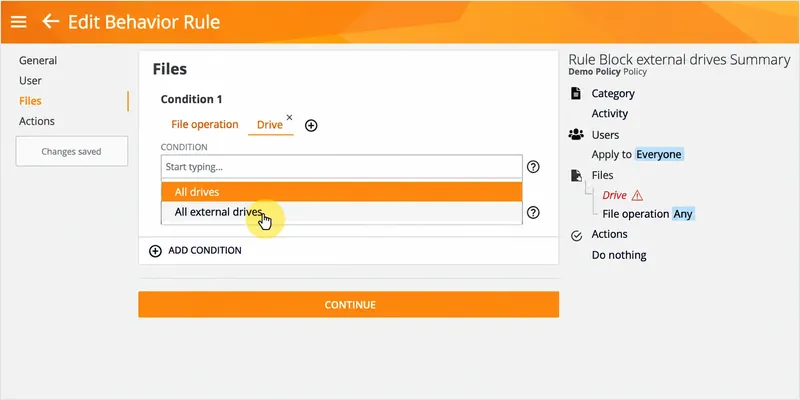
Key Features:
- Hardware-ID whitelisting for approved storage devices.
- Charging-only mode: permits power delivery while blocking data transfer, plus a separate read-only option.
- Malware scanning on connected USB drives.
- File-type transfer restrictions for removable devices.
- Instant alerts to security teams when unauthorized devices connect.
- Automatic session lock when high-risk USB activity is detected.
- Master-password re-authentication for accessing already-approved devices.
- Forensic reporting, including logs of attempts to bypass the USB policy itself.
Hands-on Impressions
Plugging a drive into a Teramind-managed test machine triggered a malware scan before anything else happened — a step none of the pure device-control tools in this list attempt. The auto-lock response to flagged high-risk activity fired reliably in our test scenario. We came up empty searching G2, Capterra, and PeerSpot for a review that specifically discusses the USB module, despite Teramind's large overall review volume on the broader platform. Deployment is Windows-only for this feature, which is worth confirming before evaluating it if any of the fleet runs Mac or Linux.
Pricing
No official number is published — the pricing page is a calculator that doesn't render actual figures. Third-party sources put starting tiers at roughly $14–15, $28–30, and $32–35 per seat, but disagree on whether that's monthly or annual, so confirm directly with sales before budgeting.
- Malware scanning on USB connect — the only vendor here doing this
- Forensic reporting logs bypass attempts against the policy itself, not just successful transfers
- USB control ships as part of a broader insider-risk platform if that's already on the shortlist
- USB blocking module is confirmed Windows-only — no macOS or Linux
- No independent review specifically discusses the USB module despite the platform's high overall review count
Rolling Out USB Blocking Software Without Breaking the Business
Every vendor here documents what their software can do. Almost none say how to roll it out without burying your IT team on day one. So we're not just here to help you pick the right tool, we'll draw on our testing and industry experience to help you get the rollout right too.
Audit First, Block Second
Before enforcing any policy, run in monitoring/read-only mode for one to two weeks. This surfaces which teams legitimately depend on USB drives — design, field service, and audit teams are common surprises — before you find out the hard way by breaking their workflow on day one.
Whitelist by Device, Not by Category
A category-level rule ("allow all USB drives from Vendor X") is easy to set up and easy to defeat — someone just buys another drive from the same vendor. Whitelisting by device serial number, the way Scalefusion Veltar and AnySecura's registration model both do, means only specific, approved physical devices work, not an entire product line.
Build in Temporary Access, Not Just Permanent Exceptions
Almost every organization eventually hits a case where someone needs USB access just once — a client delivery, a conference presentation, a one-off data transfer to an air-gapped system. If the only options are "permanently exempt this user" or "make them file a ticket and wait," you end up with either policy erosion or shadow workarounds. A workflow like AnySecura's — request access, get it approved, have it expire automatically — keeps the exception process fast without leaving a permanent hole in the policy.
Keep an Emergency Override
Only miniOrange calls this out directly, which is surprising — a misconfigured policy blocking a critical file transfer mid-incident is exactly the kind of failure a security tool shouldn't cause. Whatever you deploy, confirm there's a fast, logged way to shut off the block company-wide (or for one device) before you need it in a crisis, not while you're in one.
Frequently Asked Questions
What is USB blocking software?
USB blocking software is an endpoint security tool that lets administrators control, restrict, or fully disable USB ports and connected removable storage devices, to prevent data leaving — or malware entering — through a physical USB connection.
Can I allow specific USB devices while blocking all others?
Yes, this is called device whitelisting. The strongest implementations whitelist by unique device serial number rather than by device category or vendor, since category-level rules can be bypassed with another device from the same product line.
Can I completely disable USB ports on endpoints?
Yes, most USB blocking software (and Group Policy) supports a full-lockdown mode that denies all removable storage access. AnySecura, for example, can disable devices connecting over USB across the board — storage devices, phones, network devices, and Bluetooth devices included, not just USB drives.
Does USB blocking software support encryption enforcement?
Yes — AnySecura, for example, automatically encrypts any file written to an approved drive rather than blocking it outright, so the data is unreadable on any computer that isn't authorized to decrypt it.
Do USB blockers actually work, or can users bypass them?
Well-implemented USB blocking software is difficult to bypass for a standard user, but any control has limits: local administrator accounts can sometimes disable software-based restrictions, and basic tools like Group Policy don't stop devices that Windows doesn't recognize as removable storage. Layering device-level control with monitoring and least-privilege admin rights closes most of the practical gaps.
Is Group Policy enough to block USB drives?
For a single-purpose, Windows-only environment where "block everything, no exceptions" is an acceptable policy, yes. It has no audit trail, no approval workflow, no macOS support, and can potentially be bypassed by a local administrator — for anything beyond a basic blanket block, dedicated USB blocking software is worth the cost.
How do I block USB ports on a Mac?
macOS doesn't have a direct Group Policy equivalent; USB restriction on Mac typically requires an MDM profile or dedicated device-control software with macOS support. Vendor support for Mac varies significantly — Acronis DeviceLock's Mac agent, for example, only provides basic device/port control, without the network- and content-aware rules available on Windows — so it's worth confirming exactly what a vendor's macOS agent supports before buying.
How do I disable USB storage on Windows with a PowerShell or CMD command?
This flips the same registry value Group Policy sets under the hood — the fastest option if you just need it on one machine right now. Run these as Administrator.
Disable USB storage
PowerShell:
Set-ItemProperty -Path "HKLM:\SYSTEM\CurrentControlSet\Services\USBSTOR" -Name "Start" -Value 4Command Prompt:
reg add "HKLM\SYSTEM\CurrentControlSet\Services\USBSTOR" /v Start /t REG_DWORD /d 4 /fRe-enable USB storage
PowerShell:
Set-ItemProperty -Path "HKLM:\SYSTEM\CurrentControlSet\Services\USBSTOR" -Name "Start" -Value 3Command Prompt:
reg add "HKLM\SYSTEM\CurrentControlSet\Services\USBSTOR" /v Start /t REG_DWORD /d 3 /fThe Bottom Line on USB Blocking Software
"USB blocking" was never one setting to turn on — it's a decision between full lockdown, read-only access, and an allow-but-encrypt middle ground, and that choice shapes which tool on this list actually fits. Free options like Group Policy and Intune's basic tier are legitimate if the policy is simple, Windows-only, and has no exceptions to manage — but none of them audit, approve exceptions, or reach macOS.
Two features are worth asking every vendor about directly, since they rarely come up unless you ask: encryption enforcement, so a copied file is useless outside the company instead of just blocked, and a real temporary-access workflow, so the inevitable one-off request doesn't turn into a permanent policy hole. Whatever you choose, plan the rollout — audit first, whitelist by device, keep an emergency override — with the same care as picking the tool itself.
If your team needs USB drives to keep working rather than just get shut off, while still making sure anything copied off one is useless anywhere else, AnySecura's Removable Media Control is built around exactly that middle ground.