BitLocker is the drive encryption feature built into Windows Pro, Enterprise, and Education editions. Once it's turned on, it locks an entire drive with an encryption key tied to your device, so that if a laptop is lost, stolen, or its hard drive is pulled out and plugged into another computer, everything on it looks like scrambled data without the right key.
That's the scenario BitLocker was actually built for: a device that's offline and out of your hands. This guide breaks down what BitLocker is in plain terms — how the encryption itself works, what the recovery key is for, and just as importantly, the situations BitLocker was never designed to cover, like a file that's already been copied to a USB drive or emailed out while you were logged in normally.
What Is BitLocker, Exactly?
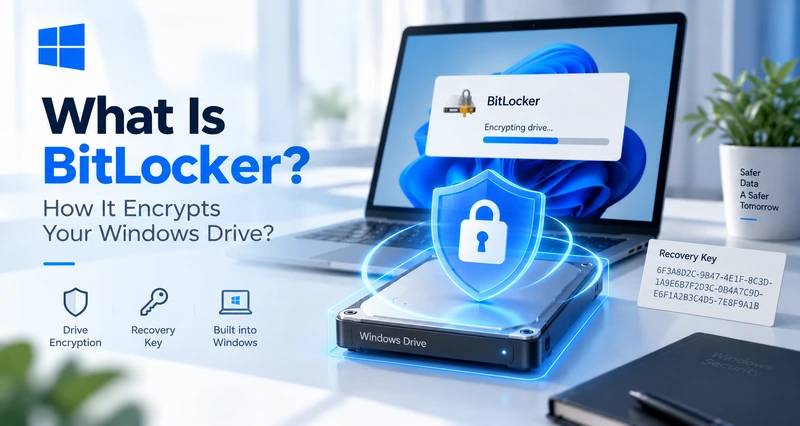
BitLocker Drive Encryption is a Windows security feature, not a separate program you install — it ships with the operating system and only needs to be switched on. It's available on Windows 10 and 11 Pro, Enterprise, and Education; Home edition doesn't include full BitLocker, though many Home PCs get a lighter, automatic version called Device Encryption that protects the system drive on qualifying hardware, without BitLocker's PIN options or management settings.
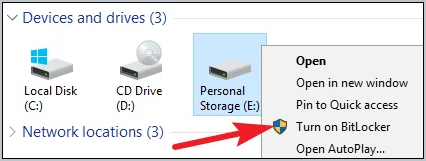
You'll find it under Control Panel > System and Security > BitLocker Drive Encryption, or by right-clicking a drive in File Explorer and choosing Turn on BitLocker. For the full click-by-click walkthrough, including the command-line options, see our guide on how to turn on BitLocker.
How Does BitLocker Work?
Under the hood, BitLocker encrypts the entire volume using AES, and protects the encryption key itself with your device's Trusted Platform Module (TPM) — a small security chip built into most modern motherboards. The TPM checks that the boot process hasn't been tampered with — no swapped bootloader, no unexpected changes to system files — before it releases the key automatically. That's why, on a typical TPM-equipped PC, BitLocker unlocks silently in the background every time you turn the computer on; you never see a password prompt.
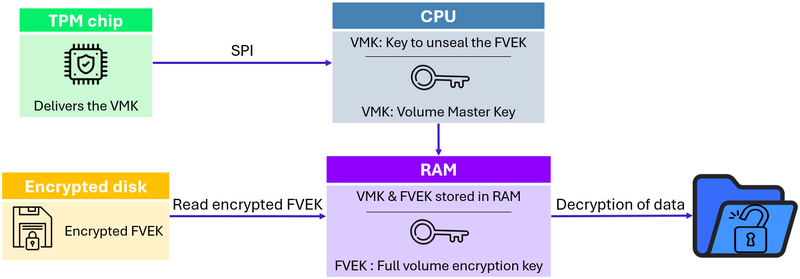
On devices without a TPM, or when extra protection is configured, BitLocker instead asks for a PIN or a USB startup key before Windows will boot at all. Either way, the drive stays locked and unreadable until that check passes — which is exactly the protection that matters if the device is offline and in someone else's hands.
What Is a BitLocker Recovery Key?
A BitLocker recovery key is a 48-digit numeric password Windows generates the moment you turn BitLocker on. It exists purely as a backup: if the normal TPM or PIN unlock fails — after a firmware update, a hardware change, or too many failed PIN attempts — the recovery key is the only other way in. There's no backdoor and no way for Microsoft to unlock a drive without it.
During setup, BitLocker asks where to save that key: your Microsoft account, your organization's Active Directory on a work PC, a USB drive, a saved file, or a printed copy. Whichever option you pick, save it somewhere other than the encrypted drive itself — if you lose both the key and access to wherever it's stored, the data on that drive is gone for good.
What BitLocker Doesn't Protect Against
BitLocker's entire design assumes one specific threat: a powered-off, locked-out device. Once you've logged into Windows normally — PIN entered, TPM check passed — BitLocker's job is essentially done. The drive is unlocked, and every file on it is fully readable for as long as that session lasts.
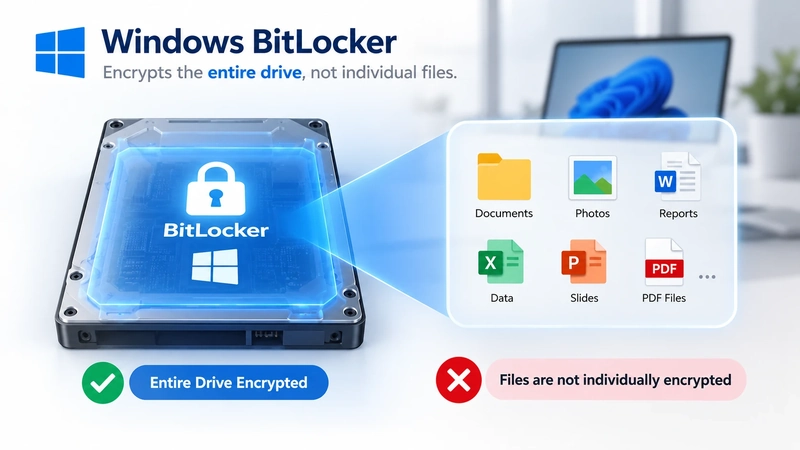
That has a real consequence people don't always expect: BitLocker does nothing to protect a file after it leaves the drive during that unlocked session. Copy a document to a USB stick, upload it to a personal cloud account, or attach it to an email, and the copy that leaves isn't wrapped in BitLocker's protection anymore — it was decrypted the moment BitLocker unlocked the drive, and it stays that way wherever it goes next. BitLocker protects the drive, not the file.
This is the gap that trips up companies that assume "we use BitLocker" is the same thing as "our sensitive files are protected." It also marks the difference between disk-level encryption and file-level encryption.
 File-level encryption with AnySecura
AnySecura's transparent encryption, for example, works at the file level: it identifies and encrypts specific sensitive documents or folders you define, rather than the entire disk, and that protection travels with the file itself — a document copied to a USB drive, uploaded to the cloud, or emailed out stays encrypted, instead of reverting to a plain, readable copy the moment it leaves. It isn't a replacement for BitLocker's offline-device protection; it closes the part of the picture BitLocker was never built to cover.
- AES-256 encryption: the files that matter are protected with a strong, industry-standard cipher, not just hidden behind a login.
- No drag on performance: files are encrypted and decrypted in the background as they're used, so everyday work isn't slowed down.
- Completely seamless: employees open, edit, and save files exactly as before — no extra passwords, no extra steps, no change to how they work.
Does BitLocker Slow Down Your Computer?
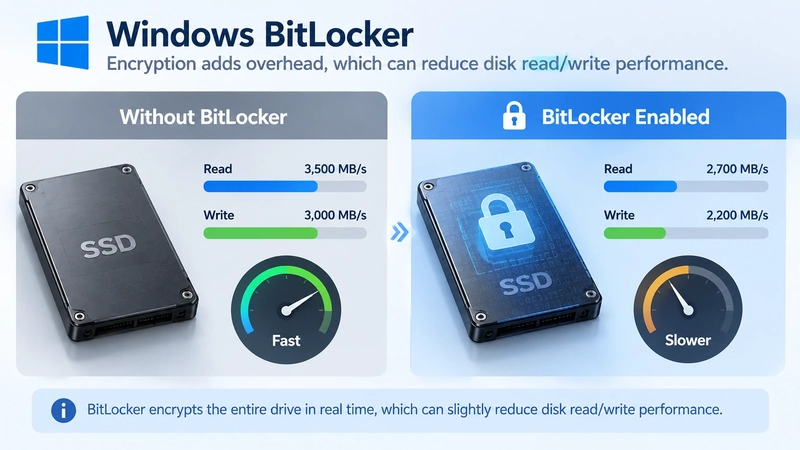
Yes, to some degree — full-disk encryption isn't free. Every read and write to an encrypted drive has to pass through an extra encryption or decryption step, and because BitLocker protects the entire volume, that overhead applies to all disk activity, not just your sensitive files.
In practice, how much you'll notice depends heavily on your hardware. Modern CPUs have AES-NI, a built-in instruction set that handles AES encryption directly in hardware, so on most current PCs with an SSD, the day-to-day slowdown is small enough that people rarely notice it. Older machines, spinning hard drives, and CPUs without AES-NI feel it more. The other cost worth knowing about is the initial encryption pass: turning BitLocker on for the first time means encrypting everything already on the drive, which can take anywhere from under an hour to most of a day depending on drive size and speed, and does use real CPU and disk I/O while it runs.
Who Should Use BitLocker (and Who Might Not Need It)?
Whether it's worth turning on comes down to one question: could this device end up out of your sight? A laptop that regularly leaves the building, a machine employees use for remote work, a computer that travels for business — these are all cases where the device could be lost or stolen, exactly the scenario BitLocker was built to handle.
On the other side, a desktop that stays locked in an office and never moves, or a test or demo machine that never holds sensitive files, gets little real benefit from BitLocker — the loss-or-theft scenario it protects against just isn't likely to happen. The overhead is also more noticeable on an older mechanical hard drive or a CPU without AES-NI, so if a device like that rarely leaves the office, it's worth weighing before deciding.
For a business, the more useful test isn't how new the hardware is — it's whether the device holds sensitive data and whether it ever leaves the office. Either one on its own is enough to put a device on the list for BitLocker; a device that meets neither can wait. Once there are more than a handful of machines, leaving the choice to each employee stops being practical — sorting them by this test once is a lot simpler than deciding case by case.
FAQs About BitLocker
Is BitLocker free with Windows?
Yes. BitLocker is included at no extra cost with Windows 10 and 11 Pro, Enterprise, and Education — there's no separate license or subscription to buy. Windows Home doesn't include full BitLocker, but many Home devices get the lighter, automatic Device Encryption instead.
Is BitLocker available on Windows 10 or 11 Home?
Not in its full form. Home edition is limited to Device Encryption, a simplified version that automatically encrypts the system drive on hardware that meets Microsoft's requirements, but without BitLocker's PIN options, USB startup key support, or granular management settings.
Do I need a TPM chip to use BitLocker?
Not strictly, but it's the recommended setup. Without a TPM, BitLocker can still encrypt a drive if you provide a USB startup key or a password each time the device boots, though this has to be allowed through group policy since it's off by default and considered less secure than TPM-based unlocking.
Can BitLocker be bypassed or hacked?
It's resistant to the threat it's designed for — someone removing the drive and reading it on another machine — but it isn't invincible. Attacks that target a device while it's running or in sleep mode, such as extracting keys from memory, have been demonstrated against systems without a startup PIN configured. Adding a PIN on top of the TPM significantly narrows that attack surface. For a recent real-world example, see our video on the Windows 0-day vulnerability "YellowKey" that bypasses BitLocker.
What happens if I lose my BitLocker recovery key?
If the normal unlock fails and you don't have the 48-digit recovery key saved anywhere, the data on that drive is permanently inaccessible — Microsoft has no way to override this. Check your Microsoft account, your organization's IT department, or wherever else you may have saved a copy before assuming the worst.
How do I check if BitLocker is turned on for my drive?
A drive with BitLocker running shows a small padlock icon in File Explorer. For an exact status, open an elevated Command Prompt and run manage-bde -status, or check Control Panel > System and Security > BitLocker Drive Encryption.
Does BitLocker protect against ransomware?
No, not directly. BitLocker protects data from someone who doesn't have valid Windows credentials — it does nothing to stop malware running inside an already logged-in session, which is exactly how ransomware typically operates. Ransomware protection requires endpoint security tools, not disk encryption.
Is BitLocker enough for compliance requirements like GDPR or HIPAA?
It can satisfy the encryption-at-rest checkbox many frameworks ask for, but most compliance requirements go further than that — they also expect visibility into which files hold sensitive data, who accessed or shared them, and evidence for an audit trail. BitLocker doesn't track any of that on its own, so most regulated businesses pair it with additional data-classification or monitoring tools rather than relying on it alone.
Conclusion
BitLocker does one job, and does it well: it keeps everything on a drive unreadable when the device is lost, stolen, or pulled apart. It works quietly through the TPM, costs nothing on Windows Pro, Enterprise, and Education, and adds little overhead on modern hardware. If your team uses laptops, turning it on — and saving the recovery key somewhere other than the drive itself — is one of the simplest protections you can add.
What it doesn't do is follow your data once someone is logged in. For files that leave the device by USB, email, or cloud upload, you need protection that works at the file level, alongside BitLocker rather than instead of it — which is where AnySecura's transparent encryption fits in, encrypting sensitive files automatically wherever they go. Understanding what is BitLocker protecting, and what it isn't, is what lets you choose the right combination for your business.